Access Host Controls, chat, audio and mic settings, screen share, reactions, AI controls, layout options, and more from your meeting's bottom controls bar.
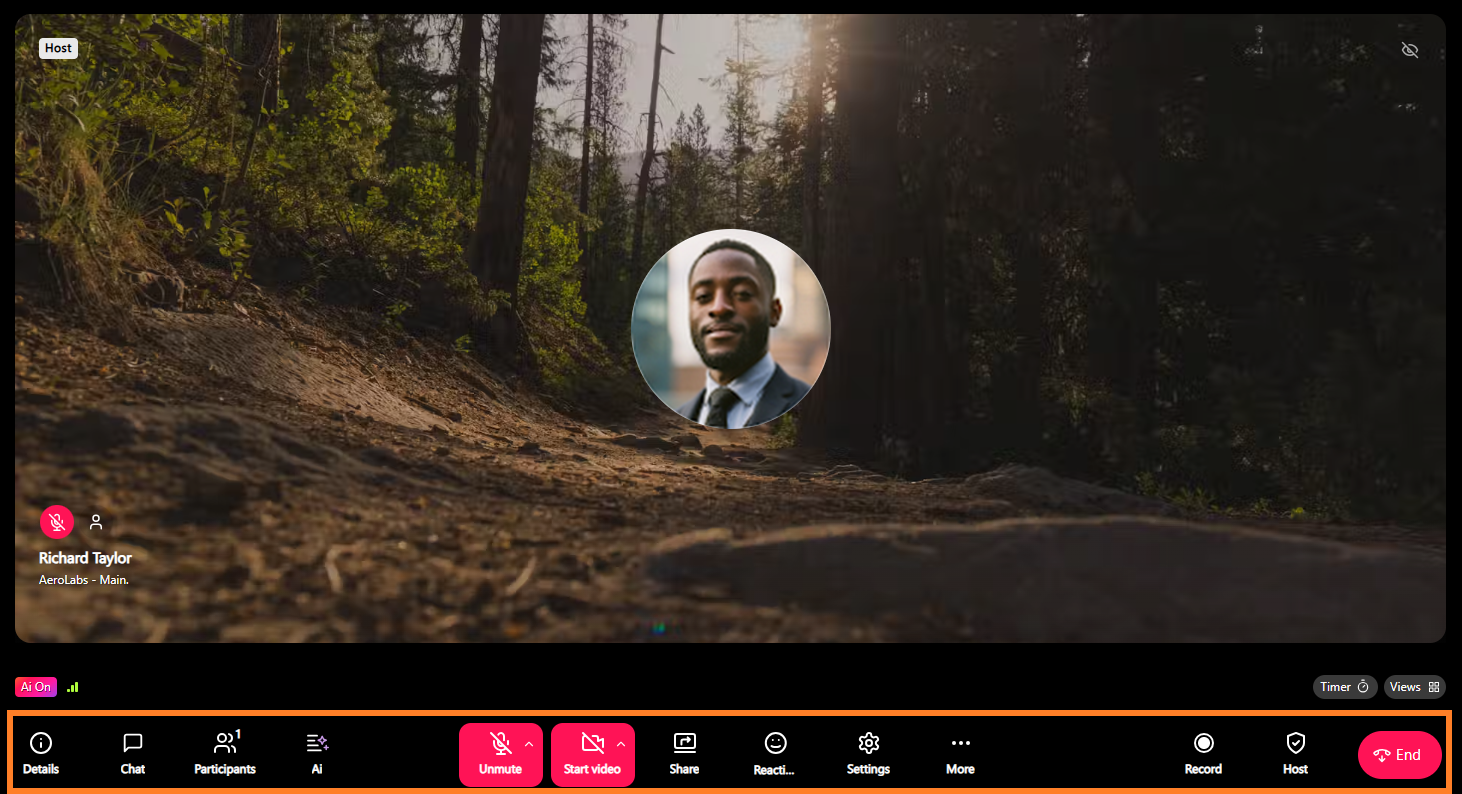
Let's take a look at Dialpad Meeting's basic controls, accessible from the bottom bar.
Video feeds
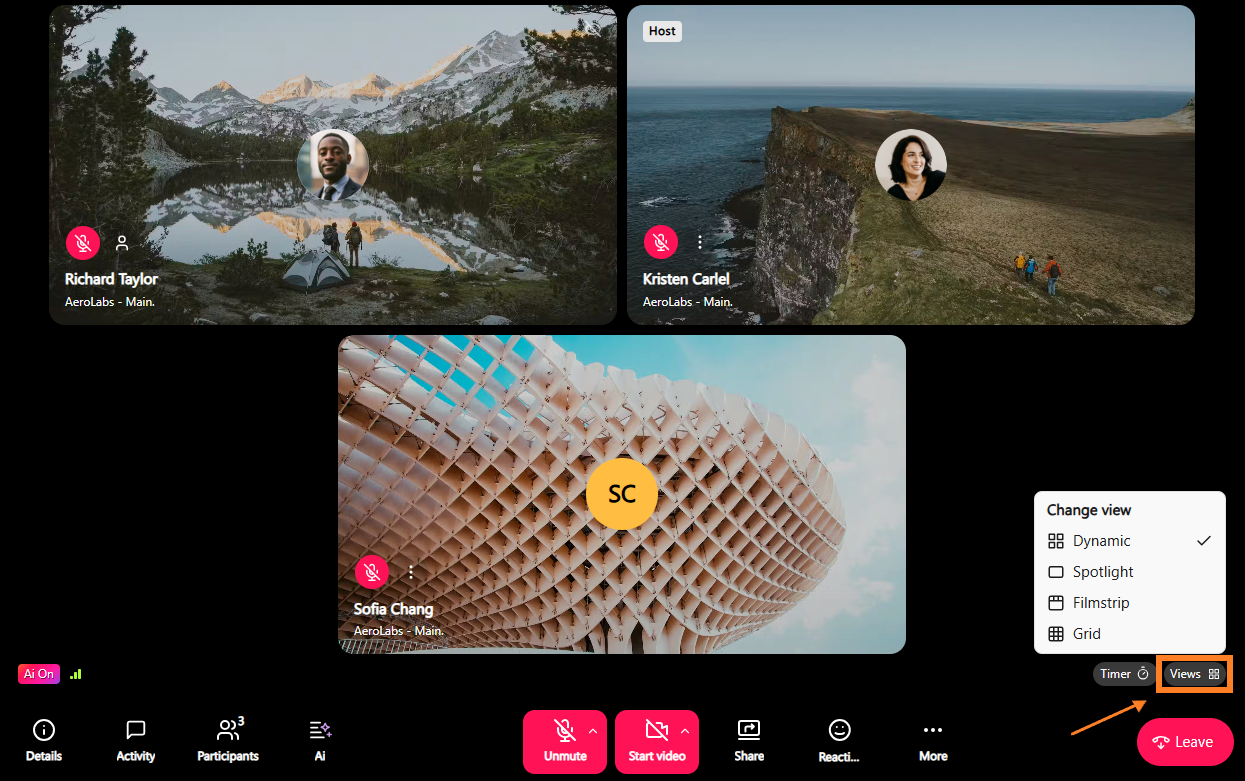
The video feed shows participants in your meeting, fostering a more personal and engaging connection.
When participants join with their cameras on, their video will appear on the screen. If their cameras are off, their initials or avatar will be shown instead.
Tip
You can change your video layout by selecting Views.
Meeting info
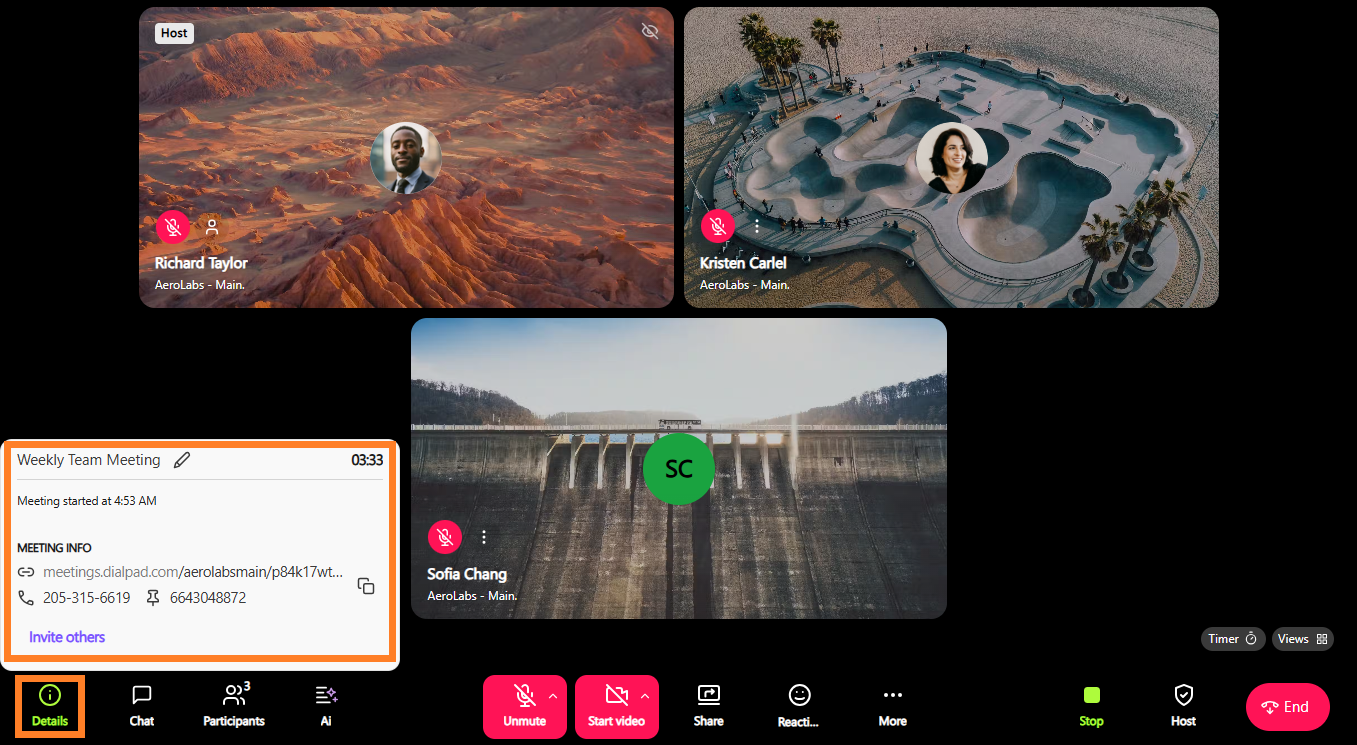
The Details section provides more information about the meeting. Here, you'll see the meeting name, duration, Meeting URL, and dial-in number. To invite others, select Invite Others and enter their name, phone number, or email address.
Meeting chat
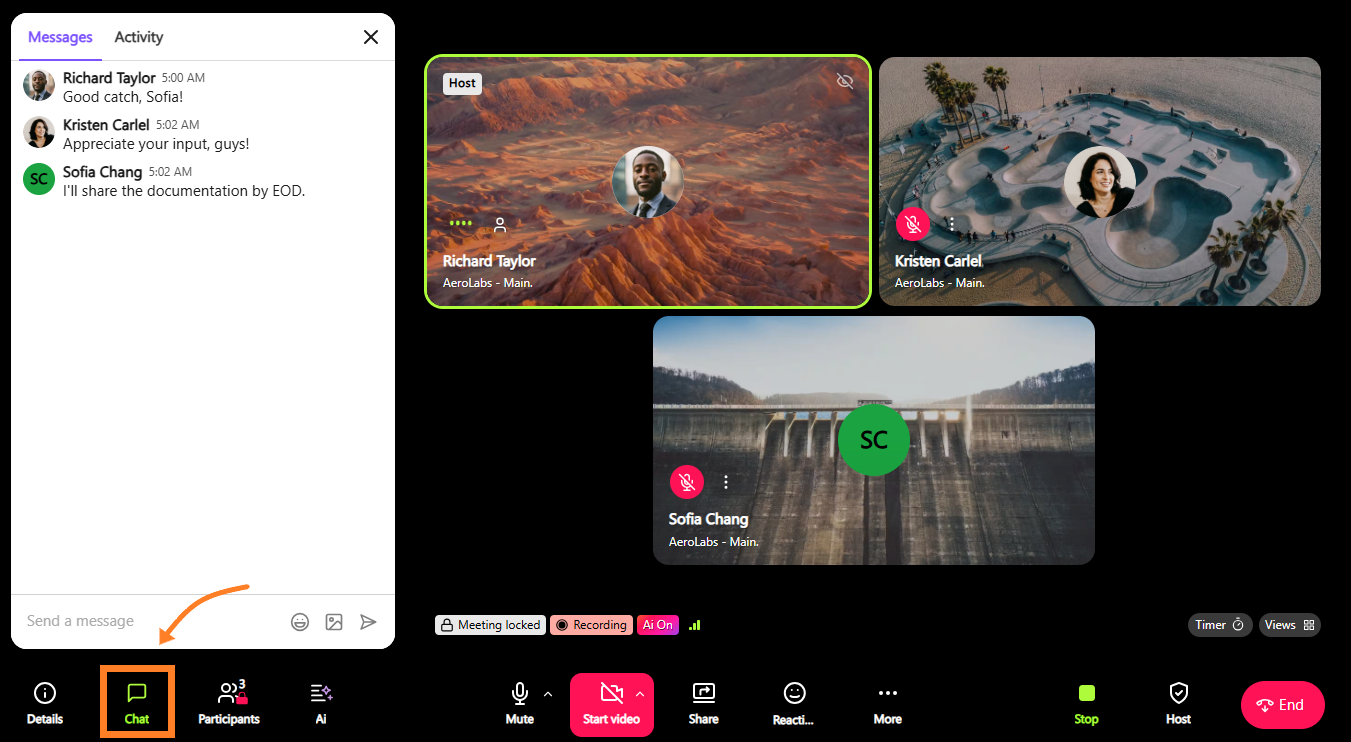
Participants can send messages, share links, and post files directly in the chat, making it easy to reference important information.
To view and send messages (or images) to all meeting participants, select Chat.
Group chat
During a meeting, you can message meeting participants privately within the same meeting chat.
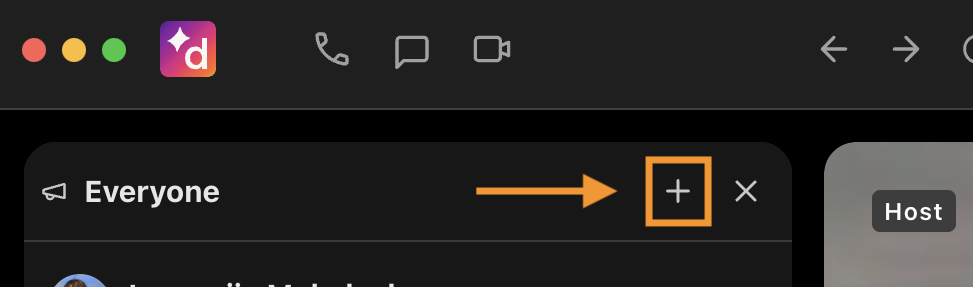
Select the + icon to open a new private group chat within the regular meeting chat.
Type in the meeting participants and start messaging!
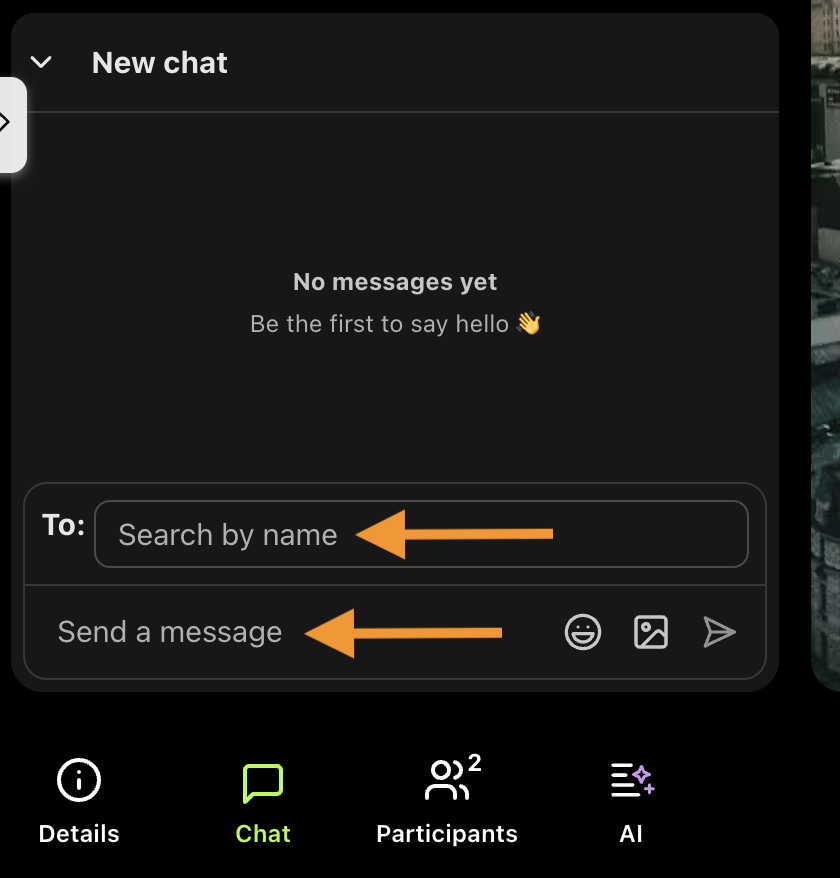
If you are having a meeting with participants from within and outside your organization, you can start a private chat within the meeting with participants from your organization.
Participants
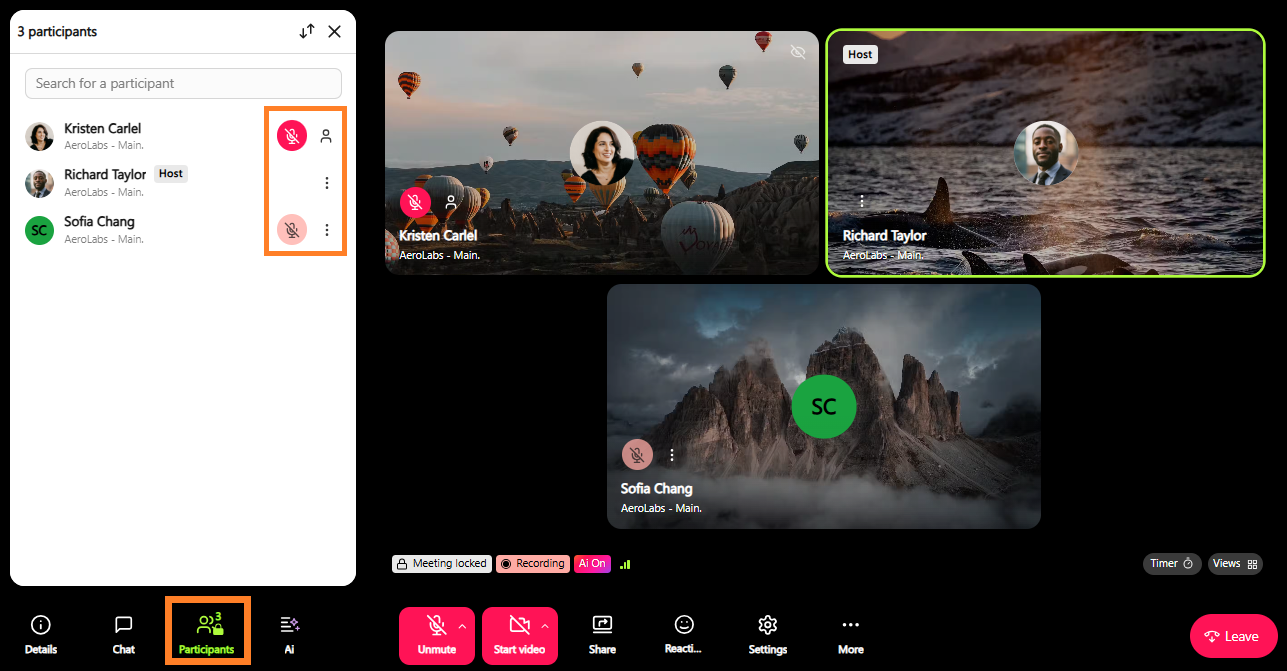
You can go to the Participants section to see who's in the meeting. Here, you can search for user profiles and remove or mute participants (if you're the organizer or Co-host).
Tip
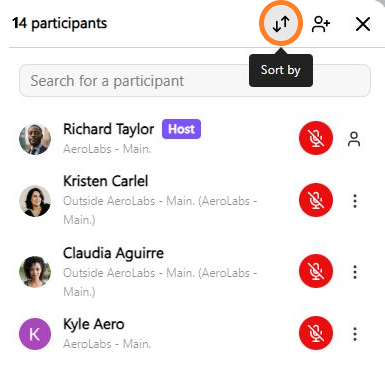
You can quickly find an attendee by sorting the participant list alphabetically using the Sort by button.
Audio controls
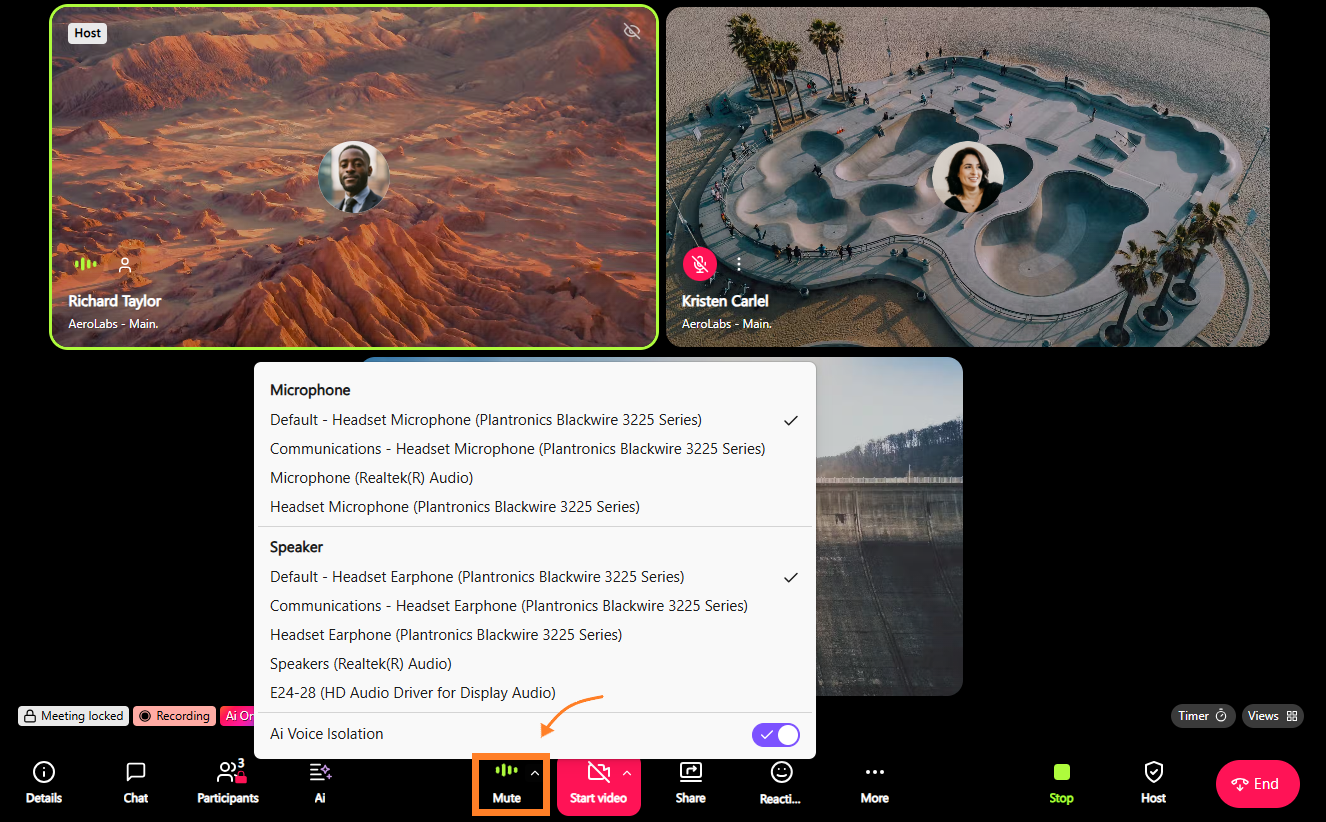
You can quickly turn your microphone on or off by selecting the Mute button.
Select the up-arrow to access your audio controls.
Tip
You can also access your mic and camera settings by going to the More button and selecting Hardware Settings.
Video controls
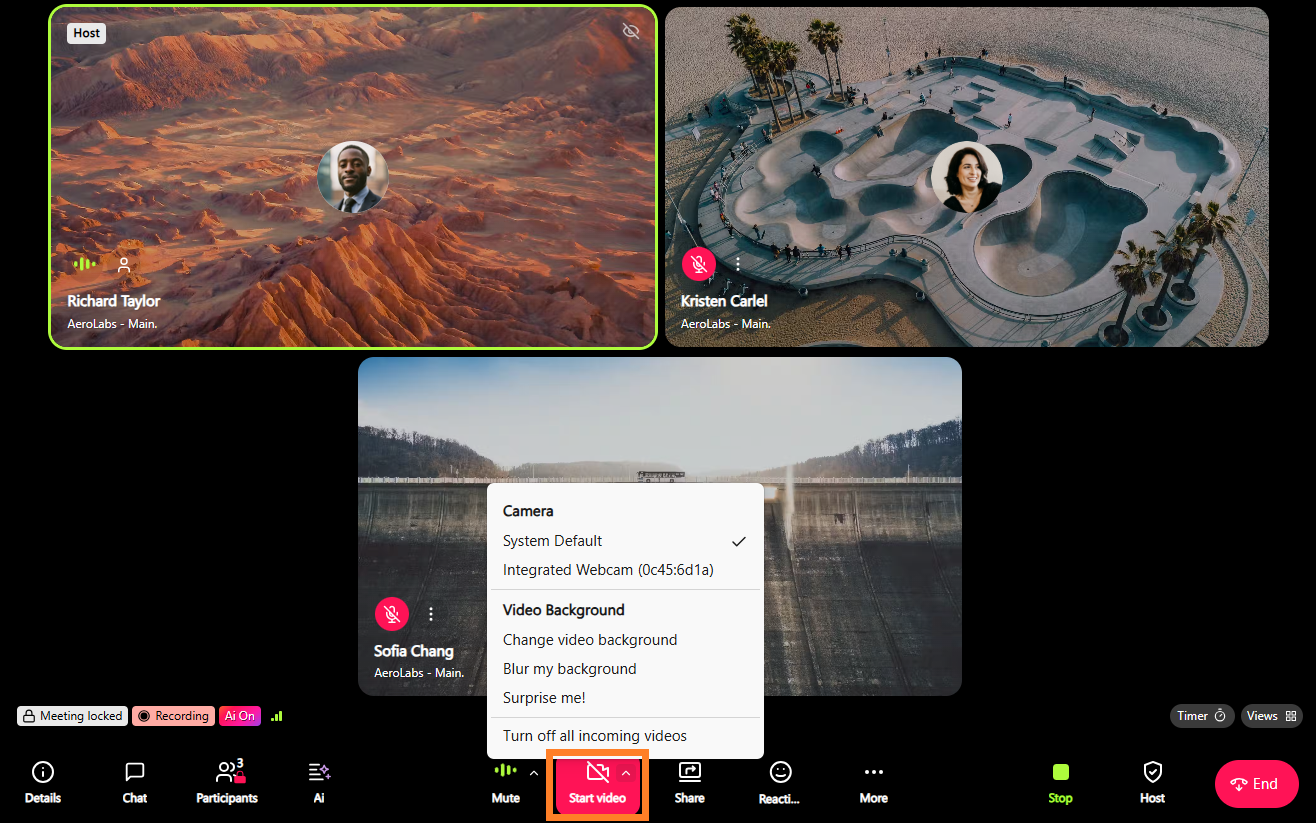
Select the camcorder icon to turn your camera on or off quickly.
Select the up-arrow to blur or change your background, use a virtual background, turn off all incoming videos or turn off a background completely.
Tip
You can also access your mic and camera settings by going to the More button and selecting Hardware Settings.
End a meeting
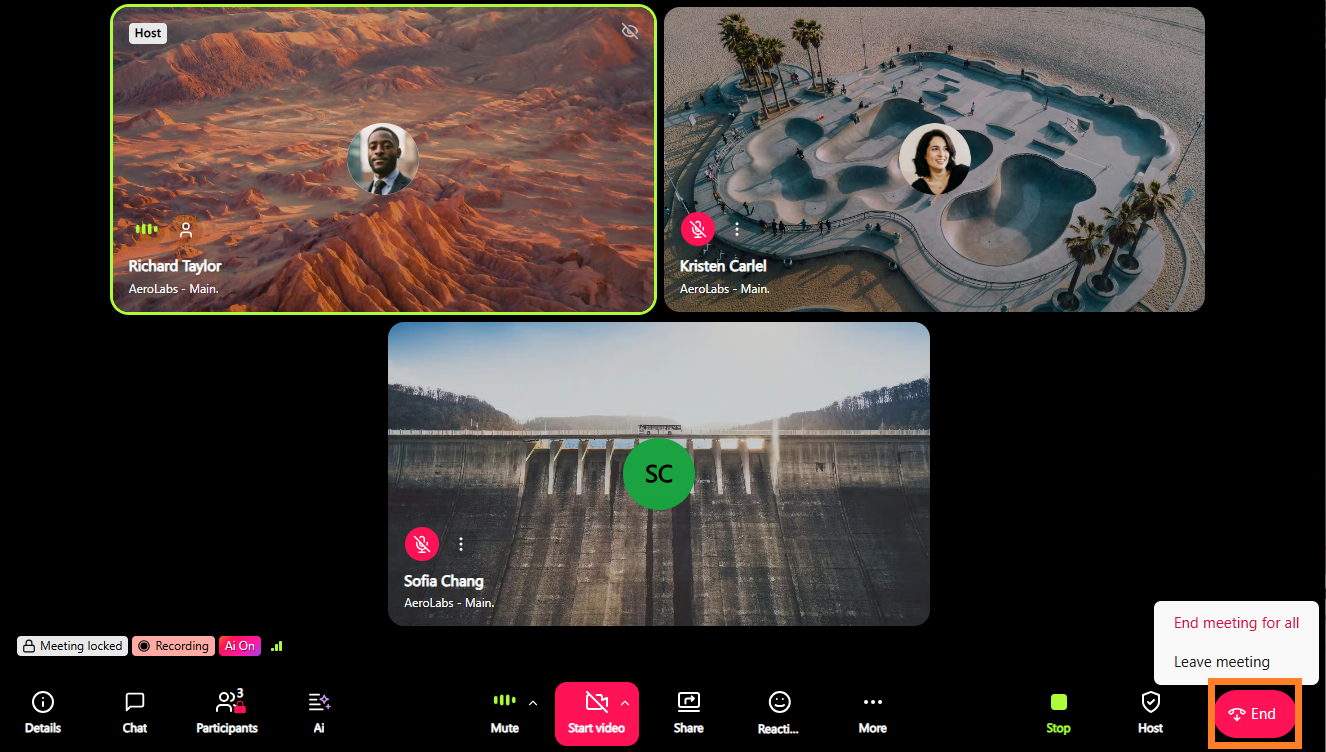
Exit the meeting by selecting the red phone icon.
If you're the organizer, you can end the meeting for everyone when you leave, or you can exit and let the meeting continue.
Share your screen
Share your screen with all meeting participants — choose between sharing your entire screen, a window or just a single tab.
To start sharing your screen:
Select Share Screen
.png)
Select the screen you want to present
Browser tab
Window
Entire Screen
Select Share
.png)
You can learn more about screen sharing in this Help Center article.
Slide control
When you're sharing a presentation or document in Dialpad Meetings, you can hand slide control to another presenter without stopping your screen share.
You can also scroll and navigate through shared content directly during the presentation.
This is helpful when you want to:
Switch between speakers during a single presentation.
Let teammates present their sections independently.
Maintain a smooth flow without interruptions.
Guide participants through detailed content step by step.
Review detailed content more closely without affecting what other participants see
Note
Magnification only affects your own view. Shared-content navigation works only in the Dialpad desktop app and not in the browser.
Emoji reactions
Give feedback to the other meeting participants via real-time emoji reactions.
Hover over Reactions to access your top 4 most-used emojis, or select + to access the emoji library.
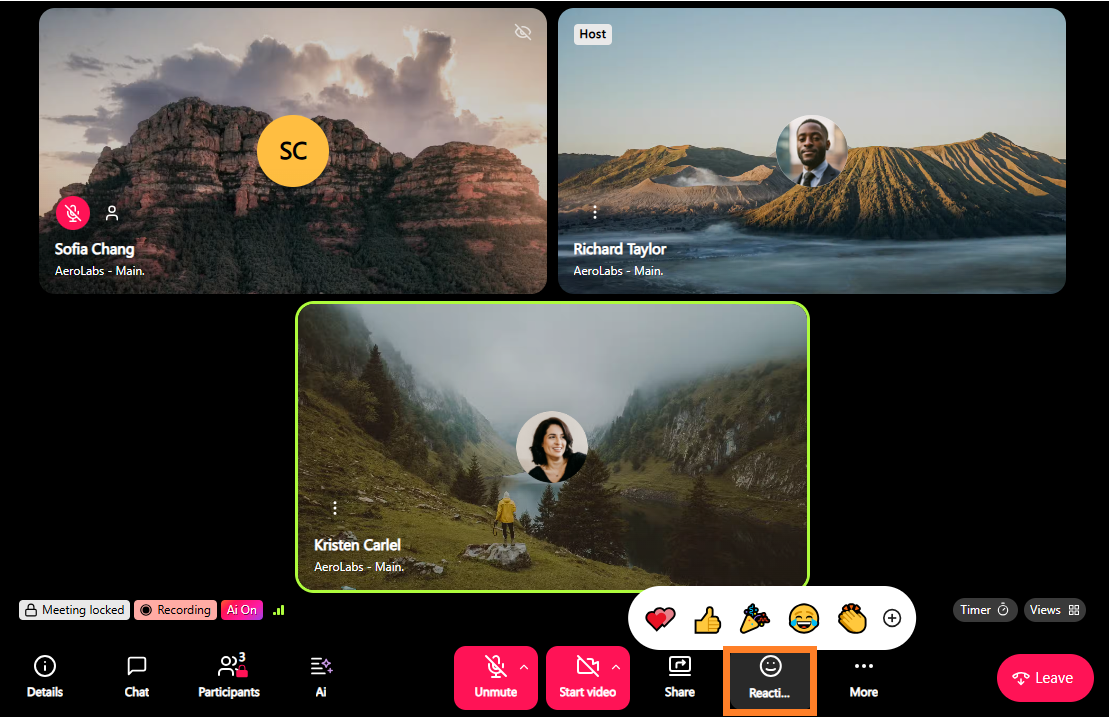
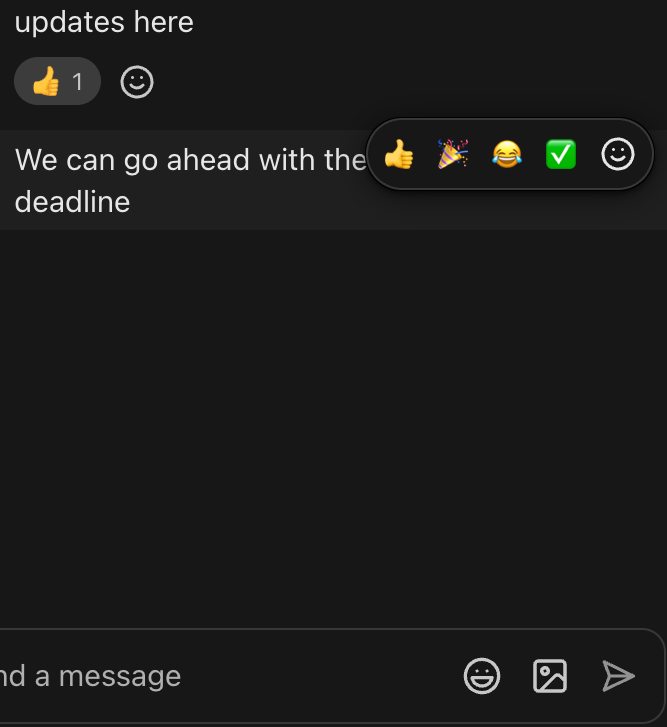
You can also add emoji reactions to messages in the meeting chat! Hover over the message to access your top 4 most-used emojis, or select the emoji icon to access the emoji library.
Raise Hand
During a meeting or presentation, you may have a question or a clarifying remark to share, but can’t find the opportunity to speak. Use the Raise Hand option to let meeting participants know you have something to say. This is helpful when you want to:
Avoid people talking over each other.
Create a more inclusive discussion.
Give quieter participants a clear way to contribute.
Keep larger meetings organized.
Help hosts and moderators manage speaking turns.
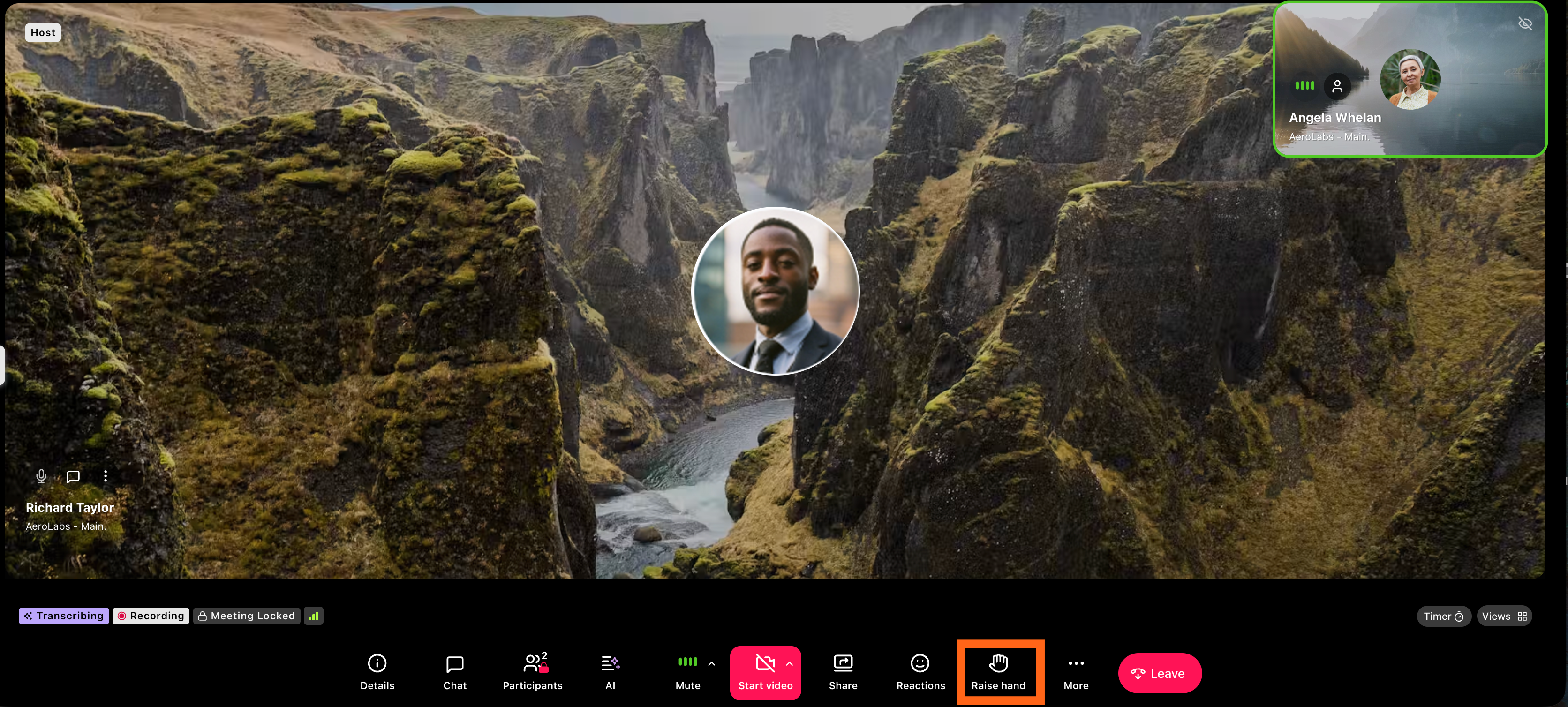
To raise a hand during a meeting, select the Raise Hand icon in the Meetings Control bar. This adds you to the queue of those who raise their hand.
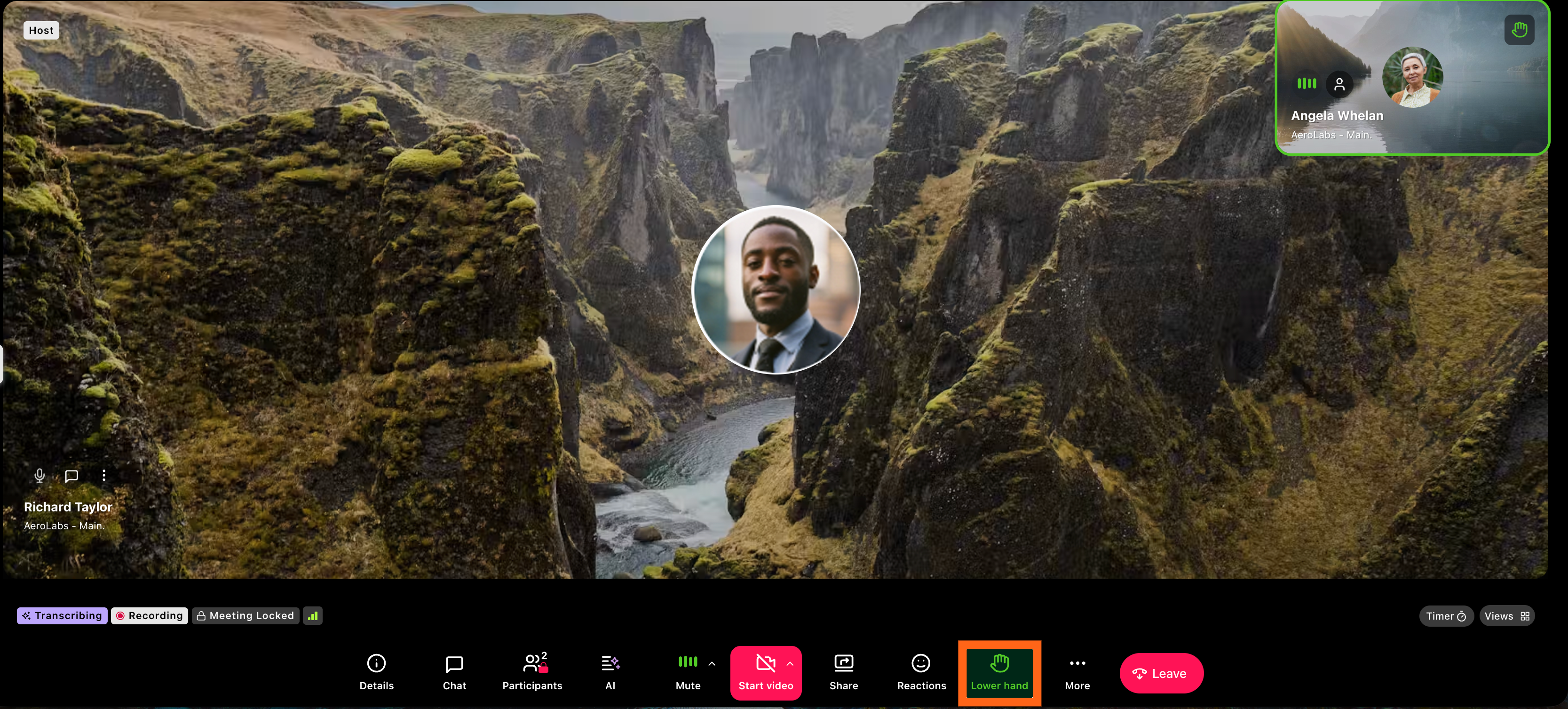
To lower a hand, select the Lower Hand icon. This removes you from the queue of people raising their hands.
For meeting hosts, you can see who has raised their hand and when to make sure everyone is heard and gets a turn to speak.
Host controls
Host controls are only available to the organizer and let them manage the meeting with options such as recording, activating Dialpad AI, muting or moderating participants, locking the meeting, and more.
To access the host menu, select Host Controls.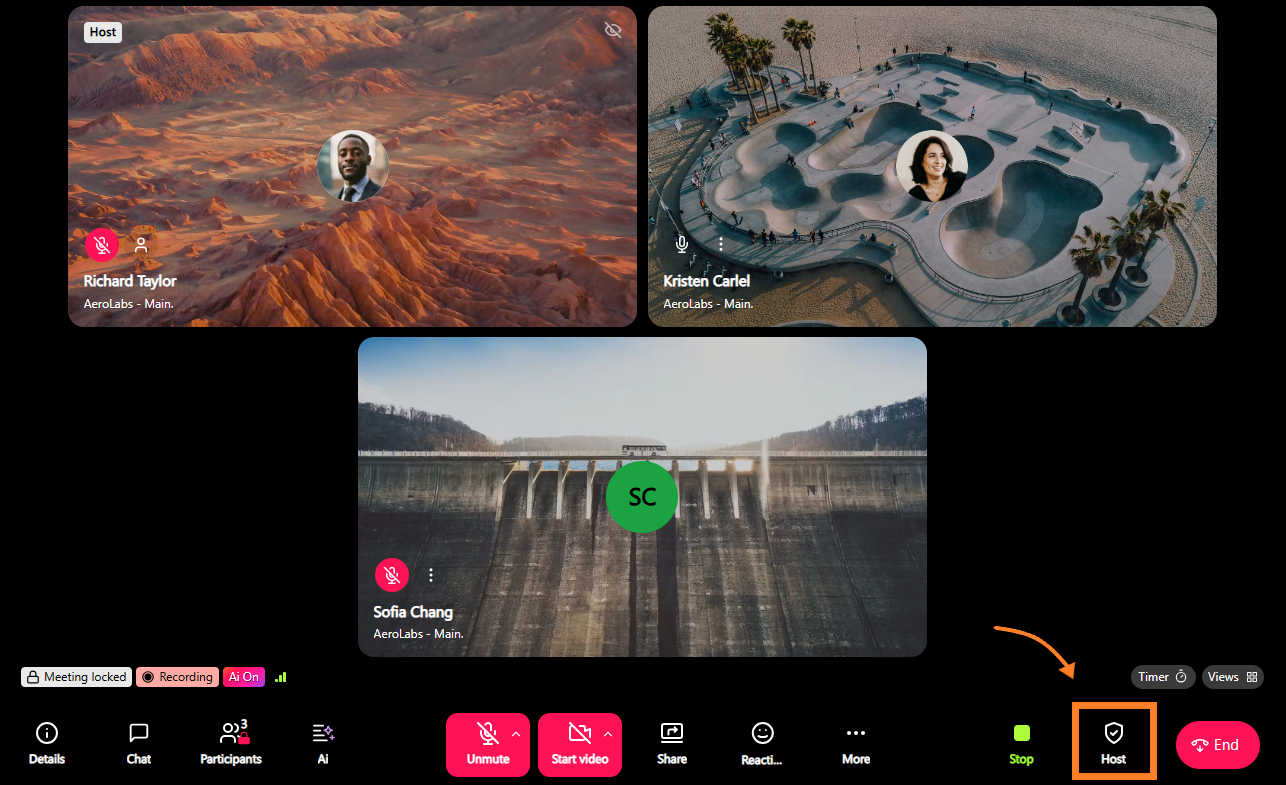
Tip
You can allow your co-hosts to access your Host Controls by enabling Allow co-hosts with access to organizer controls in your Dialpad Meetings Settings.
.png)
AI controls
Dialpad AI takes notes and captures key moments so that you can stay focused on your meeting.
To turn Dialpad AI on or off, select Host Controls, and select Turn off/on Ai.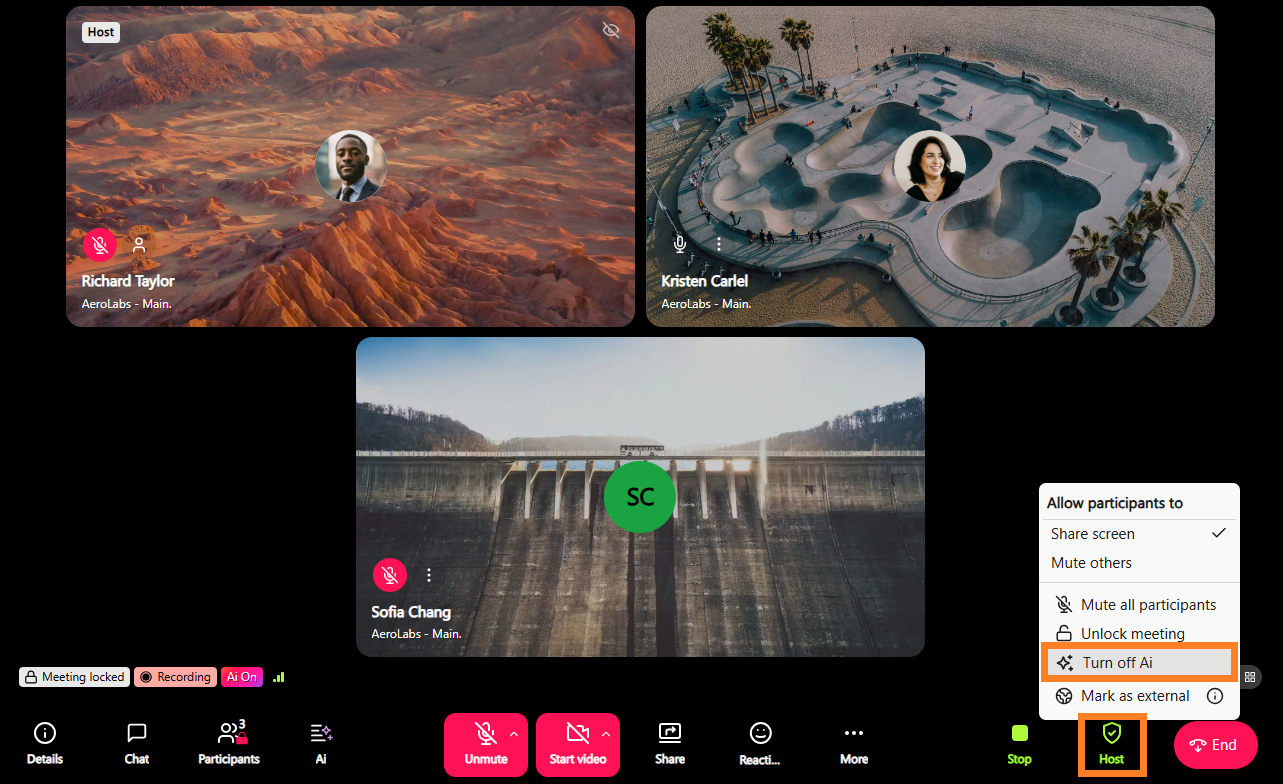
When enabled, watch the live meeting transcript appear in real time!.png)
Picture-in-Picture
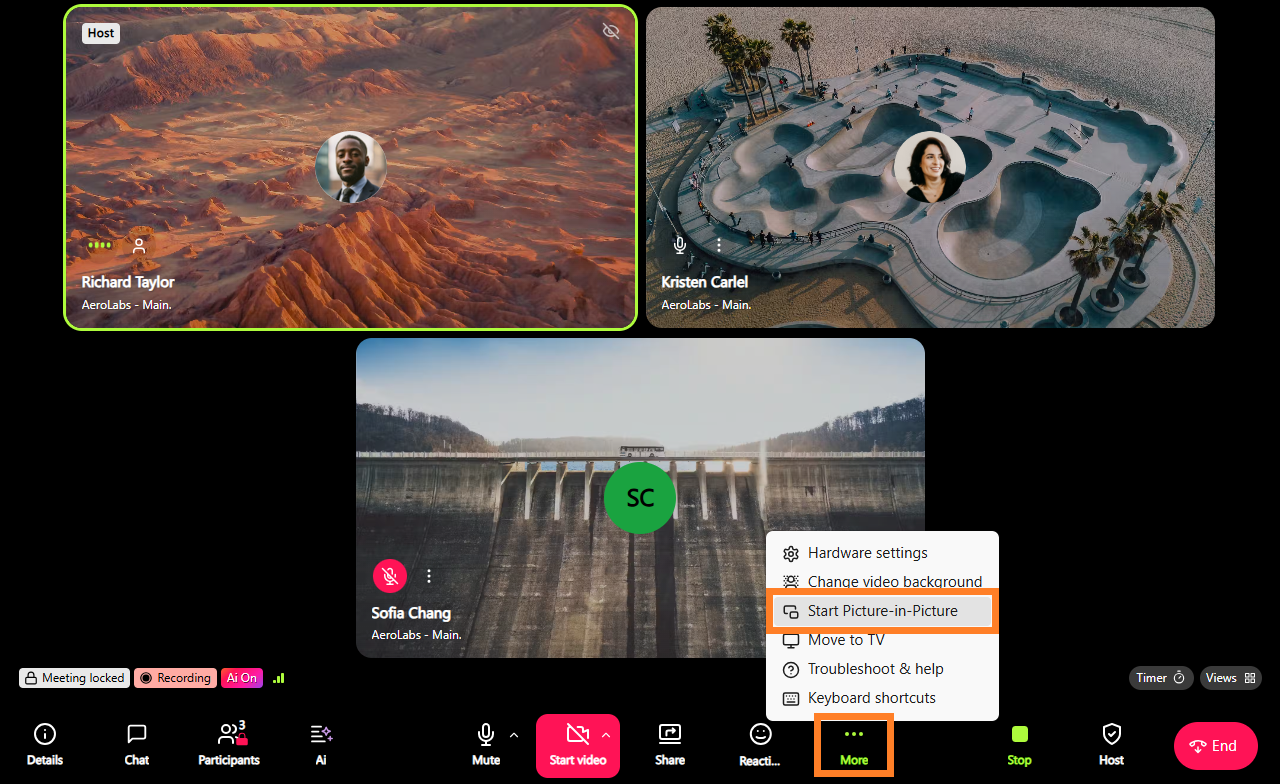
Enable Picture-in-Picture to bring the video feed out of the window so you can view the meeting feed while using other windows.
To enable Picture-in-Picture, go to More and select Start Picture-in-Picture.
Troubleshoot & help
Quick access to the Dialpad Help Center for quick answers to your questions.
To access the Dialpad Help Center from your meeting, go to More and select Troubleshoot & help. 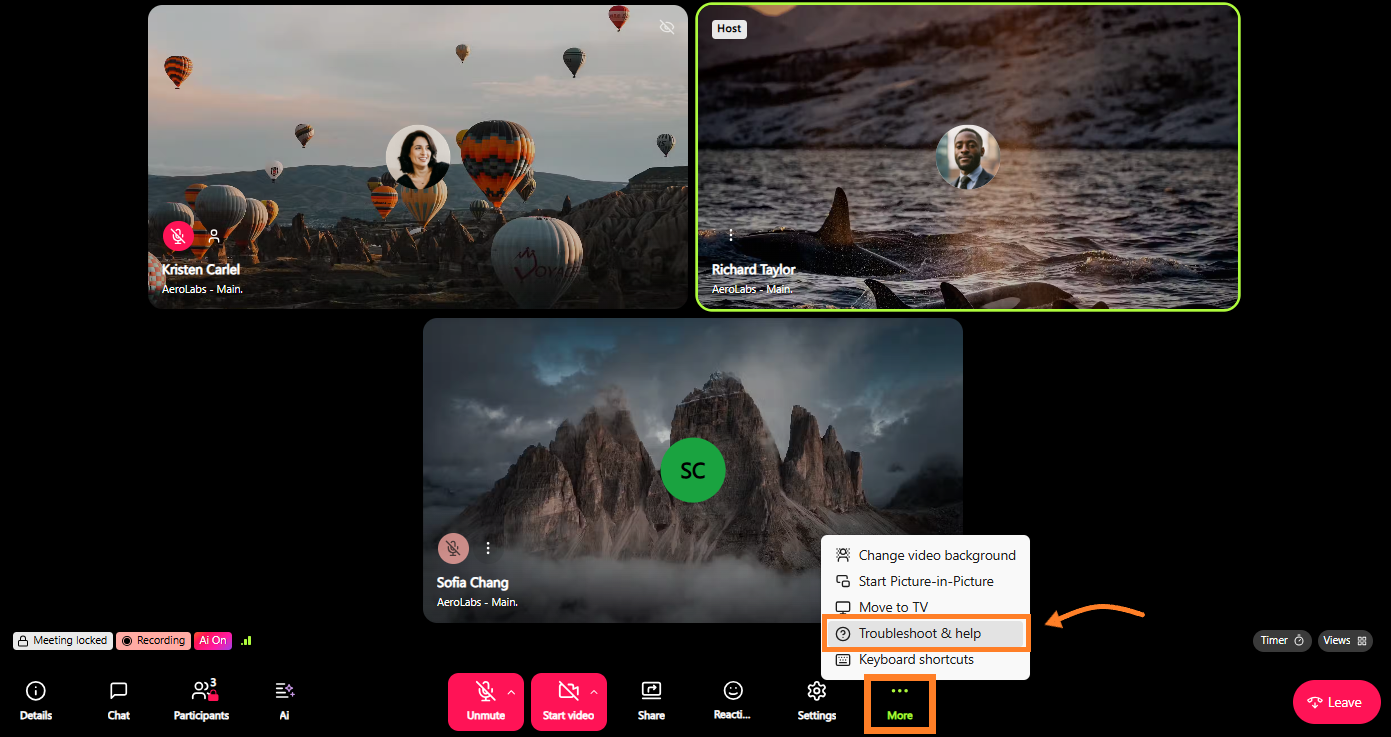
Move to TV
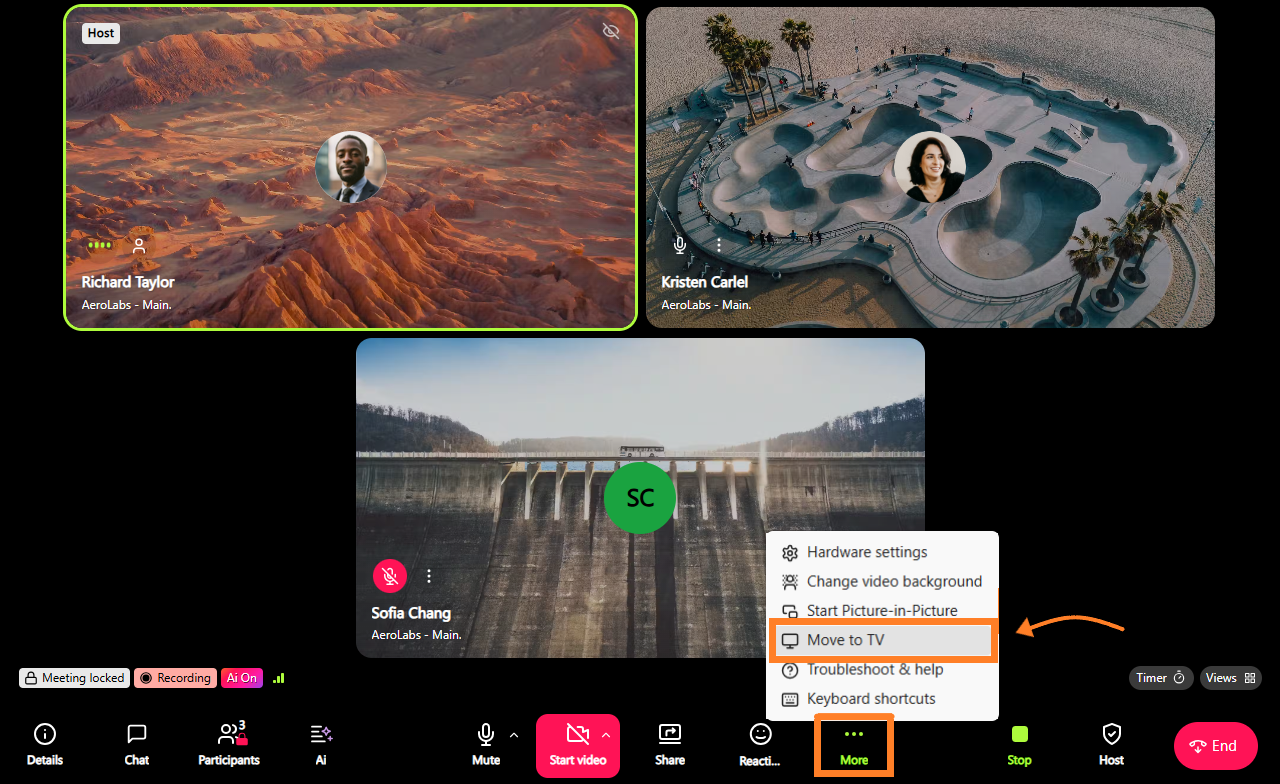
Wirelessly switch your screen share to a TV using the Move to TV feature.
To access Move to TV, go to More and select Move to TV.
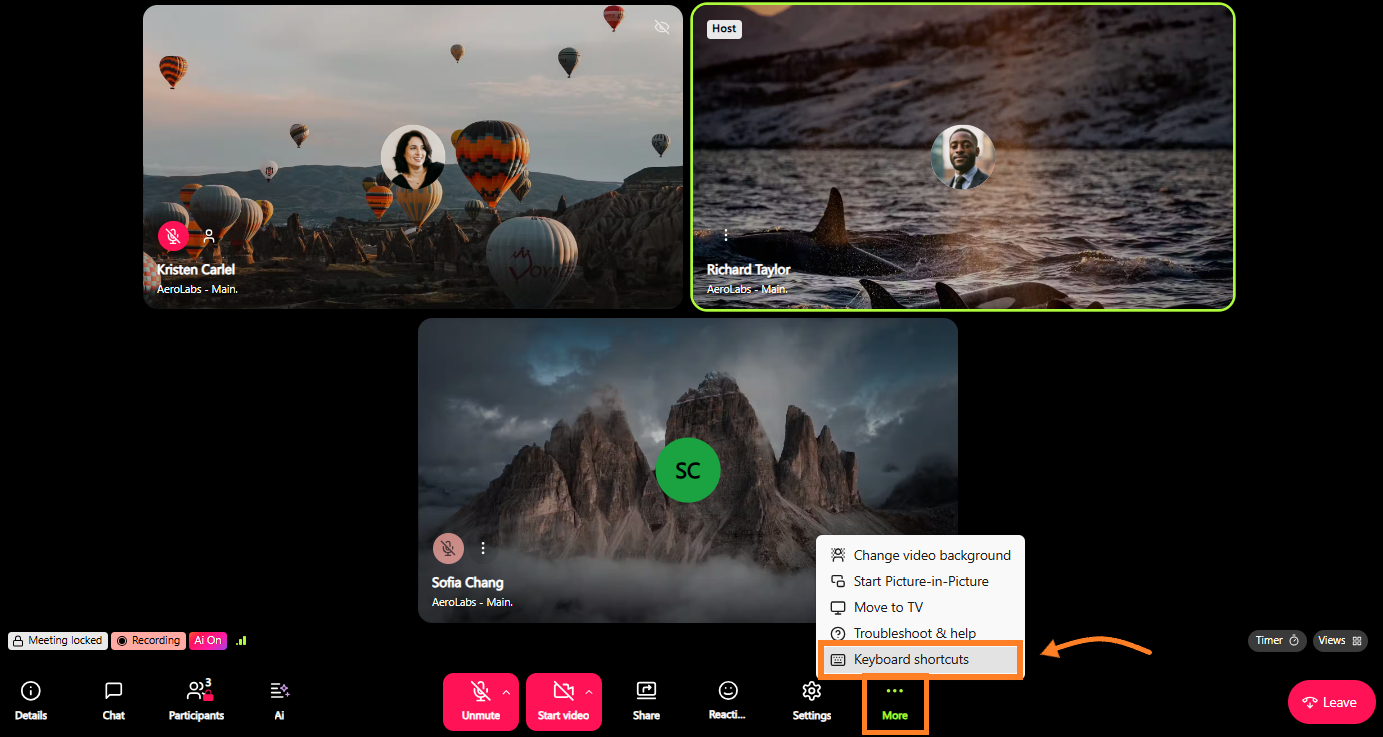
Keyboard shortcuts
You can take efficient control of your meeting using our Keyboard Shortcuts.
To access the available keyboard shortcuts for Dialpad Meetings, go to More and select Keyboard shortcuts.
Access Dialpad Meetings Integrations
If you have enabled integrations for Dialpad Meetings, select More to access your integrations quickly.
You can learn more about Dialpad Meetings Integrations in this Help Center article.