Dialpad Meetings lets participants share browser tabs, windows, or entire screens, including audio, multiple screens, and annotations. Users can stop sharing anytime; macOS requires permissions. Mobile users can view but not start shares, and screen shares are encrypted and not retained.
Want to make your meetings more collaborative and ensure comprehension from all participants?
Dialpad Meetings allows you to share your screen with all meeting Participants, either your entire screen or just a single tab.
Let's take a look at how to share your screen in Dialpad Meetings.
Who can use this
Screen sharing is available to all Dialpad Meetings Users. Participants in meetings where screen sharing is enabled can use advanced screen sharing features.
Permissions on macOS
macOS may require additional permissions before you can share your screen or computer audio. Before sharing, make sure Dialpad and your browser have permission for:
- Screen Recording.
- Microphone access.
- System audio sharing, if prompted.
You can review and update these permissions in System Settings > Privacy & Security.
If permissions are denied, screen sharing or audio sharing may not work correctly until access is granted.
Start a screen share
During a screen share, Dialpad Meetings supports up to 30 FPS for a smooth video and motion-sharing experience.
For static content such as documents, slides, spreadsheets, or text-heavy screens, image clarity and readability are prioritized.
To share your screen during a meeting:
Select the Share Screen icon from your call bar
-
Select what screen you'd like to share
- Browser tab
- Window
- Entire Screen
-
Select Share
While screen sharing, you'll see an alert in the top-left indicating your screen-share is active.
Tip
If you're using multiple monitors, you'll need to also select the screen to share by scrolling down in the screen-share option.
Stop sharing your screen
There are two ways to stop sharing your screen:
Select the Stop Sharing from the bottom bar.
Select Stop Sharing from the screen share indicator at the top of the screen.
Share multiple screens
Multiple simultaneous shares allow teams to compare content without stopping one presentation to start another.
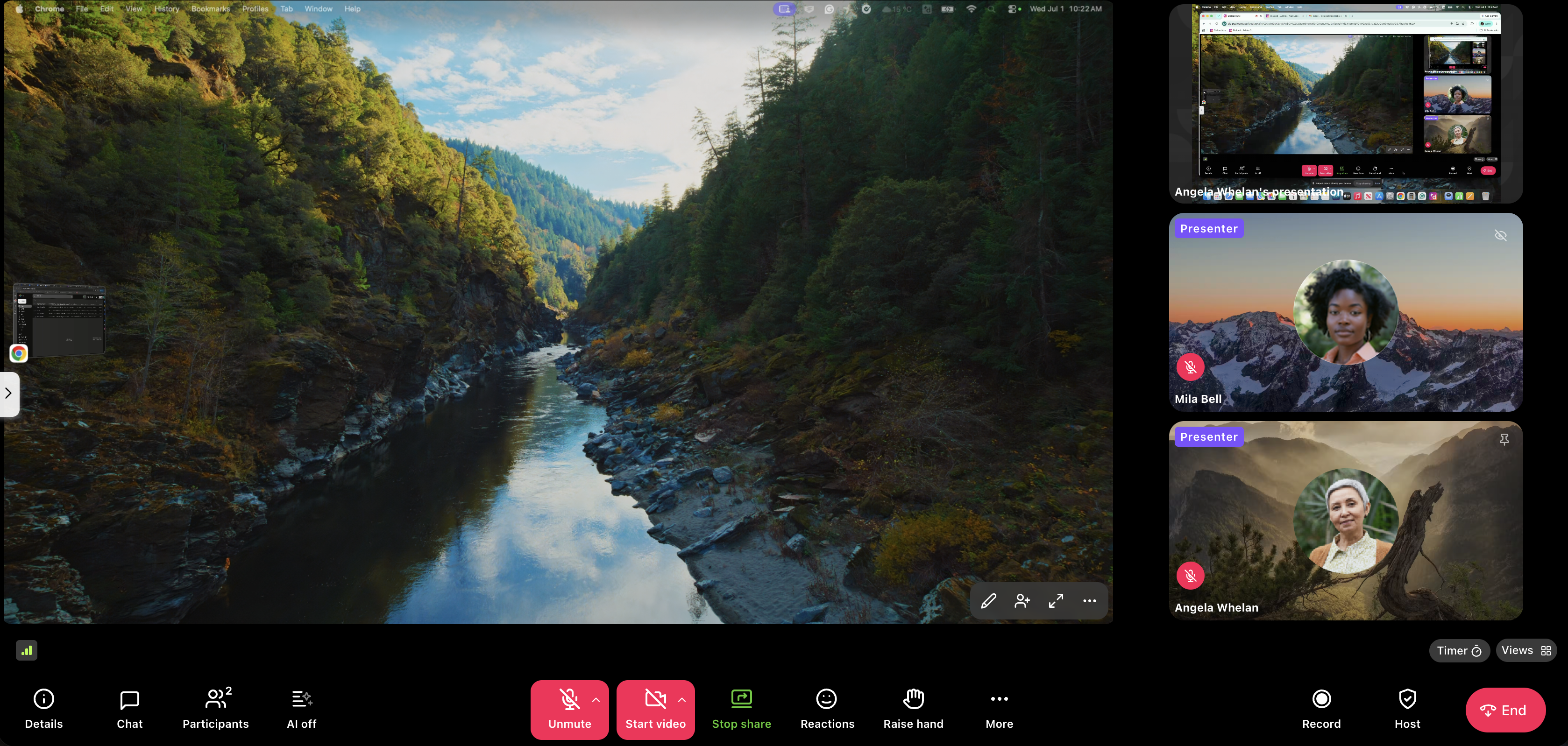
This is useful for:
Before-and-after comparisons.
Reviewing multiple documents or dashboards.
Comparing designs with implementation.
Collaborative debugging and technical discussions.
To share multiple screens:
One participant selects the Share Screen icon in the call bar
-
Once they’ve started sharing their screen, other participants can select the Share Screen icon
All additional shared screens are displayed in the participant's grid.
To switch to another participant's shared screen:
Note: This action must be done by the participant who wants to present their screen.
Select the Resume icon
-
Select Resume presenting
The main window in the meeting switches to the other participant’s shared screen.
Shared screen annotations
Annotations help presenters and collaborators call attention to exactly what matters in real time. You can use annotations to:
Highlight areas on the screen.
Circle or mark key content.
Guide discussions visually.
Reduce confusion during reviews.
Presenters have access to:
A red dot pointer to guide attention.
A vanishing pen for temporary markings.
Participants can use the vanishing pen to add temporary annotations when the presenter enables it.
To add an annotation when sharing a screen:
-
Select the Annotation icon
-
Point to or highlight the areas on the screen you want participants to notice
Select the Annotation icon again to stop annotating
Share audio during screen share
Dialpad lets you share system audio with your audience so you can play audio from your videos while presenting.
To share audio during a screen share:
Select the Share your screen icon
Beside Also share tab audio, toggle the slider on or off
When sharing a browser window or tab, audio will stream with the screen you're sharing.
Notes
If you're sharing your entire screen, system audio will only stream with the screen share if you use a Windows device.
If you're on a Mac OS, system audio can only be shared via the browser tab.
Advanced screen sharing also supports audio-only sharing when sound is the focus and visuals are not necessary.
This is useful for:
Media playback.
Demo audio.
Music or sound reviews.
Voice recordings or examples.
Note
When sharing audio from a browser, make sure to enable the audio-sharing option in the share picker before starting your share. Depending on your browser, this may appear as Share tab audio, Also share system audio, or Share audio.
Screen share troubleshooting
Let's go over a few common screen sharing issues.
System audio is not streaming
This could be a case of which operating system you are using.
If you're using a macOS, shared system audio can only be streamed if you share a browser tab.
If you're using a Windows OS, you're able to stream your system audio from a full-screen share, or from a browser share.
If participants still can't hear shared audio:
Confirm audio sharing was enabled in the browser share picker.
Verify your browser has the required permissions.
Check that macOS Screen Recording and audio permissions are enabled.
Try restarting your browser after updating permissions.
Limited connection screenshare
If a user is connected to the Internet and encounters a blocked WebRTC or firewall port, they will not initially be able to view screenshares.
Dialpad will provide a fallback screenshare option — all they need to do is select View Screen from the pop-up message.
Tip
This feature must be enabled by Dialpad. Please contact Customer Care to activate HTTPS screenshare.
Frequently asked questions
Can I still access meeting controls while sharing my screen?
Yes, you can return to the active meeting and access meeting controls as usual.
Who can end a screen share?
Organizers can end all screen shares.
Participants can only end screen shares they started.
Is a Dialpad Meetings account required?
No, all participants can share their screens.
Which web browsers can I use for this feature?
Read this Help Center article to learn which web browsers are supported by Dialpad Meetings.
Can I use screen share on my mobile device?
No. Both the iOS and the Android apps do not allow you to start a screen share, but you're able to view someone else's screen share from your mobile device.
Is the screen share stored?
Screen shares are encrypted both in transit and at rest from the time you start it until it ends. None of the information you display is accessible to anyone other than the Organizer and Participants viewing the screen share through a conference URL.
Dialpad Meetings does not retain a screen share and its data after the screen share ends.
I upgraded to macOS Catalina or later — why isn't screen share working?
You'll need to go into your computer's security and privacy settings and grant Google Chrome access to Screen Recording in order to use Dialpad Meetings' screen share feature.
What annotation tools are available?
Presenters have access to a red pointer and a vanishing pen. Participants can use the vanishing pen for temporary annotations when enabled.
Can multiple participants annotate at the same time?
Yes. When annotation access is enabled, multiple participants can use the vanishing pen simultaneously.
How many screens can be shared at the same time?
You can share multiple screens simultaneously, depending on how many participants are actively sharing during the meeting.
Will sharing multiple screens affect meeting performance?
Sharing multiple screens may use more system and network resources. For the best experience, close unnecessary applications and make sure you have a stable internet connection.
When should I use audio-only sharing?
Use audio-only sharing any time sound is the focus and visuals are not necessary.