Dialpad SMS channel enables your business to notify and respond to customer requests through standard SMS messages. Agents will receive live SMS messages in their Digital Contact Center and can respond without leaving the Dialpad app.
Customers can receive automated responses and answers to questions, and interact with agents for help at any time. The SMS channel supports text, emoji, links, and images.
Let’s dive into the details.
Who can use this
SMS channels are available to Dialpad Connect, Dialpad Support, and Dialpad Sell users with a Digital Engagement License.
Before you begin
Any digital channel you create in the Dialpad Admin Portal will automatically perform the routing to the defined Digital Contact Center once the channel is configured. You can modify the experience of how routing happens and how the conversation is handled before and after routing using the Options and Advanced tabs for SMS channels.
Here are some basic setup examples you can do with your channels:
You can navigate to the Options tab to configure which messages are sent before routing happens or to request contact information before transferring to an agent.
You can configure custom routing logic using the "Before agent connection" event in the Advanced tab.
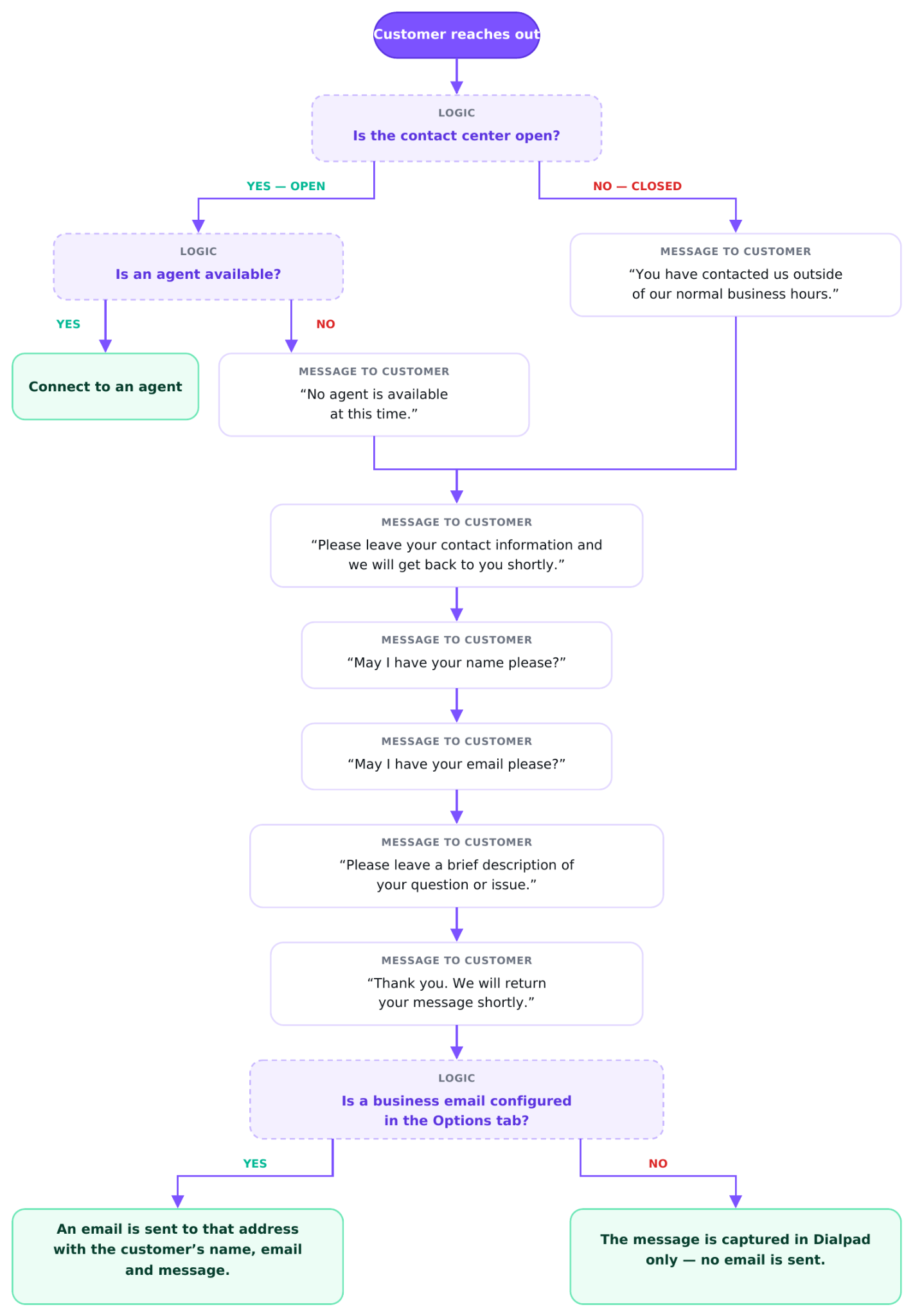
SMS handles the default logic automatically for business hours and agent availability before routing to agents. You can override this logic by using the “Out of business hours” event in the Advanced tab (using an available digital workflow template), if needed. View more about default logic here.
Create an SMS channel
Create an SMS channel to start receiving interactions via SMS messages.
To create an SMS channel, go to your Dialpad Admin Settings.
Select Channels and Workflows > Digital Channels
Select Add Digital Channel
Select SMS as the channel type
Name your channel
Define the Launch Experience
Note
If you choose the Default Experience, a new Launch Experience is created automatically and named after the channel name once it’s saved. Use the Options and Advanced tabs to customize automation for key conversation moments set to the defined Launch Experience.
Select the Digital Contact Center where the channel will be used
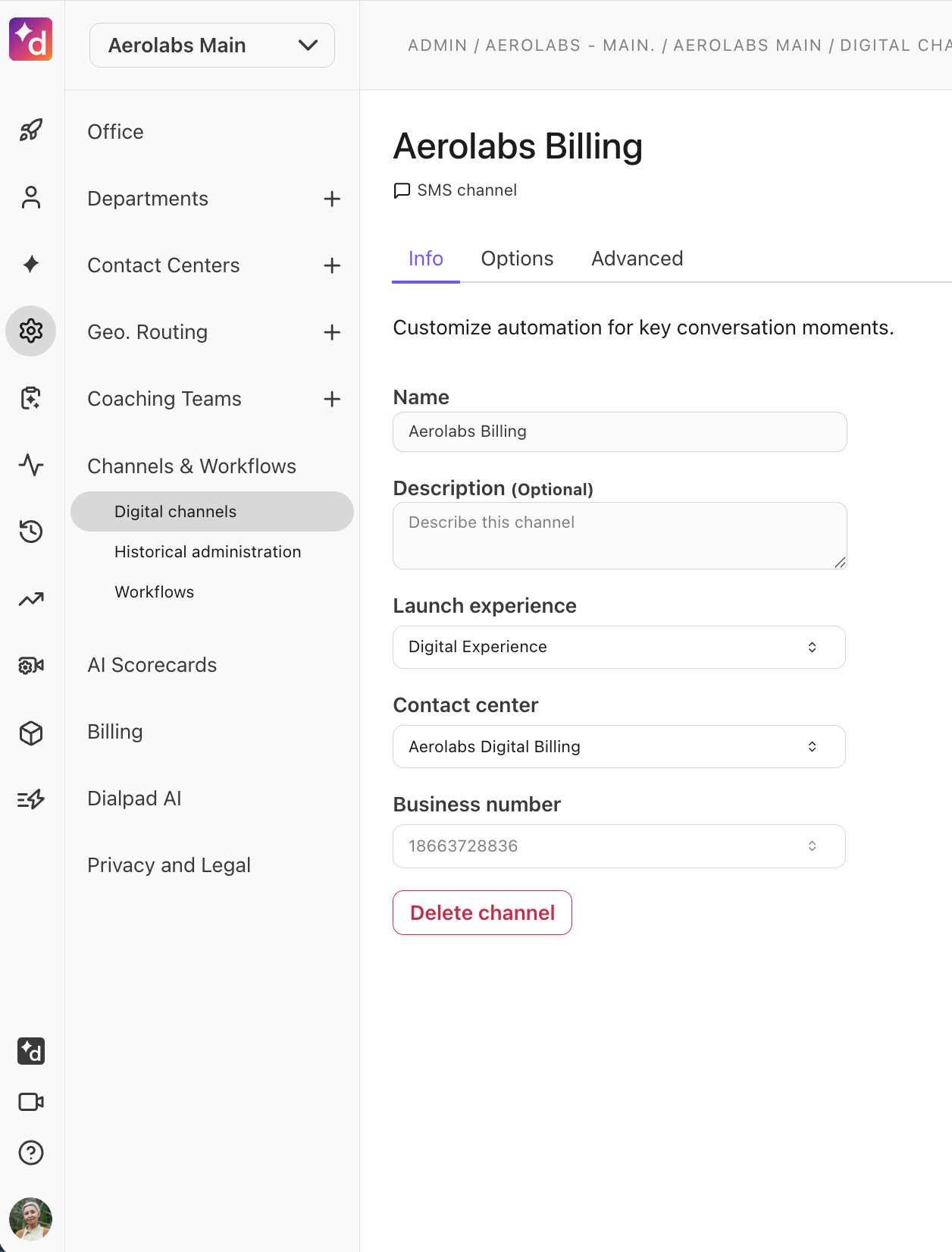
Select the Business number that will be used to receive SMS messages
Note
The business number must be SMS-capable and cannot be changed once the channel is created. The number must also be registered for SMS campaigns. Toll-free numbers aren’t eligible for use as an SMS channel number.
Select Save Changes
Configure automation for your SMS channel
Use the Options and Advanced tabs to customize automation for key conversation moments set to the defined Launch Experience.
Customize options for your SMS channel
To customize your SMS channel, go to your Dialpad Admin Settings.
Select Channels & Workflows > Digital Channels
Select the desired SMS channel
Select the Options tab
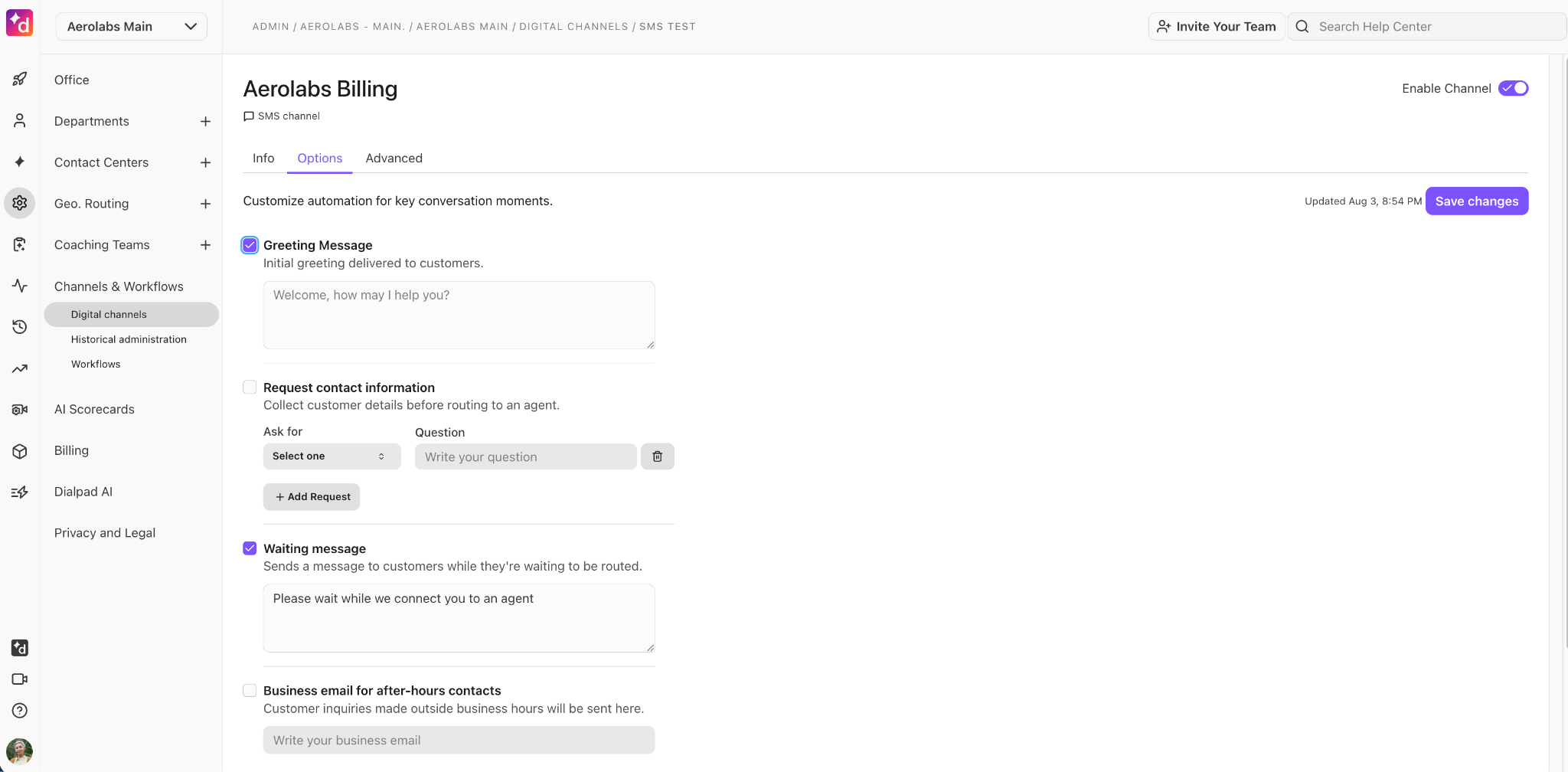
Update these details, as needed:
Greeting message: shown when a customer first contacts the channel.
Request contact information: prompts for the customer’s name, email, phone number, or address.
Waiting message: shown while the customer waits for an agent.
Business email for after-hours contacts: used to notify your team when agents are unavailable.
Survey: shown after the interaction.
(Optional) Select the Advanced tab and update these details, as needed
Select Save changes
Link a Workflow to an SMS channel
Use Advanced to link published Digital or Shared Workflows to SMS events.
SMS events are instances within an SMS session that can trigger a workflow. SMS events include:
When conversation starts: Trigger a workflow when a conversation begins, or an AI Agent escalates.
Out of business hours: Override the default logic for checking business hours and the agent's availability.
Note
This event should be used only when there is a need to override the default logic for checking business hours or agent availability. See the Default logic for more details.
Before agent connection: Run a workflow before the conversation is queued for a human agent.
Queue timeout or no agent available: Set fallback actions when a customer has been waiting in the queue, and no human agent responds before the timeout.
Before customer survey: Customize the experience before the customer survey is shown.
After customer survey: Define follow-up actions once the survey is completed.
After the agent session has closed: Set what happens after the session with the human agent ends.
Note
Workflows are created in Channels & Workflows > Workflows.
To link an SMS channel to a workflow, go to your Dialpad Admin Settings.
Select Channels & Workflows > Digital Channels
Select the desired SMS channel
Select the Advanced tab
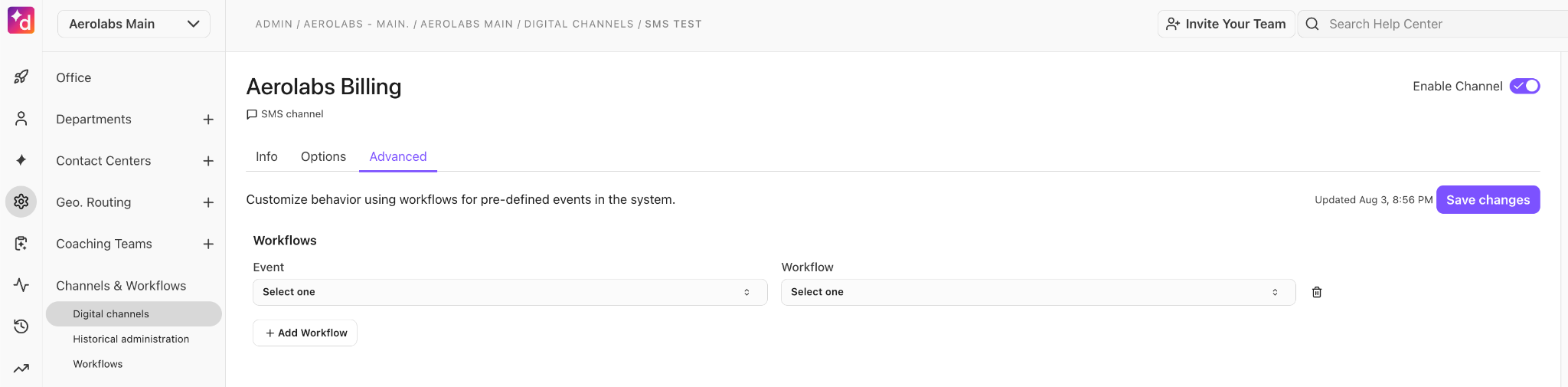
Select the Event that triggers the workflow
Select the Workflow that is triggered by the SMS event
(Optional) Add additional events, if needed
Select Save changes
How Options and Advanced tabs interact
System Processing Order
The system processes the Options configuration and the events in the Advanced tab in the following order:
When conversation starts (Advanced tab): This triggers first when a new conversation is initiated.
Out of business hours (Advanced tab): If configured, overrides the default availability logic to check business hours. See Default logic for more details.
Note
This uses Business email for after-hours contacts (Options tab) if systememail is configured to send an email to notify a customer has reached out during out-of-business hours.
Greeting message (Options tab): The initial message shown to the customer.
Request contact information (Option tab): Prompts the customer for name, email, phone, address.
Before agent connection (Advanced tab): Runs before the conversation is queued for a human agent.
Waiting message (Options tab): Sent while the customer waits for an available agent.
At this point, the routing to a human agent happens. A system message is present saying: “You are placed in a queue. Please wait…” (This message can be modified from Historical Administration)
Queue timeout or no agent available (Advanced tab): Triggered if no agent responds before the timeout threshold.
Before customer survey (Advanced tab): Triggers before the survey is shown (only if Survey is enabled in Options).
Survey (Options tabs): Triggers the survey configured.
After customer survey (Advanced tab): Triggers after the survey is completed (only if Survey is enabled in Options).
After the agent session has closed (Advanced tab): Triggers after the session with the human agent ends (use this when no survey is configured).
Default Availability Logic
When no custom workflow is attached to the "Out of business hours" event in the Advanced tab, SMS channels use the following built-in availability logic to handle customer contacts.
It checks business hours and agent availability, and uses the systememail variable (configured in the Options tab under "Business email for after-hours contacts") to determine whether to send an email notification.