Use one of Dialpad’s digital workflow templates to streamline the workflow creation process. Not only do templates save valuable admin time, but they also ensure a consistent, customer-friendly experience that can be customized to fit your business needs.
Let’s dive into the details.
Who can use this
Digital workflow templates are available to Dialpad users on all plans with a Digital Engagement license.
Template types
Dialpad offers 6 unique digital workflow templates:
Business hours and availability
Auto reply
Skill assignment
Spam filter
Automated email filter
Combined email logic
Each template is fully customizable; you can add other menu options, change the prompts or choices, and even remove a transfer and add other menu options for a multi-tier workflow tree.
Let's take a look at each template.
Business hours and availability template
The Business hours and availability template routes conversations based on the contact center’s business hours and agent availability. When the contact center is closed or no agents are available, let customers know and collect their contact information.

Use this template to override the default out-of-business-hours behavior for digital channels.
Note
This template is only available for SMS and Webchat channels.
Auto reply template
The Auto reply template enables you to reply to every inbound message sent to your contact center. It will let customers know that their message has been received and that an agent will follow up.

Replies can be customized for each channel.
Note
This template is available for all channels (Email, SMS, and Webchat).
Skill assignment template
The Skill assignment template routes conversations to the correct agents based on their skill set, ensuring the right conversation goes to the right agent.

Routing rules can be customized to match the needs of teams in their contact centers.
Note
This template is available for all channels (Email, SMS, and Webchat).
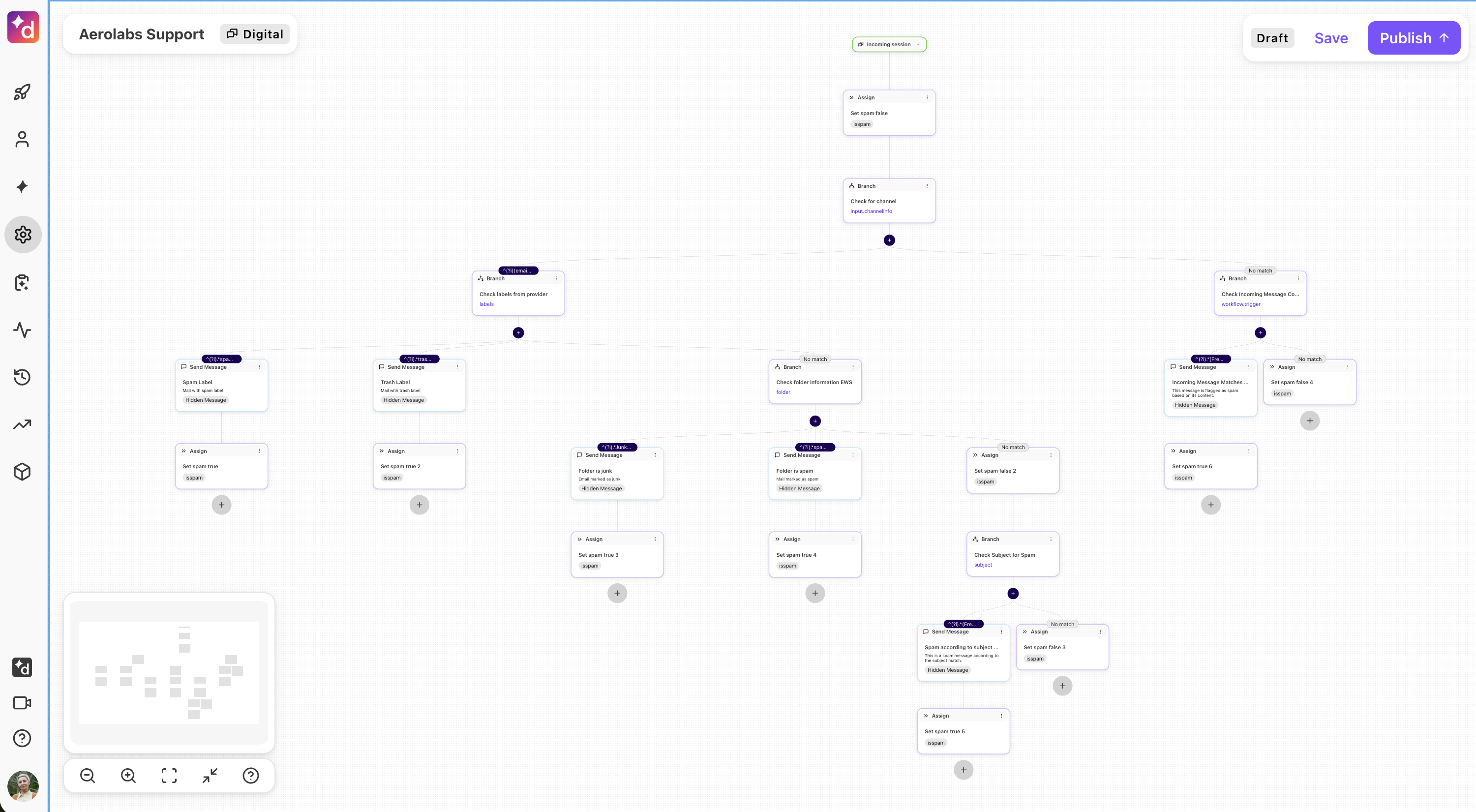
Spam filter template
The Spam filter template filters out spam before it reaches agents, keeping unwanted messages out of your queue. Filtering rules can be customized to suit the needs of the contact center.
Note
The Spam filter template is only available for SMS and Email channels.
Automated email filter template
The Automated email filter template filters out automated emails, like no-reply or notifications, to keep them out of agent queues.

You can choose which types of emails to filter out, allowing legitimate emails to come through.
Note
This template is only available for Email channels.
Combined email logic template
The combined email logic template handles inbound emails from start to finish in the same workflow. It combines automated email detection, spam filtering, automatic replies, and skills-based routing into a single workflow.

Create supporting workflows using the other digital workflow templates and connect them using the Go-To steps in the combined email logic workflow template.
Note
This template is only available for Email channels.
Create a workflow from a template
To create a workflow from a template, go to your Dialpad Admin Settings.
Navigate to Channels & Workflows
Select Workflows
Select Create workflow
Name your workflow
Note
Each workflow name must be unique.
Select the + icon
Navigate to Start from template and select the desired template
Select Add
Review the workflow and make any edits
To edit a step, select Options > Edit. Alternatively, you can select the step directly.
Select Publish workflow
Frequently asked questions
Can I add additional steps to a workflow template?
Absolutely! Templates are a time-saving tool — they can edited just like traditional workflows.
Templates can be edited anytime, you can customize routing options and numbers, disconnect, reconnect, and delete steps as needed.
Can I use a template more than once?
Yes, you can use a template as often as you like, just remember each workflow must have a unique name.