Easily see all media (MP3 recordings) that have been uploaded or recorded for use in your voice Workflows.
From the Media tab, you can not only delete and copy the file, but also see which audio files are being used where, when they were uploaded and updated and how many workflows they are applied to.
Let’s dive into the details.
Who can use this
Workflows are available to Dialpad Users on all plans and licenses.
Access workflow media files
To access your workflow media, go to your Dialpad Admin Settings.
Go to Channels & Workflows > Workflows
Select Media to access the Media tab
Here, you can easily sort your media by name, number of connections, who it was uploaded by and the date it was uploaded or modified
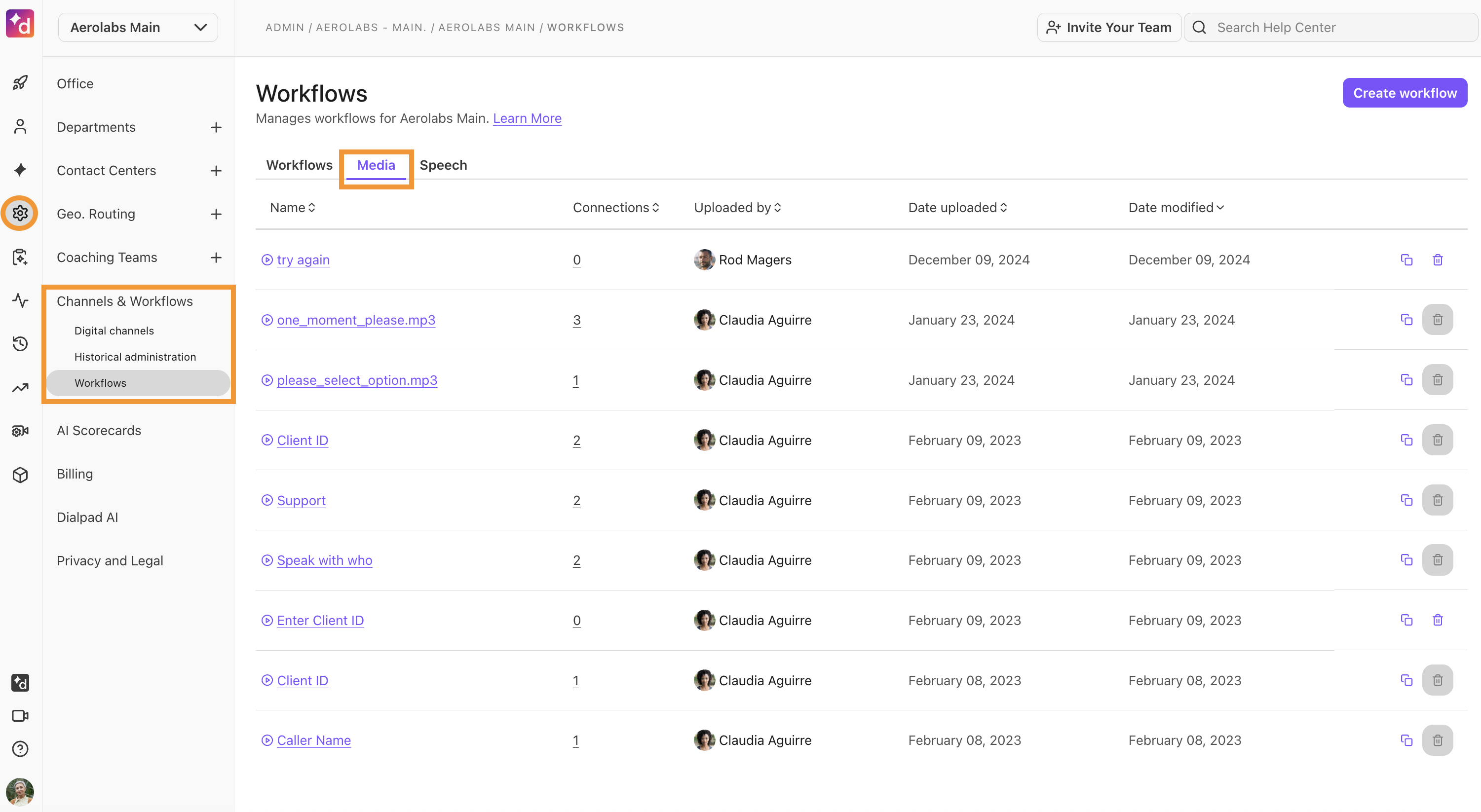
Select the media file name to play the file
If the upload and modified dates are different, this means that someone has replaced the original media file. If you’d like to see who replaced the file, please reach out to Customer Support for log details.
Note
Media files that are used in an Expert Workflow do not appear on the Media tab. To make changes to media in an Expert flow, please reach out to your Solutions Architect.
Media connections
Select the number of connections to see which workflow contains the media file.
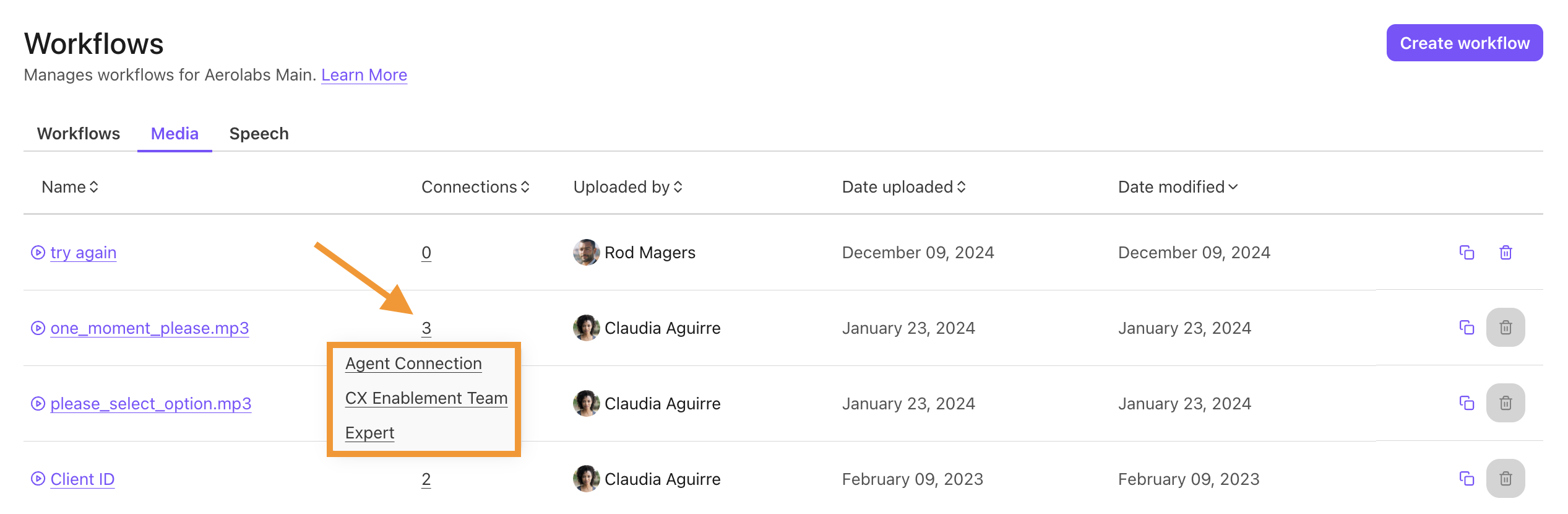
Select the name of the workflow to open the workflow in a new tab.
Copy media file
Copy a media file to use it again in a different workflow.
To copy a media file:
Select the purple copy icon to copy the media file’s URL to your clipboard.
Open the URL to download the file.

Delete media file
If the media file is not in use (the number of connections is 0) the file can be deleted.
To delete a media file:
Navigate to the desired file
Select the Trash can icon
Select Delete to confirm

Caution
Be careful, deletion is permanent — we cannot restore deleted media files!
Frequently asked questions
Why are some of my media file names gray?
If the name of your media file is gray (not purple), it is corrupted and should be replaced immediately.
What if I want to archive a media file for later use?
Archive functionality is not currently offered. If you want to save a file for later use, you can copy the URL, download the file and save it on your device.
Don’t forget, once a media file is deleted, it cannot be restored.
Why can’t I delete every media file?
If the delete icon is grayed out, this means that the media file is in use and cannot be deleted. Media files can only be deleted if they are not currently in use in a workflow.
Can I delete multiple media files at once?
Not at this time.