Department Call Parking allows administrators to set up department-level call parking and assign parking slots as Busy Lamp Field (BLF) line keys on desk phones.
Once enabled, parking slots are centrally managed and shared across all configured desk phones within the department. Each BLF key provides a real-time visual status, allowing operators to monitor slot availability and retrieve parked calls with a single touch.
Note
The Department Call Parking option is only visible if the feature is enabled. Each department comes pre-configured with 25 dedicated parking slots.
Supported Desk Phones
The following hardware supports Call Parking line keys:
Yealink desk phones
Poly UCS desk phones
Poly Obihai (Obi) desk phones (requires updated configuration)
Enable Call Parking
Ensure that a number is assigned to the selected department.
To enable Department Call Parking, go to your Dialpad Admin Settings.
Select Departments
Choose the department you want to edit
Go to Advanced Settings > Department Call Parking and select Enable Call Parking

Call Parking is now enabled for the department, and parking spots can be configured on user desk phones.
Note
If a user is an operator of a department with department call parking enabled, they’ll be able to add the department call parking line key to their desk phone.
Configuring Parking Slots on Desk Phones
Once Department Call Parking is enabled at the department level, you must assign the parking slots to specific line keys on your users' desk phones. This allows the line keys (BLF keys) to interact with the virtual parking spots.
To configure call parking slots on a desk phone, go to your Dialpad Admin Settings.
Navigate to Office > Desk Phones
Find the specific desk phone you wish to update
Select Options > Configure Deskphone
On the configuration page, select an available (empty) line key
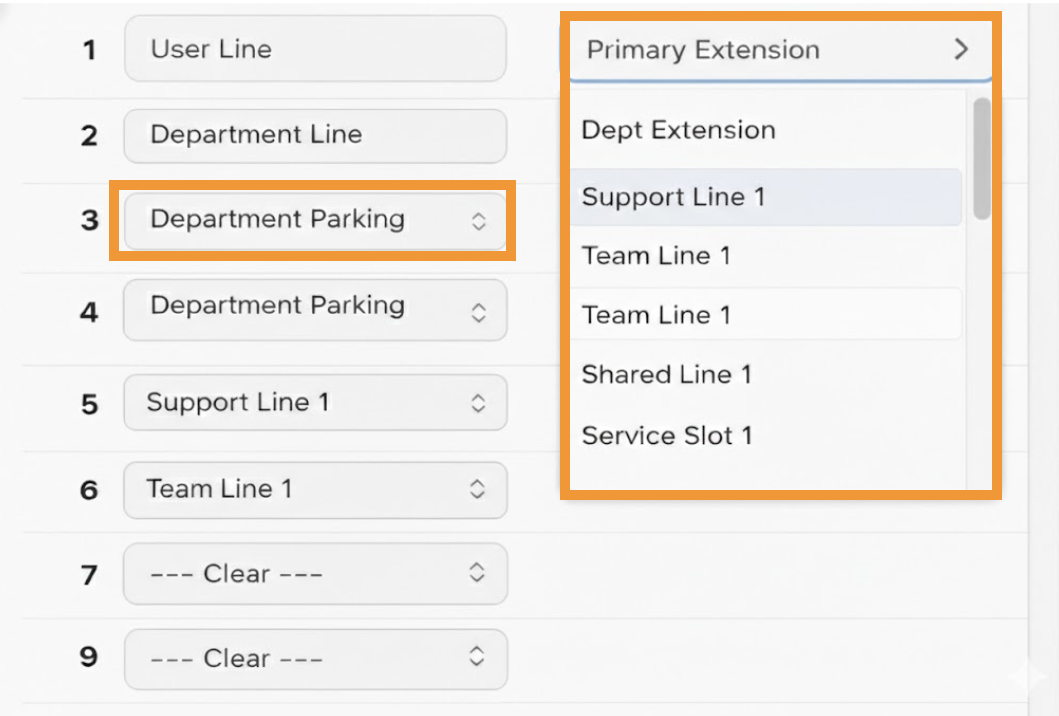
Select Dept Parking Space from the dropdown menu. A searchable list of the 25 predefined spots displays.
Tip
Select the field to show the full list. You can scroll or type a number to filter quickly.
Select Update Device
The desk phone will automatically reboot once you save these changes to apply the new line key configuration.
Maximum parking minutes and parked calls
Admins can set the maximum number of parking minutes and parked calls when department call parking is enabled. Once enabled, the max parking minutes and max park calls selectors are available to edit.
Note
Department Call Parking must be enabled first before you can set values for maximum parking minutes and maximum parked calls.
To set parking minutes and parked calls, go to your Dialpad Admin Settings.
Select Departments
Select the department you want to edit
Navigate to Advanced Settings > Department Call Parking
Enter the Max parking minutes and select Save
Enter the Max parked calls and select Save
Note
The default value for the maximum parking minutes is 10.
The default value for the maximum number of parked calls is 5.

Enable automatic call parking
Note
Enabling auto-park enables department call parking altogether.
To enable automatic call parking as part of the department’s routing, go to your Dialpad Admin Settings.
Select Departments
Select the department you want to edit
Navigate to Business hours and call routing
Select Operators, then select Auto-park incoming calls
