Enhance coaching and training by enabling agent screen capture to view agent desktop activity during a call.
Who can use this
Agent screen capture is included in Dialpad's Support plans, as well as the Premium Dialpad Sell plan. It is also available as a paid add-on.
Enable agent screen capture for Contact Centers
To enable agent screen capture for a contact center, go to your Dialpad Admin Settings.
Select Contact Centers and select the desired Contact Center
Go to Advanced Settings > Automatic Call Recording and Transcription
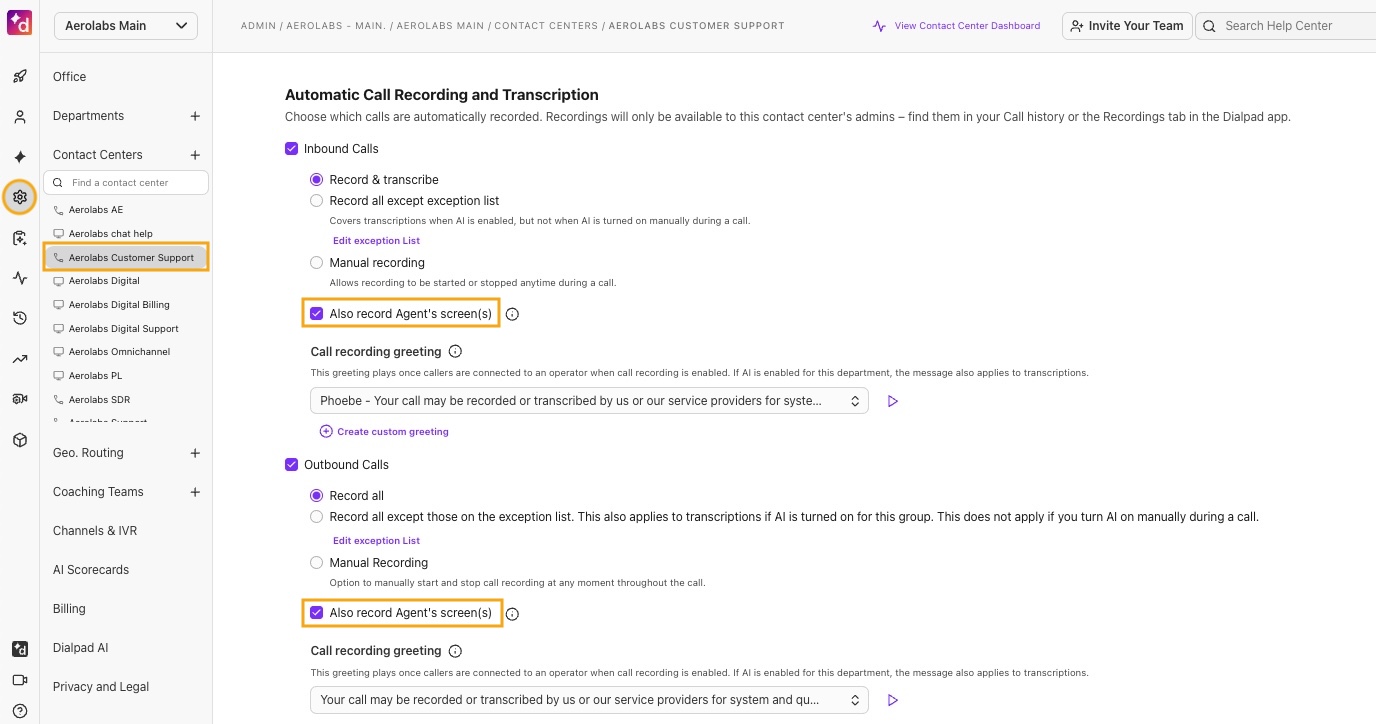
Select Also Record Agent's Screen(s)
Note
This can be enabled or disabled for both inbound and outbound calls
Chrome OS (managed via Google Admin)
For managed Chromebooks, your Google Workspace / Chrome admin needs to install and allow the Dialpad screen recorder app from the Admin console.
In the Google Admin console, go to Devices > Chrome > Apps & extensions > Users & browsers
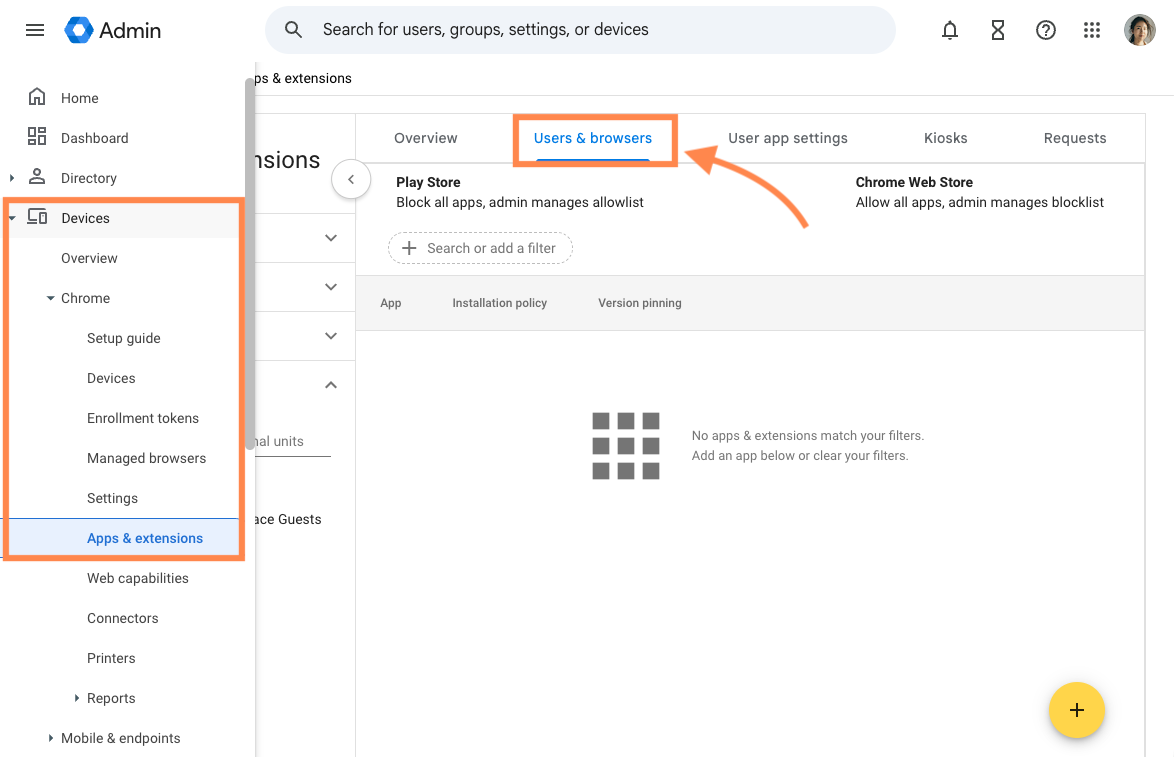
Click the yellow + button and choose Add an isolated web app
In the Web Bundle ID field, enter:
Buhw6nnxnvtbkomwrl6tx4l5soue23i6latmsu7gsdnq4lyso7faaaicIn the Update Manifest URL field, enter:
https://storage.googleapis.com/dialpad_downloads/iwa/update.json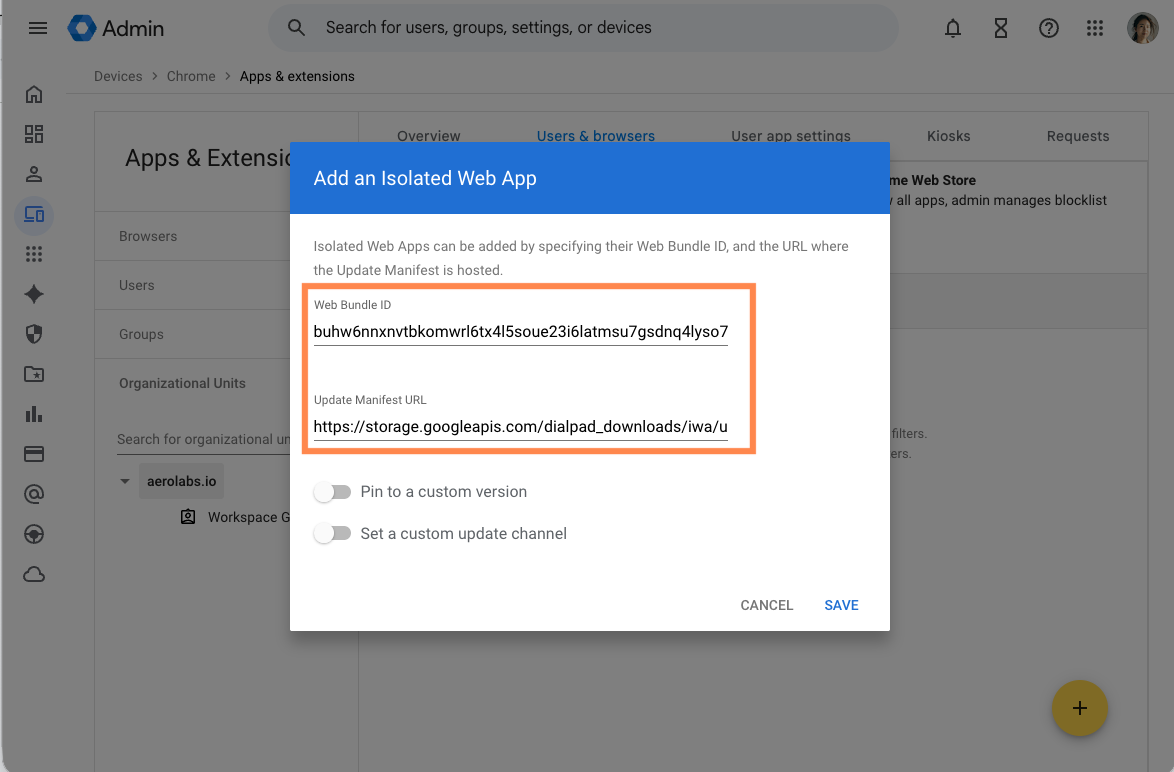
Choose how you want the app installed. We recommend:
Force install
Optionally Launch on login and Prevent closing
Note
If the optional settings aren’t configured, the screen won’t be recorded unless the agent already has the screen recorder app open when the call starts. We strongly recommend enabling those optional settings.
Select Save
The app will be installed the next time a policy update is applied to Chromebooks in the selected Organizational Unit. Devices will then check for updates every 4–6 hours.
Next, in the Google Admin console, go to:
Devices > Chrome > Web capabilities and select Add origin
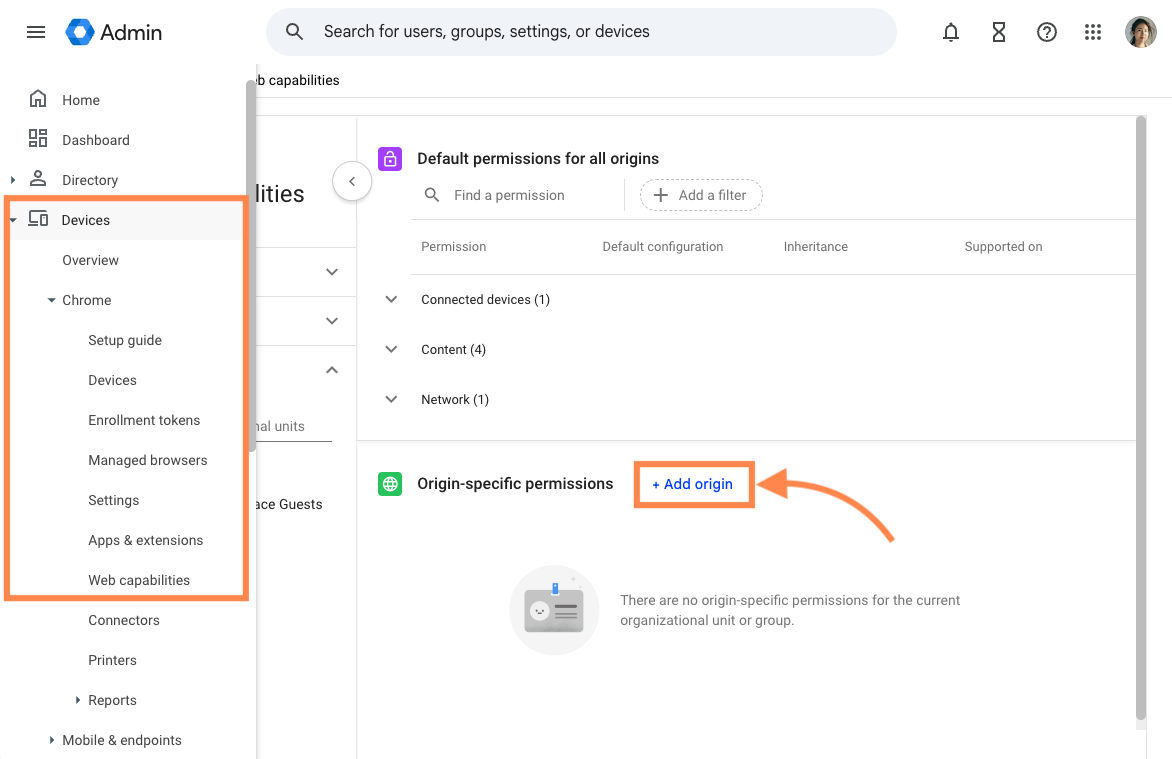
In Origin/site pattern, enter:
isolated-app://buhw6nnxnvtbkomwrl6tx4l5soue23i6latmsu7gsdnq4lyso7faaaicSelect Allowed for these options:
Direct sockets
Screen recording
Window management
Select Save
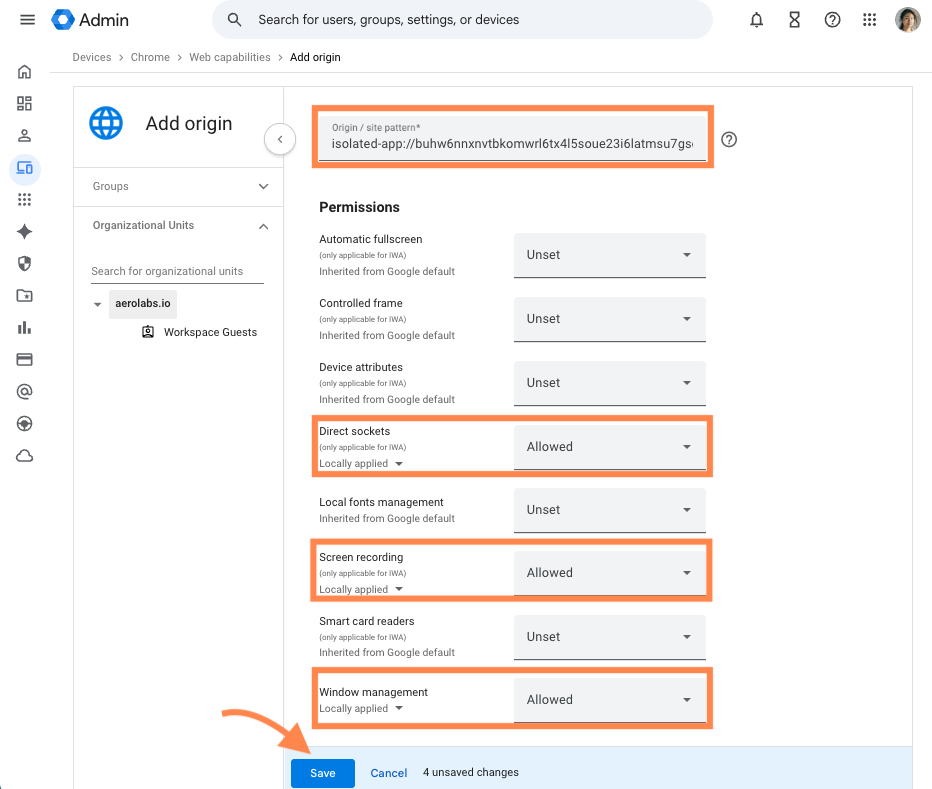
Once this is configured, the screen recorder app is force-installed for the targeted ChromeOS users, and agents can continue to use the Dialpad web app or PWA as usual. Nothing changes in the agent interface; this is only an admin-side ChromeOS configuration change.
Enable agent screen capture for Coaching Teams
To enable agent screen capture for a coaching team, go to your Dialpad Admin Settings.
Select Coaching Teams and select the desired Coaching Team
Go to Advanced Settings > Automatic Call Recording and Transcription
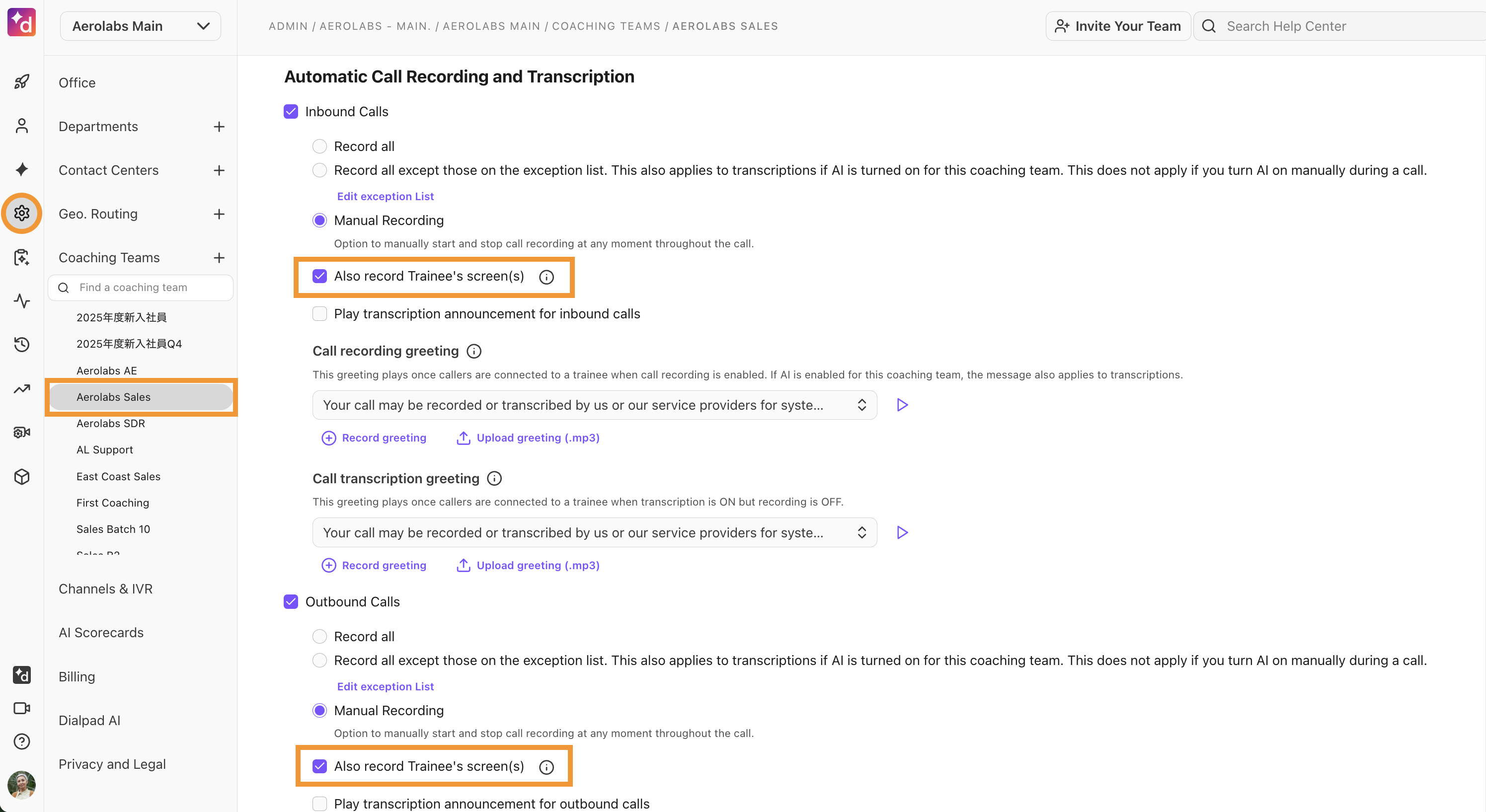
Select Also record Trainee’s screen(s)
Note
This can be enabled or disabled for both inbound and outbound calls
View a screen capture
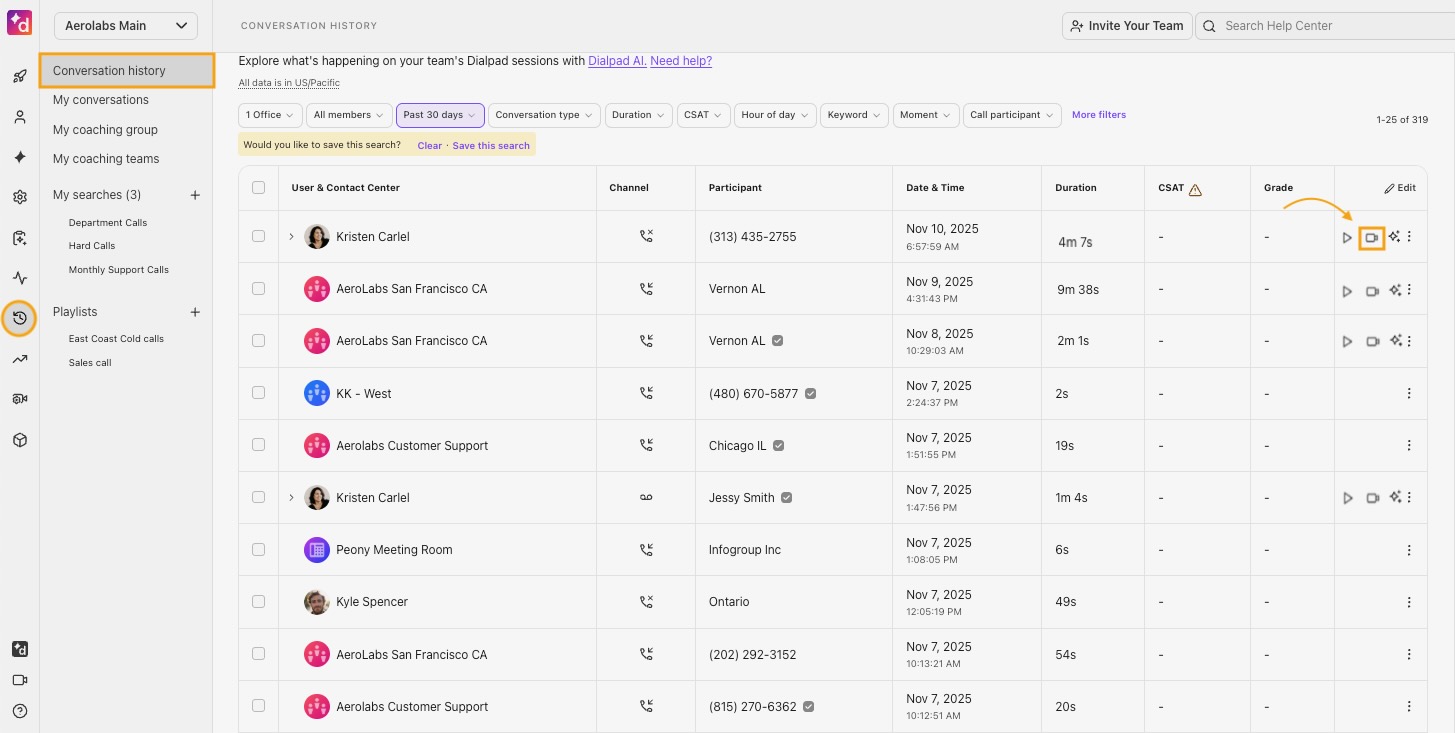
To view a screen capture, go to your Dialpad Admin Portal.
Select Conversation History
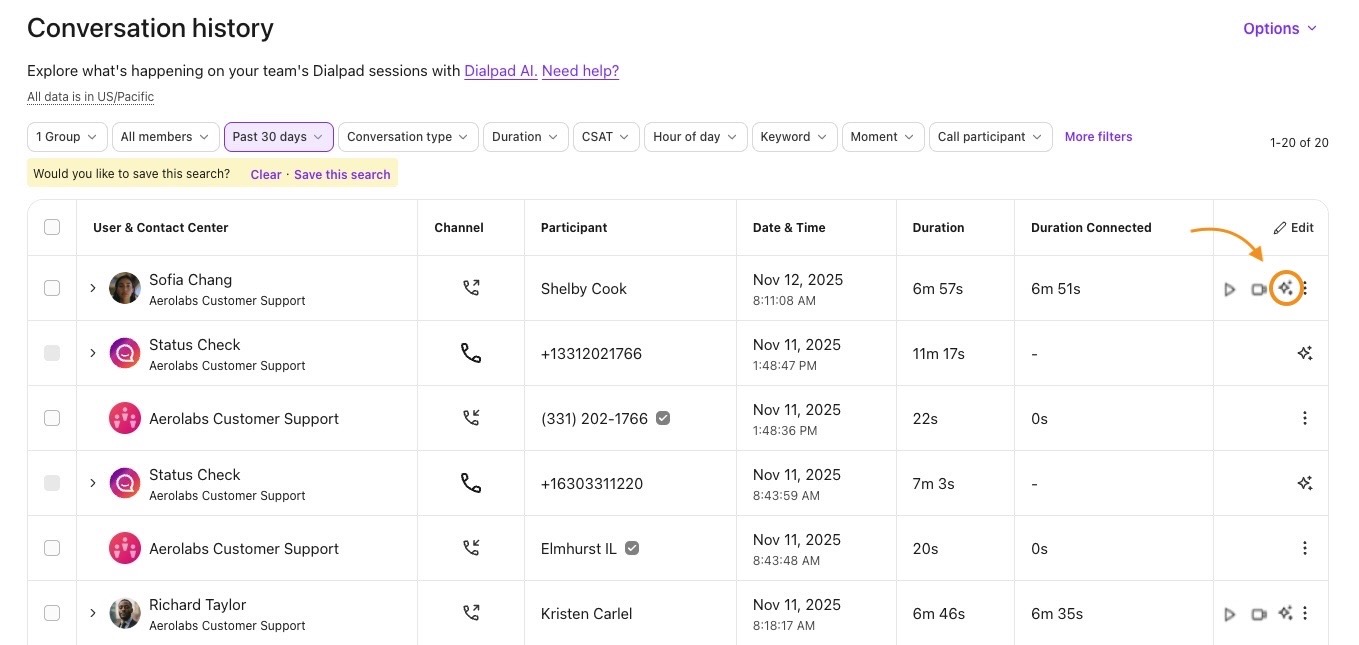
Search or filter for the call history you want to view, and select the Video Camera icon beside the call
Download a screen capture
There are 2 ways you can download your agent’s screen capture:
From the Conversation History
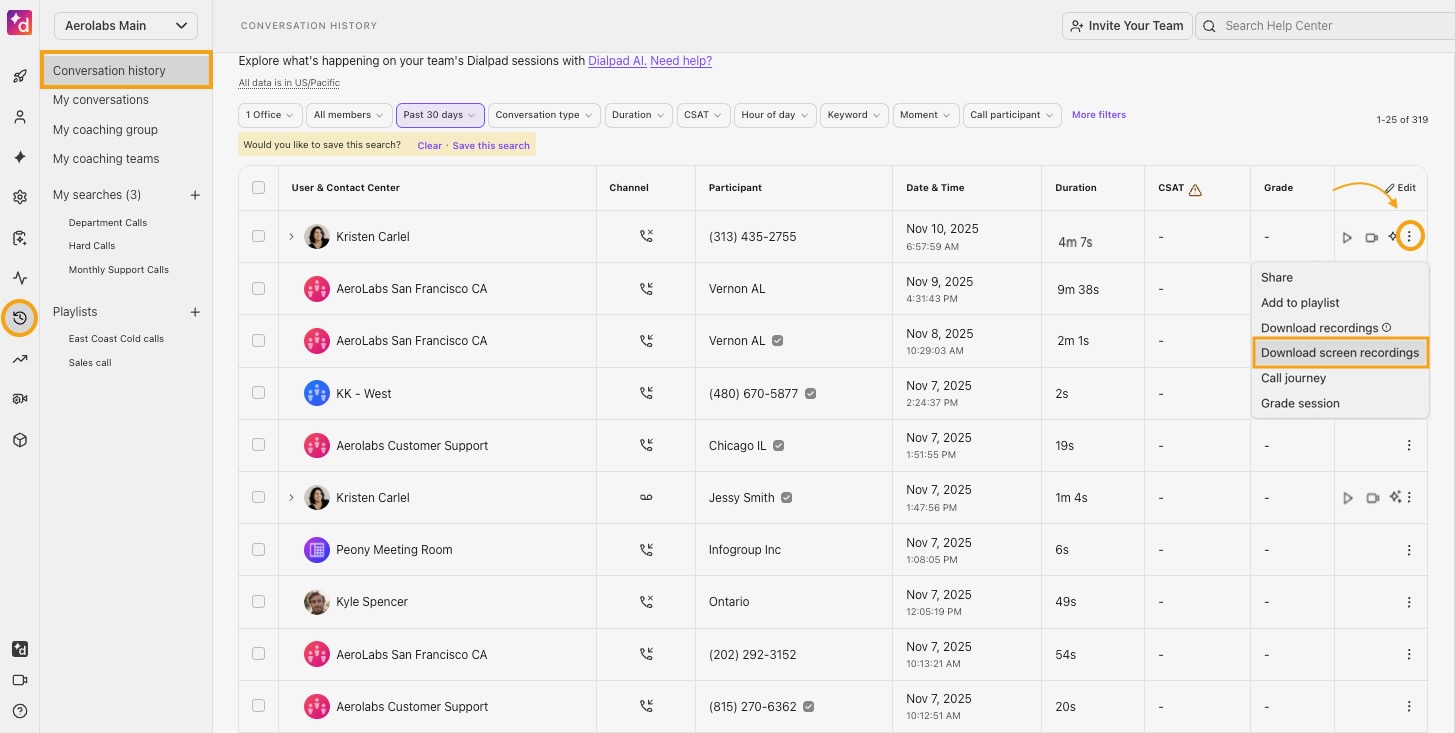
To download a screen capture from the Conversation History, go to your Dialpad Admin Portal.
Select Conversation History
Navigate to a call with a screen capture and select Options > Download screen recording
From the call summary
To download a screen capture for the call summary, go to your Dialpad Admin Portal.
Select Conversation History
Navigate to a call with a screen capture and select the AI icon
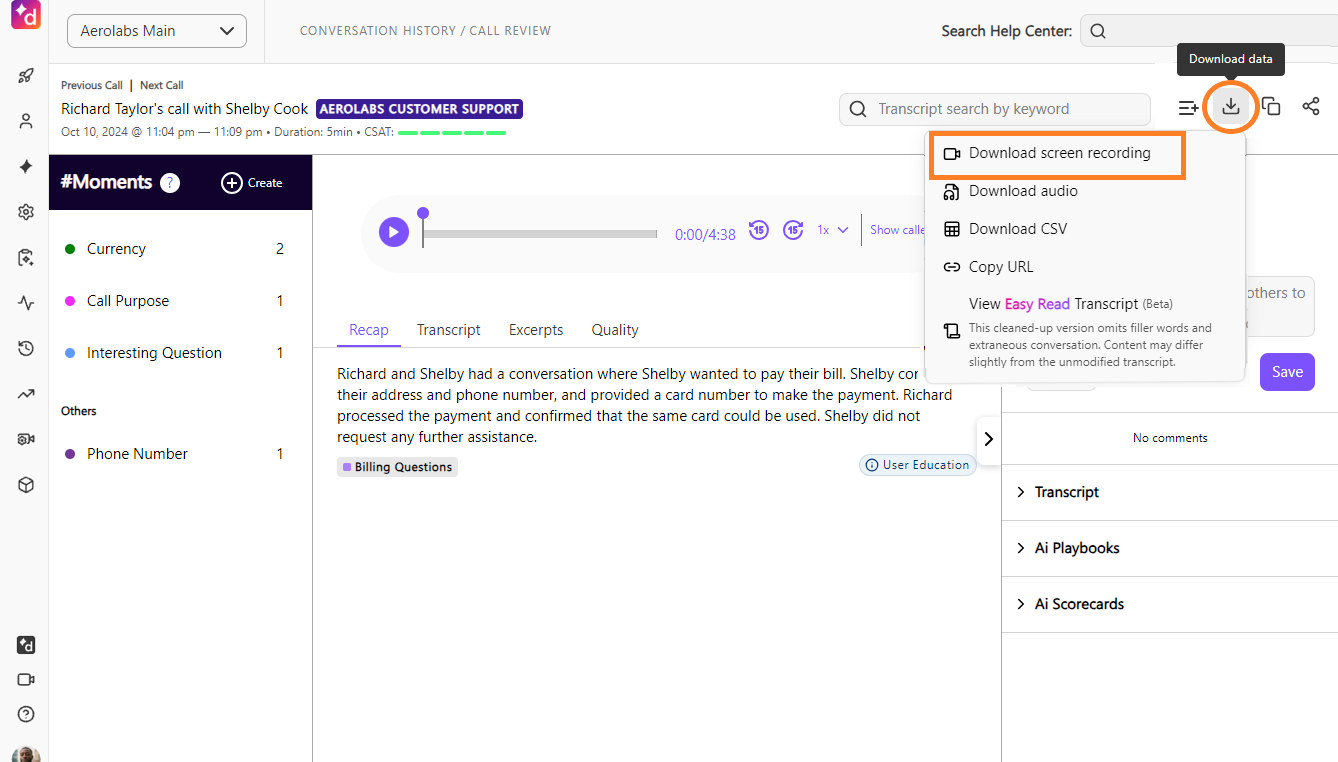
Select Download data > Download screen recording
Note
If your agents have multiple screens, the screen capture will only download what's recorded on the first screen.
System requirements
There are different system requirements depending on your Dialpad permissions.
Admins |
|
Agents |
|
Frequently asked questions
What is the retention period for a screen capture?
By default, screen captures are retained for one year and then deleted.
Will I still see audio recordings, too?
Yes. While screen capture does contain audio, you will still get separate audio files.
Will multiple screens be recorded?
Yes, if your agent uses multiple screens, both are recorded and visible during playback.
Why does the image appear broken?
If you see a broken-up image when reviewing a screen recording, this indicates a period of poor connectivity.
Will the screen capture continue to record if the call is transferred internally from a Contact Center (where the screen capture feature is enabled) to a Dialpad user?
No, this feature is only available to a Contact Center if enabled.
Will agents be aware that their screen is being recorded?
Yes, agents will see an in-app notification stating their screen is being recorded.