Sometimes agents need to work in different queues or statuses than what they were scheduled for, like helping with emails when call volume is low.
Adherence Exceptions make sure this approved, unscheduled work still counts as in adherence, even if the agent changes queues or statuses.
Let’s dive into the details.
Who can use this
Dialpad WFM is available to all Dialpad users, and as a stand-alone product.
Contact your Customer Success Manager to discuss adding Dialpad WFM to your plan.
Types of adherence exception
There are two different types of Adherence Exceptions:
One off
Recurring
Create one off exception
To create a one off exception, go to Dialpad WFM and navigate to Reports.
Select Performance > Timeline
Filter the agent and date
Hover over an out-of-adherence block
.png)
Select Save
This applies an exception to the selected block of time for the chosen agent and day. One-off exceptions also work for synced calendar events, and you can adjust the exception time period to cover only the portion of the event that needs an exception.
Note
If you’re adding this for many agents who share the same statuses or queues, consider using a recurring exception instead.
Note
For synced calendar event exceptions, the Activity field shows the calendar event name instead of an activity name.
When editing a one-off exception for a synced calendar event, only the time period can be changed.
The exception name, status, and queue cannot be edited for this exception type.
You can shorten the exception period to apply only to part of the original OOA block.
Note
The adherence outcome will only change if the mapped activity, status, or queue is valid for the selected time period.
Create a recurring exception
To create a recurring exception, go to Dialpad WFM and navigate to Reports.
Select Adherence Exceptions > Create Exception
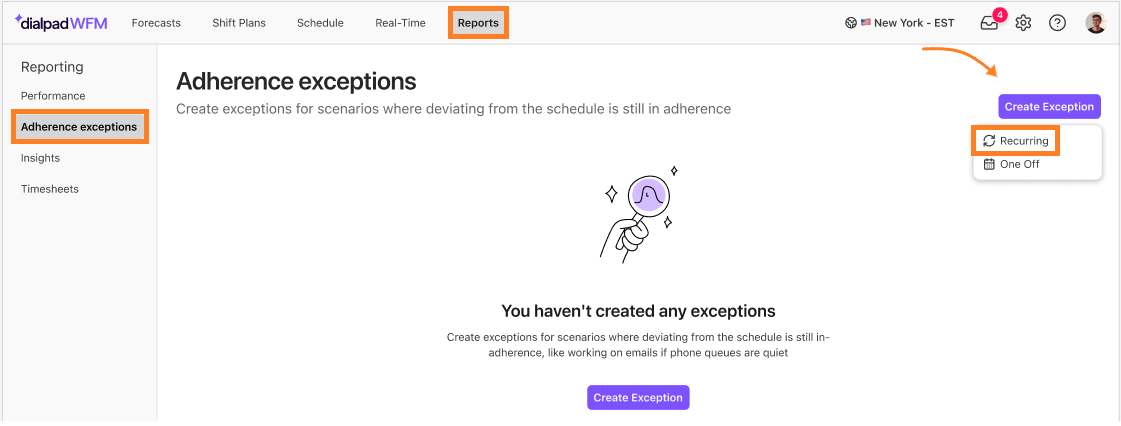
Select Recurring
Fill in the details of the exception
.png)
Select the Activity you want to create the exception for
Select the Allowed queues that agents are allowed to work on
These are in addition to the primary queues you mapped earlier.
Select the Allowed statuses that agents are allowed to be in
These are in addition to the statuses that make up the core adherence rules.
Select the agents this exception is applicable to
You can create exceptions for specific agents and scenarios, but only for teams you have view and edit access to.
Select the date this exception should apply from
You can apply exceptions retroactively, but recurring exceptions are limited to the last 30 days.
Select Save
Note
One-off adherence exceptions also work for synced calendar events. If needed, you can adjust the exception time period so the exception applies only during that portion of the calendar event.
Tip
Feel free to create or adjust Adherence Exceptions at any time.
Some admins realize they only need one after reports show agents doing permitted work that wasn’t scheduled.
Frequently asked questions
When should I create an exception?
Use an exception anytime an agent does a permitted task outside their schedule. For example, helping with emails instead of calls won’t hurt their adherence score if you add an exception.
Can I create a recurring exception for calendar events?
No. Recurring exceptions are not yet supported for synced calendar events.
Can I create a one-off exception for a synced calendar event?
Yes. One-off adherence exceptions can be applied to synced calendar events. You can also adjust the exception time period so it applies only to the portion of the event that needs an adherence exception.
Can I create different exceptions for different teams or agents?
Yes! Each exception can be customized for specific agents and queues, so you can set things up in a way that works best for your team.
Is there a limit to the number of exceptions I can create?
Nope! You can make as many as you need.
What happens when I edit an exception?
When you edit an exception, Dialpad creates an updated version. You choose when the change starts (up to 30 days back), and the old version stops from that point, so your adherence data stays accurate.
Can I add new agents to a recurring exception?
Not if the exception is older than 30 days. Otherwise, you’ll need to set up a new one using the same setup.
How can I see which exceptions were active at a certain time?
Use the date filter to select a date range. The page will update, and the Active column will show the exact dates.
Can I delete an exception?
One-off exceptions can be deleted, which changes that schedule back to out of adherence.
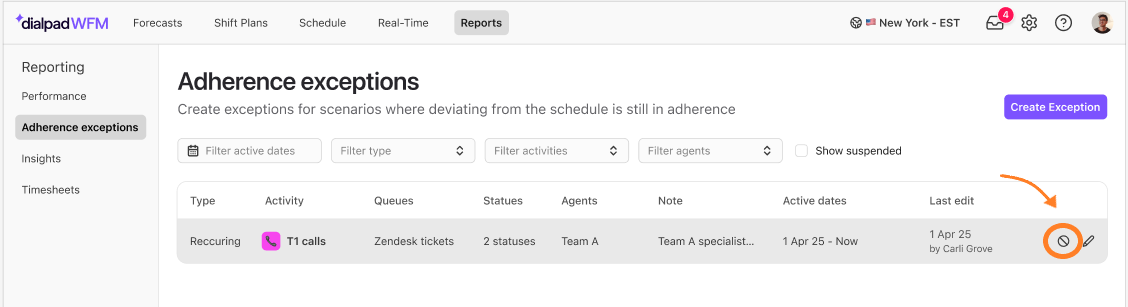
Recurring exceptions can’t be deleted, but you can stop them.
To suspend a recurring exception, go to Reports and select Adherence exceptions.
Navigate to an exception > Select the Stop icon
Select Stop