Dialpad’s Access Control enables company admins to create, assign, edit, delete, and restore user policies with 38 permission sets for company, office, and Contact Center settings. The feature is currently in an Early Adopter Program.
In today's dynamic workplace landscape, admins are seeking enhanced control over their office, contact center, and user settings.
With Access Control, accessed through the Enterprise Support (ES) Platform, companies can tailor permissions and manage user policies to suit their specific needs, increasing efficiency and security.
Let’s dive into the details.
Who can use this
Role Based Access Control is currently in an Early Adopter Program.
Once released, this feature will be available to Dialpad Support users on an Advanced or Premium plan, as well as our legacy Enterprise offering.
Permission sets
Dialpad offers 38 unique permission sets, giving users access to specific settings or features within the company, office, or Contact Center that might not be available within the traditional scope of their Dialpad user policy.
Using Access Control for Contact Center Settings, company admins can:
Create, edit, and delete policies within their organization.
Grant or revoke Contact Center setting permissions.
Assign and unassign policies to specific users in selected Contact Centers.
Allocate different policies to users on different Contact Centers.
Let’s look at what each permission set does.
Permission Set Name |
Description |
|---|---|
ANALYTICS |
Gives the user access to analytics of the Contact Center. |
SUPERVISOR_SETTINGS_WRITE |
Gives the user access to admin and supervisor settings. |
CHROME_EXTENSION_COMPLIANCE_WRITE |
Gives the user acess to Contact Center recording compliance settings. |
NAME_LANGUAGE_DESCRIPTION_WRITE |
Gives the user access to IVR, Voicemail and Ai Language settings. |
NUMBERS_SETTINGS_WRITE |
Gives the user access to manage numbers and fax numbers |
AGENTS_ADMINS_MANAGE_AGENTS_WRITE |
Gives the user access to manage agents & admins. |
AGENTS_ADMINS_SKILL_LEVEL_WRITE |
Gives the user access to set Agent Skill Levels. |
BUSINESS_HOURS_WRITE |
Gives the user access to manage Business Hours. |
CALL_ROUTING_HOURS_WRITE |
Gives the user access to manage Call Routing options. |
HOLIDAY_HOURS_WRITE |
Gives the user access to manage Holiday Hours. |
DIALPAD_AI_WRITE |
Gives the user access to manage Dialpad Ai settings. |
CUSTOM_MOMENTS_WRITE |
Gives the user access to Custom Moments for the contact center |
RTA_WRITE |
Gives the user access to AI Live Coach Cards for the contact center. |
INTEGRATIONS_WRITE |
Gives the user access to manage integration settings. |
CSAT_SURVEYS_WRITE |
Gives the user access to manage CSAT Surveys. |
DASHBOARDS_AND_ALERTS_WRITE |
Gives the user access to manage Dashboards and Alerts. |
CC_CALL_SETTINGS_WRITE |
Gives the user access to Call Settings. |
SMS_SETTINGS_WRITE |
Gives the user access to modify SMS settings |
AGENT_SETTINGS_WRITE |
Gives the user access to Agent Settings. |
AUTO_CALL_RECORDING_AND_TRANSCRIPTION_WRITE |
Gives the user access to Automatic Call Recording and Transcription settings. |
CALL_BLOCKING_SPAM_PREVENTION_WRITE |
Gives the user access to Call Blocking & Spam Prevention settings. |
CALL_DISPOSITIONS_WRITE |
Gives the user access to manage Call Dispositions. |
CONVERSATION_HISTORY_WRITE |
Gives the user access to Conversation History and call recordings for the contact center |
SCORECARD_GRADING_WRITE |
Gives the user access to grade the scorecards on this contact center |
Using access controls
Once your account has been enabled for the Access Control EAP, it's time to head to the Enterprise Support (ES) portal.
Note
You’ll need to be a company admin to access the ES portal.
In your browser, enter https://dialpad.com/es
-
Navigate to Companies, then select your company name
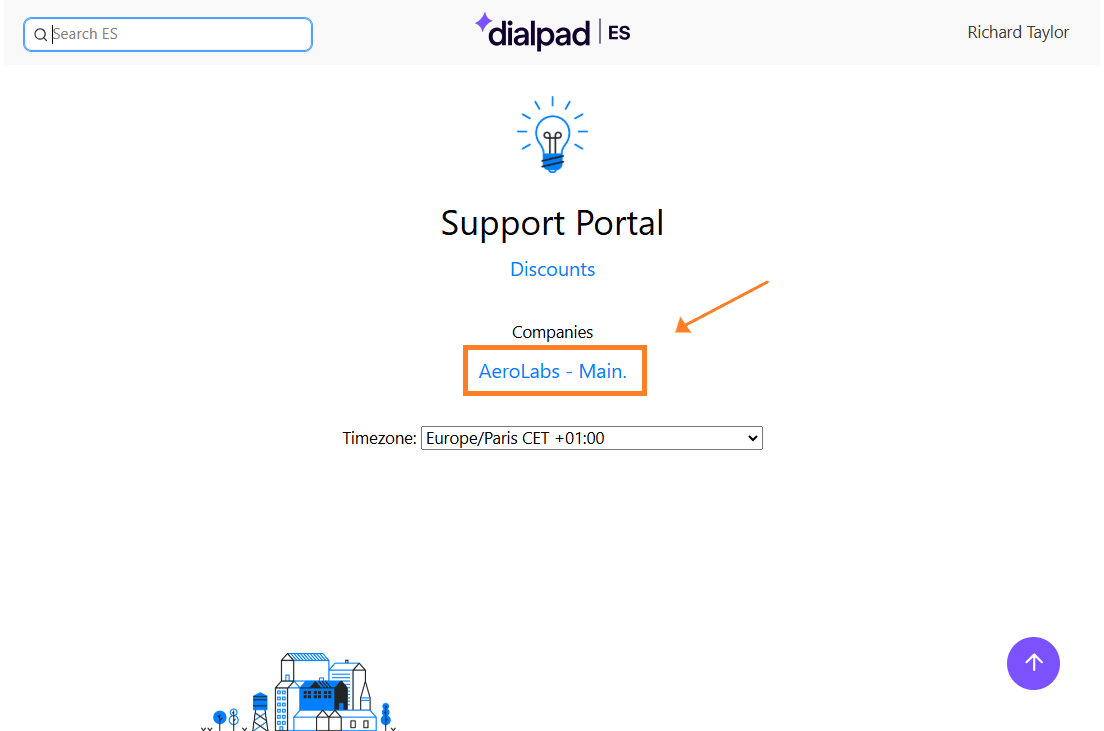
Select User Policies
.png)
Here, you can create, edit, and delete user policy.
Create a user policy
To create a new user policy, go to the Enterprise Support (ES) portal.
Select your Company name
-
Select User Policies > Select New User Policy
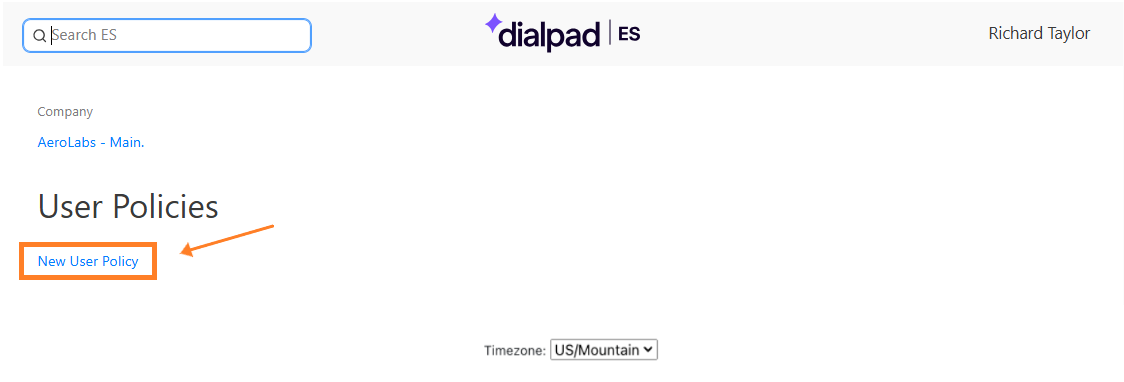
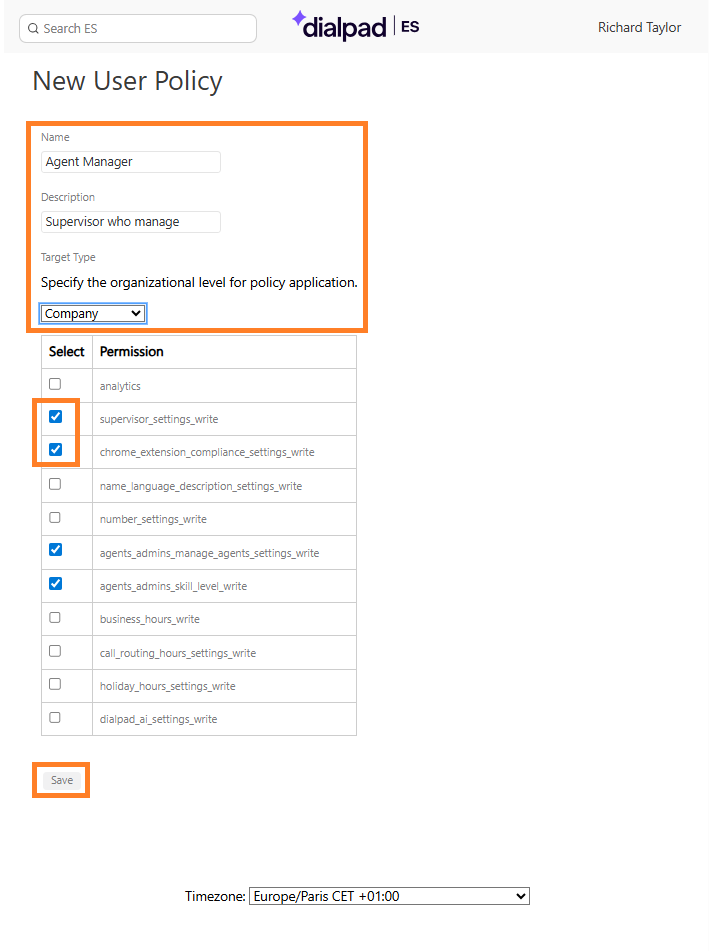
Name the policy
Add a description
Choose if the policy is applicable to the entire company, an office, or Contact Center
Check the box(es) beside the desired permission(s)
-
Select Save
Once created, the new policy will appear in the User Policies page.
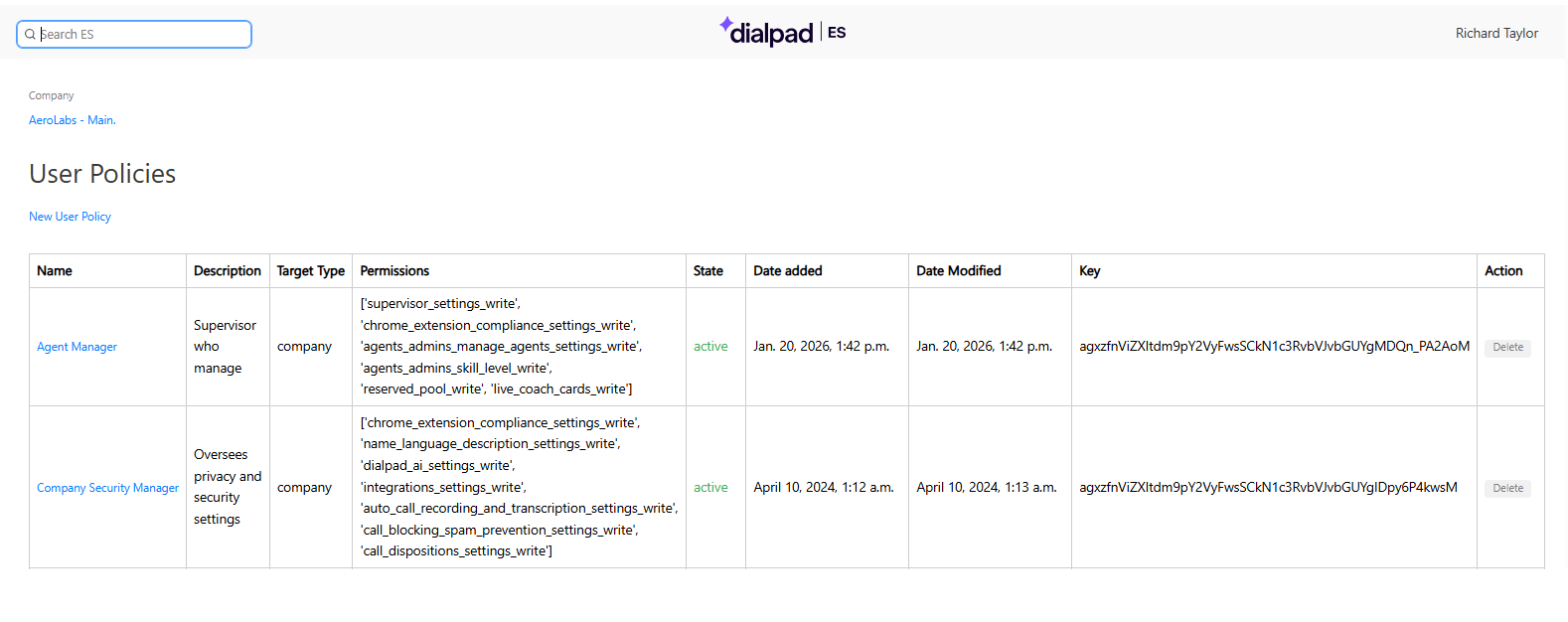
Assign a user policy
Once a policy has been created, it's time to assign it to a user.
To assign a policy, head to the ES Portal.
-
Select Users
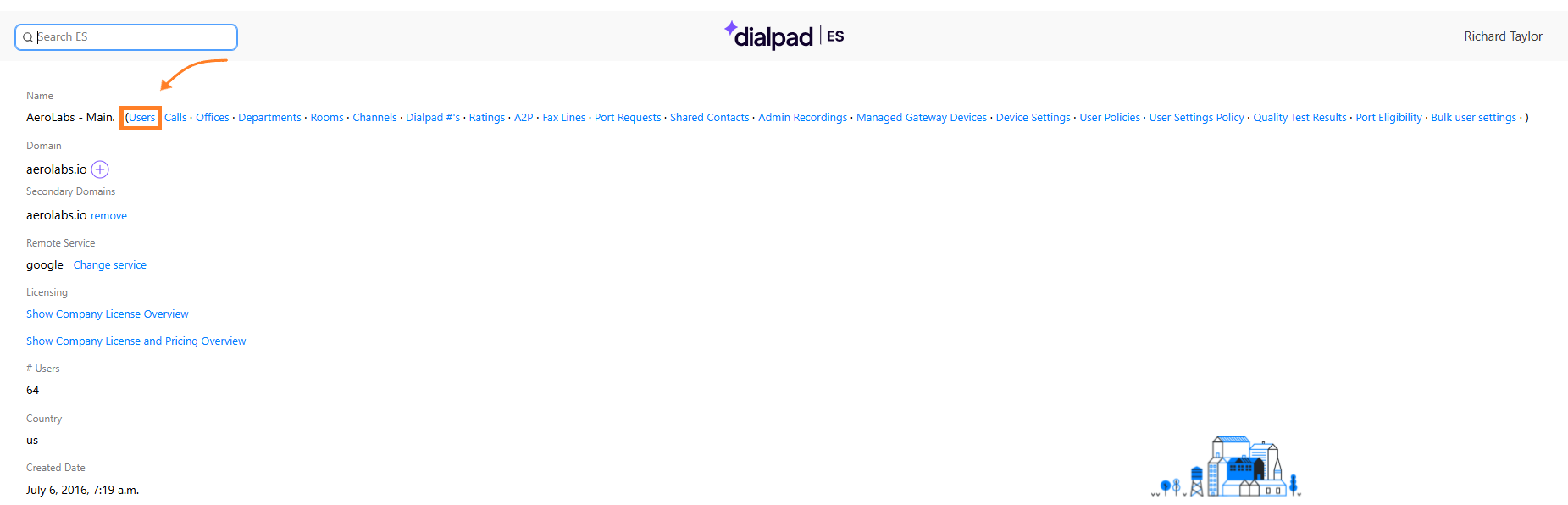
Select the desired user
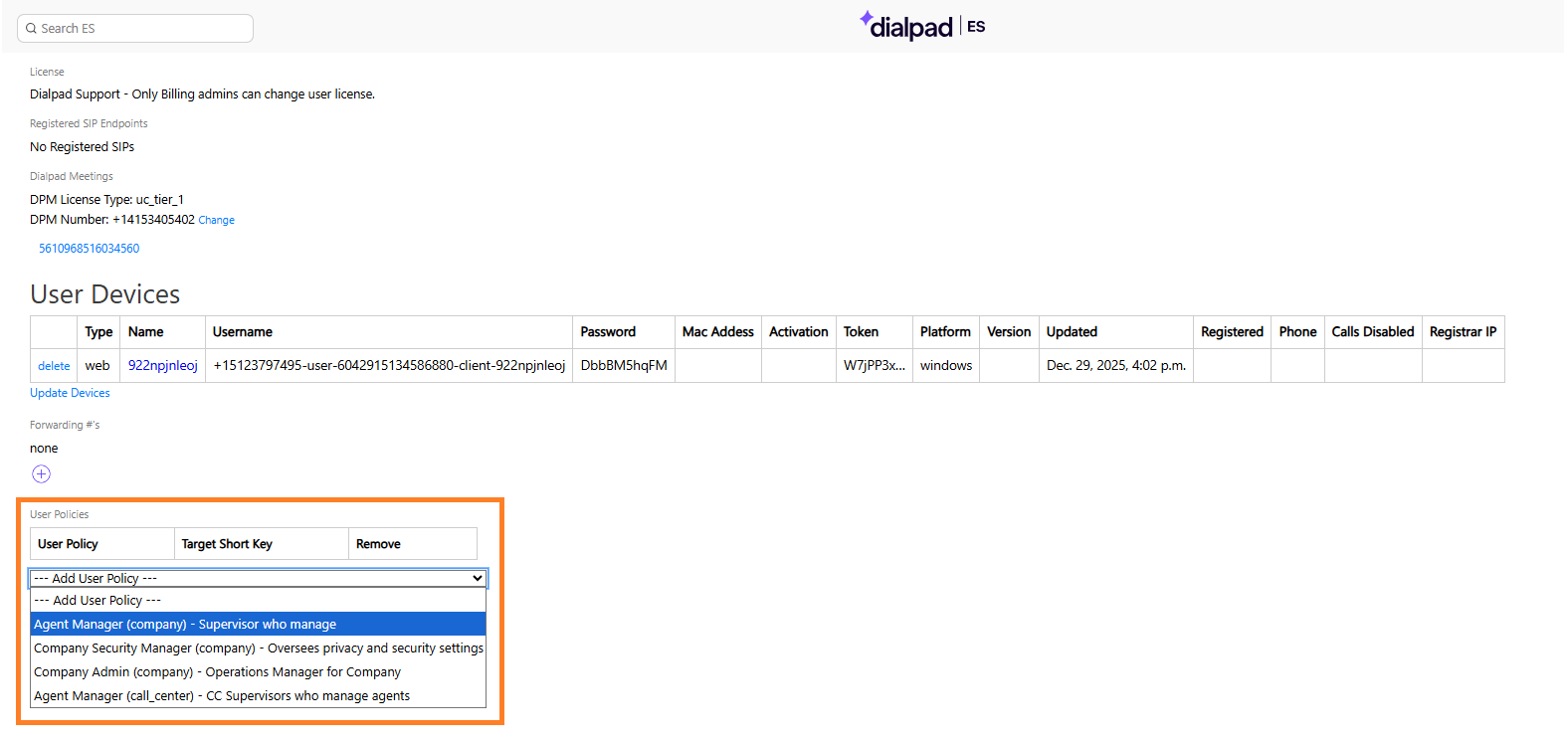
Navigate to User Policies
-
Choose the desired user policy
-
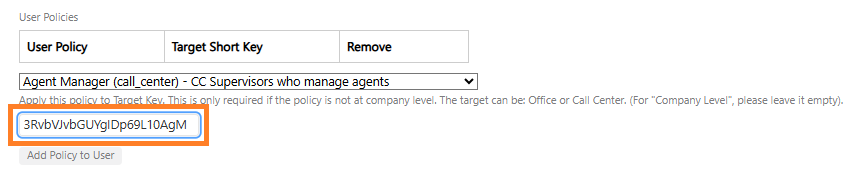
Enter the Target Key
-
Target keys are only required if the policy is not at the company level (i.e., the policy is at an Office or Contact Center level). For company-level policies, please leave it empty.
-
-
-
Select Add User Policy
.png)
That’s it! You’ll now see the policy assigned to the user in the user’s profile and on the user policy details page.
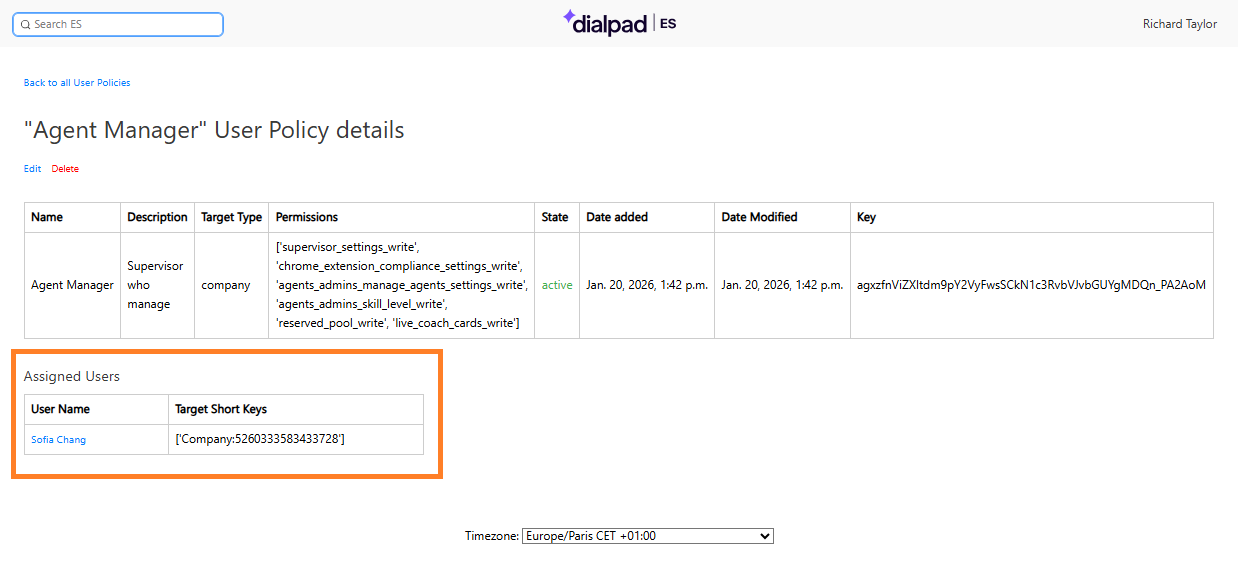
Users can be assigned multiple policy. Each assigned policy will appear in the user’s user policies section.
.png)
Edit a user policy
User policy can be edited at any time. When a policy is edited, the changes are applicable to all users who are assigned to the policy.
To edit a user policy, head to the ES Portal.
Select User Policy
Select the policy you want to edit
-
Select Edit
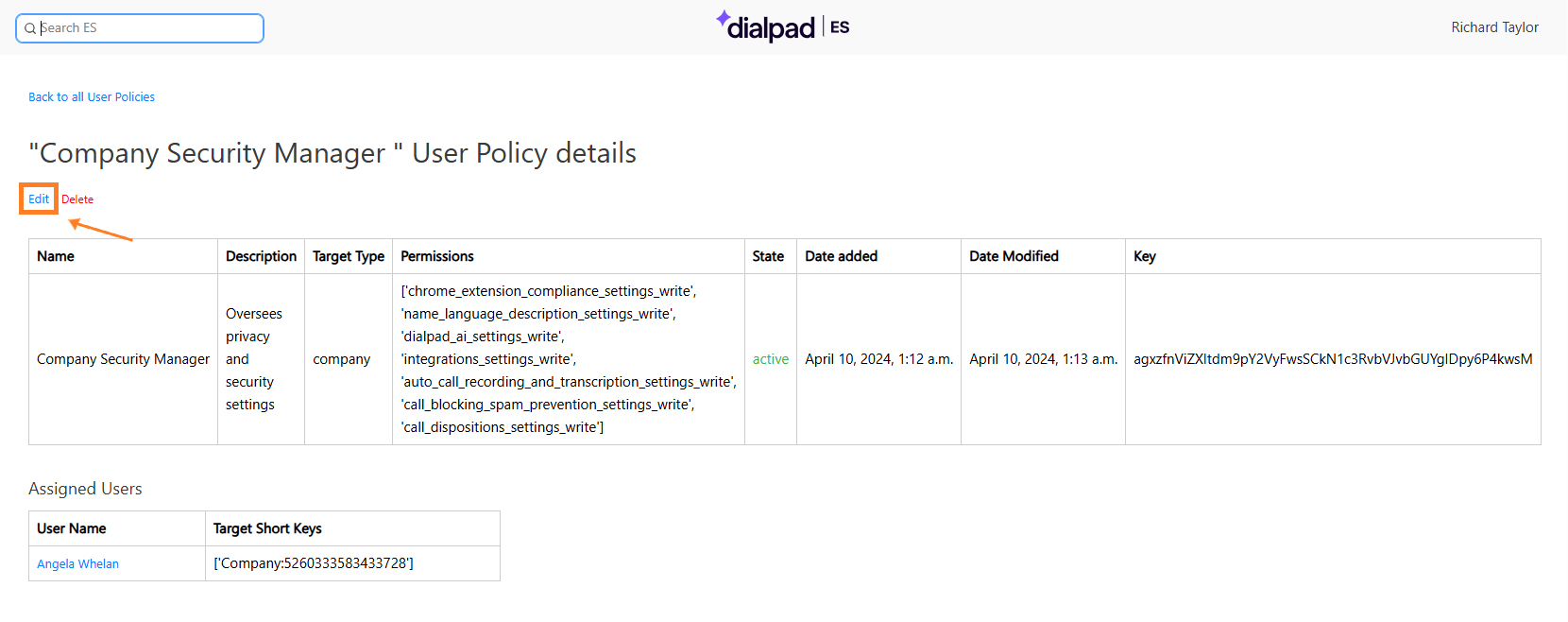
-
Make the desired changes
You are not able to edit the target type (Company, Office or Contact Center level)
Select Save
Changes are applied instantly and are applicable to all users who are assigned to the policy.
Delete a user policy
Perhaps you changed company policies, and an existing policy is no longer applicable. To delete a policy:
Head to the ES Portal > Select User Policy
Navigate to the policy you want to delete
-
Select Delete
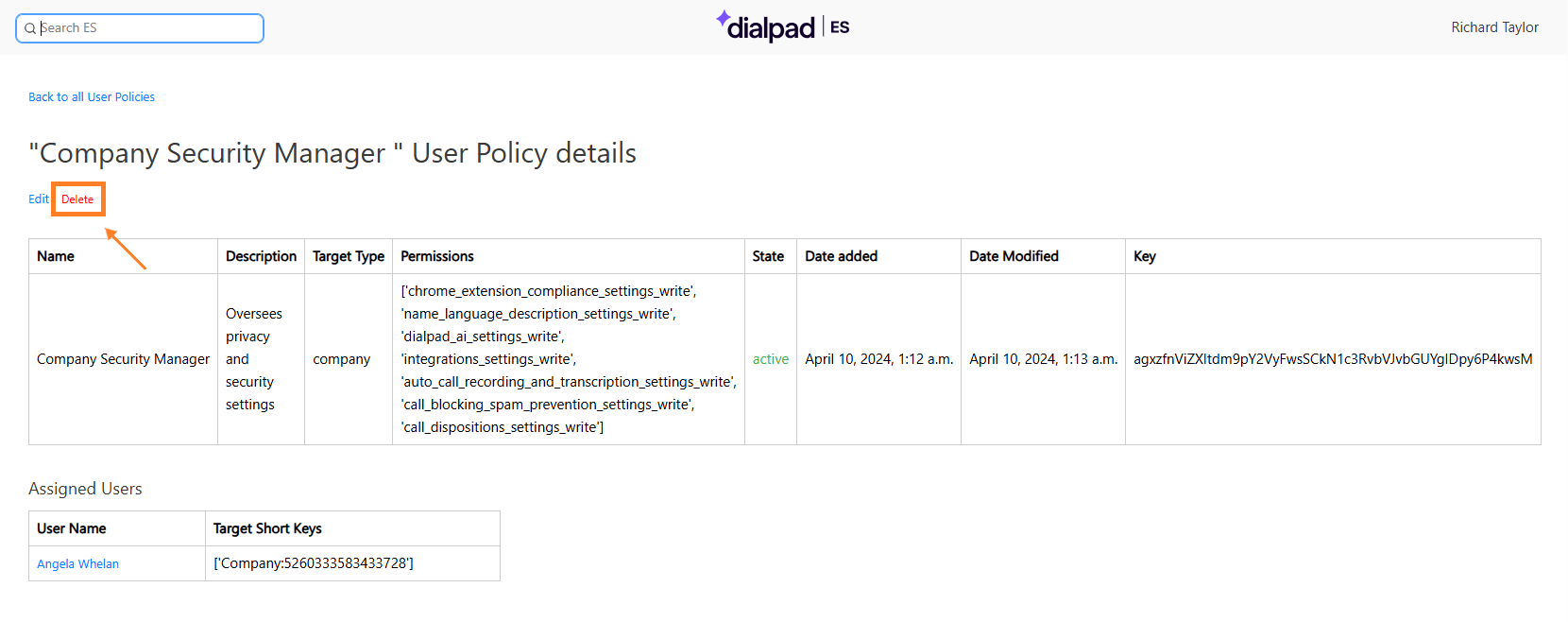
The policy will instantly be deleted, and all assigned users will no longer have access to the permissions associated with the deleted policy.
The policy will now appear as deleted in the User Policies page.
.png)
Restore a user policy
Need to restore a previously deleted policy? No problem.
To restore a deleted policy:
Head to the ES Portal > Select User Policy
Navigate to the policy you want to delete
-
Select Restore
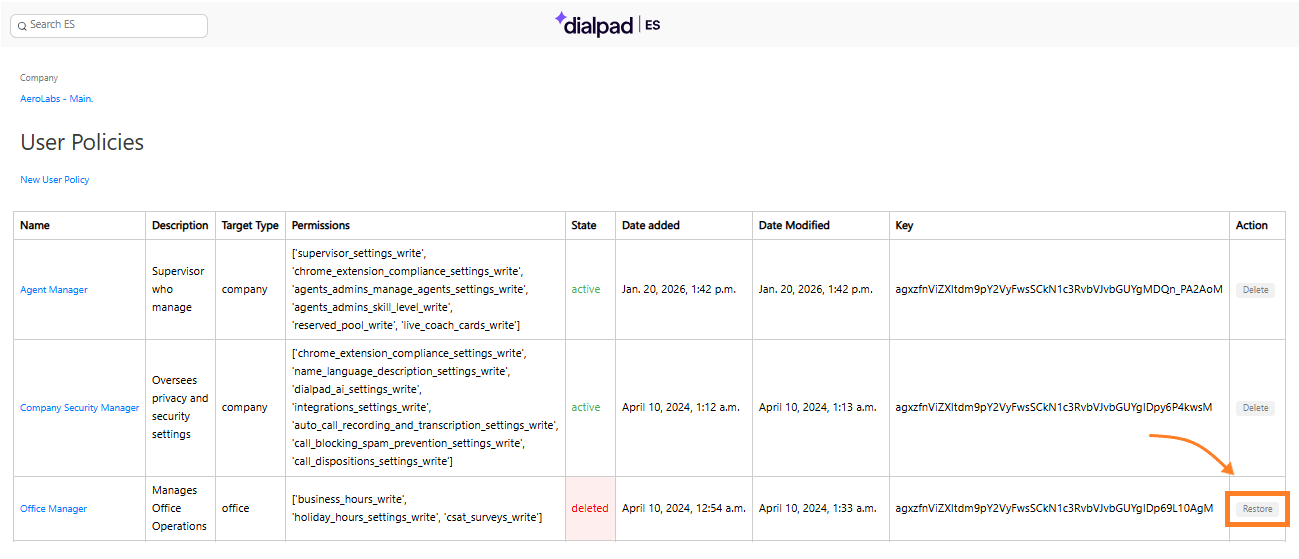
Learn more
Check out ES Portal Help Center article for more information on using Enterprise Support features.
Frequently asked questions
How can I join this Early Adopter Program?
Reach out to your Customer Success Manager to see if you are a good fit for this EAP.
Is there a limit to the number of people that can be assigned a user policy?
Nope! Assign as many people as you need.
Is there a maximum number of policies a company can have?
No, you can create as many Policies as your company needs.
Are there change logs for a user policy?
Not yet, but we’re working on it.
Will you be adding more features?
Absolutely! We’re fine-tuning this feature and will be adding more functionality soon.
I’m on the EAP, how can I share my feedback?
A huge part of the EAP process is getting your feedback on what’s working and what needs more attention before we publicly launch the feature.
To provide feedback to our team, please reach out to our Customer Care team or your Customer Success Manager.
Please note that we may use your responses in marketing promotions for the product launch (don’t worry, we will ask for approval before doing so).