Connect Dialpad with RiversConnect to automatically match callers to company records, view account details and equipment information in real time, log calls with AI-generated recaps, and add notes — all without leaving Dialpad. Less manual data entry, more time focused on your customers.
With the Dialpad + RiversConnect integration, you can:
Automatically match callers to RiversConnect company records by phone number
View contact details, AR status, open work orders, equipment, and order history in the Dialpad sidebar
Log call details — including direction, duration, and AI recap — to RiversConnect
Add notes from the sidebar that are logged alongside the call record
Search for contacts manually by phone number from the sidebar
Who can use this
The RiversConnect integration is available as an add-on for all Dialpad plans (Connect and Support) through Professional Services. Contact your Dialpad account team to get started.
Let's dive into the details.
Set up the RiversConnect integration
Setting up the RiversConnect integration involves gathering your API credentials, then connecting and configuring Event Hub in Dialpad using the self-enablement workflow.
Integration setup prerequisites
Before you begin, ensure you have these details:
A Dialpad admin account with access to integration settings
A RiversConnect account with API access
RiversConnect API credentials:
Client ID: Your RiversConnect API client ID
Client Secret: Your RiversConnect API client secret
Scope: The API scope for the integration (provided by your PS team)
Base URL: Your RiversConnect authentication endpoint
Connect Event Hub in Dialpad
Event Hub is the engine behind this integration. It listens for call events in Dialpad and sends them to RiversConnect.
Go to My Company
Select Integrations
Note
To set up this integration at the office level, go to your Dialpad Admin Settings. Select the office and then select Integrations.
Find Event Hub in the integration list
Select Options > Connect to open the self-enablement workflow
.jpeg)
Tip
Your Professional Services team will advise whether to connect at the company level or office level based on your setup.
Note
If you don't see Event Hub in your integration list, reach out to your Professional Services team to have it enabled.
Select RiversConnect as the CRM.
Select Next
Select Create New Connection
.jpeg)
Enter your RiversConnect credentials:
Connection Name: A descriptive name for this connection (e.g., riversconnect_production)
Note
Connection names must use only letters, numbers, and underscores.
Base URL: Your RiversConnect authentication endpoint
Client ID: Your RiversConnect API client ID
Client Secret: Your RiversConnect API client secret
Scope: The API scope (provided by your PS team)
Select Create. The system will validate your credentials and establish the connection.
Configure the integration
Once connected, configure the features you'd like to use.
Base settings
These apply to the overall integration and need to be configured before turning on specific features.
Setting | Description |
|---|---|
API Base URL | The RiversConnect API endpoint that the integration uses to communicate with your instance. |
Log All Calls for This Office | Applies your call logging configurations to all calls within the office. Required for the integration to process calls. |
Enable Task Queue | Groups related call events (hangup and AI recap) into a single call log entry instead of creating separate entries. Recommended — this ensures the AI recap summary is included in the same entry as call details. |
Call logging settings
No additional call logging settings are needed beyond the base settings.
Recommended call event trigger: Hangup.
Enable Info Hub
Info Hub adds a sidebar to Dialpad where your team can view contact details, account information, orders, equipment, and add notes — all in real time during calls.
Go to My Company
Select Integrations
Navigate to Info Hub
Select Options > Connect
Select Options > Manage Settings
Set Enable this feature to On
Select the Contact Details template
Tip
For a phased rollout, leave Info Hub turned off at the company level and turn it on for specific offices, departments, or call centers.
Use the RiversConnect sidebar
When you receive or make a call, the RiversConnect Info Hub sidebar appears in Dialpad with relevant company and contact information.
Match contacts
The sidebar automatically searches RiversConnect for contacts whose phone numbers match the caller's in NPA-NXX-XXXX format (e.g., 408-555-1234).
Single match found: The contact connects automatically, and their details (name, email, phone, company) display right away.
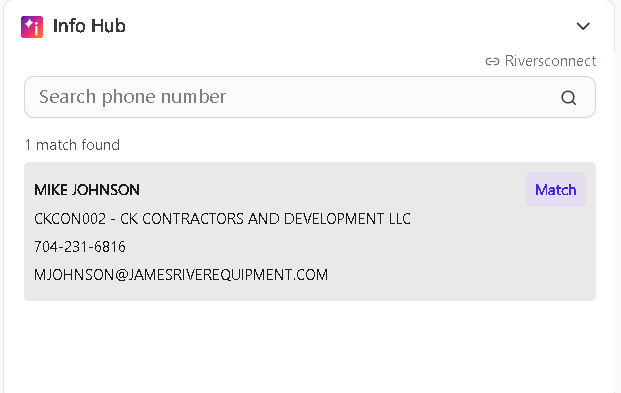
Multiple matches found: A list of potential matches appears — select the correct one.
No match found: Use the search bar to find an existing contact by phone number.
To change a match, select Rematch and search for a different contact.
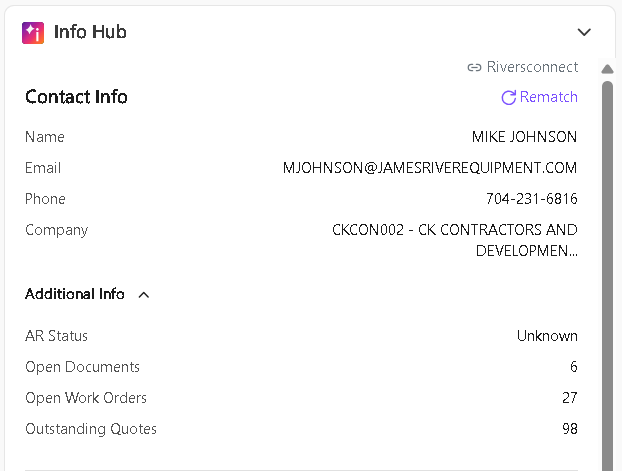
View account details
Once a contact is matched, the sidebar displays account details below the contact information:
Detail | Description |
|---|---|
AR Status | The account's current accounts receivable status |
Open Documents | Number of open documents on the account |
Open Work Orders | Number of open work orders |
Outstanding Quotes | Number of outstanding quotes |
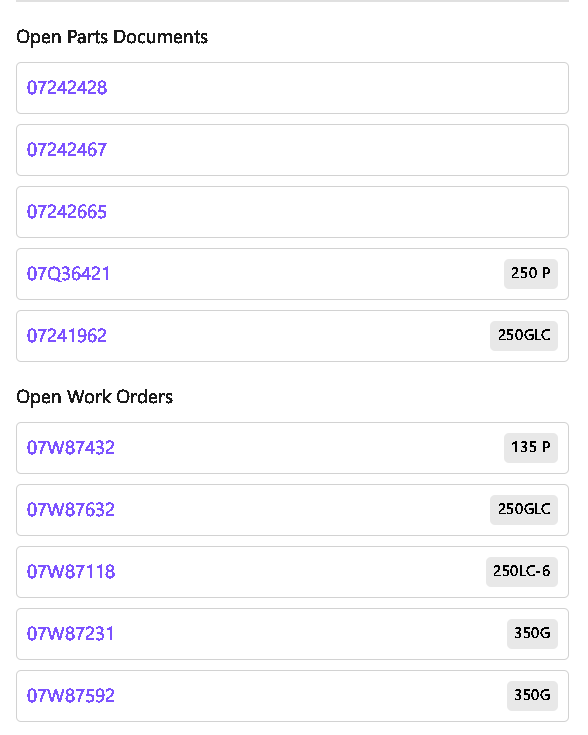
View orders and equipment
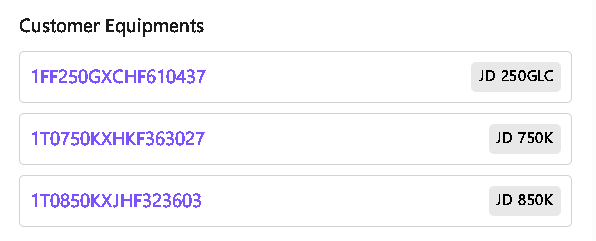
The sidebar also shows order and equipment details for the matched company:
Order Details: Recent orders with item numbers, model names, and links to the full order in RiversConnect. Action items associated with each order are also displayed.
Equipment Details: Equipment on the account, including make, model, serial number, and a link to the equipment record.
Additional Info: Links to related resources in RiversConnect.
Call logging
When a call ends, Dialpad logs the details to RiversConnect as a message on the matched company record. If the agent added notes in the sidebar during the call, those are sent as a separate log entry.
What gets logged
These details are captured for call records:
Field | Description |
|---|---|
Call ID | The Dialpad call identifier |
Header ID | The matched company's ID in RiversConnect |
From | The originating phone number (varies by call direction) |
To | The destination phone number (varies by call direction) |
Body | Call details — including direction, duration, and a link to the Dialpad call review |
AI recap | AI-generated call summary (included in the body when available) |
You can capture these details when logging notes (when sidebar notes are provided):
Field | Description |
|---|---|
Header ID | The matched company's ID in RiversConnect |
From | The originating phone number |
To | The destination phone number |
Body | Notes entered by the agent in the sidebar during the call |
How call logging works
Call logging work in these scenarios:
Scenario | What happens |
|---|---|
Contact found, notes provided | Log note and call record are both created on the company record |
Contact found, no notes provided | Only the call record is created (log note is skipped) |
Contact not found | No call log entry is created |
Contact matched via sidebar | Call is logged using the sidebar-matched contact |
Contact matched via phone lookup | Call is logged using the phone number match |
Note
RiversConnect call logging uses the caller and agent phone numbers — there's no email-based employee matching. The From and To fields are determined by call direction: for inbound calls, From is the caller and To is the internal number; for outbound calls, the reverse.
Troubleshooting
"CRM Not Connected" error
Verify your RiversConnect credentials (Client ID, Client Secret, Scope) are correct.
Check that your API access hasn't been revoked or expired.
Confirm the Base URL is correctly formatted.
The integration uses OAuth 2.0 — tokens refresh automatically, but an expired or revoked client secret requires re-entering credentials.
Contact not found
Verify the contact exists in RiversConnect.
Check that the phone number is stored on the company record and matches the caller ID format (NPA-NXX-XXXX).
Try searching by phone number in the sidebar.
Call not logging
Confirm "Log All Calls for This Office" is turned on in the base settings.
Verify a company record was matched.
Check that the Event Hub connection is active and credentials haven't expired.
Sidebar not showing contact details
Confirm Info Hub is turned on and the Contact Details template is selected.
Check that the Event Hub connection is active.
Verify the contact exists in RiversConnect and has been matched.
Order or equipment details missing
Verify the matched company has orders or equipment on file in RiversConnect.
Check that the API credentials have permission to access order and equipment data.
If the sidebar shows contact details but not other details, the company record may not have associated orders or equipment.
Frequently asked questions
Why isn't my contact matching being automatically applied?
Contact matching searches by phone number in NPA-NXX-XXXX format. Make sure the company's phone number in RiversConnect matches the caller ID format. You can also search by phone number in the sidebar if the automatic match doesn't find the right contact.
Why isn't my call being logged?
Call logging requires a matched company record. Verify that the contact exists in RiversConnect with a searchable phone number, and that "Log All Calls for This Office" is turned on. Also, check that the Event Hub connection is active and credentials haven't expired.
Why aren't my sidebar notes showing up in the call log?
Notes entered in the sidebar are sent as a separate log entry to RiversConnect. If the notes field is left empty, the log note is skipped — only the call record is created. Make sure to enter notes in the sidebar before the call ends.
Are AI recaps included in call log entries?
Yes — when available, the AI-generated call summary is appended to the call record body. Turn on Task Queue to ensure the recap is included in the same entry as the call details.
Why don't I see an AI recap in my call log?
AI recaps are generated after the call ends and may take a moment to process. If Task Queue is turned on, the integration waits for the recap before creating the call log entry. If Task Queue is turned off, the recap may be logged as a separate entry or missed entirely.
Why don't I see order or equipment details in the sidebar?
Order and equipment details are pulled from RiversConnect when the contact is matched. If the matched company doesn't have orders or equipment on file, those sections won't appear. Verify the data exists in RiversConnect for the matched company.
Can I search by name or email?
Contact search in the sidebar is phone-number-based. To find a contact, search by their phone number in the sidebar search bar.