Dialpad’s integration with Gorgias provides real-time customer context to support agents by automatically matching callers to Gorgias customer records using their phone numbers.
When a call triggers the screen pop workflow, the integration opens the matching Gorgias customer page directly in the agent’s browser, helping agents avoid manual lookups during live conversations. After a call ends, the integration automatically logs the interaction into Gorgias by either creating a new open ticket or appending a message to an existing open ticket for the matched customer.
If no matching customer is found, the integration can automatically create a new Gorgias customer using the caller’s phone number and, when available, their email, name, and external contact ID before continuing the workflow.
This reduces manual data entry, centralizes customer history in Gorgias, and provides agents with better context during and after calls.
Who can use this
The Gorgias integration is available as an add-on for all Dialpad plans (Connect and Support) through Professional Services. Contact your Dialpad account team to get started.
Gorgias can be enabled at the following levels:
Company level: All calls across the company will trigger the integration features.
Office level: Only calls routed through a specific office will trigger the integration features.
Contact Center level: Only calls routed through a specific contact center will trigger the integration features.
Let’s dive into the details.
Enable Gorgias in Dialpad
Before you can use Gorgias in Dialpad, you must enable Gorgias within Dialpad first.
To enable Gorgias in Dialpad, go to your Dialpad Admin Settings.
Select My Company
Note
The integration must be enabled at the company level before it can be enabled at the office level. To enable it at the office level, go to your Dialpad Admin Settings and select Office Settings > Integrations.
Select Integrations
Navigate to AI Event Hub and select Options > Manage Extension
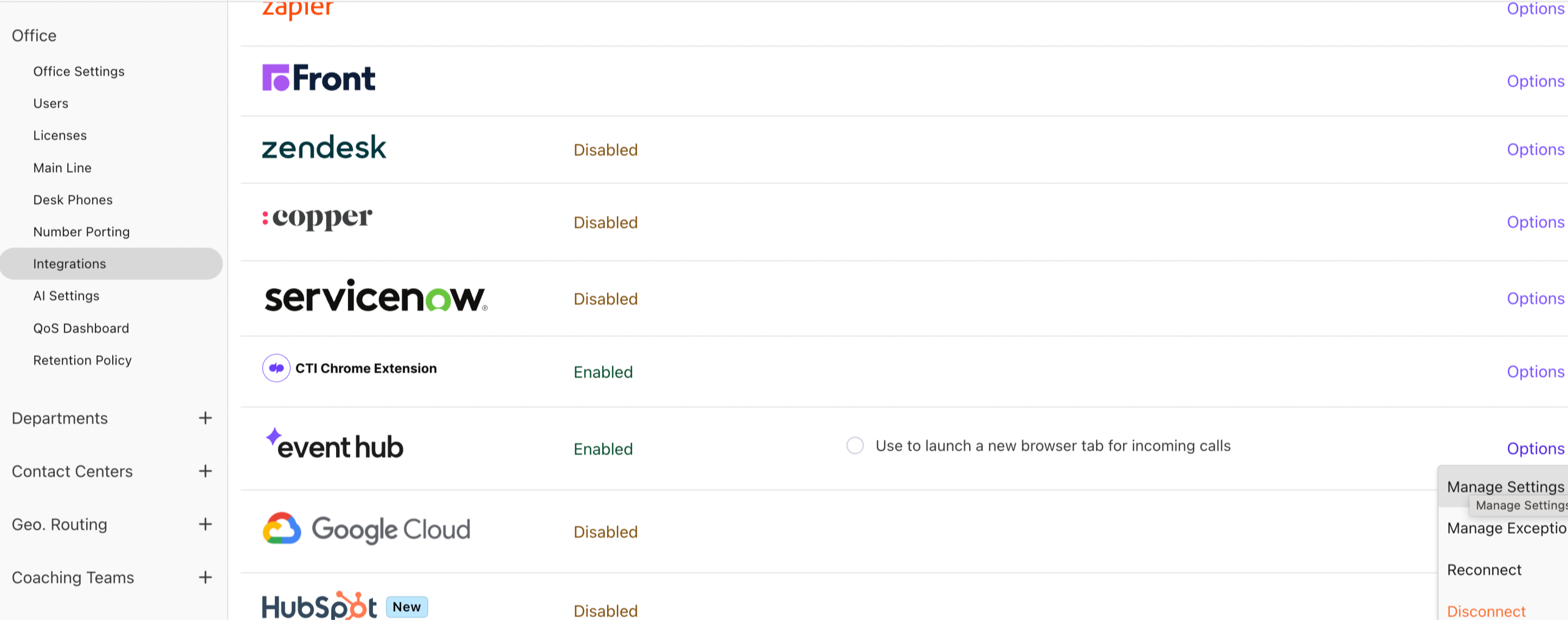
Select Enable this feature
Select Save changes

Go back to the Integrations page and navigate to AI Event Hub
Select Options > Connect / Reconnect
Select Gorgias as the CRM
Create a new connection or reuse an existing one. To create a new connection, select Create New Connection
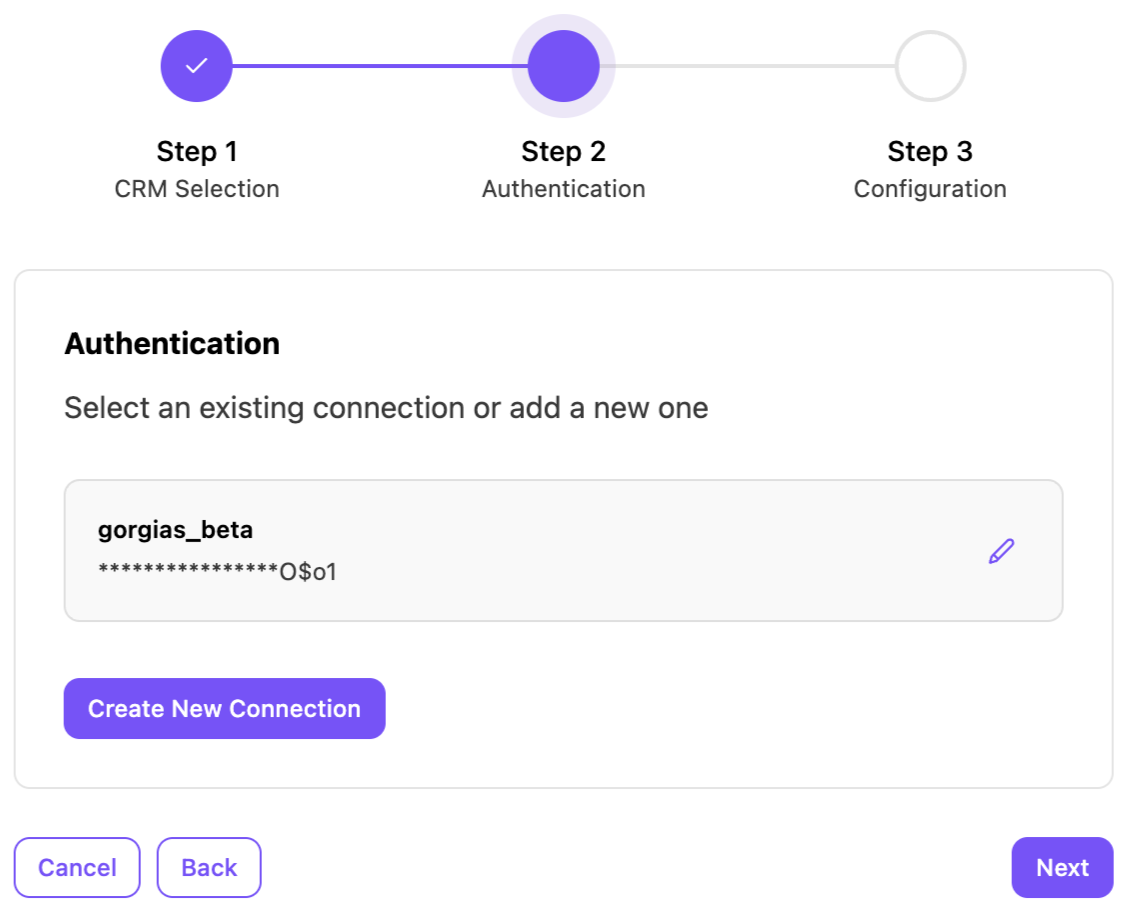
Enter these details:
Parameter
Description
Base URL
The base URL of your Gorgias instance. Ex. https://yourbrand.gorgias.com
Username
The username Dialpad uses for Gorgias Basic authentication.
Password
The password Dialpad uses for Gorgias Basic authentication.
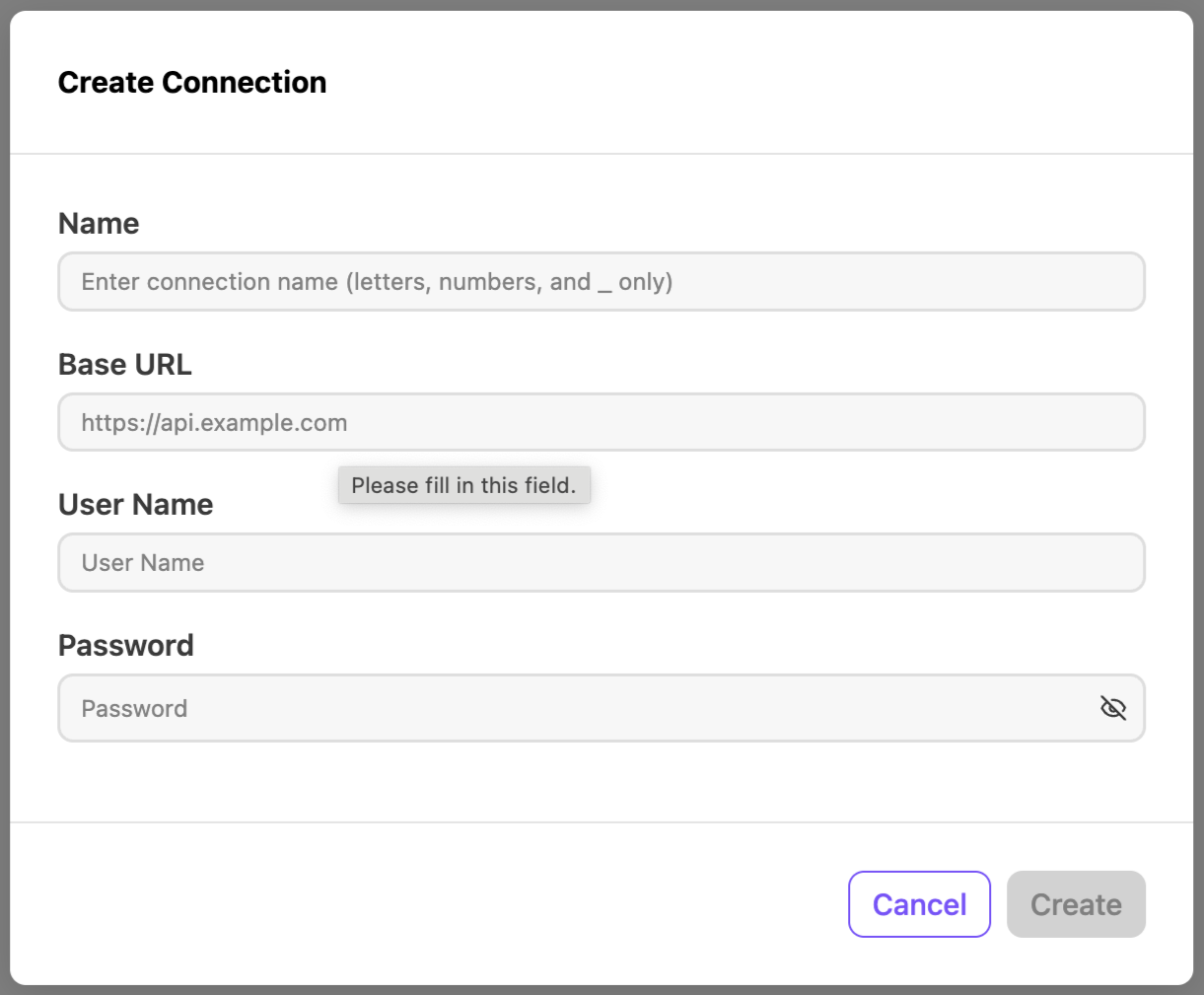
The integration creates the authorization header by Base64-encoding username:password, stores the connection as authentication_type='basic', and uses that credential on API requests to Gorgias.
Call Logging
Screen Pop
After selecting the connection, configure these integration features
Screen pop
You can configure these settings for screen pop.
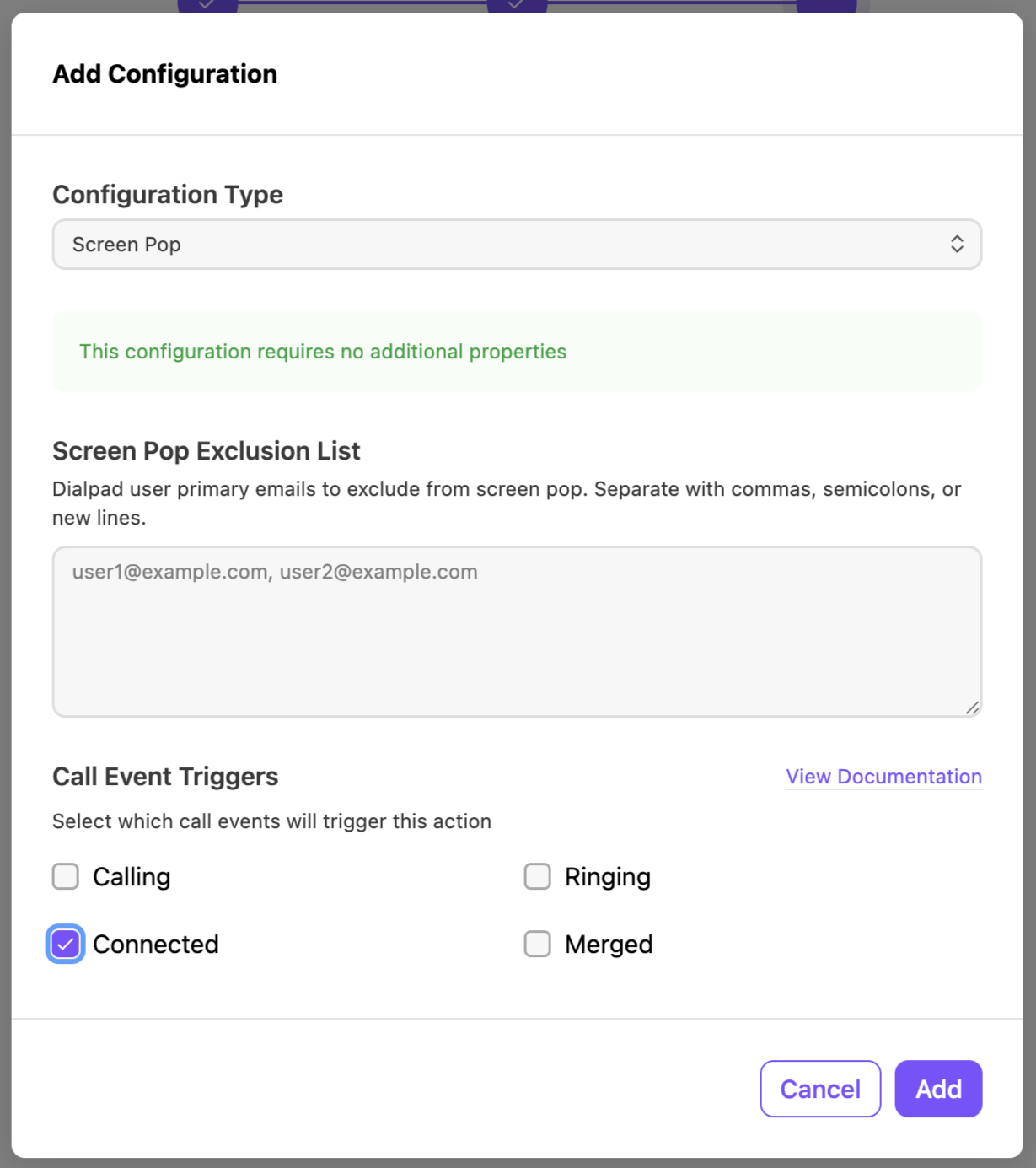
Setting
Description
Screen Pop Tab
The Gorgias record tab that opens when a screen pop is triggered.
Screen Pop Exclusion List
Choose the primary user emails to exclude form Screen pop.
Call Event Trigger
You can select which call events trigger the addition of a configuration. These triggers include:
Calling: When placing a call.
Connected: When a call is picked up and connected to an agent.
Ringing: While a call is ringing.
Merged: When the call is merged.
Call logging
You can configure these settings for screen pop.
Setting
Description
Call Event Trigger
You can select which call events trigger the addition of a configuration. These triggers include:
Hangup: When the call ends. (This is a required trigger)
Connected: When a call is picked up and connected to an agent.
Dispositions: When a call disposition is submitted for the call by an agent.
Recap Summary: When the recap summary is ready for the call.
Recap Purposes: When ai recap purposes are identified for the call.
Recap Action Items: When AI recap actions are identified for the call.
Review the connection and feature selection details
Select Finish
Once enabled, the Gorgias integration is active for applicable calls in Dialpad.
Using Gorgias in Dialpad
The integration is fully automated. Agents do not need to manually trigger screen pop or call logging once the integration has been enabled.
Screen Pop
When the screen pop workflow runs, it first checks whether the caller already has a cached CRM mapping in Dialpad’s CRM cache.
If no cached mapping exists, the integration searches Gorgias using the caller’s phone number with type: customer_channel_phone against the /api/search endpoint.
If a customer is found, the first matching customer record is used for screen pop.
If no customer is found, the integration creates a new customer in Gorgias and then uses that new customer for the screen pop workflow.
The screen pop URL is built as {gorgias_base_url}/app/customer/{customer_id} and sent to Dialpad so the customer page opens for the agent.
Call Logging
After the call ends, it resolves the customer using the same cached lookup and phone-number search flow used for screen pop.
Next, it tries to find the answering agent in Gorgias by searching for the Dialpad agent’s email address. It then checks for an open ticket for that customer by calling /api/tickets with the customer ID and selecting the first open ticket.
If an open ticket already exists, Dialpad appends a new message to that ticket.
If no open ticket exists, Dialpad creates a new open ticket in Gorgias and stores the ticket ID in the CRM cache for later use.
The ticket message is created as a phone interaction and includes Dialpad-generated call log notes in HTML format.
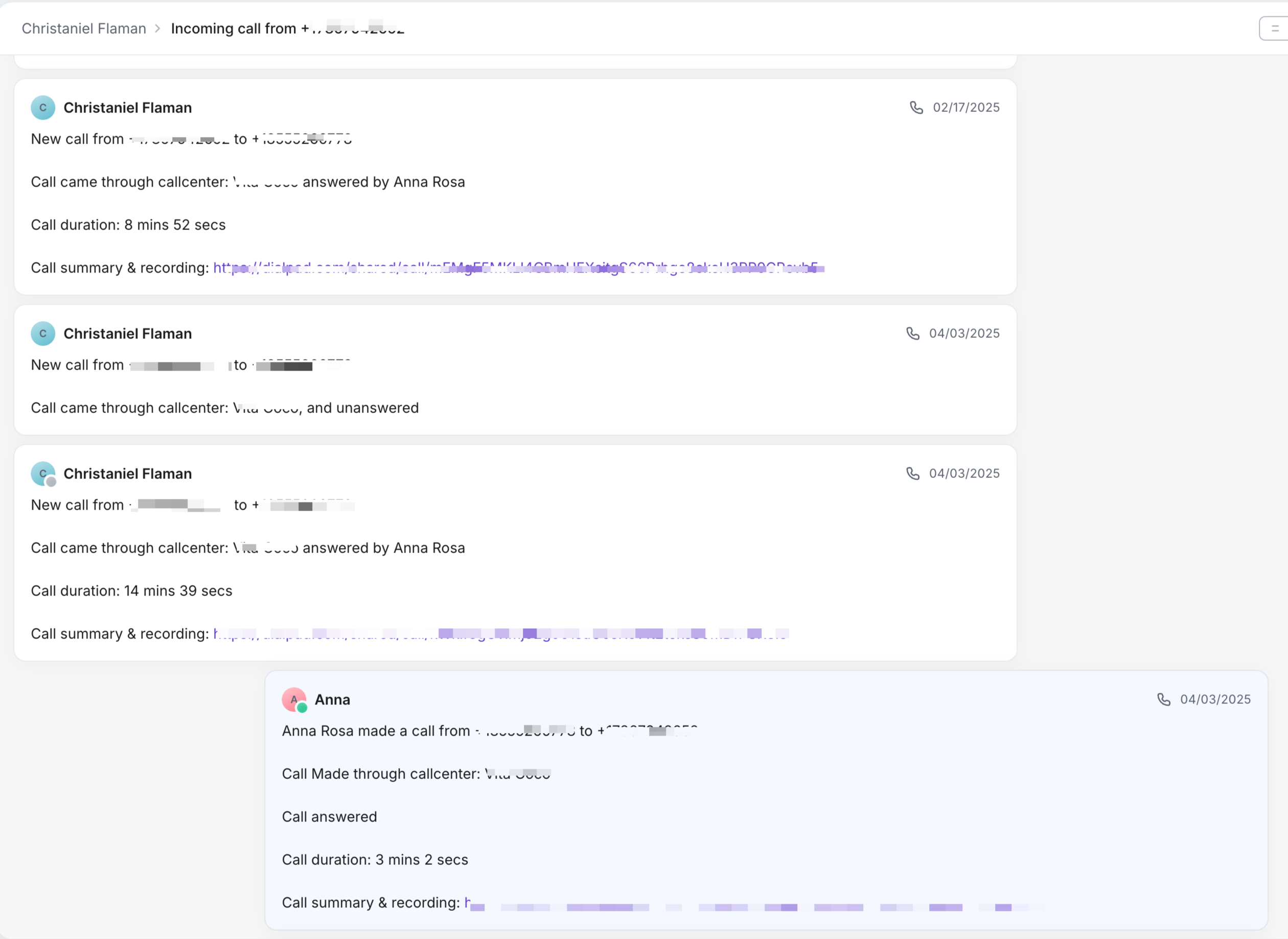
For inbound calls, the ticket subject is set to incoming call from {phone_number}. For outbound calls, it is created as an outgoing call to {phone_number}.
This also adds a tag based on the Dialpad internal number when creating a new ticket.
Troubleshooting
Screen pop is not triggering
Verify that the Gorgias Base URL is correct, that AI Event Hub is enabled for the right Dialpad target, and that the call has a resolvable contact record or enough contact data to create one.
A call log was not created after the call ended
Check whether the customer lookup or the customer creation succeeded first. If Dialpad cannot find or create a Gorgias customer, call logging stops.
The ticket was created without the expected agent assignment
The integration matches Gorgias agents by the answering agent’s email address. If no Gorgias agent is found, ticket creation still proceeds without an assigned agent ID.
A new ticket was created when you expected an existing one to be reused
The integration only reuses tickets with an open status. If no open ticket is found for that customer, it creates a new ticket.
Authentication is failing
Recheck the Base URL, Username, and Password used for the connection. Gorgias uses Basic authentication in this integration, and every request includes a Basic Authorization header.
Calls are intermittently failing due to API throttling
The Gorgias client retries once after a 429 rate limit response, waiting 2 seconds and resending the request.
Frequently Asked Questions
Does the integration automatically create a customer if no match is found?
Yes. If the phone-number search returns no Gorgias customer, Dialpad creates one using the contact’s phone number and, when available, email, name, and external contact ID.
How does the integration decide whether to create a ticket or update an existing one?
Dialpad first looks for an existing open ticket for the customer. If one exists, it appends a message to that ticket. If not, it creates a new open ticket.
What authentication method does Gorgias use in this integration?
Gorgias uses Basic authentication in Dialpad’s current implementation.
What information is included in the call log?
The call log is written as a Gorgias phone interaction and includes Dialpad-generated HTML call notes. New tickets also include a subject line based on call direction and a tag derived from the Dialpad internal number.
Does the integration support both Screen Pop and Call Logging?
Yes. The current frontend configuration schema includes both screen_pop and call_logging for Gorgias.
Are there any extra Gorgias-specific setup fields beyond the connection credentials?
Not in the current frontend schema. Gorgias currently has empty configuration arrays for both call_logging and screen_pop.