Dialpad + Sonar brings real-time customer context directly to your broadband and ISP service agents.
When an inbound call connects, the integration automatically searches Sonar for matching account records and surfaces them via a screen pop, so agents never have to manually look up a customer.
After the call ends, call details, including AI-generated summaries, recording links, and recaps, are logged directly to the matched Sonar account as correspondence/phone call activity, saving agents time and ensuring no call goes undocumented.
This integration helps broadband and ISP businesses reduce average handle time, improve first-call resolution, and maintain a complete record of all customer interactions without any manual data entry.
Who can use this
The Sonar integration is available as an add-on for all Dialpad plans (Connect and Support) through Professional Services. Contact your Dialpad account team to get started.
Sonar can be enabled at the following levels:
Company level: All calls across the company will trigger the integration features.
Office level: Only calls routed through a specific office will trigger the integration features.
Contact Center level: Only calls routed through a specific contact center will trigger the integration features.
Enable Sonar in Dialpad
Before you can use Sonar in Dialpad, you must enable Sonar within Dialpad first. To enable Sonar in Dialpad, go to your Dialpad Admin Settings.
Select My Company
Note
The integration must be enabled at the company level before it can be enabled at the office level. To enable it at the office level, go to your Dialpad Admin Settings and select Office Settings > Integrations.
Select Integrations
Navigate to the AI Event Hub integration and select Options > Connect
.jpeg)
Select the Enable this feature option
.png)
Go back to Integrations and navigate to the AI Event Hub integration
Select Options > Manage Settings
Select Sonar as the CRM
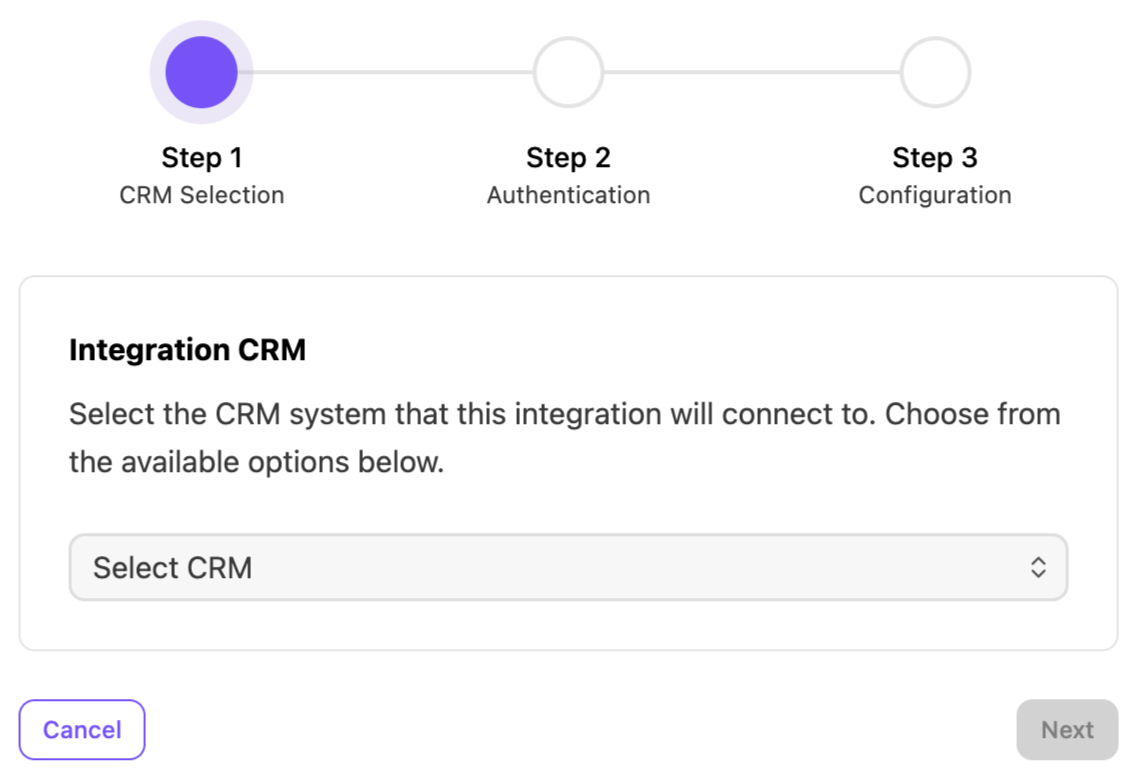
Select Next
Create a new connection or reuse an existing one. To create a new connection, select Create New Connection
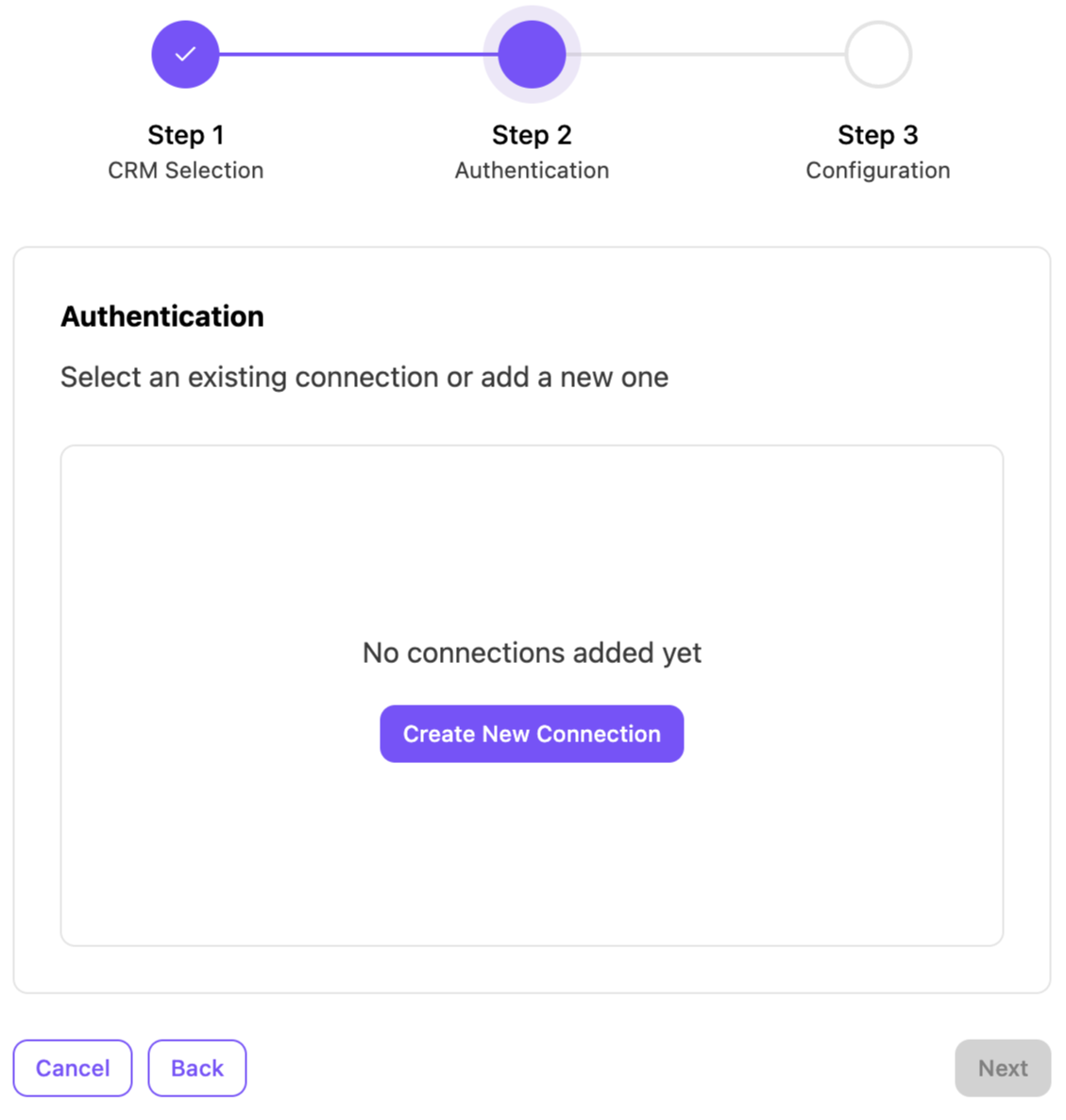
Enter these details:
Setting
Description
Base URL
Sonar instance URL (e.g., https://your-company.sonar.software)
Client ID
The Sonar user ID associated with the PAT
PAT token
Personal Access Token (PAT) generated from the Sonar user settings page
Note
Sonar uses GraphQL APIs for the integration. The AI Event Hub utilizes PAT (Personal Access Token) for Sonar Call Logging integration.
How to generate a PAT token in Sonar
To create a PAT token in Sonar:
Create an appropriate role and a user that you will use to perform the queries or mutations
Log in as a user to the Sonar instance
Click the Avatar on the top-right (first letter of your username by default)
Select the Personal Access Tokens tab to navigate to the management page, then select Create Personal Access Token
After creating and copying the token, select Confirm.
After these steps are complete, the token will appear in the Personal Access Tokens section.
Select Next
Select Add Configuration
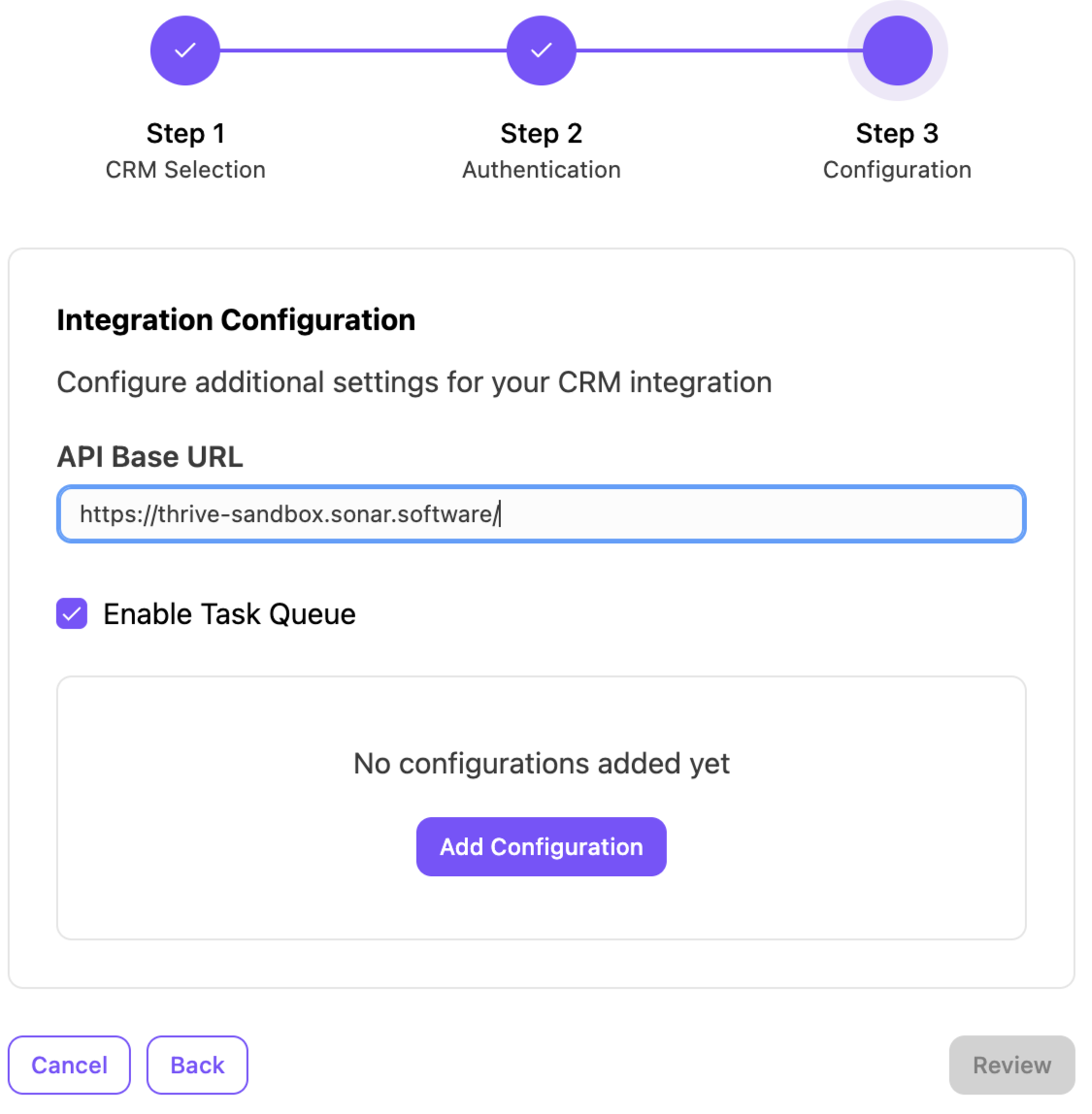
Configure these details:
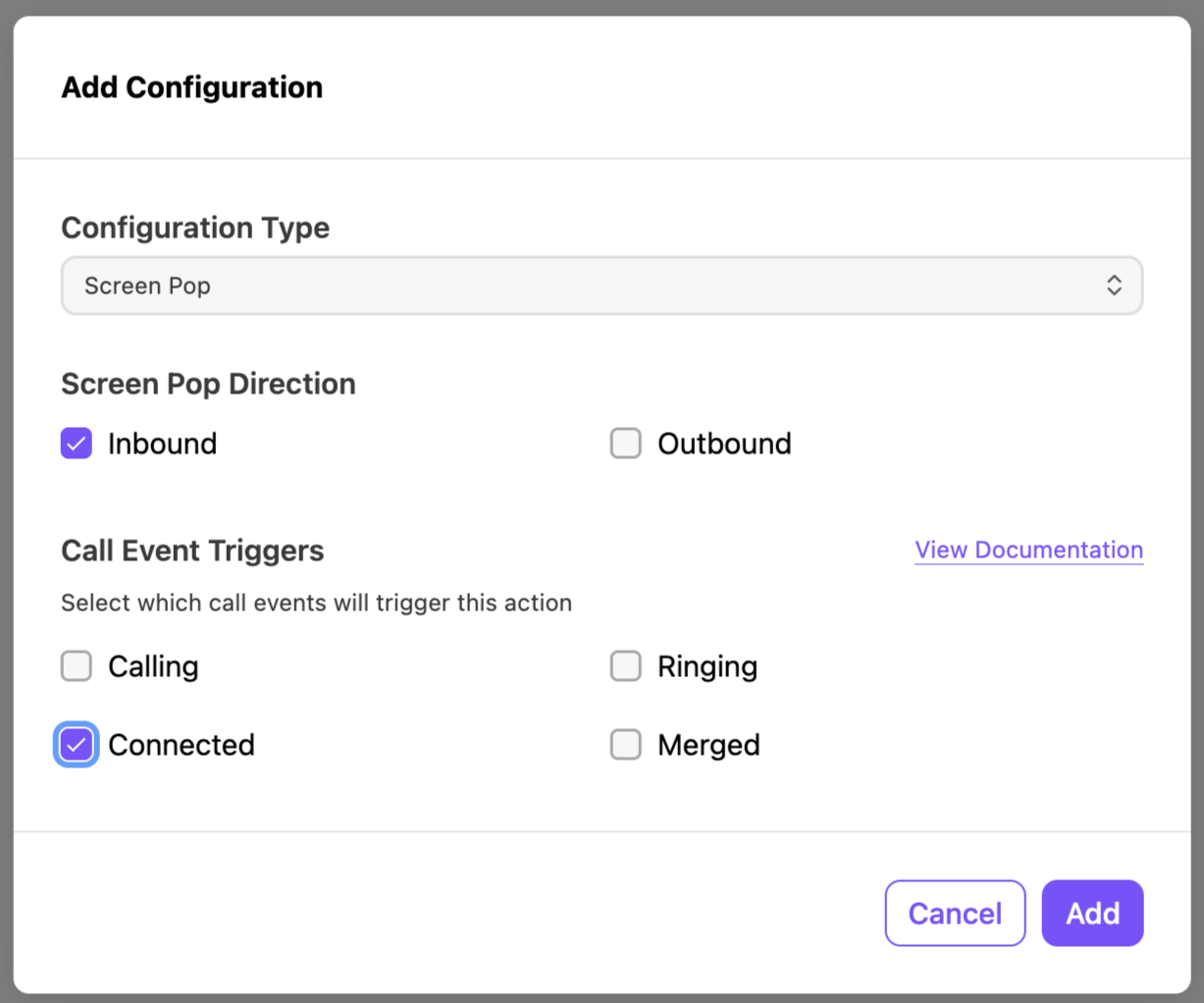
Screen pop settings
Configure these setting for screen pop:
Setting
Description
Screen Pop Direction
Choose whether to have the screen pop open for Inbound calls, Outbound calls, or both.
Call Event Triggers
You can select which call events trigger the addition of a configuration. These triggers include:
Calling: Outbound call has started.
Ringing: Inbound call is ringing.
Connected: When a call is picked up and connected to an agent.
Merged: An additional caller is added to the call.
The View Documentation option displays Help documentation for Sonar.
Call logging settings
Configure these setting for call logging:
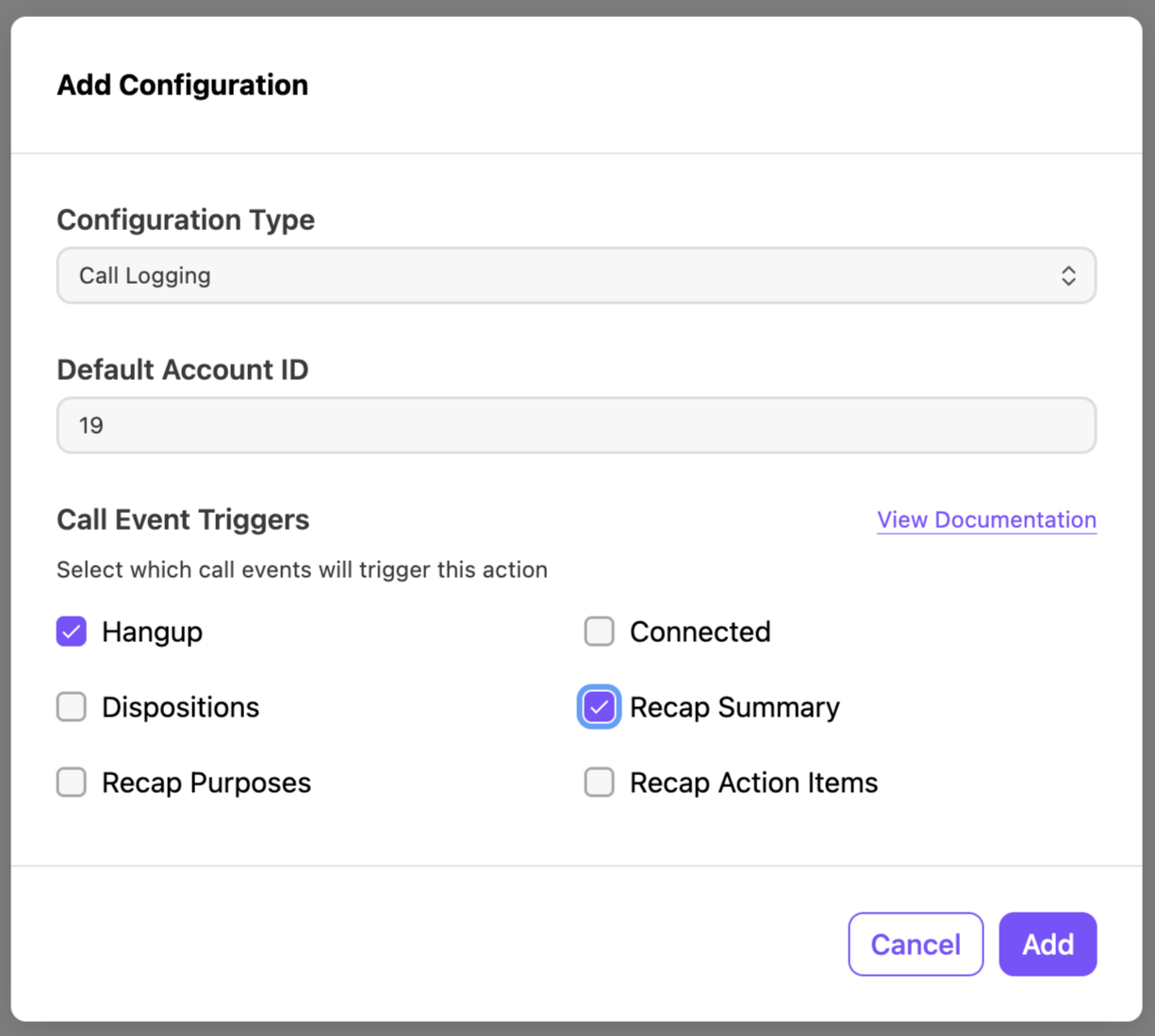
Setting
Description
Default ID
The Sonar employee ID used when the Dialpad agent's email doesn't match a Sonar employee record.
Call Event Triggers
You can select which call events trigger the addition of a configuration. These triggers include:
Hangup: When the call ends.
Connected: When a call is picked up and connected to an agent.
Dispositions: When a call disposition is submitted for the call by an agent.
Recap Summary: When the recap summary is ready for the call.
Recap Purposes: When ai recap purposes are identified for the call.
Recap Action Items: When AI recap actions are identified for the call.
The View Documentation option displays Help documentation for Sonar.
Select Review, then select Finish
After you complete your configuration, you’ll see a banner saying the configuration was successful.
Using Sonar in Dialpad
Integration will be used by users of the enabled scope. It is a backend integration, so it will become effective post-enablement for all applicable calls at that level, resulting in interactions with the CRM occurring automatically.
Screen Pop (Inbound Calls):
When an inbound call connects, the integration automatically searches Sonar for an account record matching the caller's phone number.
If a single match is found, the Sonar account's Correspondence page opens in a new browser tab
If no match or multiple matches are found, no screen pop is triggered.
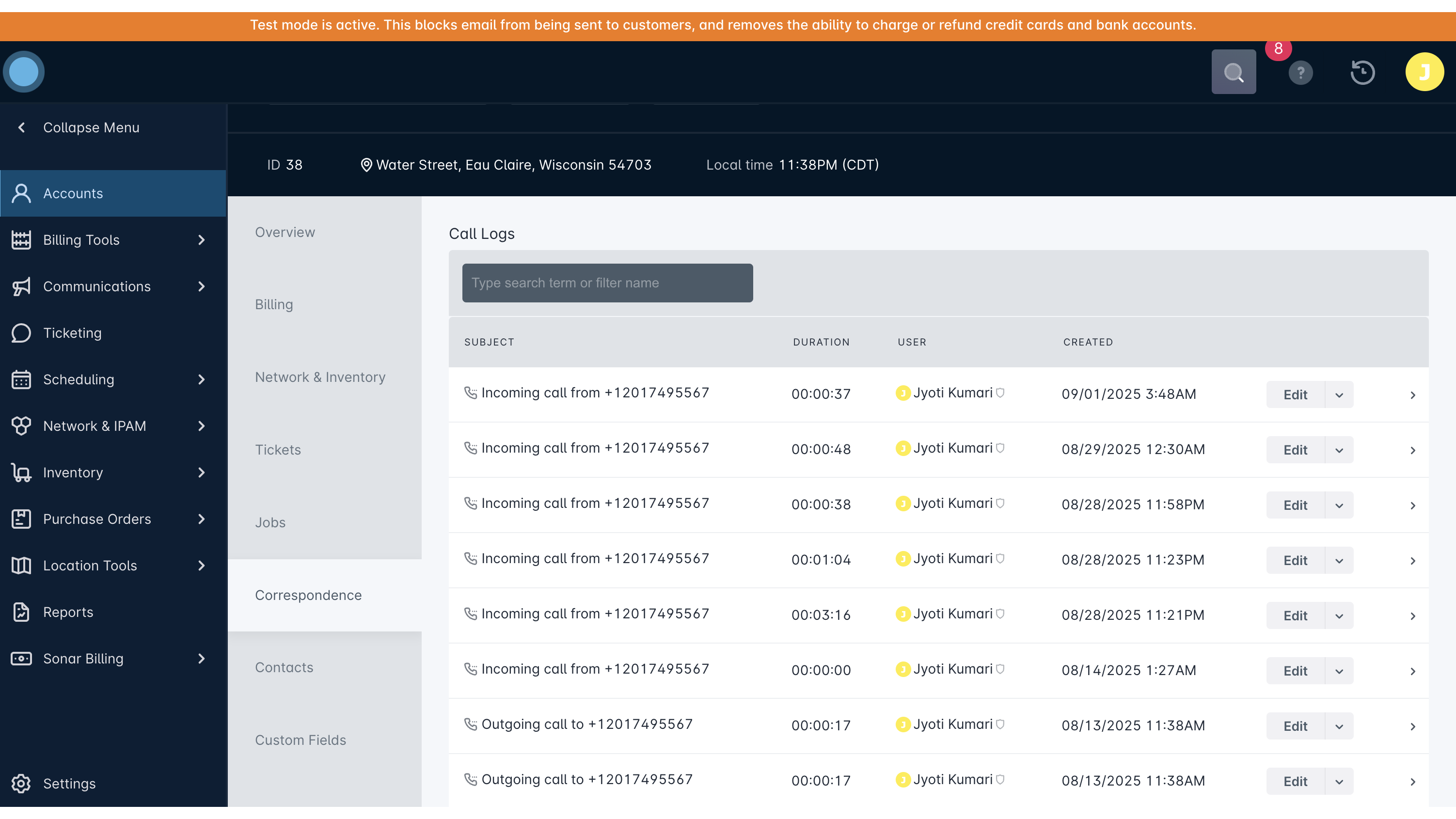
Call Logging (Automatic):
After a call ends (hangup), the integration logs call details as a PhoneCall activity to the matched Sonar account's record. The log includes:
Call direction, duration, and agent details
Call summary and recording link
AI Recap (if available)
For no match or multiple match cases, the call is logged to the pre-configured default account.
For transferred calls, all legs are consolidated into a single PhoneCall activity/ correspondence entry.
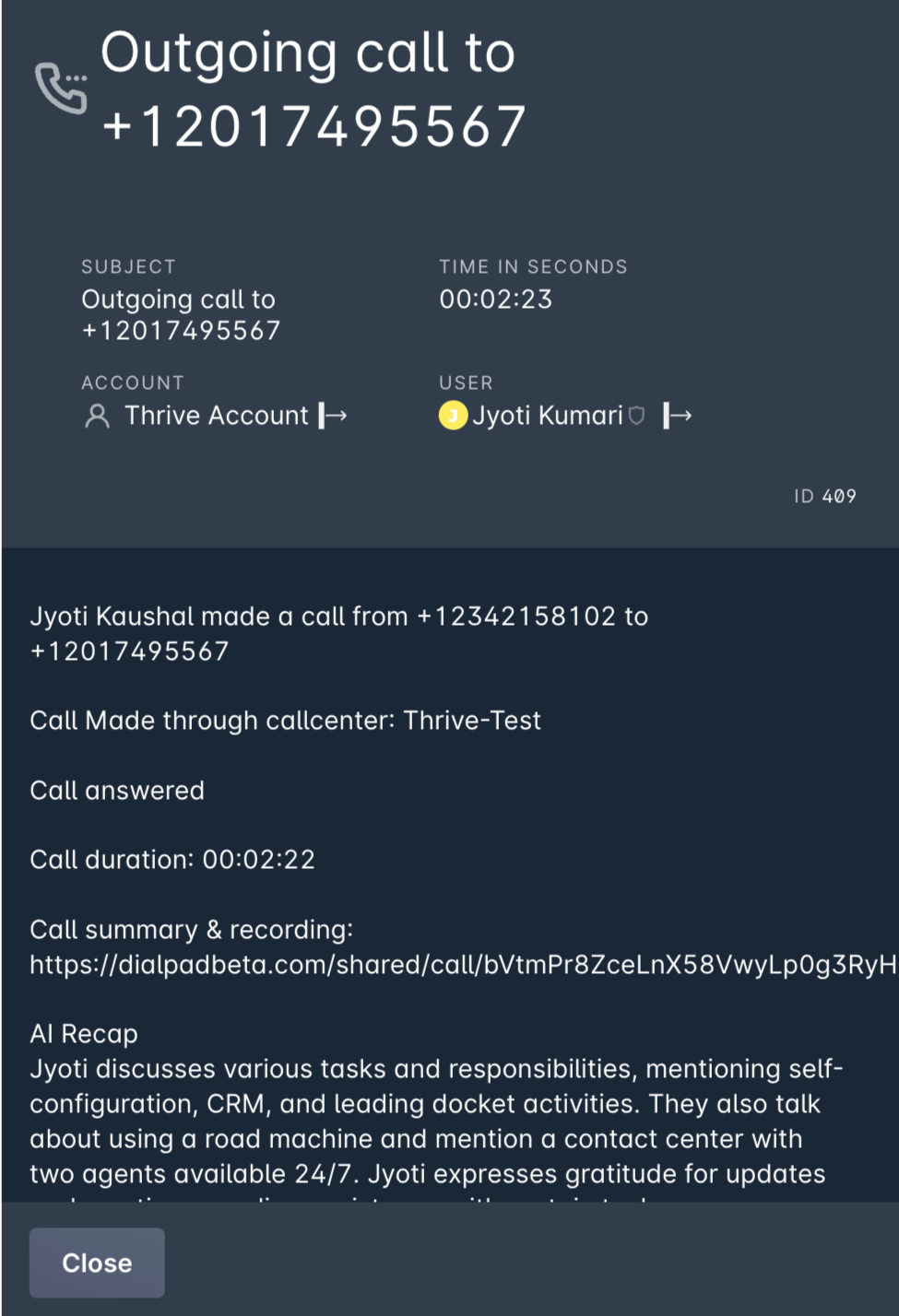
Agents at the level will experience the features happening automatically, and call logs (PhoneCall activities) should start showing up in Sonar's Correspondence tab after enablement.
Troubleshooting
Call logging works, but the AI Recap in the note always says "Summaries are currently not generated for short calls or voicemails"
This happens because the AI Recap gets generated only after ~2 minutes of the call, and more than 50 words are identified by the AI.
Screen pop is not appearing for inbound calls
Verify that the Screen Pop Direction is set to include "Inbound" in the integration configuration.
Ensure the AI Event Hub is connected and enabled for the correct level (company/office/contact center).
Confirm that the caller's phone number exists as a primary phone number on an account in Sonar.
Calls are being logged to the default account instead of the expected account
This occurs when the caller's phone number does not match any account or matches multiple accounts in Sonar.
Verify the phone number format on the Sonar account matches what Dialpad sends (NPANXXXXXX format).
"No connection found for sonar" error
Re-verify your PAT token is valid and has not expired.
Ensure the Base URL matches your Sonar instance URL exactly.
Re-create the connection if needed.
Frequently Asked Questions
Does the integration support outbound calls?
Yes. Call logging works for both inbound and outbound calls. Screen pop can be configured for inbound, outbound, or both types of calls.
What happens if a call is missed?
Missed calls are still logged to Sonar. No screen pop is triggered for missed calls since the call was not connected.
What happens when there are multiple Sonar accounts for the same phone number?
No screen pop is triggered. The call log is saved to the pre-configured default account.
What happens when no account matches the caller's phone number?
No screen pop is triggered. The call log is saved to the pre-configured default account.
Can the integration be configured at the Contact Center level?
Yes. The integration can be configured at the company, individual office, or contact center level, depending on your needs.
How are transferred calls handled?
Transferred calls (e.g., IVR to contact center, or contact center to contact center) are consolidated into a single PhoneCall activity in Sonar. Each leg's details - including agent name, duration, and call summary - are appended to the same log entry.
What API type does Sonar use?
Sonar uses GraphQL APIs. The integration uses a Personal Access Token (PAT) for authentication.
Can I customize the data that gets logged?
The standard call log includes a call summary, a recording link, and an AI recap. Custom fields or formatting changes can be discussed with your Dialpad Professional Services team.