Connect Dialpad with Vertafore AMS360 to open the right customer record the moment a call comes in. Once set up, the integration matches each caller to their AMS360 customer record by phone number and opens the customer's NextGen detail page in the agent's browser — no manual lookup required.
With the Dialpad + AMS360 integration, you can:
Automatically match callers to AMS360 customer records by phone number
Open the matched customer's NextGen detail page in AMS360 when a call event fires
Surface multiple matches side by side when a phone number is shared across customers
Trigger screen pop on inbound calls, outbound calls, or both
Who can use this
The AMS360 integration is available as an add-on for Dialpad Connect and Support licenses through Professional Services. To get started, contact your account team.
Let’s dive into the details.
Enablement prerequisites
Before you begin, make sure you have:
A Dialpad admin account with access to integration settings
An AMS360 account with WSAPI access turned on
AMS360 WSAPI credentials (from your AMS360 administrator or Vertafore):
Agency No — your AMS360 agency number
Login ID — the username of a WSAPI-enabled AMS360 user
Password — the password for that user
WSAPI endpoint URL — the SOAP service URL for your AMS360 environment (for example, https://opwsapi.ams360.com/v3/WSAPIservice.svc)
Note
WSAPI access isn't turned on by default in AMS360. If you don't already have it, contact AMS360 Vertafore to request WSAPI access and credentials for a dedicated integration user.
Enable AMS360 in Dialpad
Setting up the AMS360 integration involves gathering your WSAPI credentials from Vertafore, then connecting and configuring Event Hub in Dialpad using the self-enablement workflow.
Before connecting Dialpad, confirm that your AMS360 environment has WSAPI turned on and that you have a user account with WSAPI permissions.
Sign in to AMS360 as an administrator.
Verify the WSAPI endpoint URL with your Vertafore representative or AMS360 administrator. The URL varies by environment.
Confirm the Login ID you plan to use has WSAPI access. Vertafore typically provisions WSAPI on a per-user basis.
Tip
Use a dedicated integration user (not a personal account) so that the credentials don't expire when an employee leaves. Coordinate with your Vertafore representative to set this up.
Connect Event Hub in Dialpad
Event Hub is the engine behind this integration; it listens for Dialpad call events and triggers screen pops to AMS360.
To connect to AI Event Hub, go to your Dialpad Admin Settings.
Select My Company
Note
The integration must be enabled at the company level before it can be enabled at the office level. To enable it at the office level, go to your Dialpad Admin Settings and select Office Settings > Integrations. Your Professional Services team can advise on whether to connect at the company or office level, based on your setup.
Select Integrations
Navigate to the AI Event Hub integration and select Options > Connect
.jpeg)
Select Vertafore AMS360 as the CRM
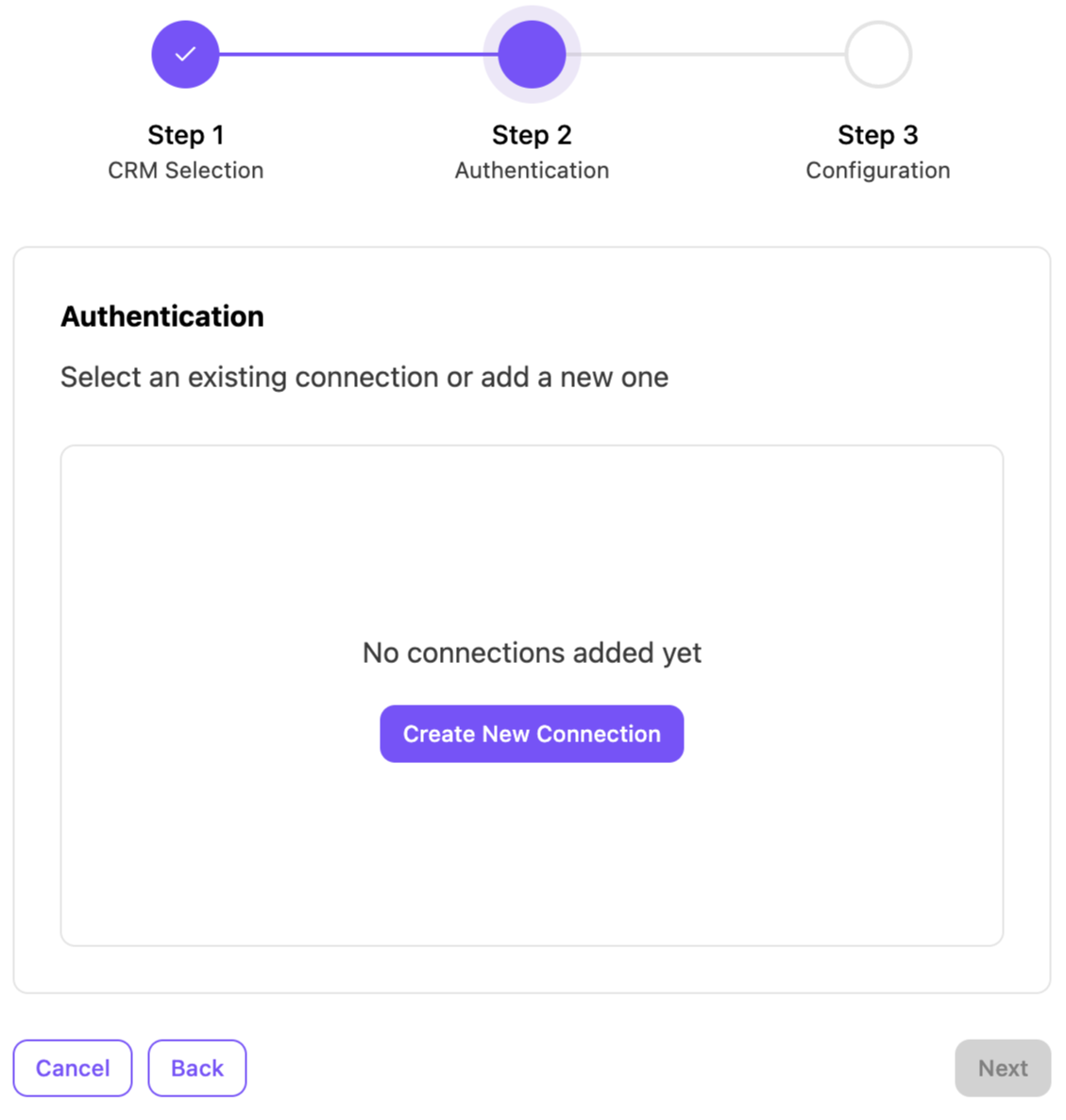
Create a new connection or reuse an existing one. To create a new connection, select Create New Connection
Enter these details:
Note
The field labels (Client ID, Client Secret, User ID) are generic AI Event Hub fields and don't exactly match the AMS360 terminology. Use the mapping table below to enter the correct value in each field.
Field
Description
Connection Name
A descriptive name for this connection (for example, ams360_production)
Base URL
Your AMS360 WSAPI endpoint URL
Client Id
Your AMS360 Login ID
Client Secret
Your AMS360 Password
User Id
Your AMS360 Agency No
Note
Connection names need to use only letters, numbers, and underscores. No spaces or special characters.
Select Next
Select Add Configuration
Enter the details for these features:
Base settings
Setting
What it does
What changes for admins/agents
API Base URL
The AMS360 WSAPI endpoint that the integration uses to communicate with your instance.
All API calls go to this host. Wrong value = no data flows.
Log All Calls for This Office
Applies your screen pop configuration to all calls within the office.
Required for the integration to fire for any users in this office.
Enable Task Queue
Not needed for AMS360 — this integration doesn't aggregate events across states.
Leave turned off.
Screen pop settings
Setting
What it does
What changes for admins/agents
Max Number of Customers to Screen Pop
The maximum number of customer records to open when multiple matches are found. Defaults to 2.
If 5 customers match, only the top 2 records will open in the agent's browser.
Screen Pop Exclusion List
A list of agent emails that should not receive screen pops.
Agents on this list won't have records pop up, even when a match is found.
Call Event Trigger
The call event that launches the screen pop.
Ringing is recommended so agents see the record before they answer.
Tip
Make a test call. Confirm the screen pop opens the correct AMS360 page in your browser. If it fails, see Troubleshooting.
Select Review, then select Finish
That’s it! You can now use AMS360 Vertafore with Dialpad.
Using AMS360 in Dialpad
The integration is fully automated — no action is required from agents. It becomes effective immediately after enablement for all applicable calls.
Screen pop
When a call event fires, Dialpad sends the caller's phone number to AMS360 and looks up the matching customer record. Then Dialpad opens the customer's NextGen detail page in the agent's browser.
Note
The agent needs to be signed in to AMS360 in their browser for the screen pop page to load. If they're not signed in, the screen pop opens the AMS360 login page instead.
Contacts are matched by these processes:
Dialpad searches AMS360 using the last 10 digits of the caller's phone number (the country code is stripped). For example, +12265551234 is searched as 2265551234.
AMS360's SearchByPhoneNumber endpoint returns all entities that have that number on file (customers, prospects, vendors, and so on). The integration only opens records for entities of type Customer; records for other entity types are filtered out.
If multiple customers match, the integration opens up to 2 customer records by default so agents can pick the right one.
Match outcomes
Contacts are matched in these scenarios:
Scenario | What opens |
|---|---|
Single customer match | The customer's NextGen detail page |
Multiple customers match | Up to 2 customer NextGen detail pages (most recent matches first) |
Only non-customer entities match | No screen pop — the integration only opens customer records |
No customer is found | No screen pop |
Tip
If a known customer isn't matching, verify their phone number in AMS360 is stored on the customer record (not just on a related contact or location) and that it includes all 10 digits.
Troubleshooting
Stale connection/screen pops stopped working
Likely cause: Credentials rotated, OAuth token expired, or AMS360-side permissions changed.
Fix: Go to Options > Reconnect on AI Event Hub to renew the connection. If that fails, verify credentials and permissions in AMS360.
Screen pop not opening
Likely cause: A configuration setting is incorrect, or the agent isn't signed in to AMS360.
What to check:
Screen Pop Direction matches the call type.
Call Event Trigger is set.
"Log All Calls for This Office" is on.
Pop-ups are allowed in the browser.
The agent is signed in to AMS360.
Fix: Correct the setting and make a test call.
Customer not found
Likely cause: Phone number format mismatch, or the number lives in a field the integration doesn't search.
What to check: Confirm the phone number in AMS360 is on the Customer record (not just a contact) and matches the 10-digit format.
Fix: Update the customer record in AMS360.
Screen pop to the wrong URL
Likely cause: The Screen Pop URL was entered incorrectly.
What to check: Review the URL table in Step 4 and compare the field to what's currently saved.
Fix: Correct the field and save. Make a test call to confirm.
Still need help?
Use this routing to figure out who to contact:
Issue type | Who handles it | When to escalate |
|---|---|---|
Initial enablement or PS-owned credentials | Your Dialpad Professional Services team | If Event Hub isn't visible in your integration list. |
Day-to-day Dialpad product issues (call quality, app crashes, login) | After confirming the issue isn't an integration setup problem. | |
AMS360-side issues (permissions, API access, account settings) | When AMS360 returns errors or blocks API access. |
Frequently asked questions
Why isn't my customer matching being automatically applied?
The integration searches AMS360 using the last 10 digits of the caller's phone number. Confirm the customer's phone number in AMS360 is stored on the customer record itself and includes all 10 digits. If the number is only on a contact or location record, the search won't match it.
Why didn't a screen pop open even though I know the customer is in AMS360?
Three things to check: the entity type in AMS360 is Customer (not Prospect or Vendor — those are filtered out), the caller's phone number is on the customer record, and Screen Pop Direction matches the call type. Also, confirm the agent is signed in to AMS360 in their browser.
Two records opened — is that expected?
Yes. When a phone number is shared across multiple customers, the integration opens up to 2 records so the agent can pick the right one.
Does this integration log calls to AMS360?
No. The AMS360 integration only triggers screen pops — it doesn't log call activity, recordings, transcriptions, or AI recaps. Call details remain in Dialpad.
Does this integration support SMS?
No. The integration only handles voice calls.
Why am I getting signed out of AMS360 partway through the day?
Dialpad maintains its own session ticket with AMS360 to look up customers. Your agents' browser sessions are separate — they need to sign in to AMS360 as usual for screen pops to appear. If browser sessions are timing out, work with your AMS360 administrator on session length settings.
What if a customer's phone number is stored differently in AMS360 (with dashes, parentheses, etc.)?
AMS360's WSAPI normalizes phone numbers internally for SearchByPhoneNumber, so most common formats are matched. If a number is consistently missing, ask your AMS360 administrator to verify how phone numbers are stored on that customer's record.