The Dialpad + ConnectWise PSA integration enhances users’ communication experience by seamlessly connecting Dialpad with ConnectWise. This enables users to view caller details in real-time, automatically log calls to service tickets, and manage their tickets right within the Dialpad sidebar. With ConnectWise, users can easily identify callers, manage service tickets, and access vital client information without leaving their Dialpad environment.
Who can use this
The ConnectWise integration is available to all users as an add-on for Dialpad Connect and Support licenses. This feature must be configured by Dialpad’s Professional Services team and is subject to additional cost. Contact your account team or email the Professional Services team to get started.
ConnectWise setup requirements
Before beginning the integration process, ensure that you have the following:
A Dialpad admin account with access to integration settings
A ConnectWise PSA account with an API member created for Dialpad
ConnectWise API credentials:
Company ID
Public Key
Private Key
Client ID
There are required permissions for your ConnectWise API member:
Resource | Access |
|---|---|
Contacts | Read |
Companies | Read |
Service Tickets | Read and write |
Service Ticket Notes | Read and write |
Service Boards | Read and write |
Create an API Member in ConnectWise
The integration requires an API member to facilitate system-to-system communication. Follow these steps:
Create a security role in ConnectWise
Go to System > Security Roles
Select + to create a new role
Name the role (e.g., "Dialpad Integration")
Set these permissions:
Module
Permission
Level
Companies > Company Maintenance
Inquire
All
Companies > Contacts
Inquire
All
Service Desk > Service Tickets
Add, Edit, and Inquire
All
Service Desk > Service Board
Inquire
All
Select Save
Create the API member
Navigate to System > Members > API Members
Select the + icon
Assign the Role ID to the security role
Fill in the remaining required fields
Select Save
Generate API keys
Open the newly created API member
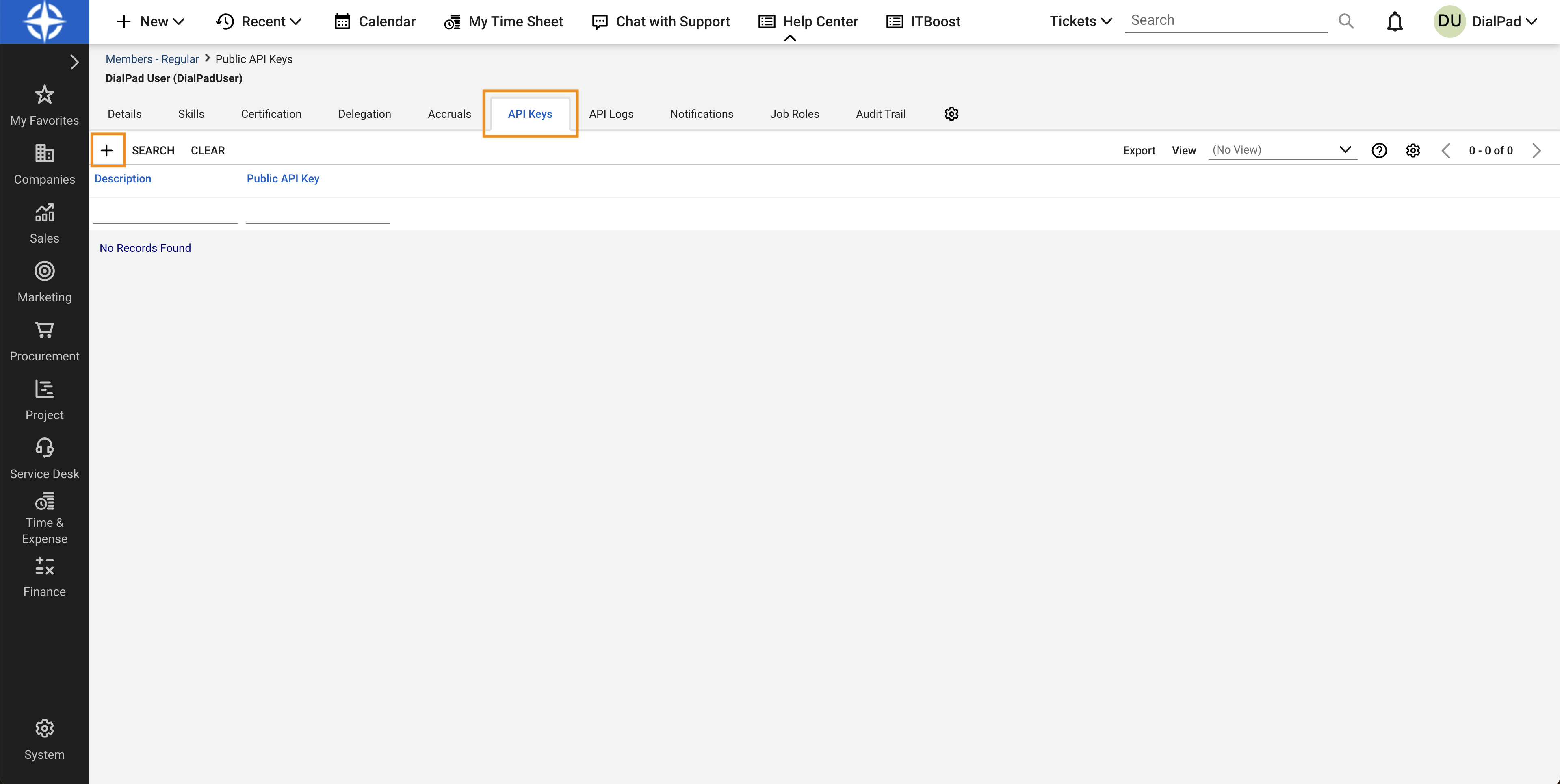
Go to the API Keys tab and select the + icon
Enter a description (e.g., "Dialpad Integration")
Select Save
Copy the Public Key and Private Key
Note
The private key is shown only once, don’t forget to copy it.
Connect Event Hub to ConnectWise
To enable ConnectWise in Dialpad, go to your Dialpad Admin Settings.
Navigate to My Company > Integrations
Note
The integration must be enabled at the company level first. To enable ConnectWise for a specific office, select Office Settings > Integrations.
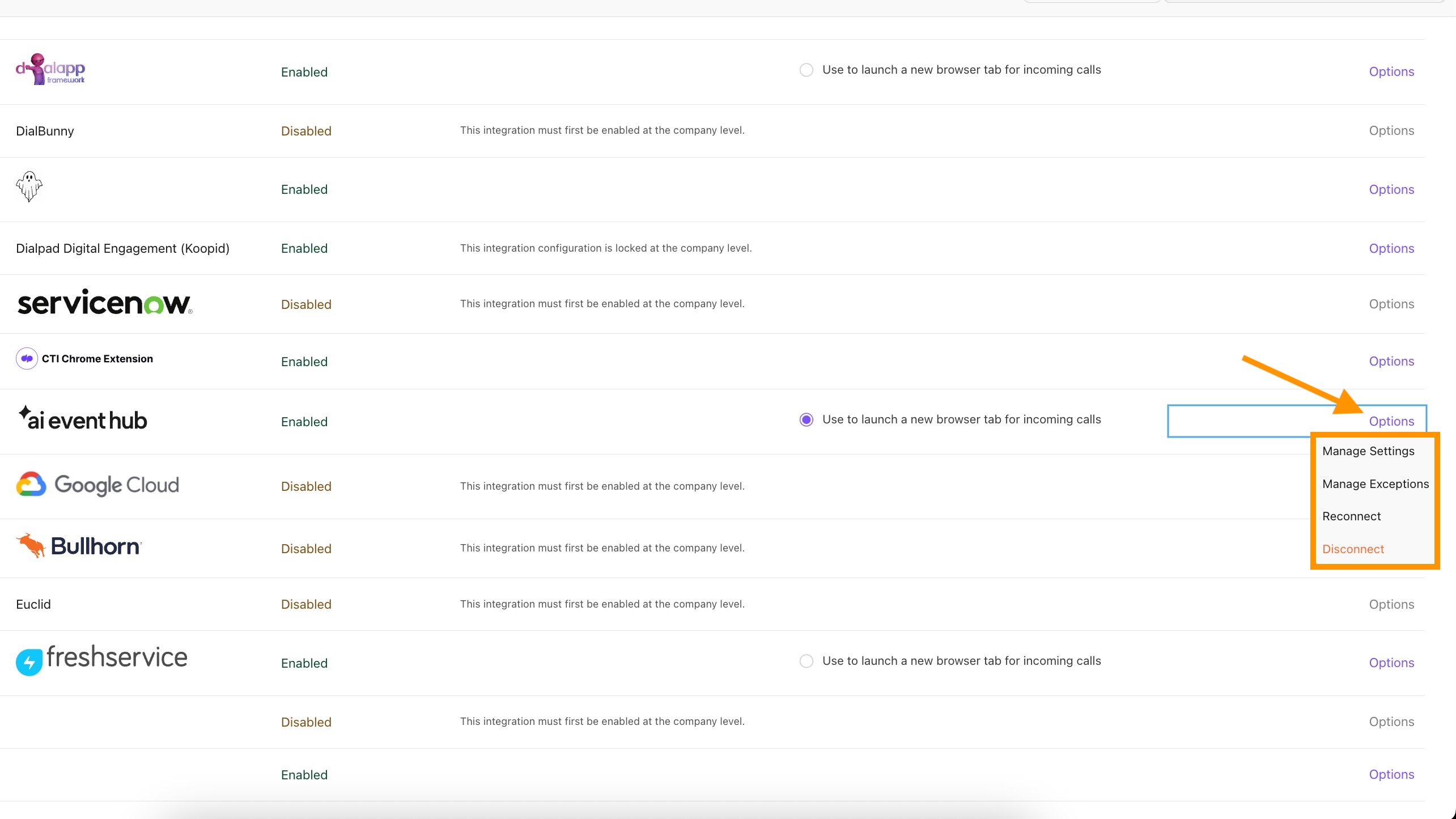
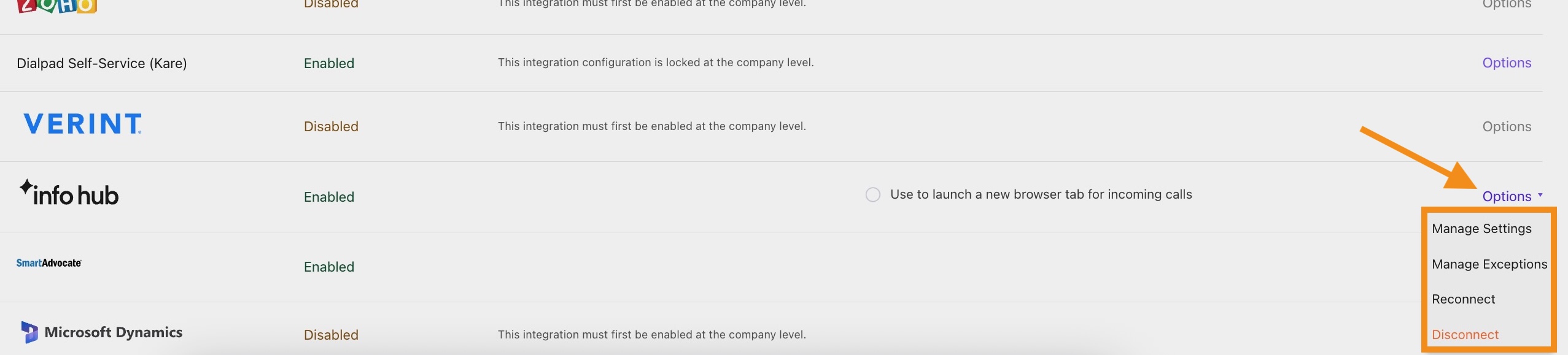
Navigate to the AI Event Hub integration and select Options > Manage Extension > Enable
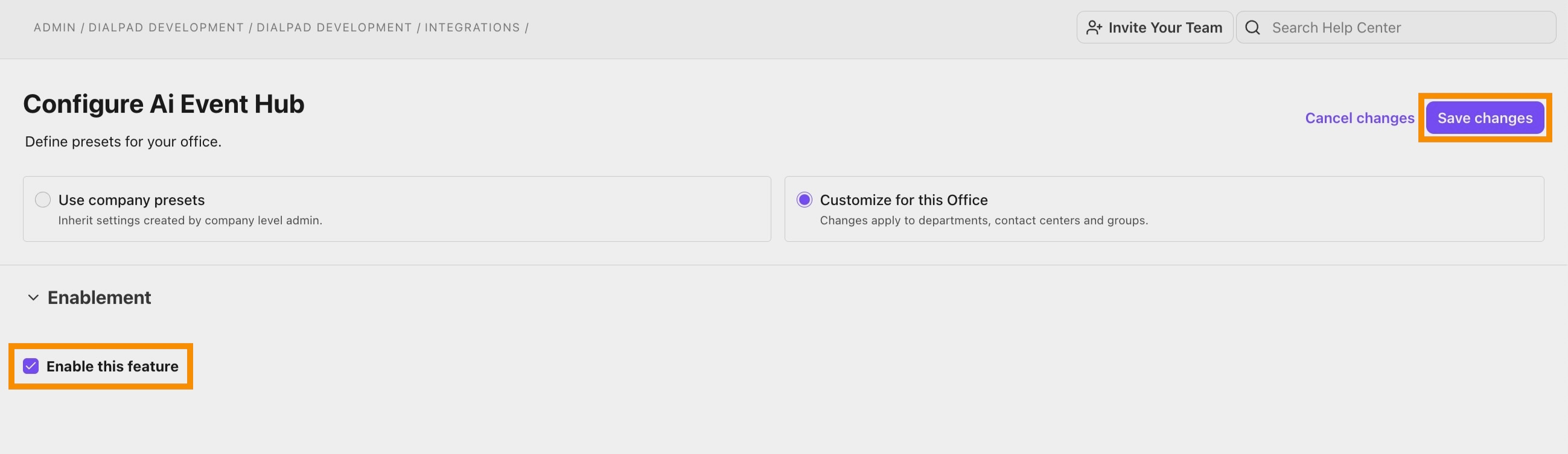
Select Save Changes
Return to the Integrations page and navigate to the AI Event Hub integration again
Select Options > Connect / Reconnect
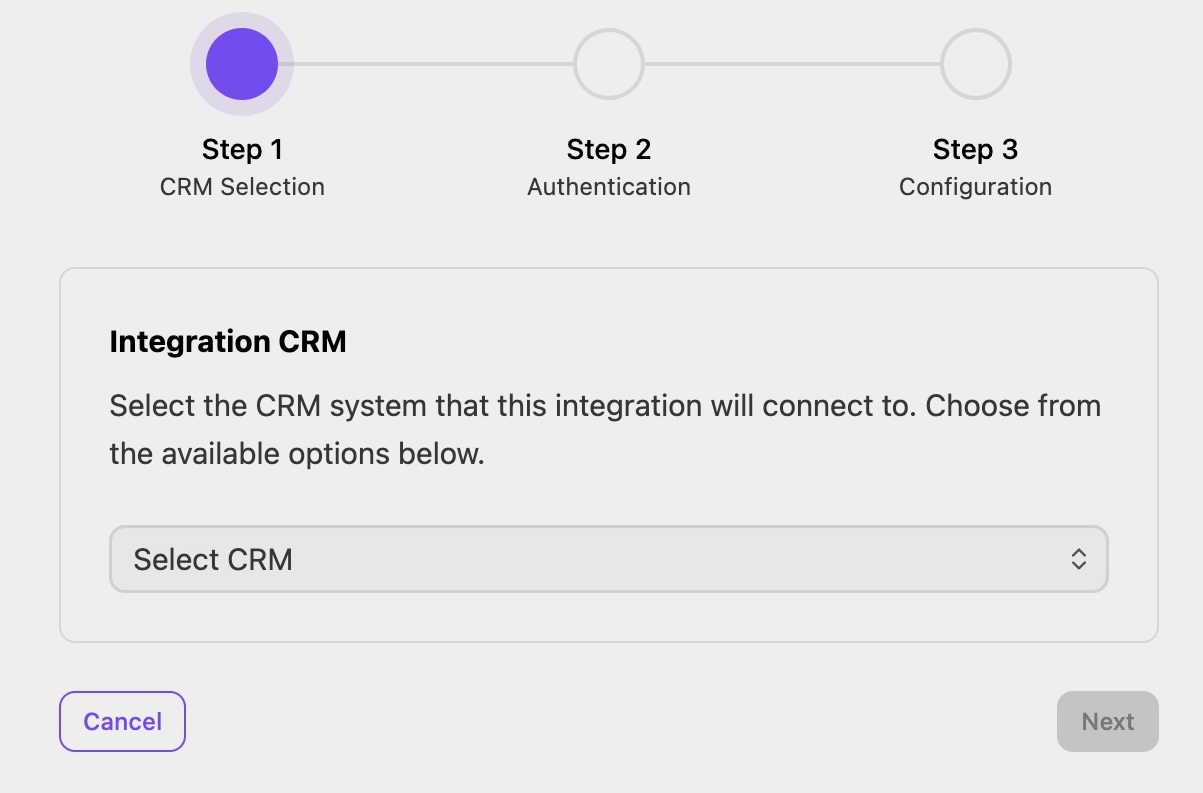
Select ConnectWise as your CRM, then select Next
Enter your ConnectWise credentials:
Base URL: Your ConnectWise API endpoint (e.g., https://your-domain/v4_6_release/apis/3.0)
Authentication Credentials: companyid + publickey:privatekey (in plain text)
Client ID: Provided by your PS team
Choose a connection to use for activation and select Create Connection
Configure the integration features:
Base settings
Note
These settings apply to the overall integration and must be configured before enabling specific features.
Setting
Description
API Base URL
The ConnectWise API endpoint the integration uses to communicate with your instance.
Log All Calls for This Office
Applies your call logging and screen pop configurations to all calls within the office. Required for the integration to process calls.
Enable Task Queue
Groups related call events (e.g., hangup, recording, AI recap) into a single ticket note instead of creating separate entries.
Note
This is a recommended action. It adds a short delay (approximately 3 minutes) but produces cleaner, more complete logs.
Call logging settings
Setting
Description
Base URL
Your ConnectWise web domain (used to build links to tickets and contacts).
Company ID
Your ConnectWise company identifier (used for links).
Service Board Name
The board where tickets are created and call notes are logged.
Auto Create Tickets for Unassigned Calls
Automatically creates a ticket when a call ends without one assigned (optional).
Service Board for Auto Created Tickets
Routes auto-created tickets to a different board (optional).
Create Public (Discussion) Ticket Notes
Also writes a customer-visible note alongside the internal note (optional).
Screen pop settings
Setting
Description
Screen Pop Base URL
Your ConnectWise web domain (used to build the pop-up destination).
Screen Pop Direction
Choose whether to have the screen pop open for Inbound calls, Outbound calls, or both.
Call Event Trigger
The event that opens the pop-up (commonly "Connected").
(Optional) Enable the widget in the skinny bar
To show the widget in your Dialpad sidebar, navigate to your Dialpad Admin Settings.
Select Office Settings > Integrations
Select Options > Manage Settings
Select Enable Info Hub
Under Template, select Ticketing Service
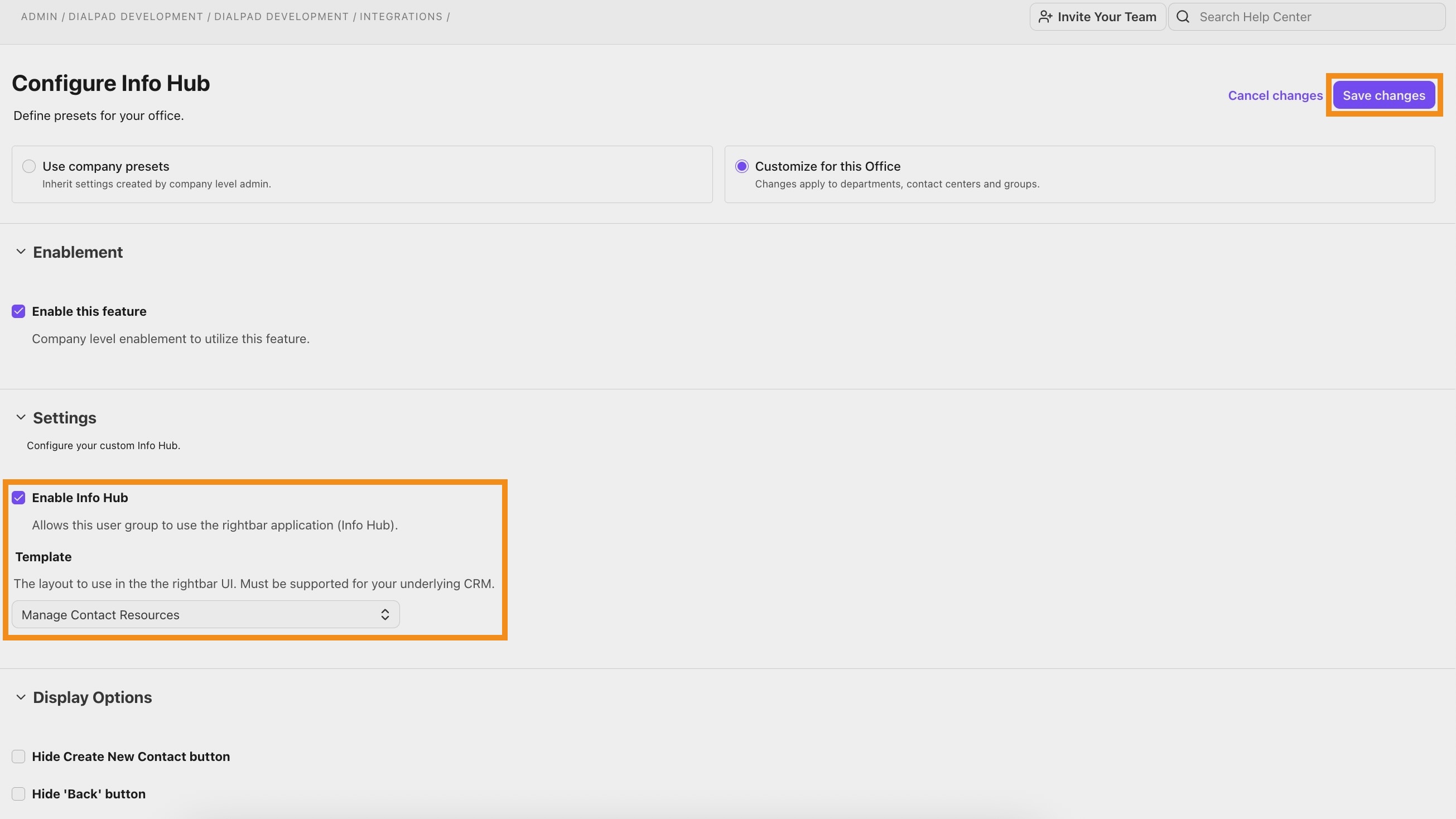
Select Save Changes
Your ConnectWise integration is now established. Look for the InfoHub widget in the sidebar to verify a successful connection to ConnectWise.
Using the ConnectWise Integration in Dialpad
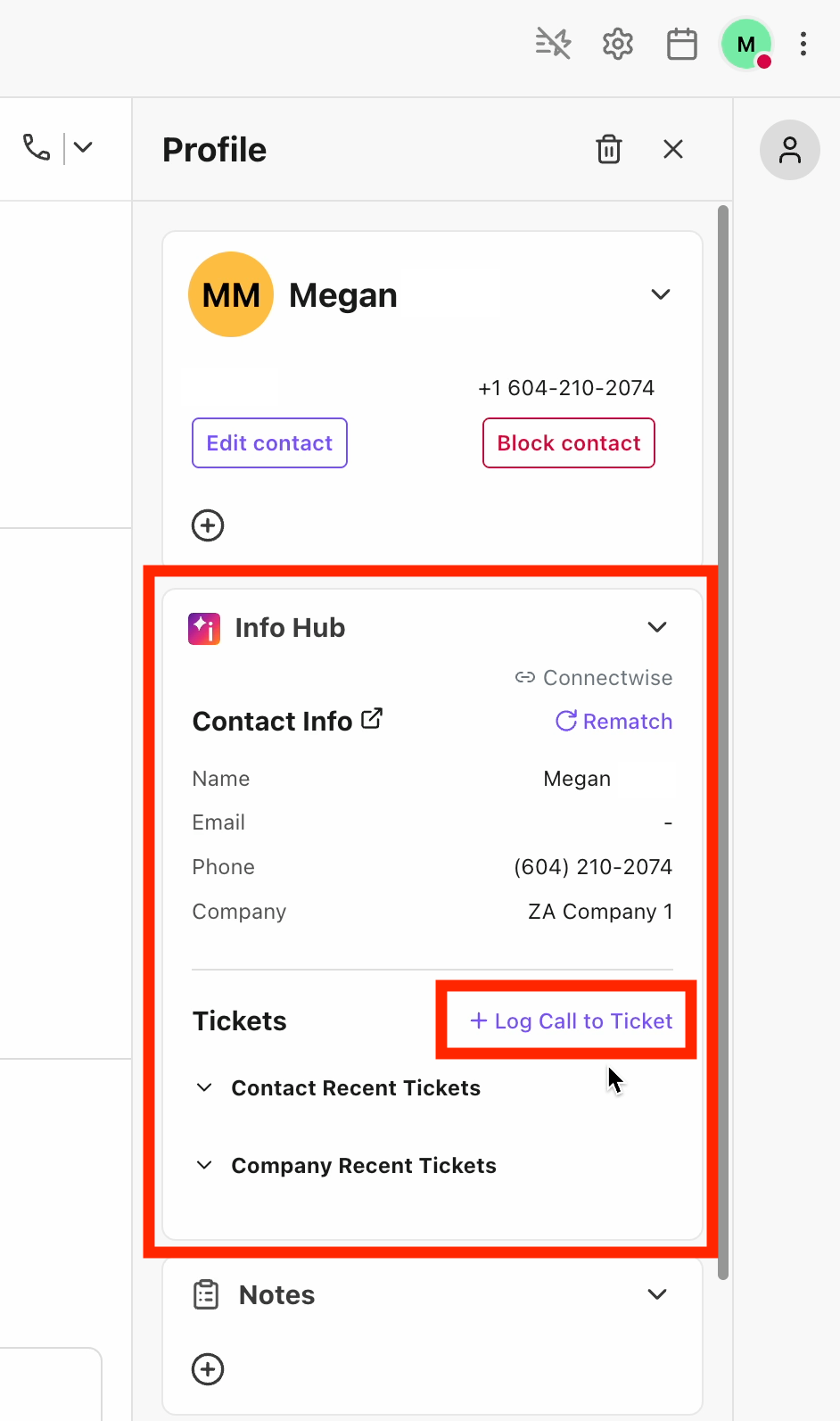
When you receive or make a call, the ConnectWise Info Hub sidebar appears in Dialpad with relevant customer information.
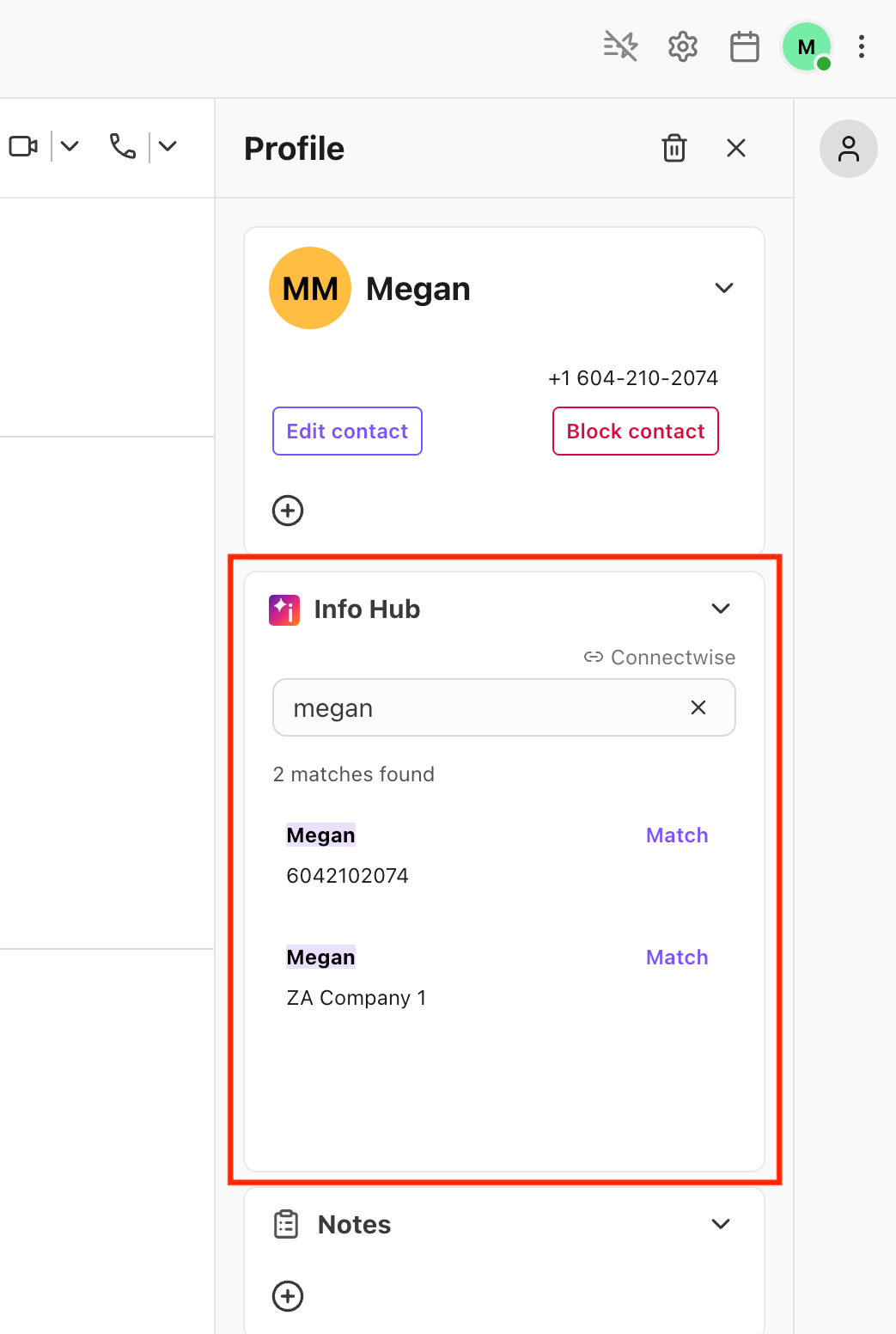
Match contacts
The sidebar automatically searches ConnectWise for contacts matching the caller's phone number.
Single match found | The contact connects automatically and their details (name, email, phone, company) display right away. |
Multiple matches found | A list of potential matches appears — select the correct one. |
No match found | Use the search bar to look up the contact by name, email, or phone. |
To change a match, select Rematch and search for a different contact.
View tickets
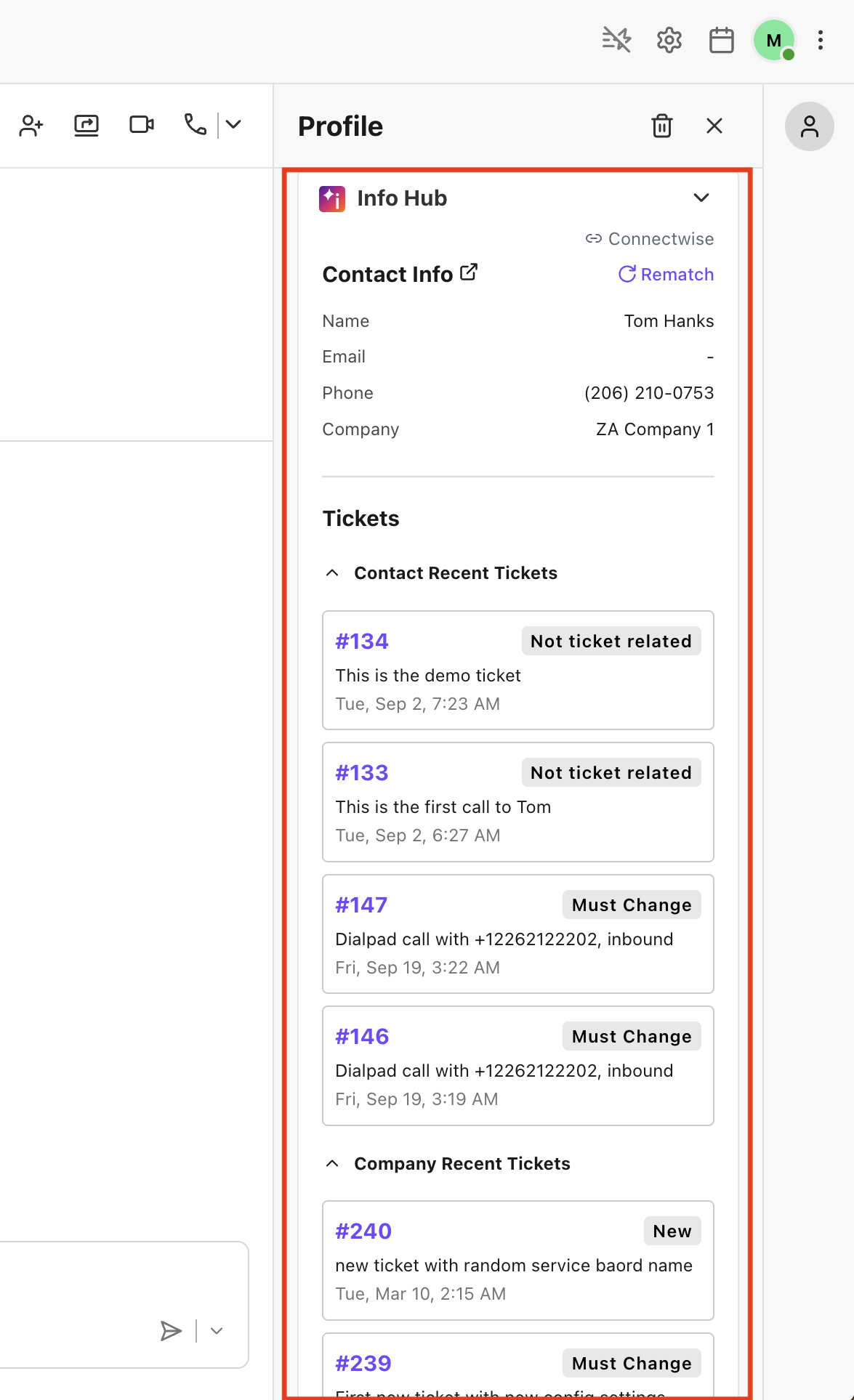
Once a contact is matched, you'll see two ticket sections:
Contact Recent Tickets | Tickets associated with the matched contact (5 most recent) |
Company Recent Tickets | Tickets associated with the contact's company |
Each ticket shows:
Ticket ID and summary
Status
Priority
Last updated date
Select any ticket to view full details, including notes.
Create and associate tickets
You can create or associate tickets during or after a call.
To log a call to a ticket during a call:
Select Log Call to Ticket in the sidebar
Enter an existing Ticket ID to associate the call, or select Create New Ticket and add a summary
The selected ticket becomes the active ticket. When the call ends, call details are automatically logged to it.
To automatically log a ConnectWise ticket after a Dialpad call, the Auto-Create Tickets setting must be turned on. Once enabled, tickets are automatically created when:
A call ends without a ticket associated.
The contact has a company in ConnectWise.
Auto-created tickets include the caller's phone number, call direction, and are assigned to the handling agent.
View ticket details
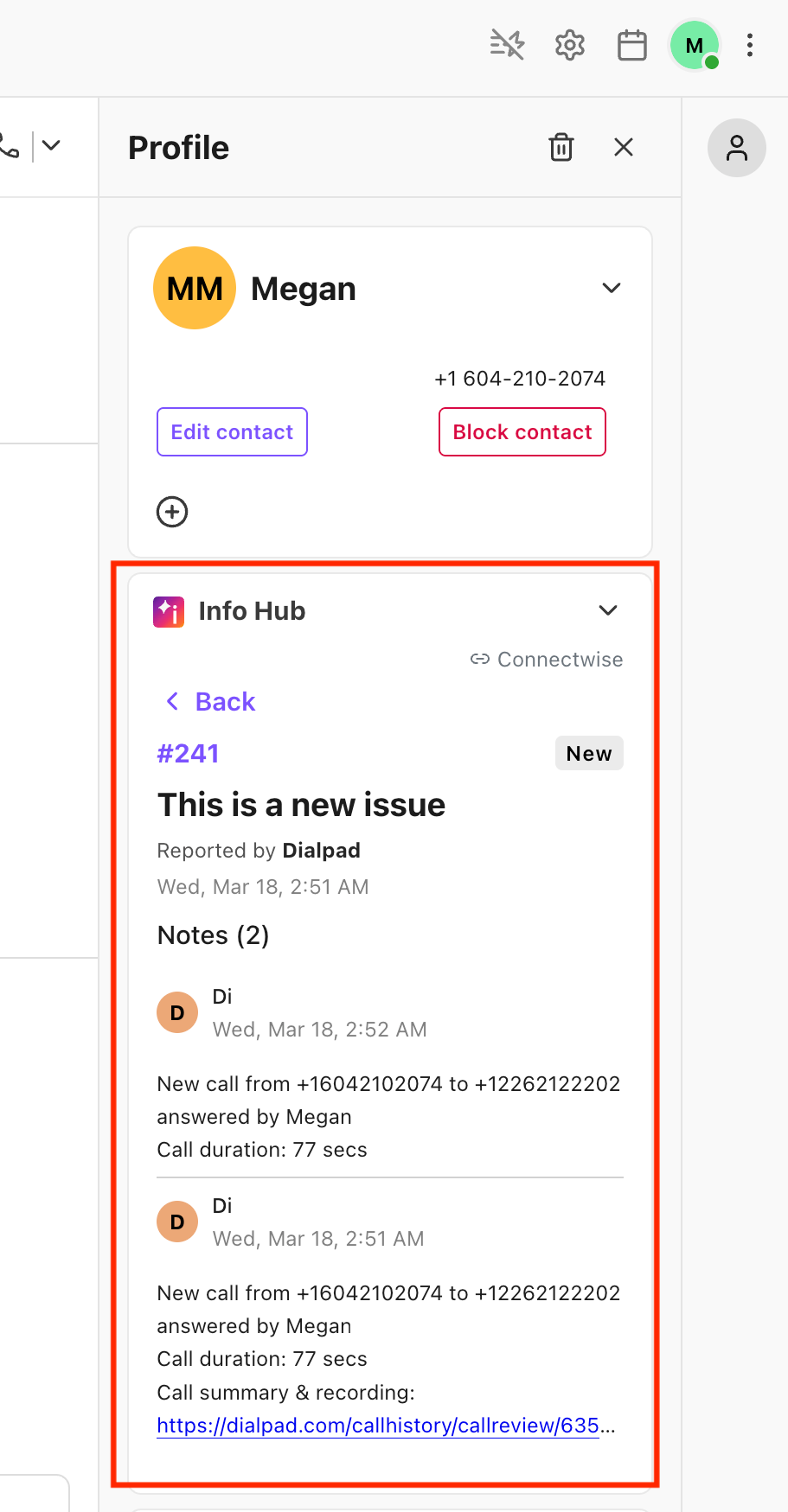
To view ticket details, select any ticket to see:
Summary, status, contact, and company info.
Created and updated timestamps.
Notes, labeled by type:
Internal
Internal analysis notes (not visible to customers)
Discussion
Customer-visible notes
Resolution
Resolution notes
Call logging
When a call ends, Dialpad automatically logs the details to ConnectWise as a ticket note.
What gets logged
When calls are logged, this information is captured:
Field | Description |
|---|---|
Call direction | Inbound or Outbound. |
Duration | Total call length. |
Talk time | Actual conversation time. |
Date/Time | When the call occurred. |
Agent | Dialpad user who handled the call. |
Recording link | Link to the call recording (if enabled). |
AI Recap | AI-generated call summary (if enabled). |
How call logging works
These are the different scenarios for when a call is logged:
Scenario | Description |
|---|---|
Ticket selected during the call | Call is logged to the selected ticket. |
Auto-create enabled, no ticket selected | A new ticket is created and the call is logged to it. |
Auto-create disabled, no ticket selected | No ticket note is created. |
Missed call | A ticket is created with a "Missed call" summary. |
Screen pop
When enabled, Dialpad automatically opens ConnectWise in your browser when a call arrives.
Scenario | Description |
|---|---|
Call with an associated ticket | The ticket details page. |
Call without a ticket | The new ticket form. |
Unknown contact | The contact search page. |
Troubleshooting
Let’s go over some common errors and how to fix them.
"CRM Not Connected" Error
Double-check your ConnectWise credentials (Company ID, Public Key, Private Key).
Make sure your API keys haven’t expired.
Confirm the Base URL is correctly formatted (e.g., https://your-domain/v4_6_release/apis/3.0).
Contact Not Found in Search
Try searching by exact phone number or email
Verify the contact exists in ConnectWise
Check for special characters in the search query
Ticket Creation Failed
Confirm the contact has an associated company in ConnectWise.
Verify the default service board is configured in Event Hub settings.
Check that your API member has read/write access to Service Tickets and Service Boards.
Screen Pop Not Working
Make sure screen pop is enabled in your admin settings.
Check that the correct direction (Inbound/Outbound/Both) is configured.
Allow pop-ups from Dialpad in your browser settings.
Frequently asked questions
Why isn't my contact matching being automatically applied?
Contact matching searches by phone number. Ensure the contact's phone number in ConnectWise:
Is stored in a communication item field
Matches the caller ID format
Why can't I create tickets?
Ticket creation requires:
A matched contact with an associated company
A configured default service board
Proper API permissions in ConnectWise
Can I use this with multiple ConnectWise instances?
Currently, each Dialpad company connects to one ConnectWise instance. For multi-instance needs, contact your Dialpad account team.
Are call recordings included in ticket notes?
Yes, if call recording is enabled in Dialpad, a link to the recording is included in the ticket note. Access depends on your Dialpad recording retention settings.
How do AI Recaps appear in ConnectWise?
When enabled, AI-generated call summaries are appended to the ticket note after the call ends. The recap includes the call summary.
What happens for transferred calls?
Transferred calls maintain context through a master call ID. All call legs are logged to the same ticket if one was selected at any point during the call.