The Forth integration enhances the Dialpad agent experience for debt settlement teams by automatically connecting calls to enrolled client records in Forth. When a call arrives, the system searches for a contact matching the caller's phone number and triggers a screen pop directly in the agent's browser — bringing up the client's profile instantly without manual lookup.
After a call ends, the system automatically creates a call record in Forth linked to the matched contact, capturing the call direction, duration, timestamp, assigned agent, and a link to the Dialpad call history for easy review.
This set of features aims to boost agent productivity by automating repetitive data entry tasks, allowing agents to focus on the conversation rather than manual logging.
Who can use this
The Forth integration is available as an add-on for all Dialpad plans (Connect and Support) through Professional Services. Contact your Dialpad account team to get started.
Forth can be enabled at the following levels:
Company level: All calls across the company will trigger the integration features.
Office level: Only calls routed through a specific office will trigger the integration features.
Contact Center level: Only calls routed through a specific contact center will trigger the integration features.
Let’s dive into the details.
Enable Forth in Dialpad
Before you can use Forth in Dialpad, you must enable Forth within Dialpad first.
To enable Forth in Dialpad, go to your Dialpad Admin Settings.
Select My Company
Note
The integration must be enabled at the company level before it can be enabled at the office level. To enable it at the office level, go to your Dialpad Admin Settings and select Office Settings > Integrations.
Select Integrations
Navigate to AI Event Hub and select Options > Manage Extension
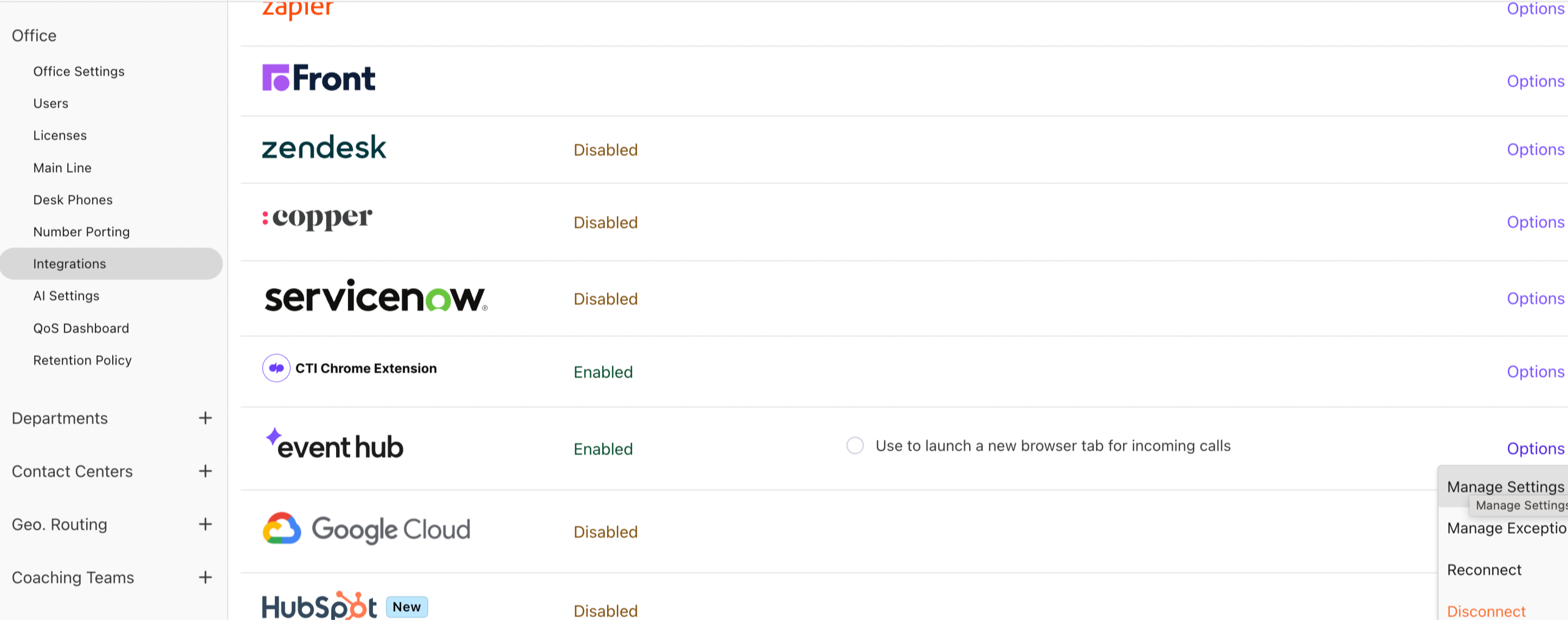
Select Enable this feature
Select Save changes

Go back to the Integrations page and navigate to AI Event Hub
Select Options > Connect / Reconnect
Select Forth as the CRM
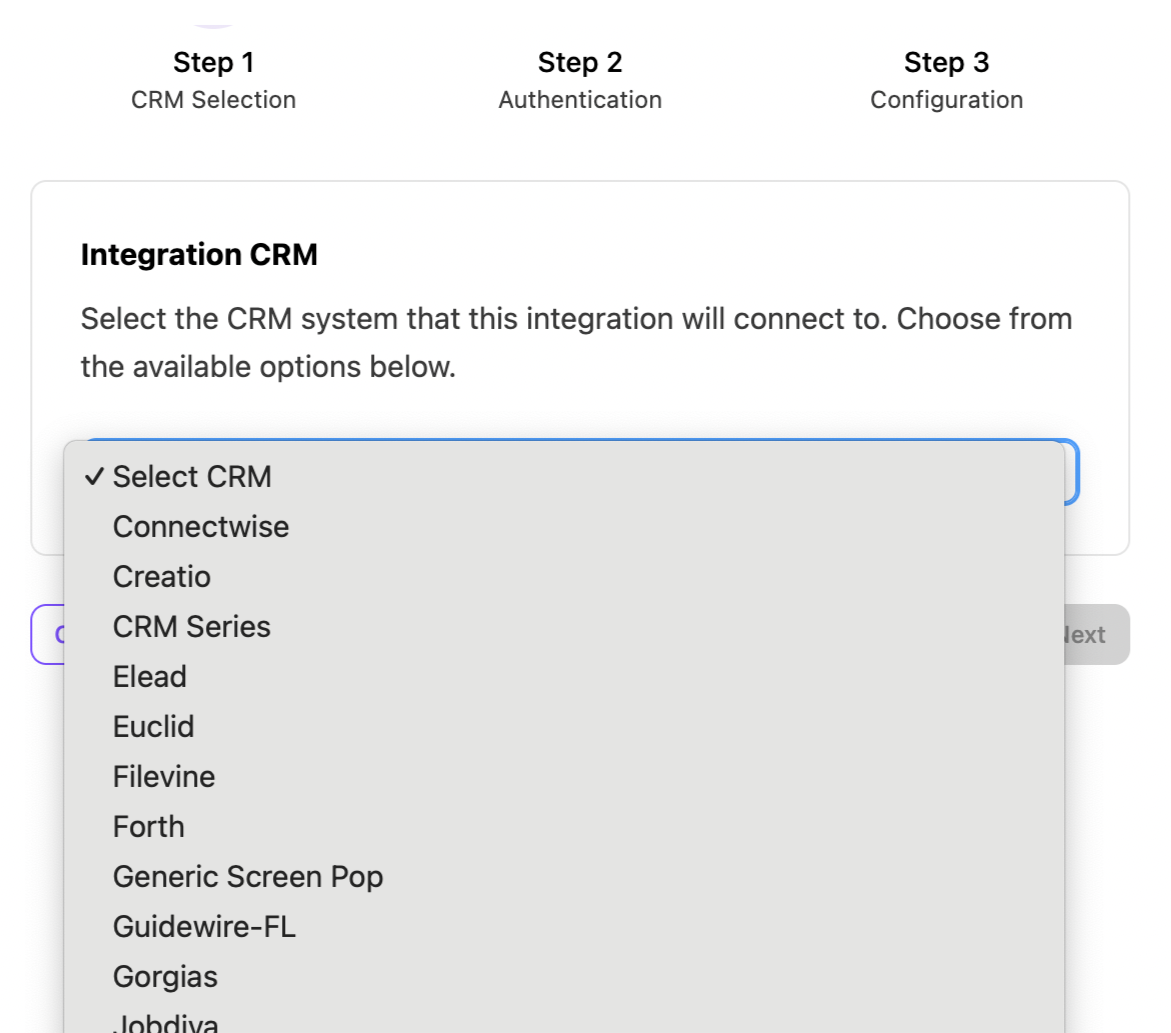
Select Next
Select the connection to use for this enablement. You can create a new connection or reuse an existing one.
To create a new connection, select Create New Connection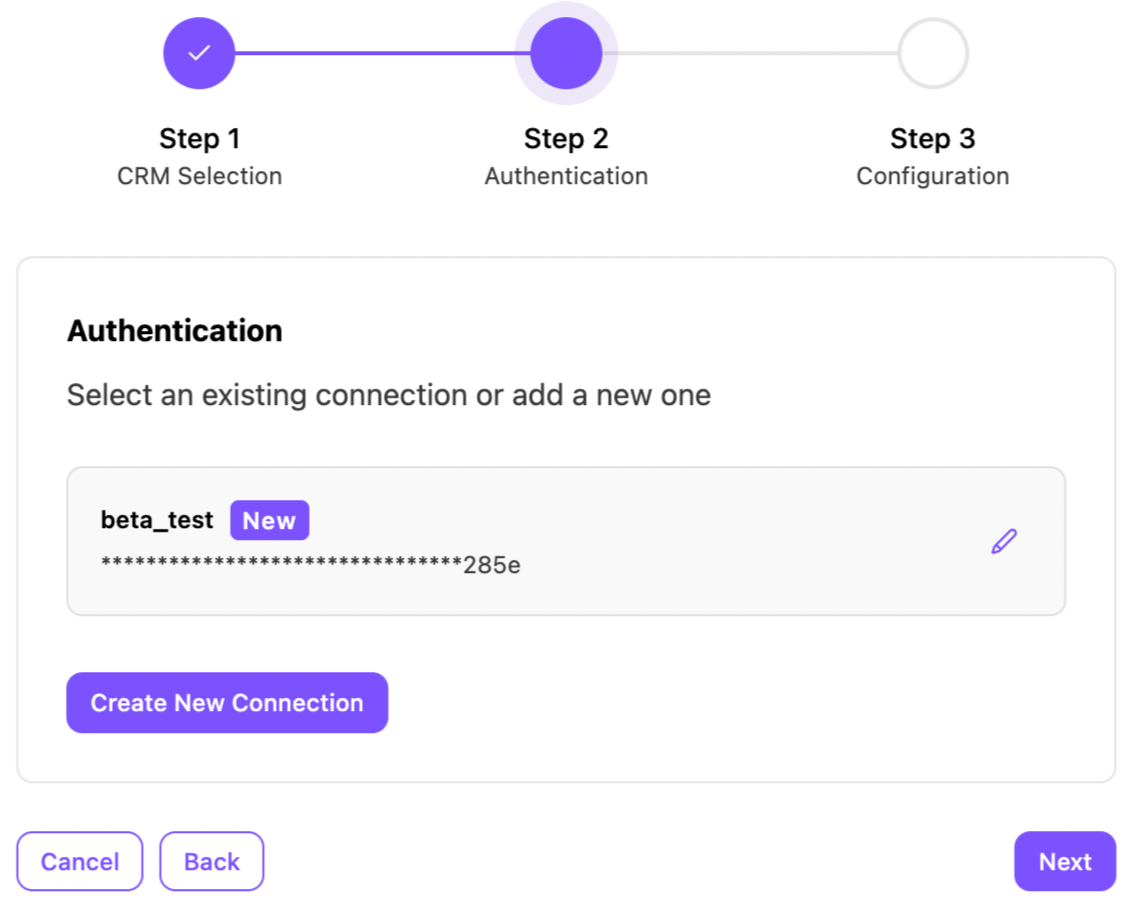
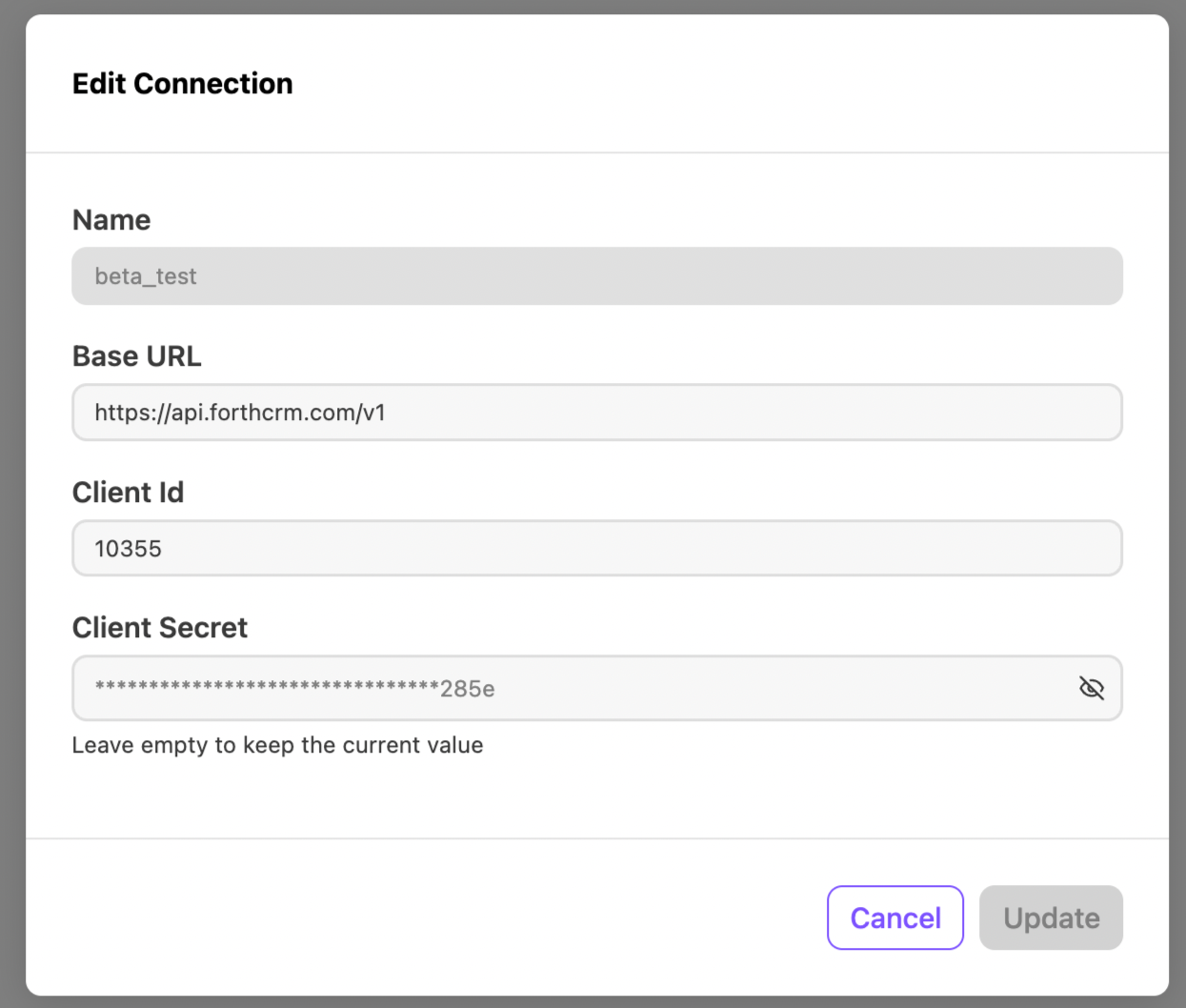
Enter these credentials:
Parameter
Description
Base URL
The base URL of your Forth instance
Client ID
Your Forth OAuth2 client ID
Client Secret
Your Forth OAuth2 client secret
Note
The integration uses OAuth2 client credentials to authenticate with Forth. API keys are short-lived and automatically refreshed by the system - no manual token management is required. Reach out to Forth support if you need to generate dedicated API credentials for the integration.
Once the connection is created and selected, select Next or Update if you’re updating an existing connection
On the configuration screen, select Add Configuration to set up the features and parameters for your integration
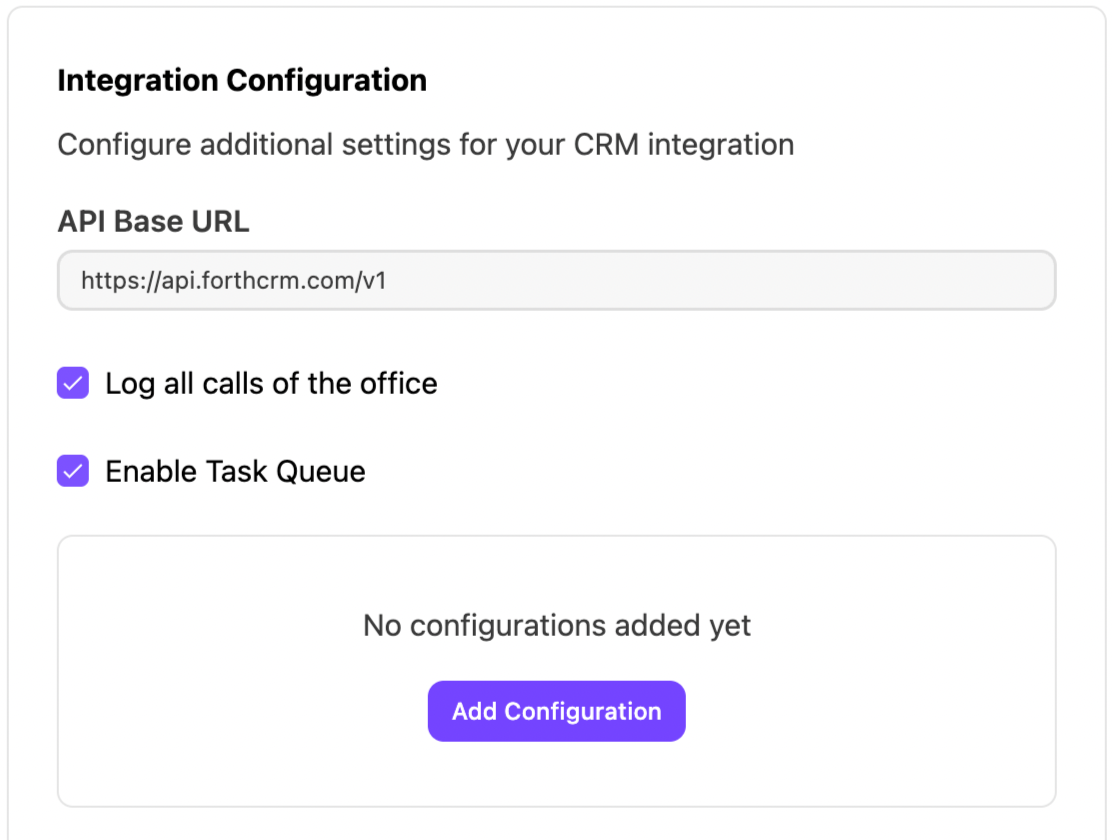
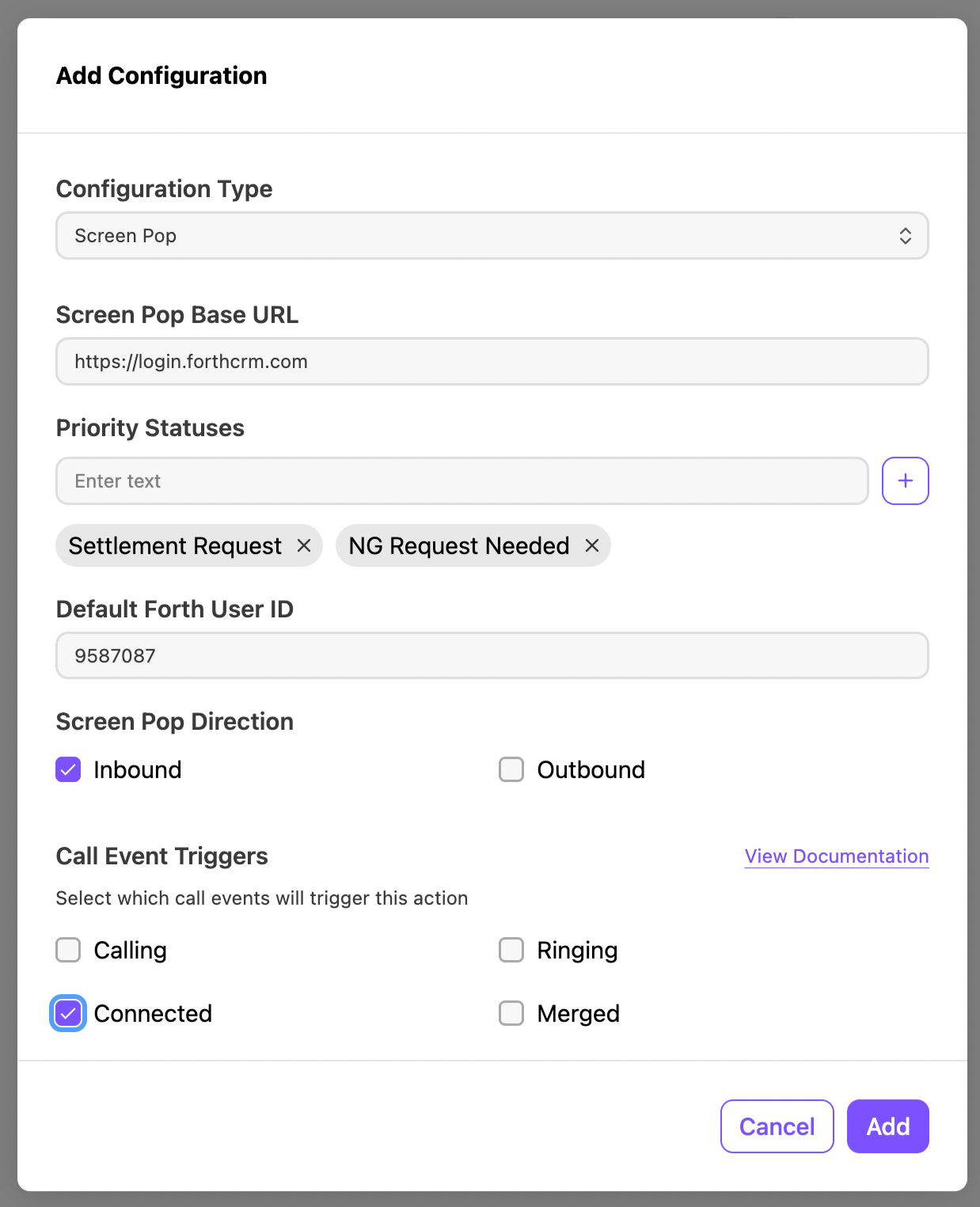
Enter these details:
Parameter
Description
Required
Screen Pop Base URL
Base URL of your Forth instance used to build the contact screen pop link (e.g., https://app.forthcrm.com)
Yes (for screen pop)
Priority Statuses
Ordered list of Forth contact status titles used to disambiguate multiple matching contacts
Recommended
Default Forth User ID
Fallback Forth user ID to assign call records when the answering agent cannot be matched to a Forth user
Recommended
Enable Task Queue
When enabled, call logging executes ~3 minutes after hangup via the task queue for higher consistency
No
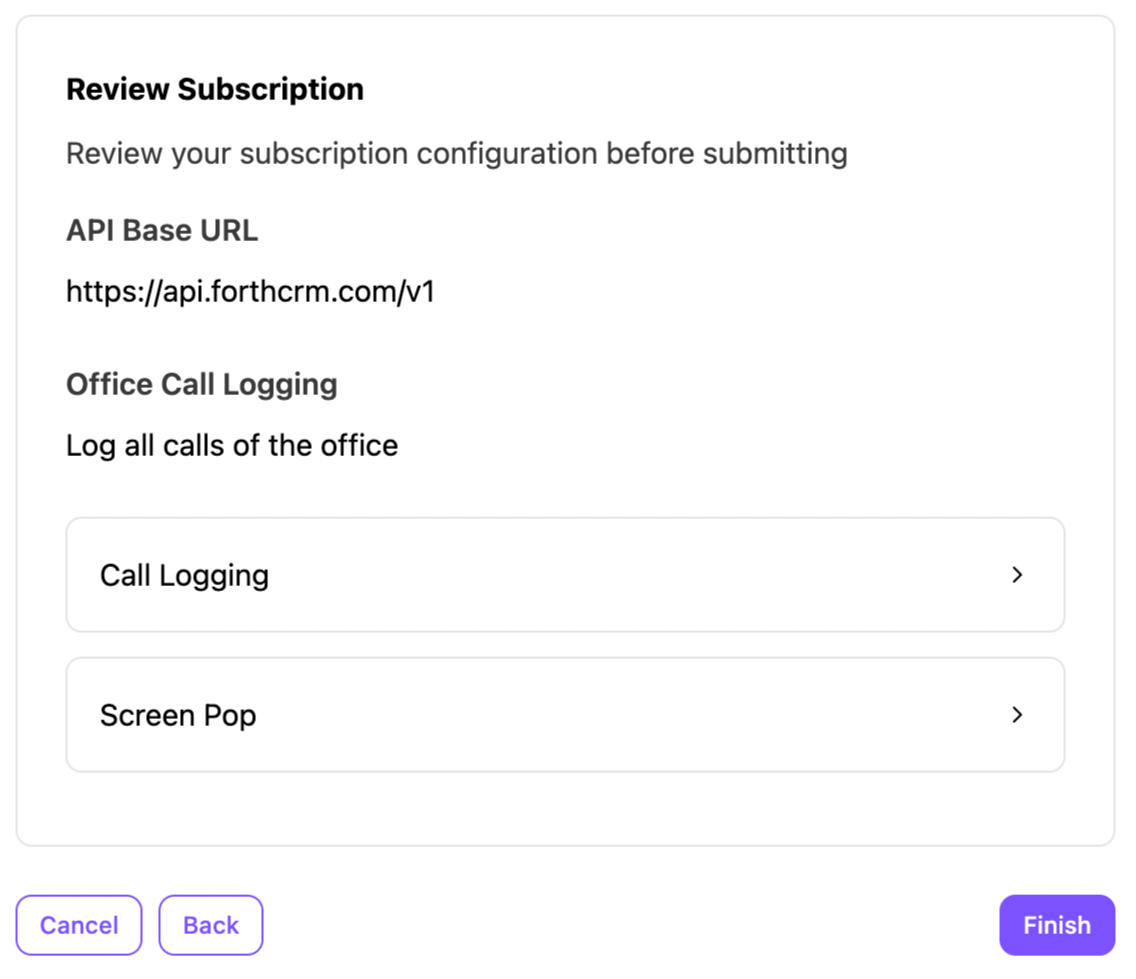
Review your configuration and select Finish
That's it! The integration is now active. Agents will automatically see screen pops and call records created in Forth for every applicable call.
Use Forth in Dialpad
The integration is fully automated - no action is required from agents. It becomes effective immediately after enablement for all applicable calls.
Screen Pop
When a call arrives at an enabled Dialpad target, the system looks up the caller's phone number in Forth. If a matching contact is found, the agent's browser automatically navigates to that contact's profile page in Forth.
Call Logging
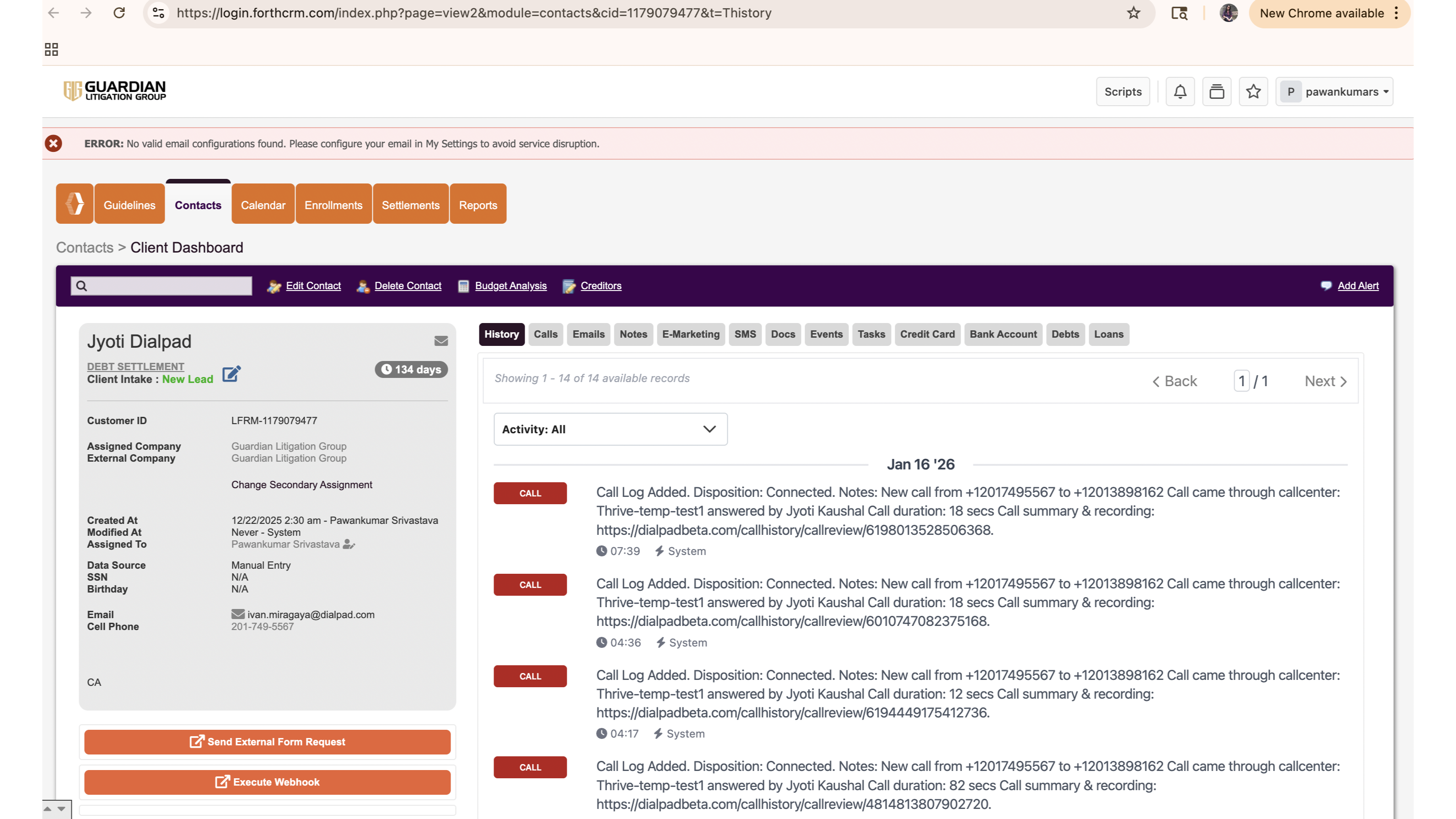
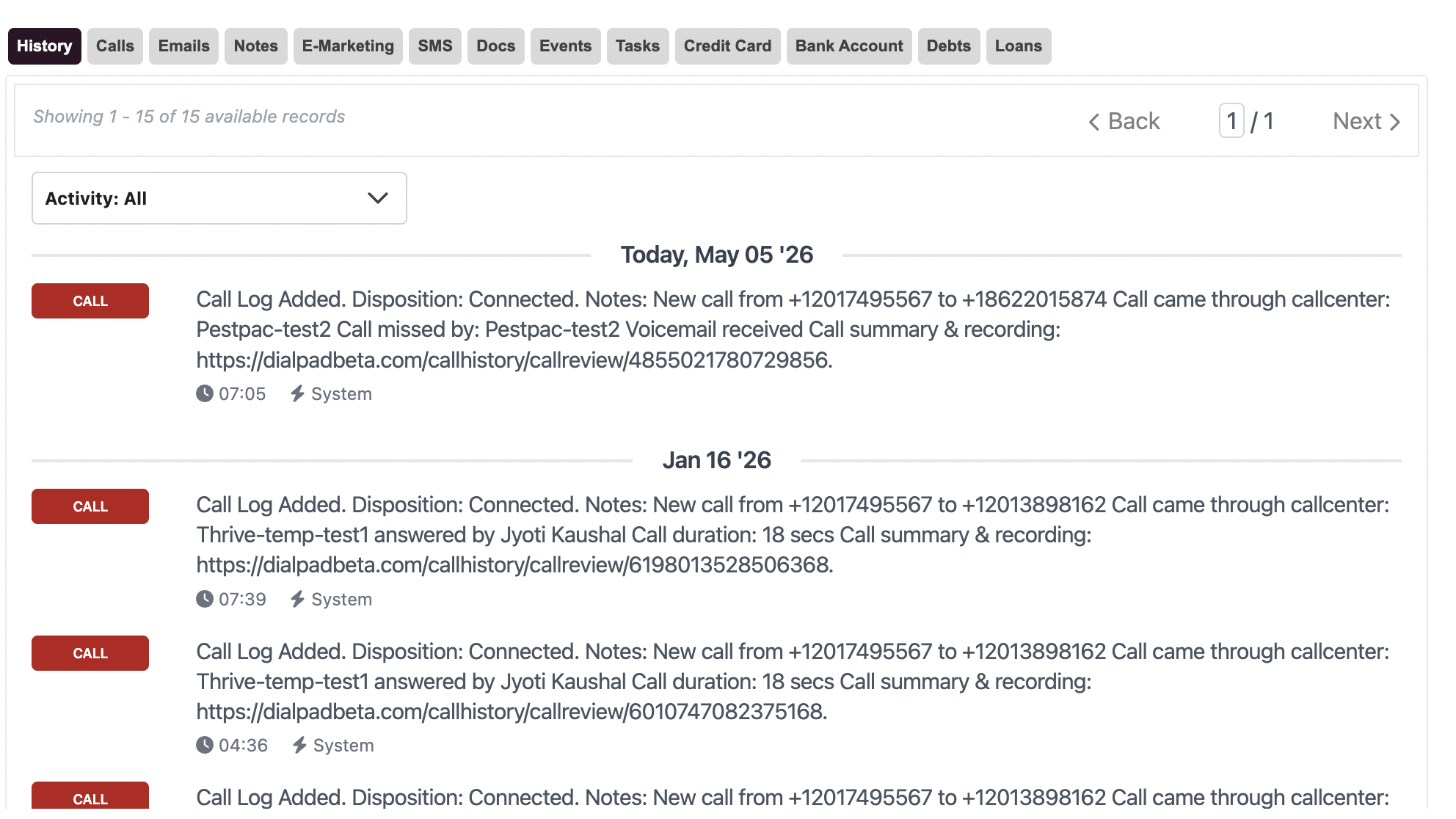
After a call ends, the system automatically creates a call record in Forth associated with the matched contact. The record includes:
Call type (Incoming / Outgoing)
Call timestamp
Duration
Notes, including a link to the Dialpad call history
Assigned agent (matched from Forth users by email or phone number)
Contact Matching Logic
The integration uses the following resolution order when searching for a contact by phone number:
Single match - used directly
No match - event is dropped. No screen pop or call record is created
Multiple matches - the system narrows down by:
Filtering to contacts with enrolled = 1 (enrolled clients only).
Applying the configured priority_statuses list to select the highest-priority status match.
If still unresolved, the event is dropped, and no action is taken.
Note
Forth contacts must have a current, accurate phone number for matching to work. The integration does not create new contacts - if a caller is not found in Forth, the event is silently dropped.
Agent Matching for Call Records
When creating a call record, the system attempts to match the answering agent to a Forth user by email address or phone number. If no match is found, the call record is assigned to the default_forth_user_id configured during setup. Agent lookups are cached for performance.
Troubleshooting
Screen pop is not triggering
Verify that the Screen Pop Base URL is correctly configured. Also, confirm that the call was received through an enabled Dialpad target and that the caller's phone number exists in Forth on an active contact record.
A call record was not created after the call ended
If Task Queue is enabled, the record is created approximately 3 minutes post-hang-up. If it still does not appear, check whether the contact matching resolved successfully — if no contact was found or multiple contacts could not be disambiguated, the event is dropped.
The call record is assigned to the wrong agent or a default user
This means the answering agent's email or phone number did not match any user in Forth. Ensure the agent's Dialpad email address matches the email on their Forth user account. If a match cannot be found, the record reverts to the default_forth_user_id. Update the default or correct the user data in Forth as appropriate.
A caller exists in Forth, but no screen pop or log was created
The contact's phone number in Forth may be missing, outdated, or stored in a different format. Ensure phone numbers in Forth are in E.164 format (e.g., +15551234567).
Multiple contacts matched, and the event was dropped
Configure the priority_statuses parameter with an ordered list of Forth contact status titles relevant to your team. This allows the system to select the correct contact when multiple records share the same phone number. Also, ensure enrolled contacts have enrolled = 1 set correctly in Forth.
Frequently asked questions
How long does it take for a call record to appear in Forth?
If Task Queue is enabled, call logging happens approximately 3 minutes after hangup for higher reliability. Without the Task Queue, the record is created immediately at hangup.
Does the integration automatically create a new contact if no match is found?
No. Unlike some other integrations, Forth does not support auto-creation of contacts. If the caller's phone number is not found in Forth, the event is silently dropped.
What happens if the same phone number matches multiple contacts?
The system applies a multi-step resolution: enrolled status filter, then priority statuses hierarchy. If it cannot resolve to a single contact, the event is dropped, and neither screen pop nor call record will occur.
Can I use this integration on a user line or department, not just a call center?
Yes. The Forth integration can be enabled at the company, office, or call center level.
What information is recorded in a call log?
Each call record contains: call type (Incoming/Outgoing), timestamp, duration, assigned agent, and notes, including a link to the Dialpad call history. See the call log example screenshot above for a reference.
Can I ask my CSM/PM to proxy the admin configuration for me?
No. Enablement must be performed by a company admin and cannot be proxied.
What credentials does Forth require for the integration?
The integration authenticates with Forth using OAuth2 client credentials (Client ID and Client Secret). API keys are short-lived (300 seconds) and automatically refreshed by the system. Reach out to Forth support to obtain credentials if needed.
Is there any configuration needed on the Forth side?
The integration is Dialpad-sided. However, for the best results:
Ensure all contact records in Forth have a phone number in E.164 format.
Ensure enrolled clients have the enrolled flag set correctly in Forth.
Ensure agent email addresses in Forth match their corresponding Dialpad accounts — this enables accurate agent assignment on call records.
Configure a default_forth_user_id as a fallback for cases where no agent match is found.