Dialpad’s Greenhouse integration keeps candidate conversations connected to the candidate record in Greenhouse. From a dedicated Greenhouse sidebar in the Dialpad app, agents can match an inbound or outbound contact to a Greenhouse candidate, view candidate details, log notes, and automatically log completed calls and SMS messages back to the matched candidate record.
Who can use this
Refer to the Dialpad Pricing Page to see whether your plan includes this feature. If you have questions about your plan, reach out to your Customer Success Manager or Dialpad Customer Care.
Enable Greenhouse in Dialpad
Greenhouse is set up by a Dialpad admin. The integration must be enabled at the company level before it can be enabled at an office.
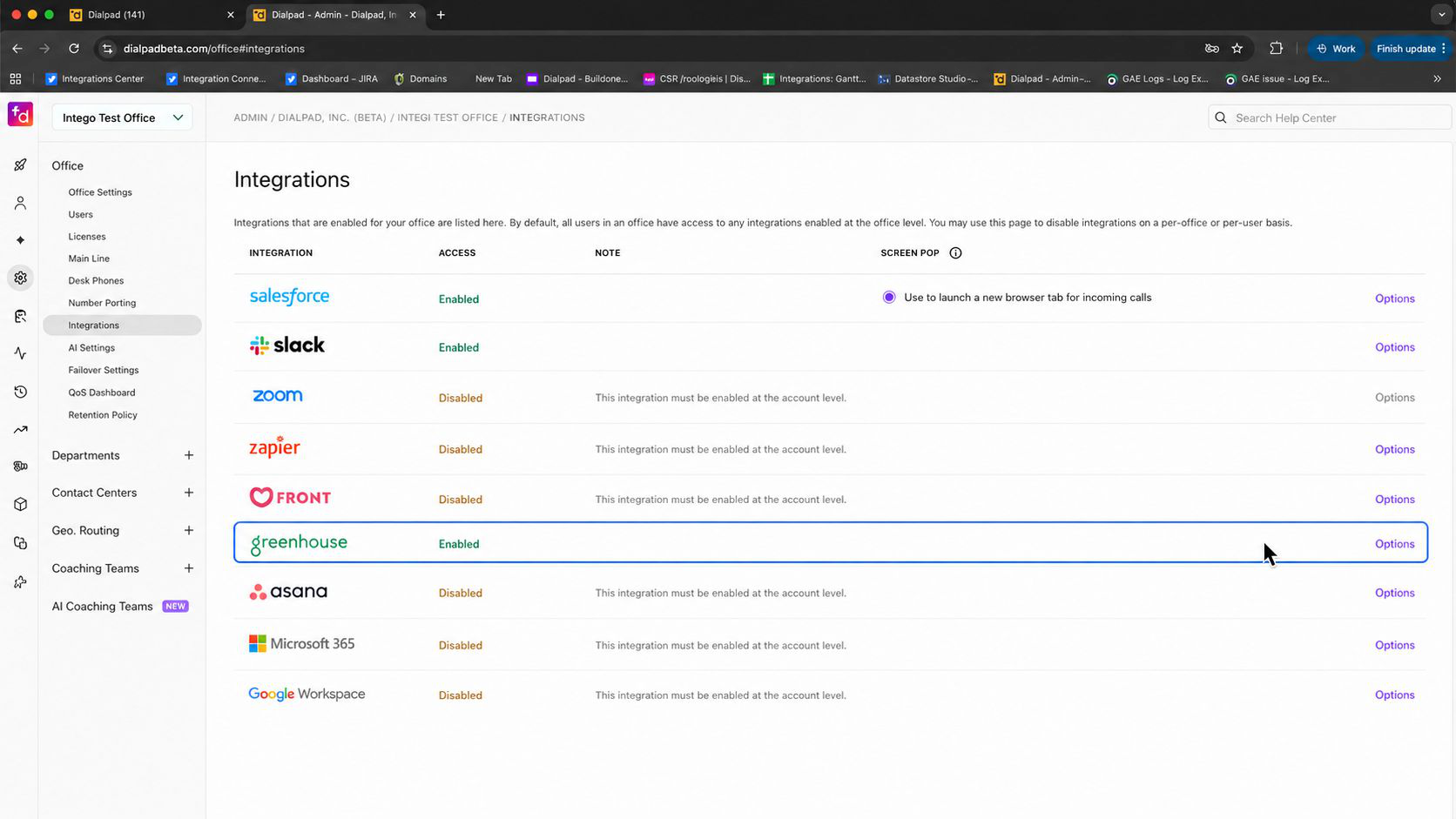
To enable Greenhouse in Dialpad, go to your Dialpad Admin Settings.
Select My Company
Select Integrations
Find Greenhouse in the list and select Options > Manage Settings
Note
To enable Greenhouse at the office level, go to your Dialpad Admin Settings and select Office Settings > Integrations.
On the Configure Greenhouse page, under Enablement, select Enable this feature
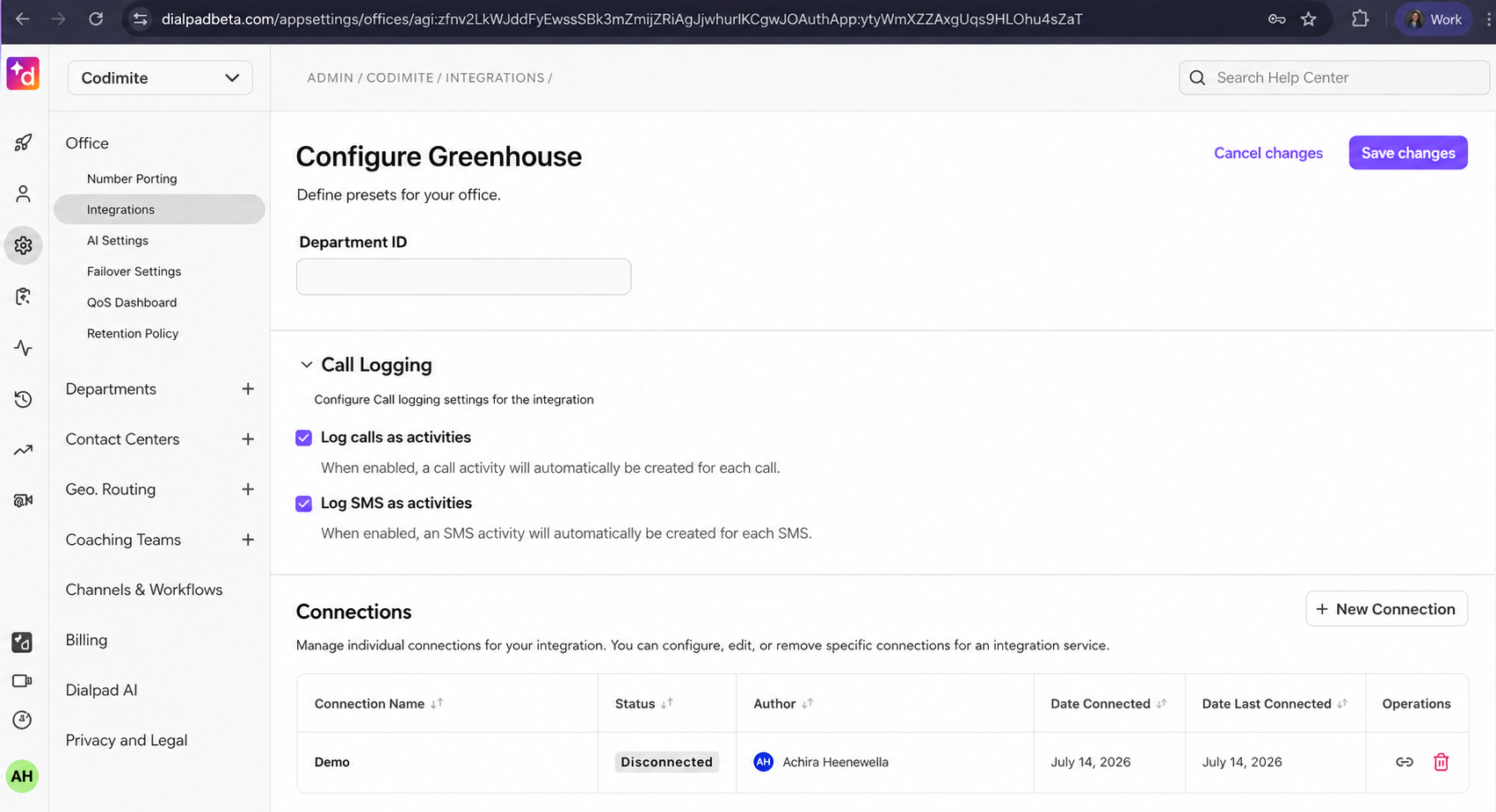
Under Connections, select Create Connection
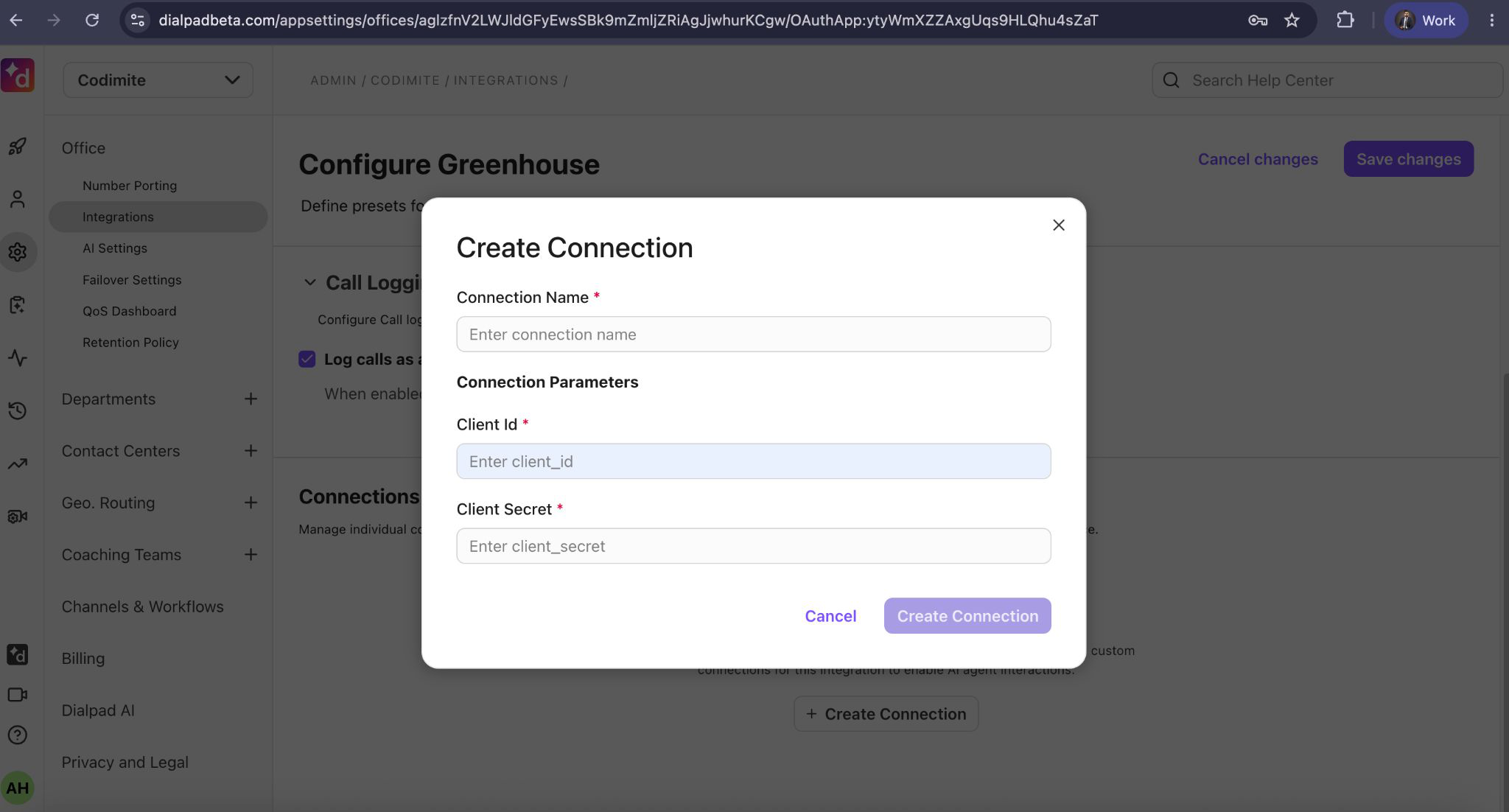
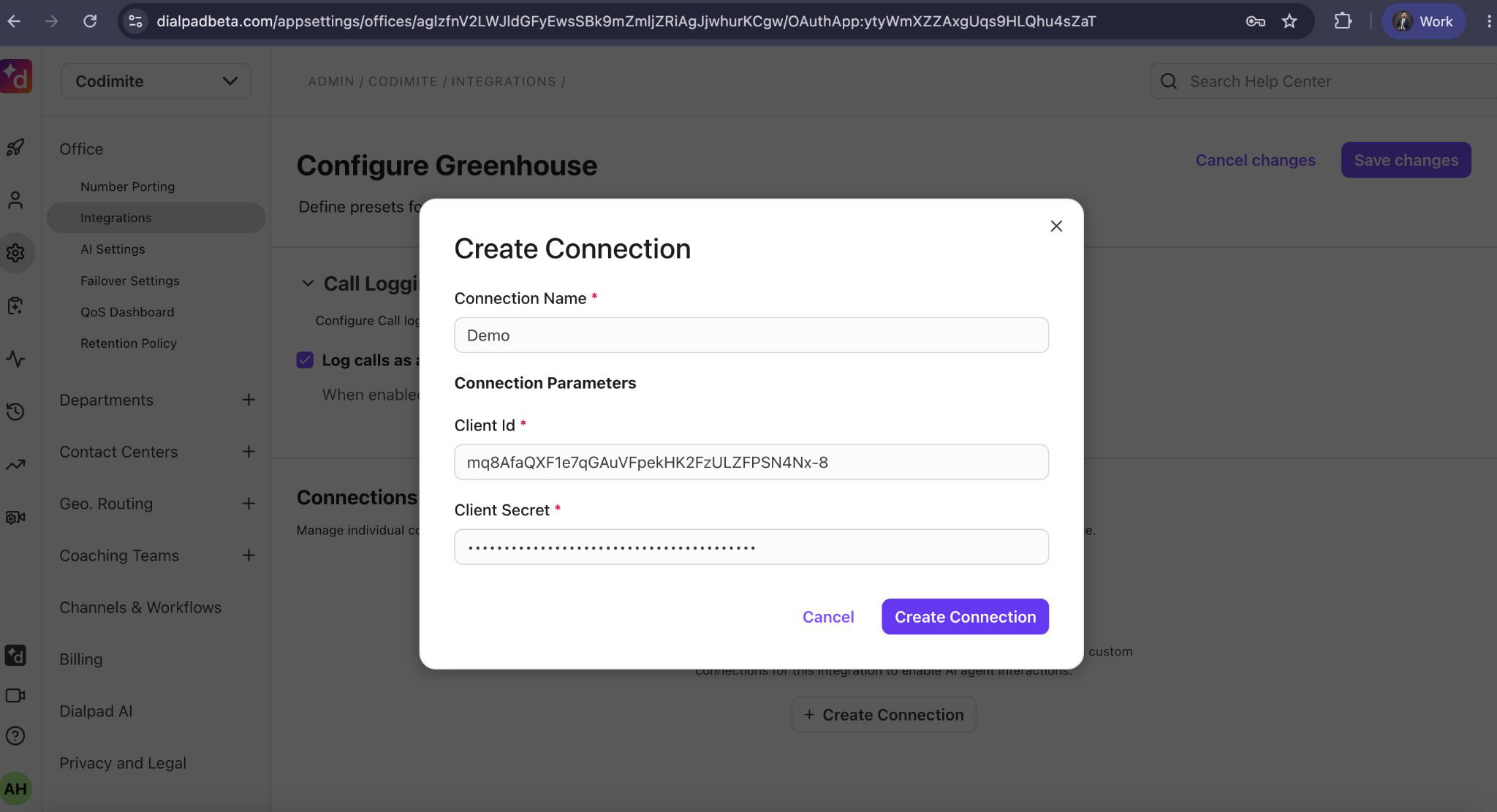
Enter these connection details:
Field
What to enter
Connection Name
A recognizable label for the connection (for example, “Greenhouse – Main Office”).
Client ID
Your Greenhouse OAuth2 client ID.
Client Secret
Your Greenhouse OAuth2 client secret. Keep this confidential.
Select Create Connection

Under Connections, select the new connection’s Primary radio button so it becomes the default connection
Select Save changes
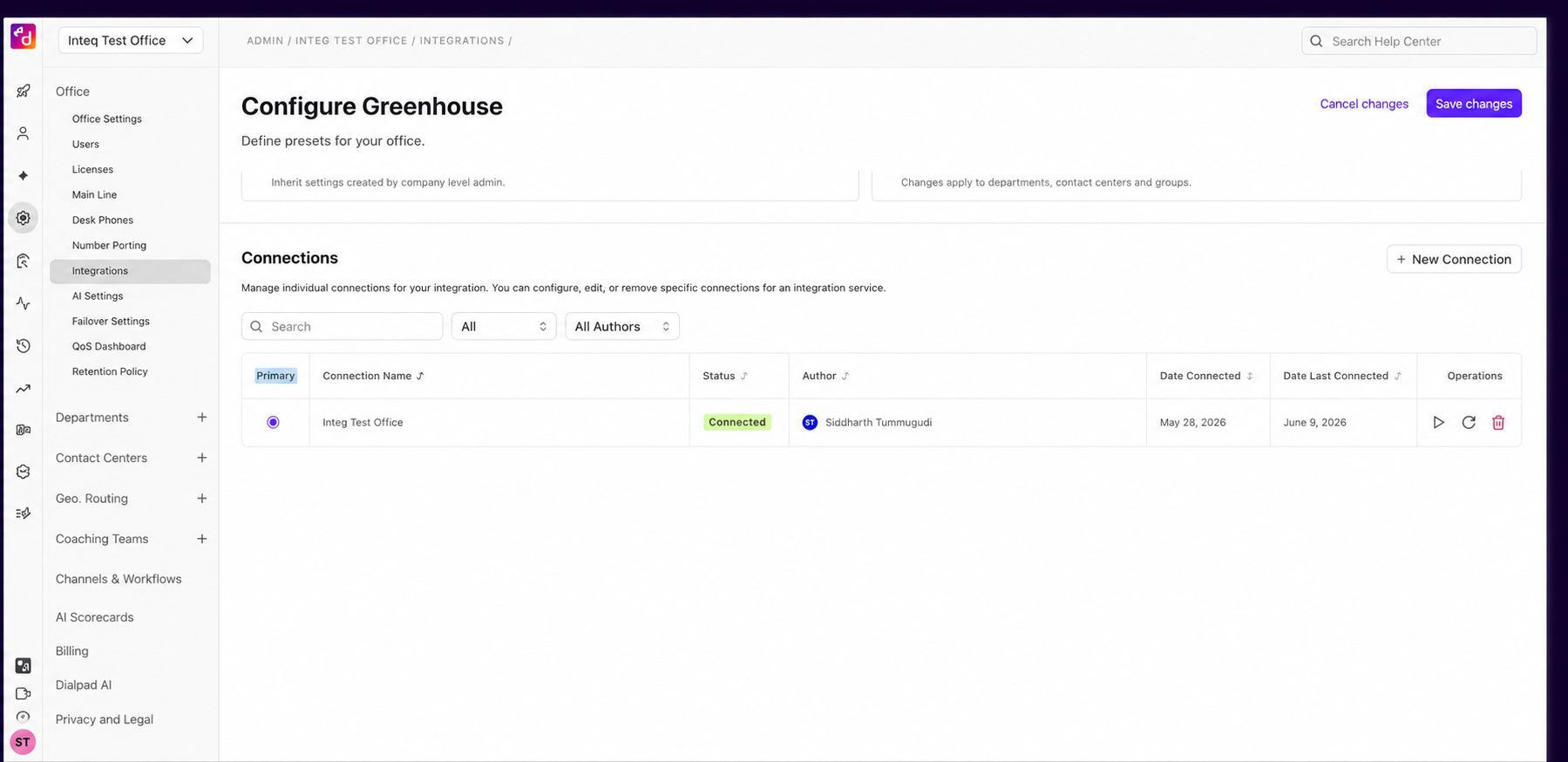
Once a primary connection is set and saved, the Greenhouse sidebar is available to agents in the Dialpad app.
Note
When the connection is created, a “Connection created successfully” toast appears, but its status will initially show as Disconnected in the table. After selecting Save changes, the page refreshes automatically and the status updates to Connected.
Use the Greenhouse sidebar in Dialpad
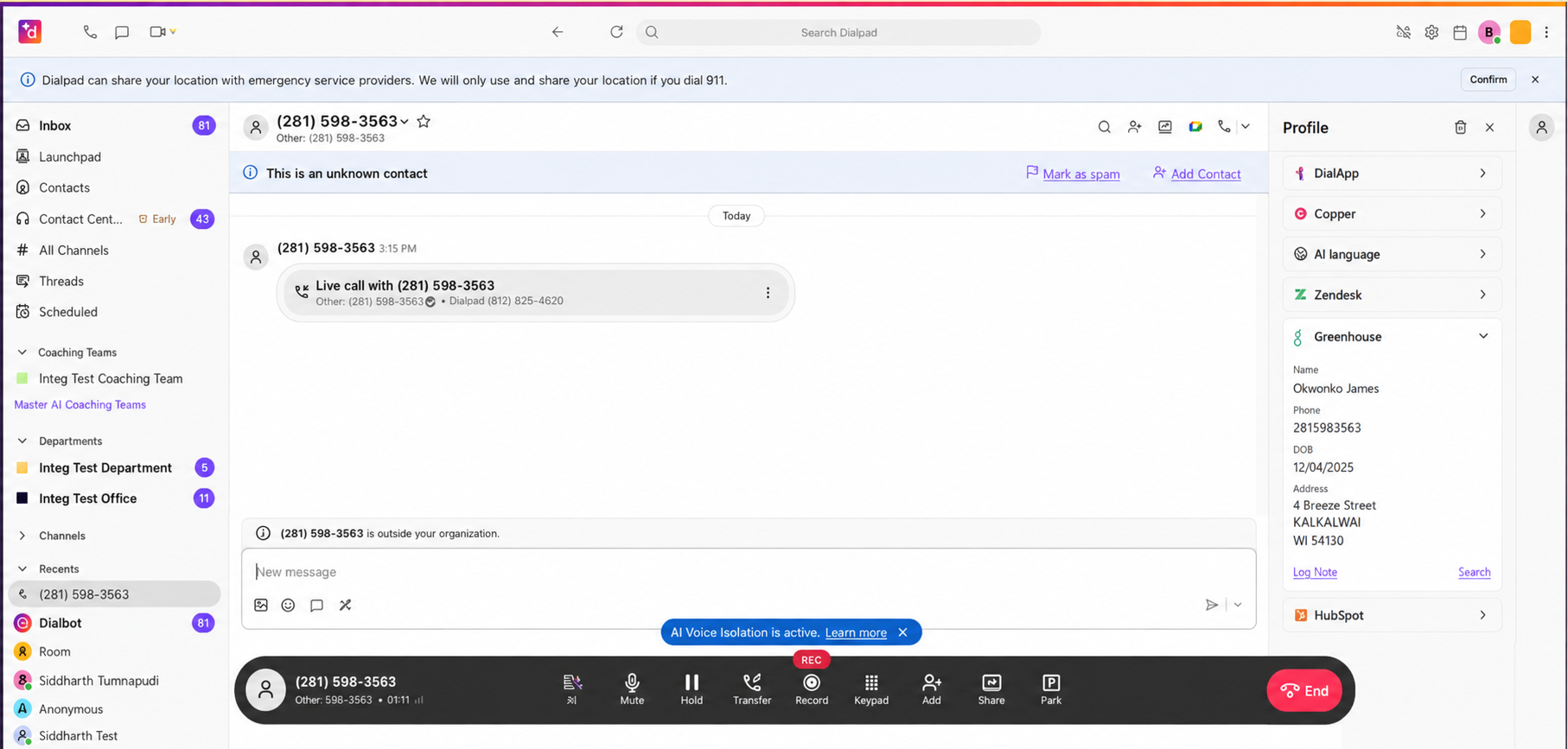
Open a contact or conversation in the Dialpad app and expand Greenhouse in the profile sidebar on the right. This is where agents match candidates, view candidate details, and log notes.
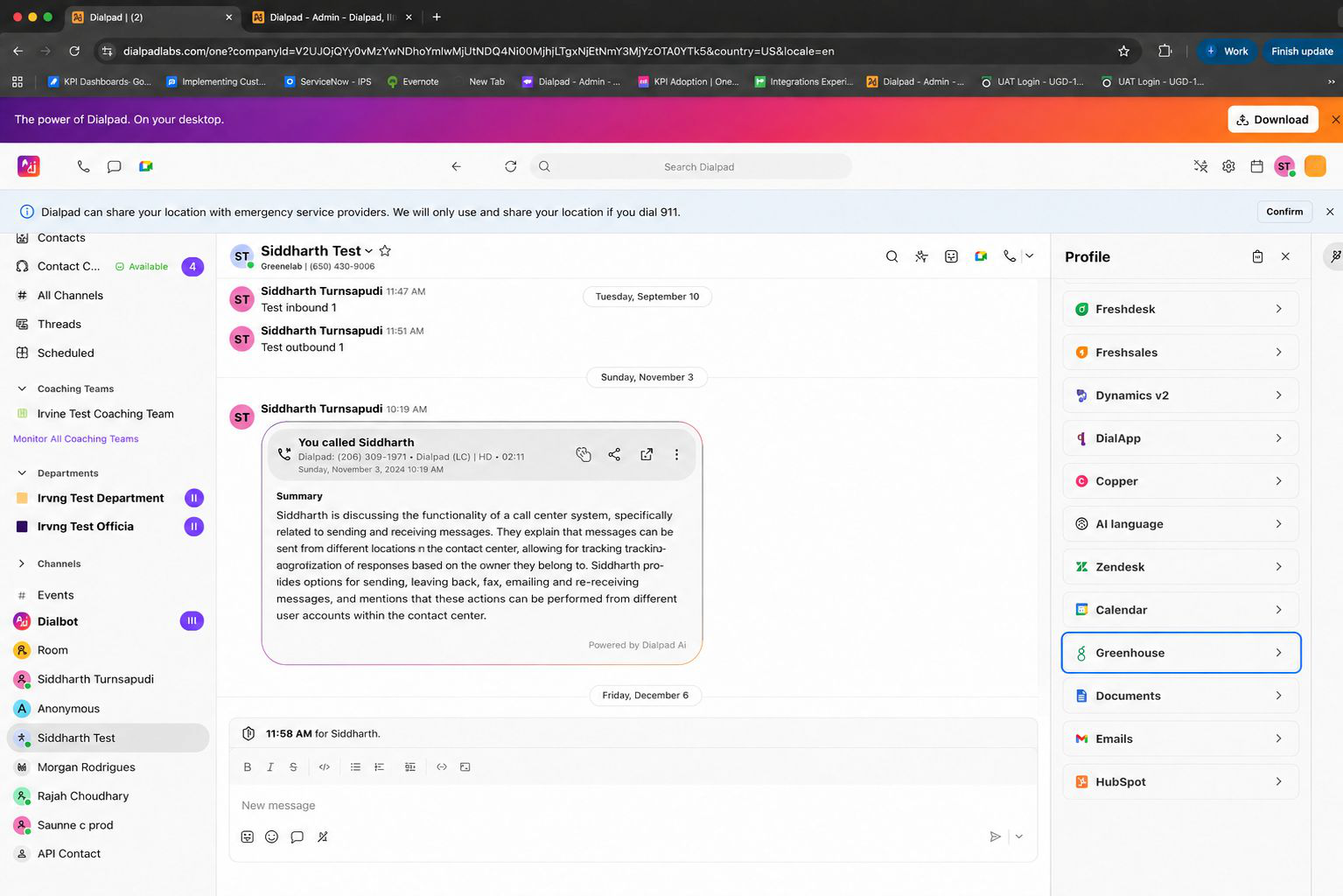
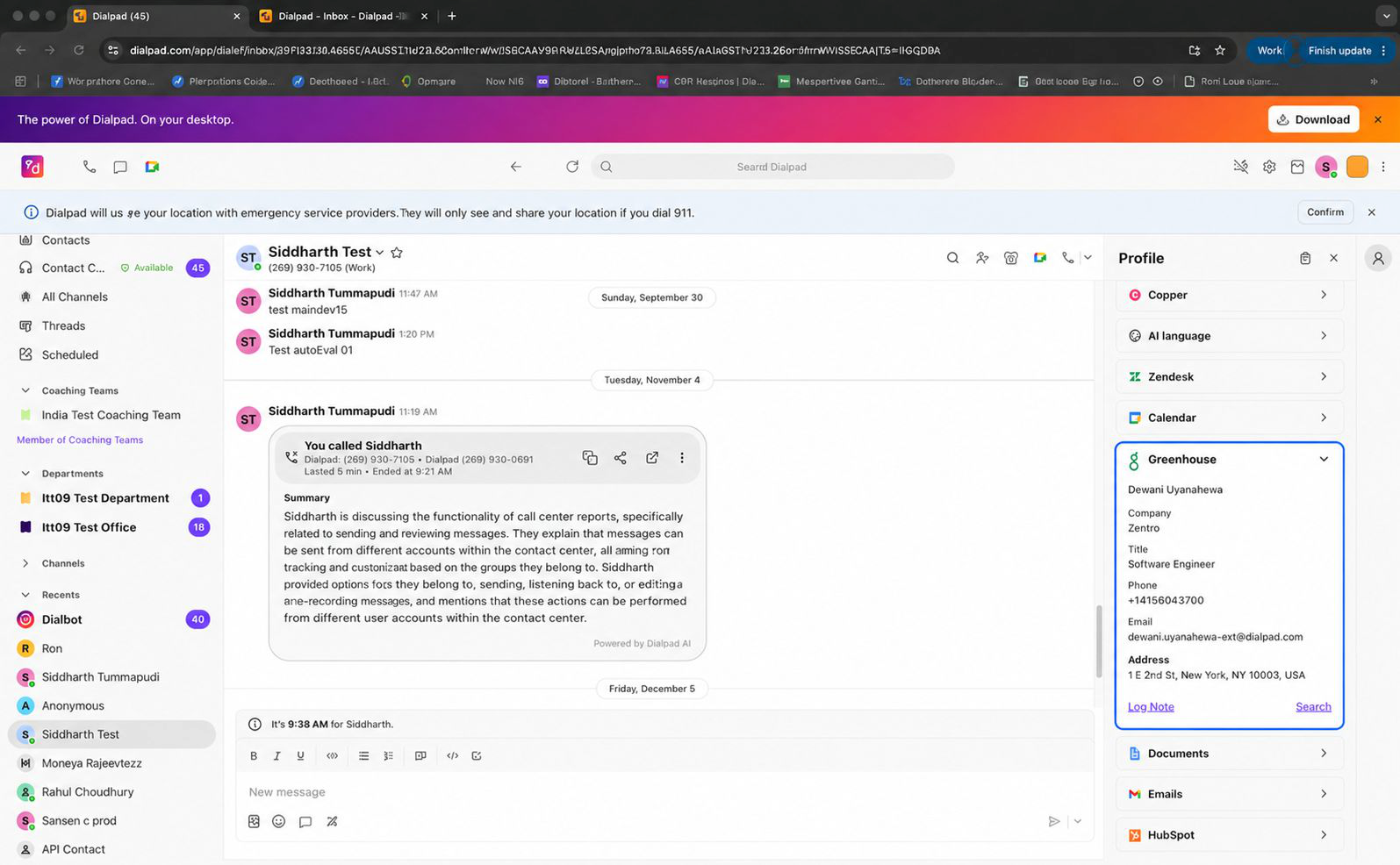
View a matched candidate
If a Greenhouse candidate already matches the record you are viewing, the sidebar syncs to it automatically. A matched candidate shows their name, company, title, phone, email, and address, along with Log note and Search options.
Match a candidate manually
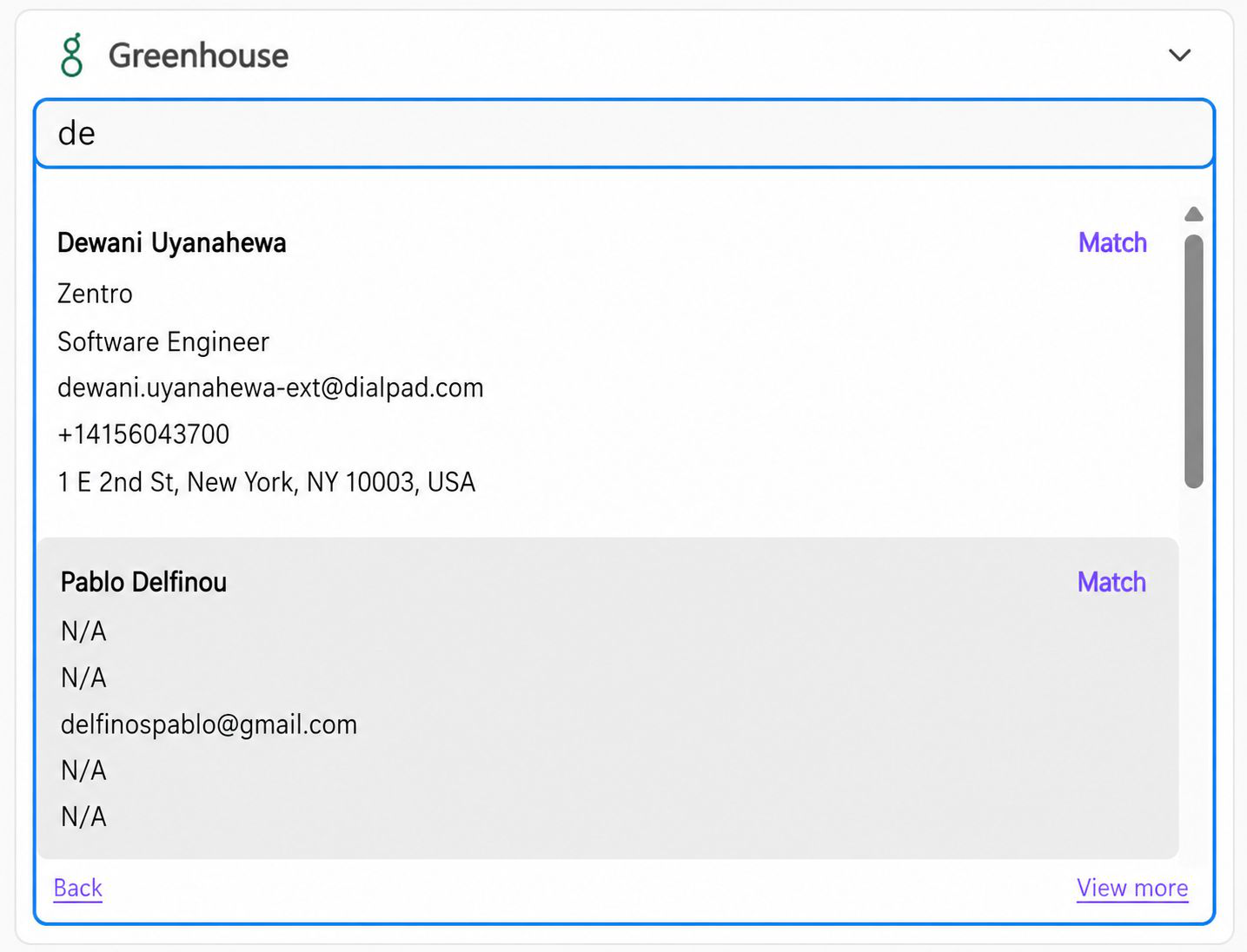
If no candidate is matched, select Search in the sidebar to find one. You can search by name or phone number.
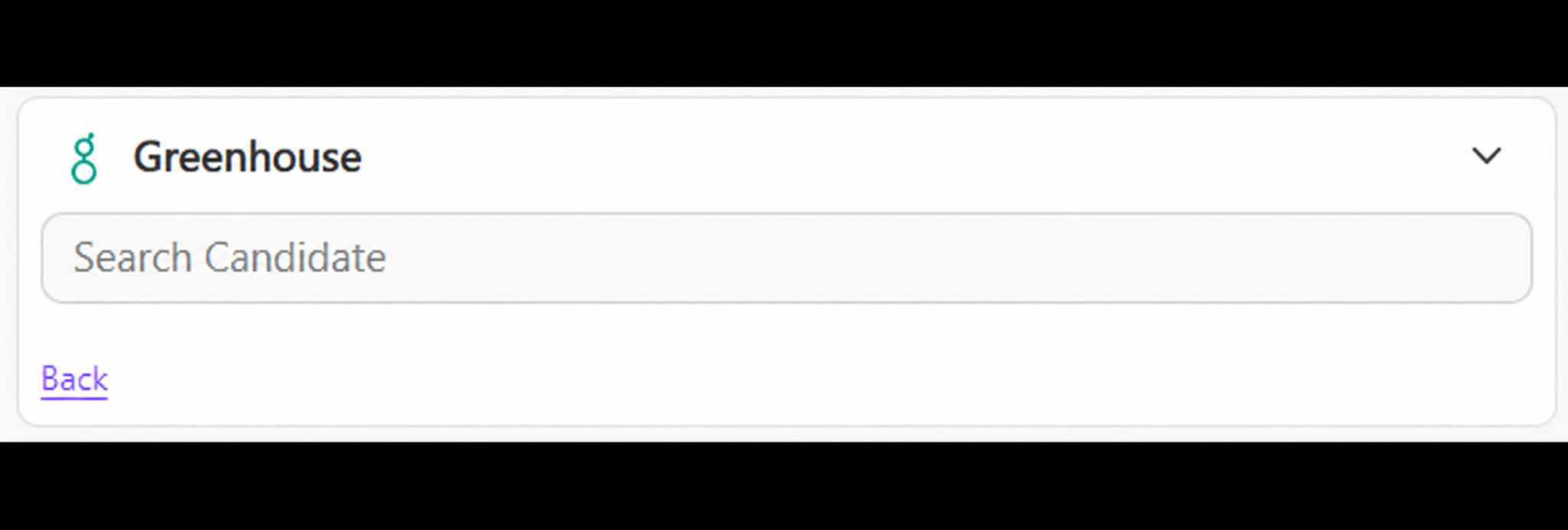
In the results, select Match next to the correct candidate to link them to the record.
Match on an incoming call
When you accept an inbound call, the sidebar automatically searches Greenhouse for the caller. If the caller already exists as a candidate in Greenhouse, the integration matches on email first — it looks for a candidate whose email matches the caller. Only if no email match is found does it fall back to matching on the caller's phone number and name. If no match is found at all, use Search to match the caller to a candidate manually.
Log a note to a candidate
To log a note in Greenhouse within Dialpad, go to your chat.
In the Greenhouse sidebar, select Log note
Enter the note text and select a category (visibility): Public or Admin Only
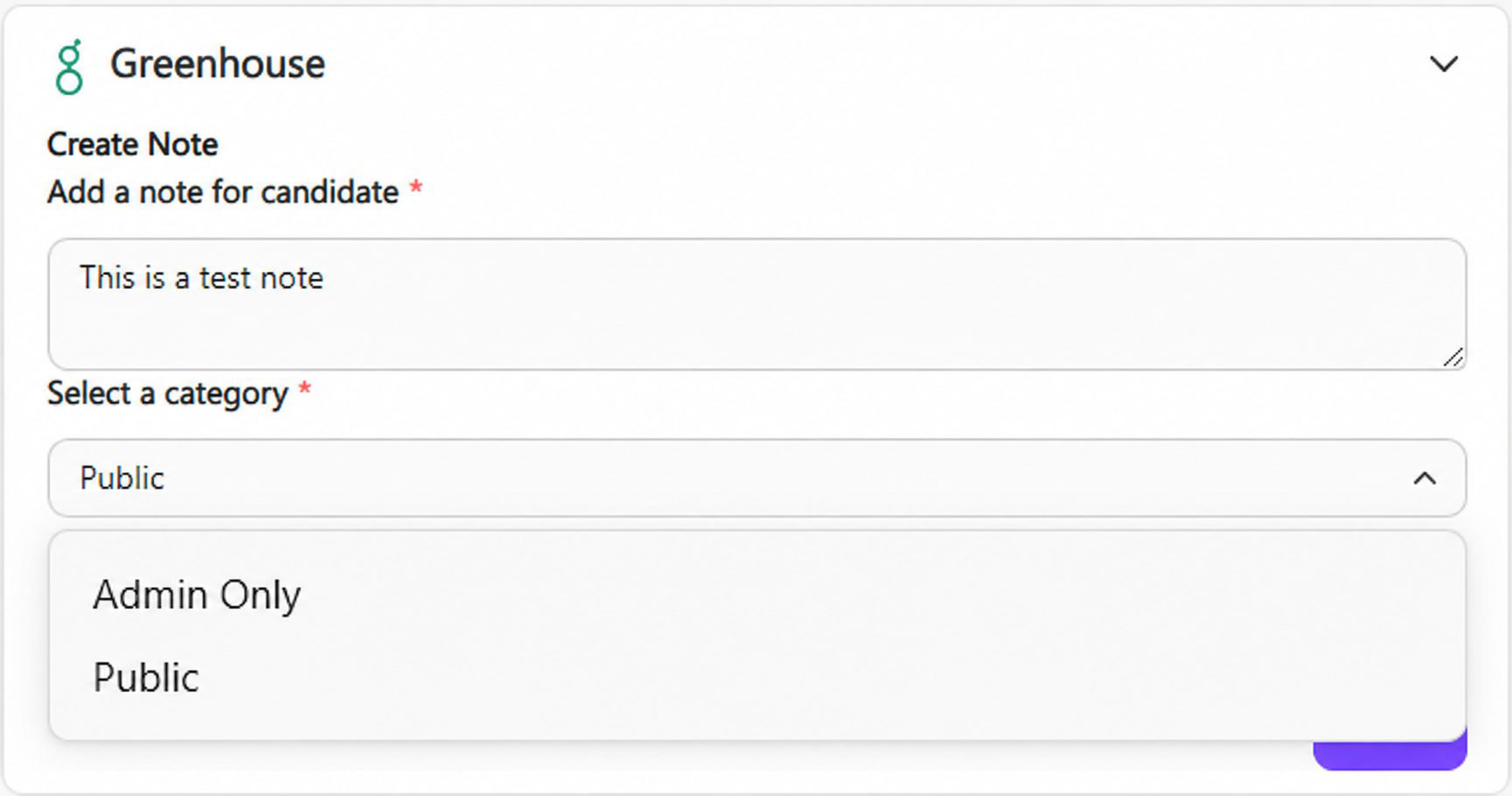
Select Create
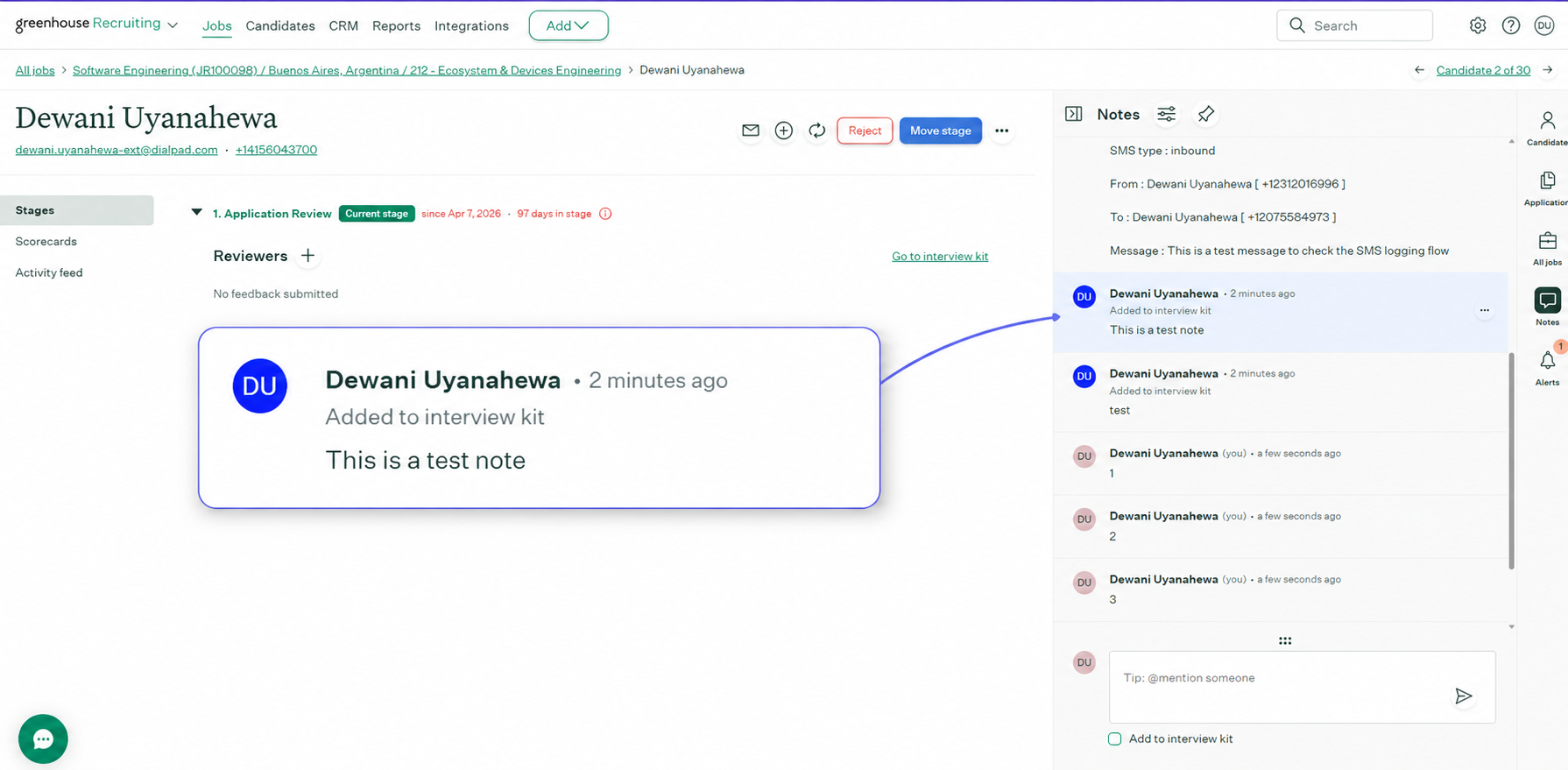
To review the note, open the candidate in Greenhouse and go to the Notes tab — the note you created appears there against the matched candidate.
Calls and SMS logged to Greenhouse
When call logging and SMS logging are enabled on the Configure Greenhouse page, Dialpad automatically logs completed calls and messages as notes on the matched candidate record in Greenhouse. Each is written as a separate note.
Note
Notes you create manually from the sidebar can be set to Public or Admin Only. Automatically logged call and SMS notes are created with Public visibility by default; visibility on these auto-created logs can’t currently be changed per log.
Call logging
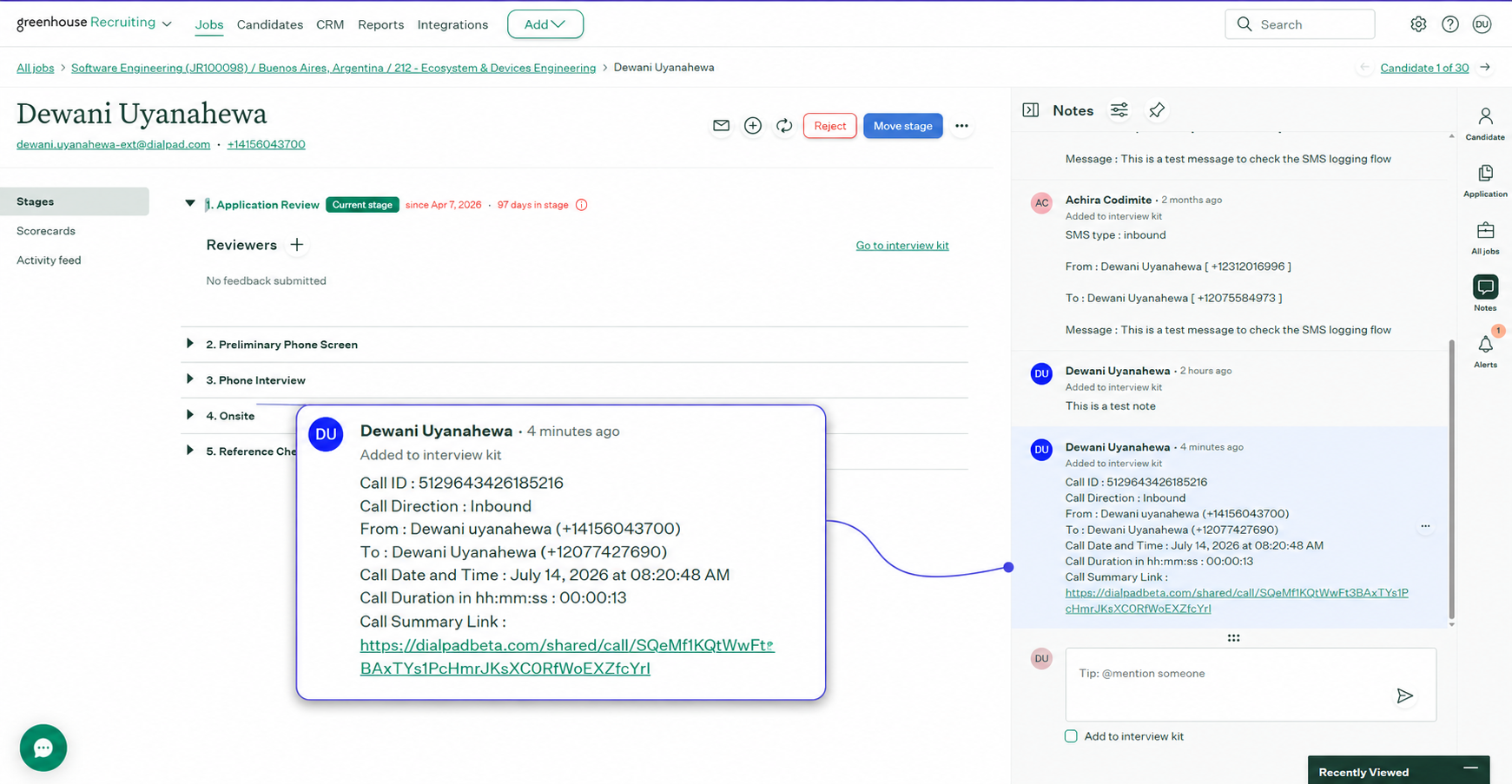
Enable Log calls as activities on the Configure Greenhouse page. After each completed call, a note is logged on the matched candidate containing:
Call ID
Call Direction
From
To
Call Date and Time
Call Duration (hh:mm:ss)
Call Summary Link — opens the Dialpad call summary
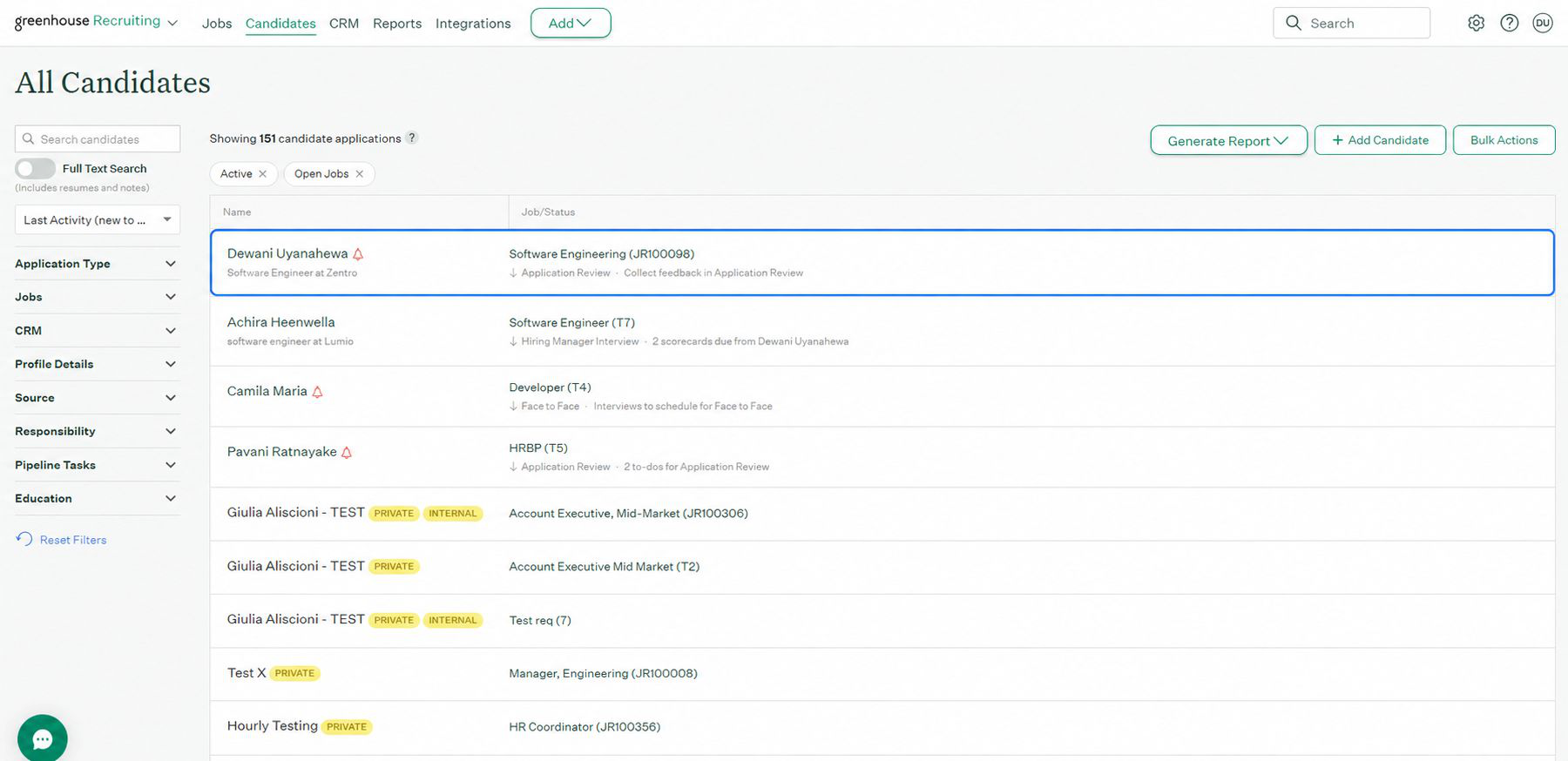
To view a logged call, open the candidate in Greenhouse (Candidates tab) and check the Notes tab.
SMS logging
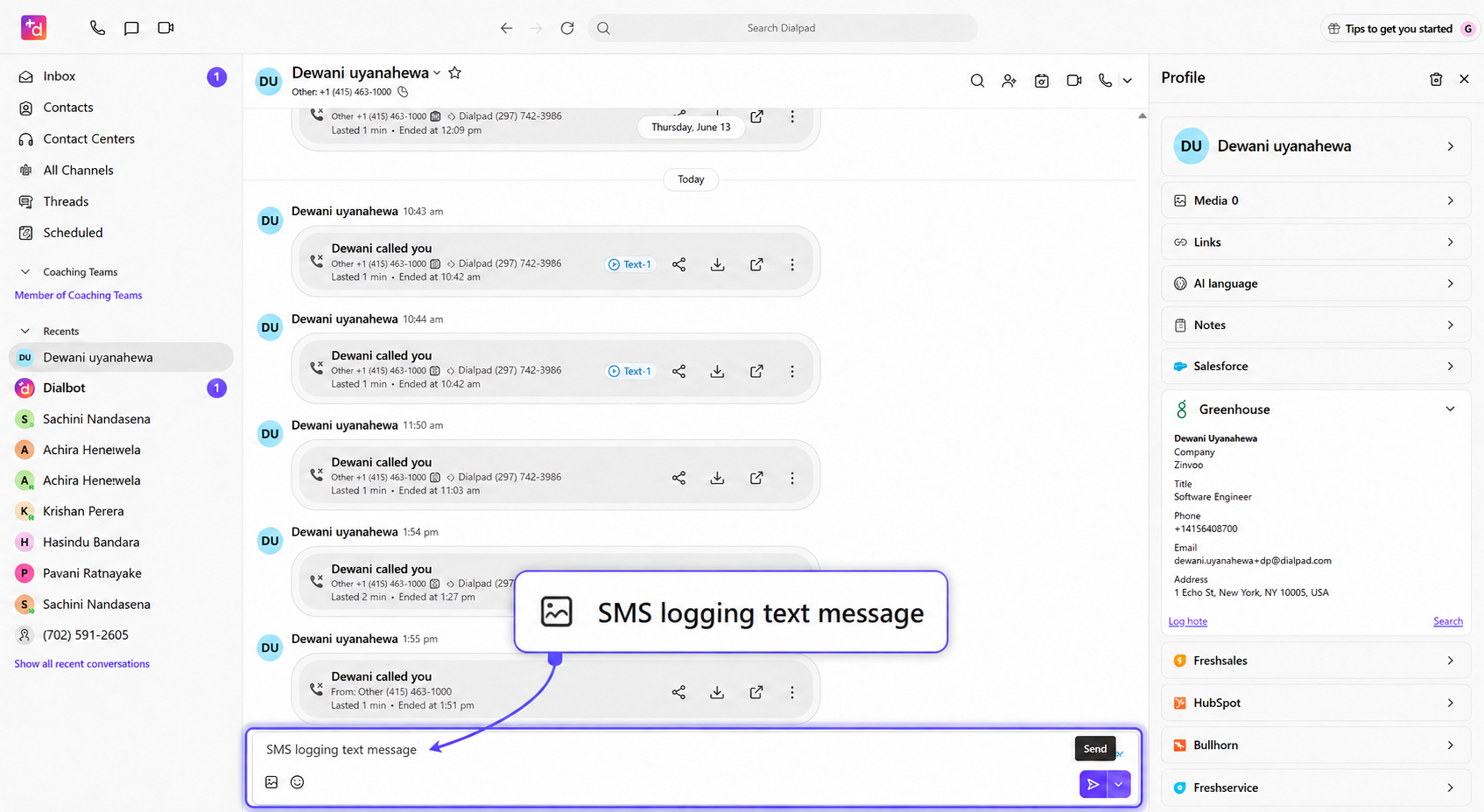
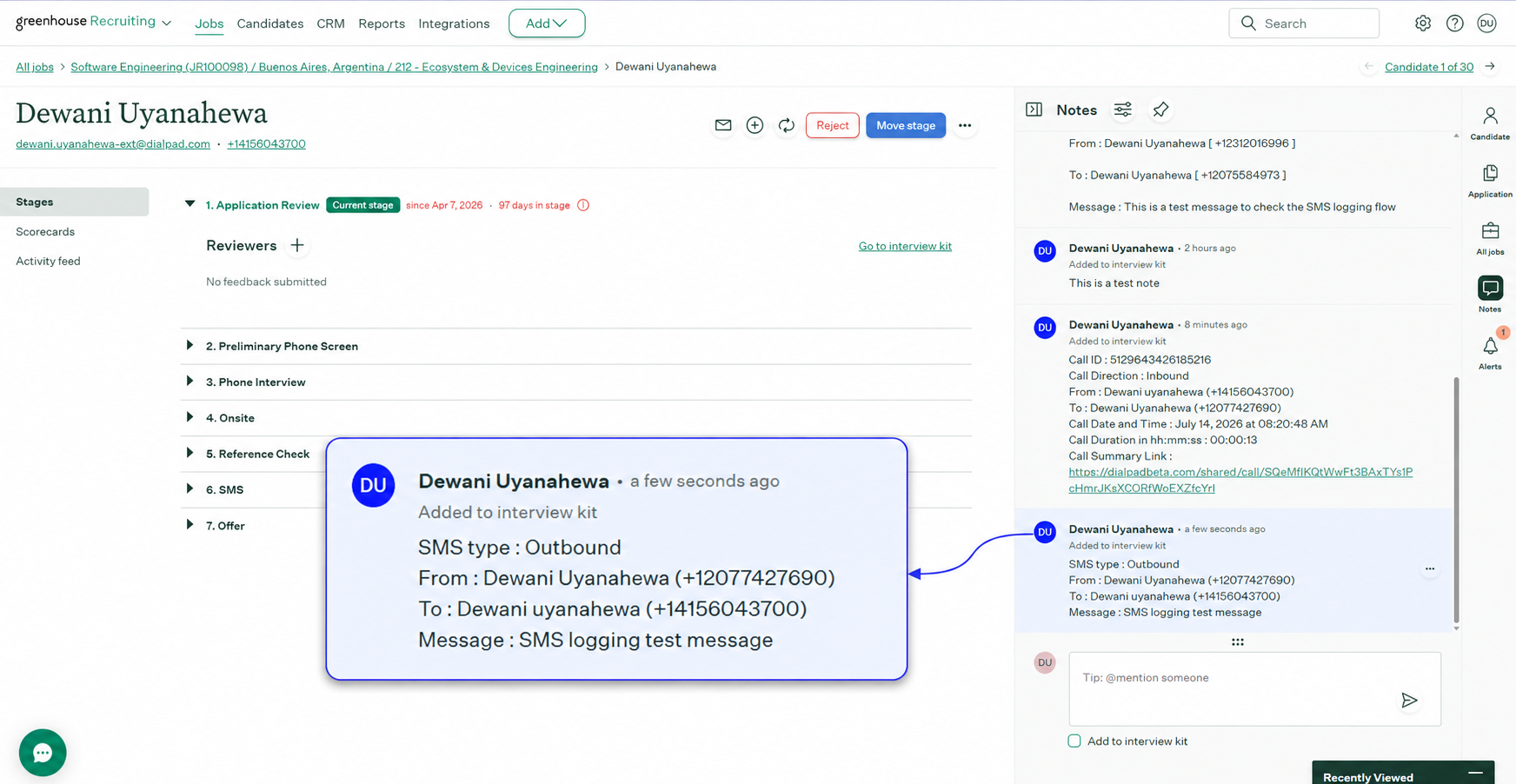
Enable Log SMS as activities. Send or receive an SMS from the Dialpad conversation, and it is logged as a note on the matched candidate containing:
SMS Type
From
To
Message
What isn’t logged in this version
The v1 native integration currently supports voice calls and SMS. The following are not logged:
Video recording links
AI recaps
Transcripts
Manage the integration (Admin)
Admins manage Greenhouse from the Configure Greenhouse settings page in Dialpad. From here you can:
Enable or disable the integration.
Create one or more connections and choose which one is the primary (default) connection.
Configure whether call logging and SMS logging are enabled.
There isn’t a separate manual-sync action. To add information to a candidate by hand, use Log note in the Greenhouse sidebar to create a Public or Admin Only note on the matched candidate.
If a connection stops working
This version doesn’t use a separate sign-in / OAuth re-authentication step, and only admins can enable or disable the integration. If a connection shows Disconnected, re-check its Client ID and Client Secret on the Configure Greenhouse page, or remove it and create a new connection, then set it as primary.
Disconnect the integration
To stop using Dialpad with Greenhouse, an admin can disable the integration or remove the connection from the Configure Greenhouse page. New calls and messages will no longer be logged to Greenhouse; notes already logged remain on the candidate records.
Troubleshooting
If the integration isn’t working as expected:
Confirm a primary connection is selected and shows as Connected on the Configure Greenhouse page.
Confirm Log calls as activities and/or Log SMS as activities are enabled if activity isn’t appearing in Greenhouse.
Re-check the Client ID and Client Secret if a connection is Disconnected.
If a candidate isn’t matching automatically, use Search in the sidebar to match manually.