The NetSuite integration allows users to seamlessly connect Dialpad to NetSuite, enabling automatic caller-to-customer record matching, logging calls as phone call activities, and instantly accessing the relevant NetSuite record when a call comes in. This significantly reduces the need for manual data entry and enhances the focus on customer interactions.
By enabling NetSuite with Dialpad, users can enjoy a streamlined experience with automated features that streamline crucial processes, ensuring customer information is readily accessible and logged efficiently.
Who can use this
The NetSuite integration is available to all users as an add-on for Dialpad Connect and Support licenses. This feature must be configured by Dialpad’s Professional Services team and is subject to additional cost. To get started, contact your account team or email the Professional Services team.
How NetSuite works in Dialpad
NetSuite automatically matches the caller's phone number, whether incoming or outgoing, to customer records. If a match is found, Dialpad logs call details, such as direction, duration, agent information, and AI-generated recaps, as activities within NetSuite. Additionally, a screen pop displays with the customer's record when a call arrives, enhancing efficiency during customer interactions.
Enabling the Integration in Dialpad
To set up the NetSuite integration in Dialpad, follow these steps:
Create a NetSuite integration record
First, you'll register Dialpad as an authorized application in your NetSuite instance:
Note
If you run into any issues and need more information, check out this guide.
In NetSuite, navigate to Setup > Integration > Manage Integrations > New
Configure these settings:
Authorization Code Grant: Checked
Redirect URI: Your Event Hub callback URL (provided by your Professional Services team)
Public Client: Unchecked
Client Credentials: Checked
RESTlets: Checked
REST Web Services: Checked
SuiteAnalytics Connect: Unchecked
OAuth 2.0 Consent Policy: "Always Ask"
Select Save
Note
Copy the Client ID and Client Secret, as they will be needed later in Dialpad. The Client Secret is only shown once when you first save the record. Make sure to copy it before navigating away from the page.
Generate an M2M authentication certificate
This certificate allows for server-to-server (machine-to-machine) authentication:
Generate a public/private key pair using OpenSSL on your local machine. Create one of these two certificate types:
ES256 (recommended)
Example:
openssl req -new -x509 -newkey ec -pkeyopt ec_paramgen_curve:prime256v1 -nodes -days 730 -out public.pem -keyout private.pemRS256
Example:
openssl req -new -x509 -newkey rsa:4096 -keyout private.pem -sigopt rsa_padding_mode:pss -sha256 -sigopt rsa_pss_saltlen:64 -out public.pem -nodes -days 730Use this guide to upload your public key to NetSuite and create the certificate mapping.
Copy the Certificate ID generated by NetSuite.
Tip
NetSuite certificates are valid for a maximum of 2 years (730 days). Set a reminder to generate a new certificate before it expires.
Connect Event Hub in Dialpad
Event Hub listens for call events and forwards them to NetSuite. To connect Event Hub in Dialpad, navigate to your Dialpad Admin Settings.
Select Your Company > Integrations
Note
To connect at the office level, go to your Dialpad Admin Settings and select Office > Integrations.
Locate Event Hub in the integration list and select Options > Connect
For the Integration CRM, select NetSuite
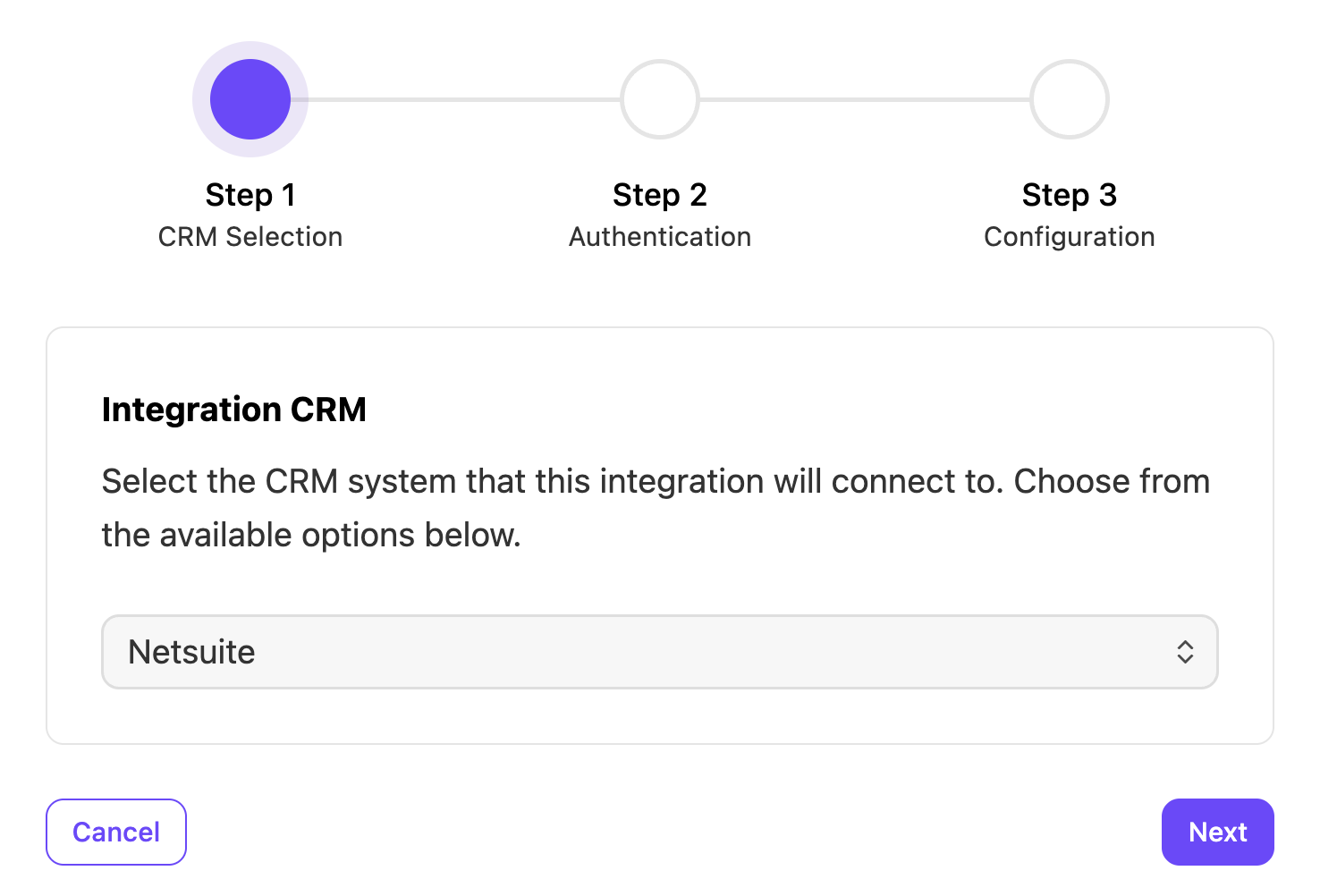
Select Next
Enter your credentials:
Connection Name: A descriptive name for the connection
Note
Connection names must use only letters, numbers, and underscores(_).
Base URL: Your NetSuite authentication endpoint
Client ID: Generated from creating a NetSuite integration record
Client Secret: Generated from creating a NetSuite integration record
Certificate ID: the Certificate ID generated by NetSuite
Signature: Contents of your private key file (private.pem)
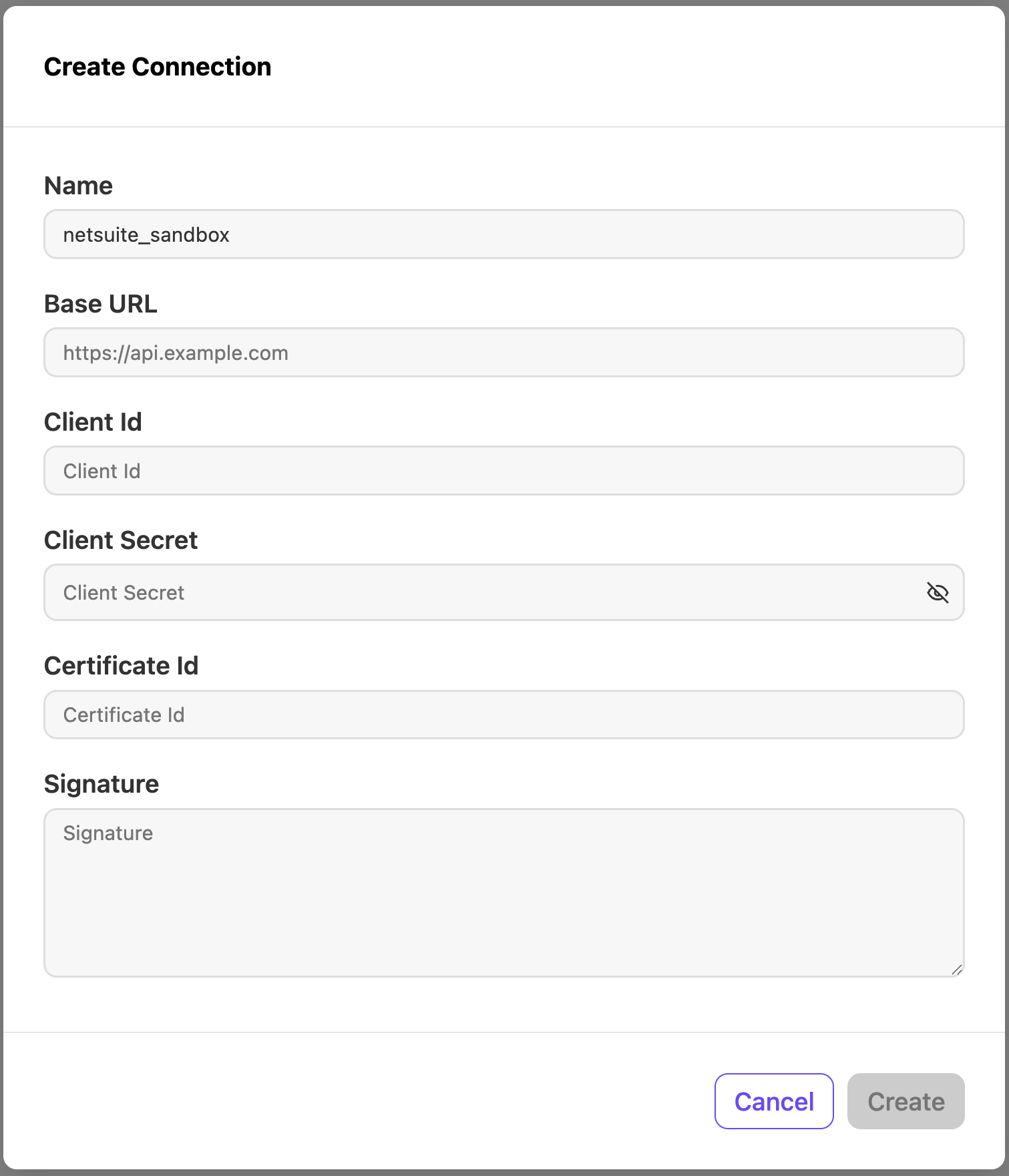
Select Create
The credentials are validated and a connection is established.
Select Add Configuration
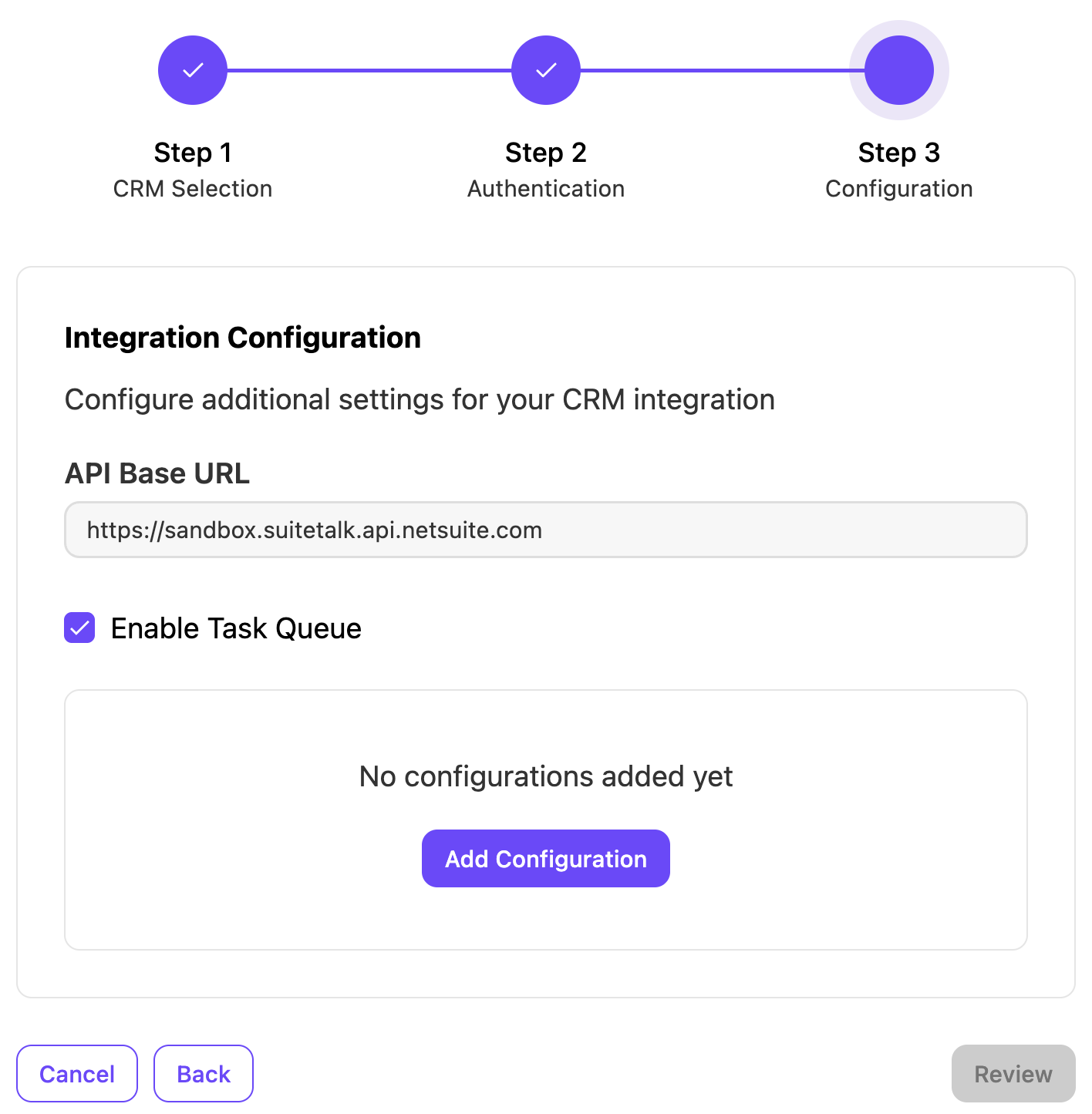
Configure these features as desired
Base settings
Configure these setting, then select Add.
Setting | Description |
|---|---|
API Base URL | The NetSuite API endpoint the integration uses to communicate with your instance. |
Log All Calls for This Office | Applies your call logging and screen pop configurations to all calls within the office. Required for the integration to process calls. |
Enable Task Queue | Groups related call events (e.g., hangup, recording, AI recap) into a single ticket note instead of creating separate entries.
|
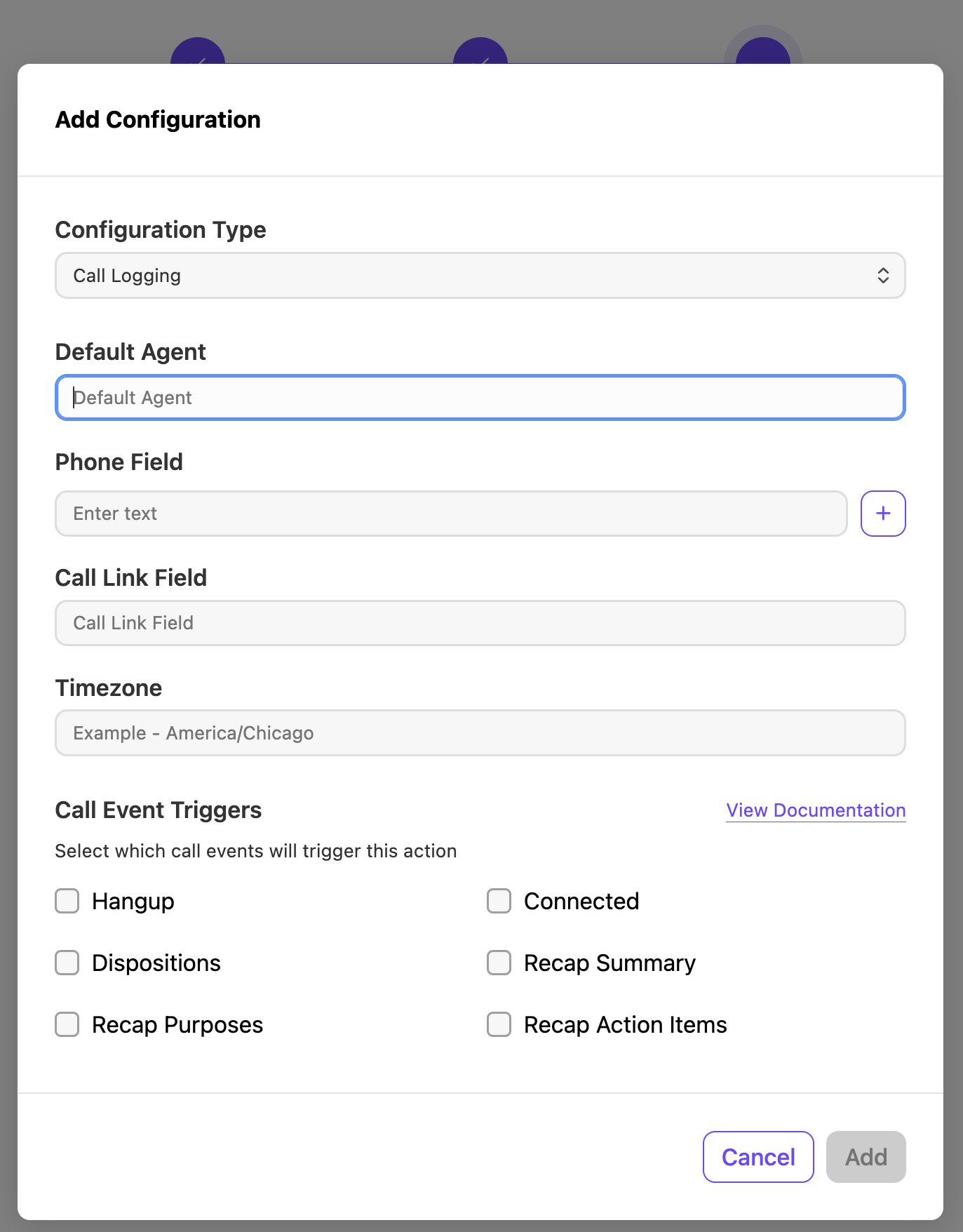
Call logging settings
Configure these setting, then select Add.
Setting | Description |
|---|---|
Default Agent | Fallback NetSuite employee ID used when the Dialpad agent's email doesn't match a NetSuite employee record. |
Phone Field | The NetSuite field used for customer matching by phone number (NetSuite default: custentity_altphone). Supports multiple fields. |
Call Link Field | Optional custom hyperlink field on the Phone Call form for a clickable link to the Dialpad call review. |
Timezone | Timezone for formatting call dates and times in NetSuite (default: America/New_York). |
Call Event Triggers | You can select which call events trigger the addition of a configuration. These triggers include:
The View Documentation option displays Help documentation for NetSuite. |
Screen pop settings
Configure these setting, then select Add.
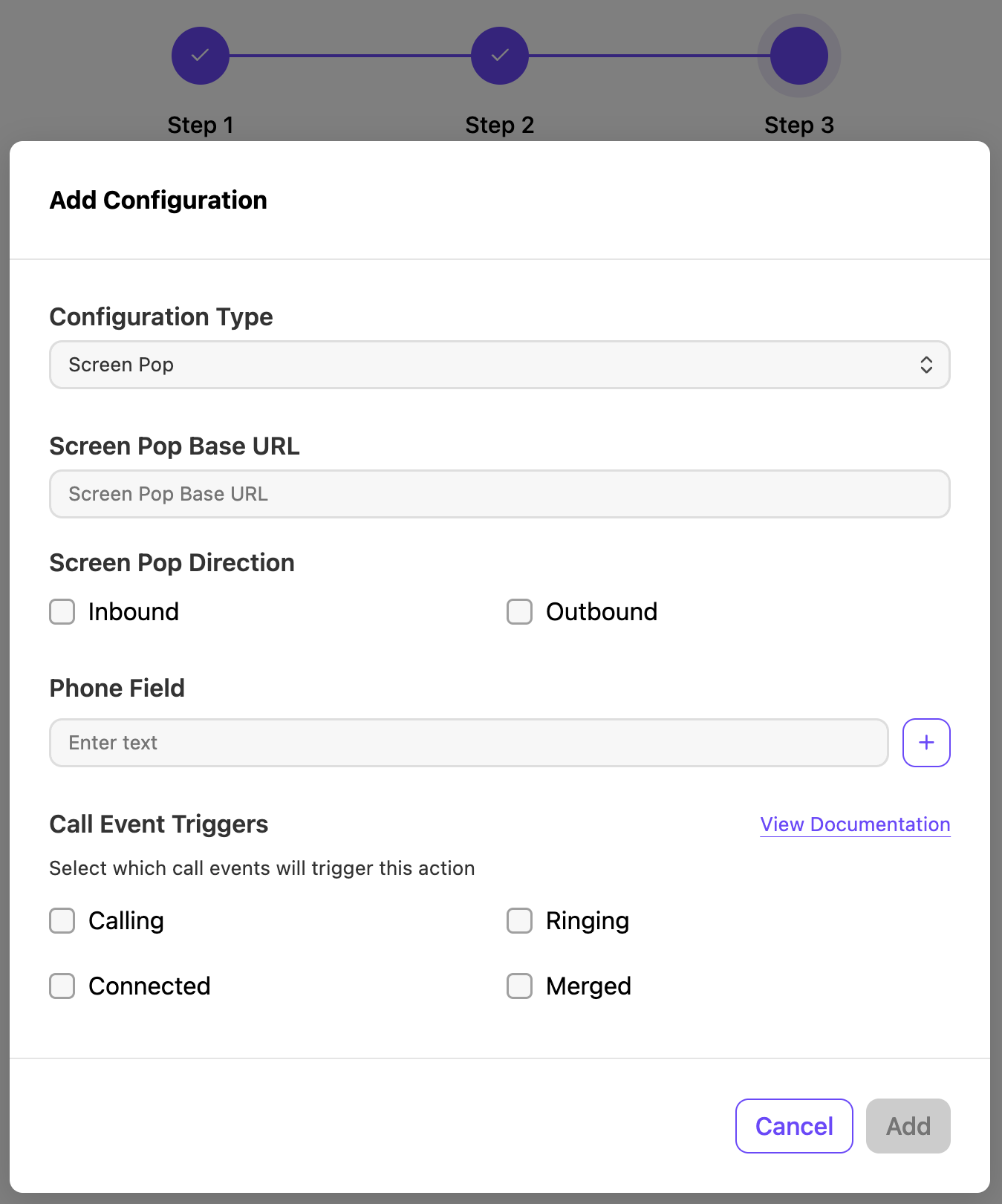
Setting | Description |
|---|---|
Screen pop Base URL | Your NetSuite web domain (used to build the screen pop destination). |
Screen Pop Direction | Choose whether to have the screen pop open for Inbound calls, Outbound calls, or both. |
Phone Field | The NetSuite field used for customer searching by phone number (NetSuite default: custentity_altphone). Supports multiple fields. |
Call Event Triggers | You can select which call events trigger the addition of a configuration. These triggers include:
The View Documentation option displays Help documentation for NetSuite. |
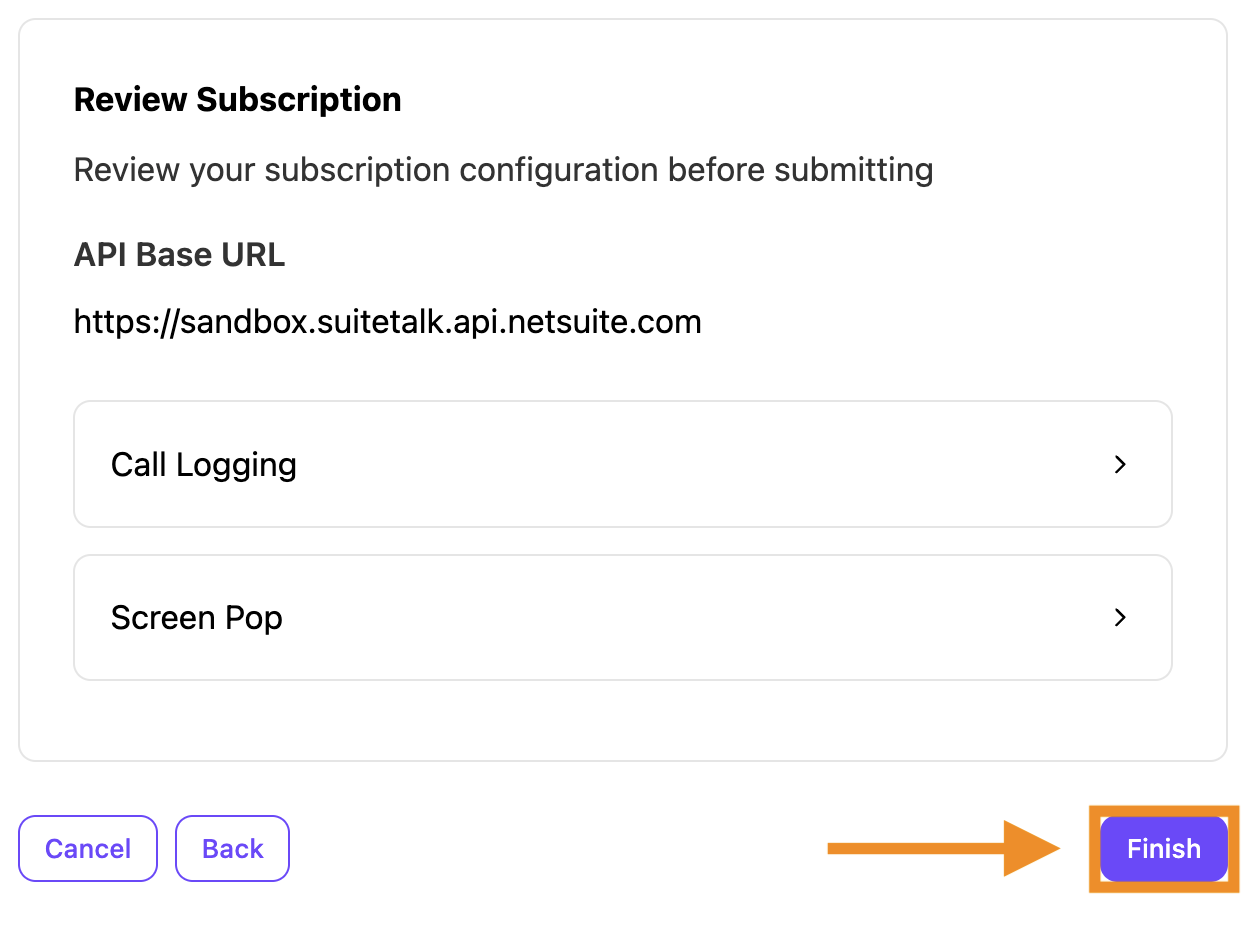
Once complete, select Review to look over your configuration settings
Once satisfied, select Finish
(Optional) Create a custom field for Call Review links
By default, Dialpad includes the call summary link in the phone call's Message field. However, NetSuite doesn't make links that you can select in that field. To get a selectable link, create a custom hyperlink field on the Standard Phone Call form.
To make the call summary link selectable in NetSuite:
In NetSuite, go to Customization > Lists, Records, & Fields > Transaction Body Fields > New
Create a Hyperlink field
Add the field to your Standard Phone Call form
Enter the field name as the Call Link Field in your Event Hub call logging settings
Tip
For a phased rollout, leave Event Hub disabled at the company level and enable it for specific offices, departments, or call centers.

Using the Integration in Dialpad
For incoming and outgoing calls, NetSuite automatically searches for customer records matching the caller's phone number.
NetSuite searches the phone field configured in your settings (default: custentity_altphone). If you store phone numbers in multiple fields, you can configure the integration to search across all of them in the call logging settings (Phone Field supports multiple values).
NetSuite will result one of these results:
Match found | The first matching active customer record is used for call logging and screen pop. |
No match found | No phone call activity is created. Screen pop opens the NetSuite customer search page instead. |
Inactive record | If the matched customer record is marked as inactive in NetSuite, call logging is skipped. |
These phone number formats are searched:
NPA-NXX-XXXX (e.g., 408-555-1234)
NPANXXXXXX (e.g., 4085551234)
Note
If your NetSuite instance stores phone numbers in a different format, contact the Professional Services team for a customization request.
Troubleshooting Common Issues
Here are some common troubleshooting tips:
"CRM Not Connected" error
Verify your NetSuite credentials (Client ID, Certificate ID, private key) are correct.
Check that your M2M authentication certificate hasn't expired.
Confirm the API Base URL is correctly formatted (e.g., https://<account-id>.suitetalk.api.netsuite.com).
Customer not found
Verify the customer exists in NetSuite and is not marked as inactive.
Check that the phone number is stored in the configured phone field (default: custentity_altphone).
The integration searches NPA-NXX-XXXX (e.g., 408-555-1234) and NPANXXXXXX (e.g., 4085551234) formats. If your instance uses a different format, contact your PS team.
Call not logging
Confirm "Log All Calls for This Office" is enabled in the base settings.
Verify a customer record was matched (call logging requires a matched, active customer).
Check that the Event Hub connection is active and credentials haven't expired.
Screen pop not working
Make sure screen pop is enabled in your self-enablement configuration.
Verify the Screen Pop Base URL is correctly configured.
Allow pop-ups from Dialpad in your browser settings.
Agent not being assigned to calls
Confirm the Dialpad user's email matches a NetSuite employee record.
Check that the NetSuite employee record is not marked as inactive.
Verify a default agent is configured as a fallback.
Frequently asked questions
Why isn't my customer matching being automatically applied?
Customer matching searches by phone number using the configured phone field (default: custentity_altphone). Make sure the customer's phone number in NetSuite is stored in that field and matches the caller ID format.
Why isn't my call being logged?
Call logging requires a matched, active customer record in NetSuite. If no customer is found or the record is inactive, no phone call activity is created. Also, verify that "Log All Calls for This Office" is enabled.
What call information is logged in NetSuite and where can I see it?
Dialpad logs the call details as Phone Activity under the customer record. You should be able to see activity with the type Phone call under the Communication tab in the customer record.
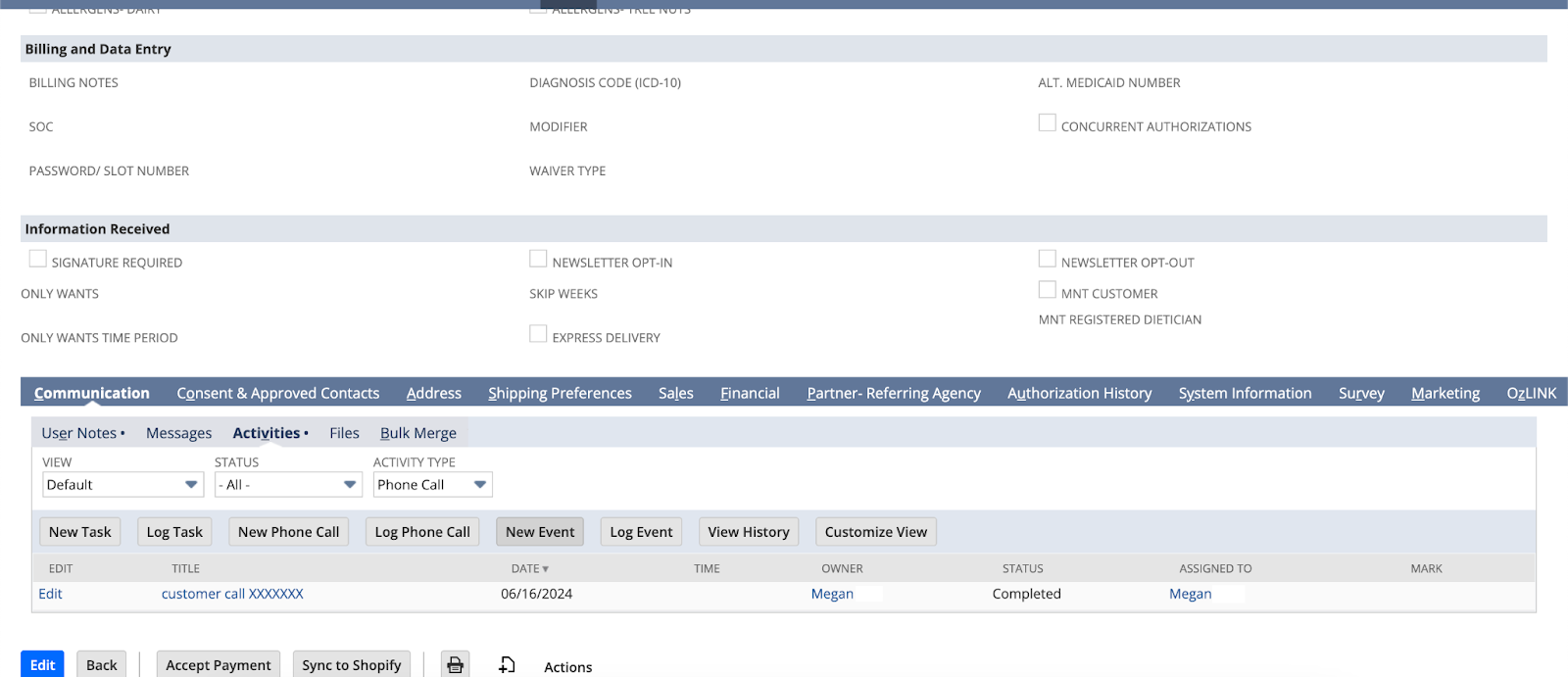
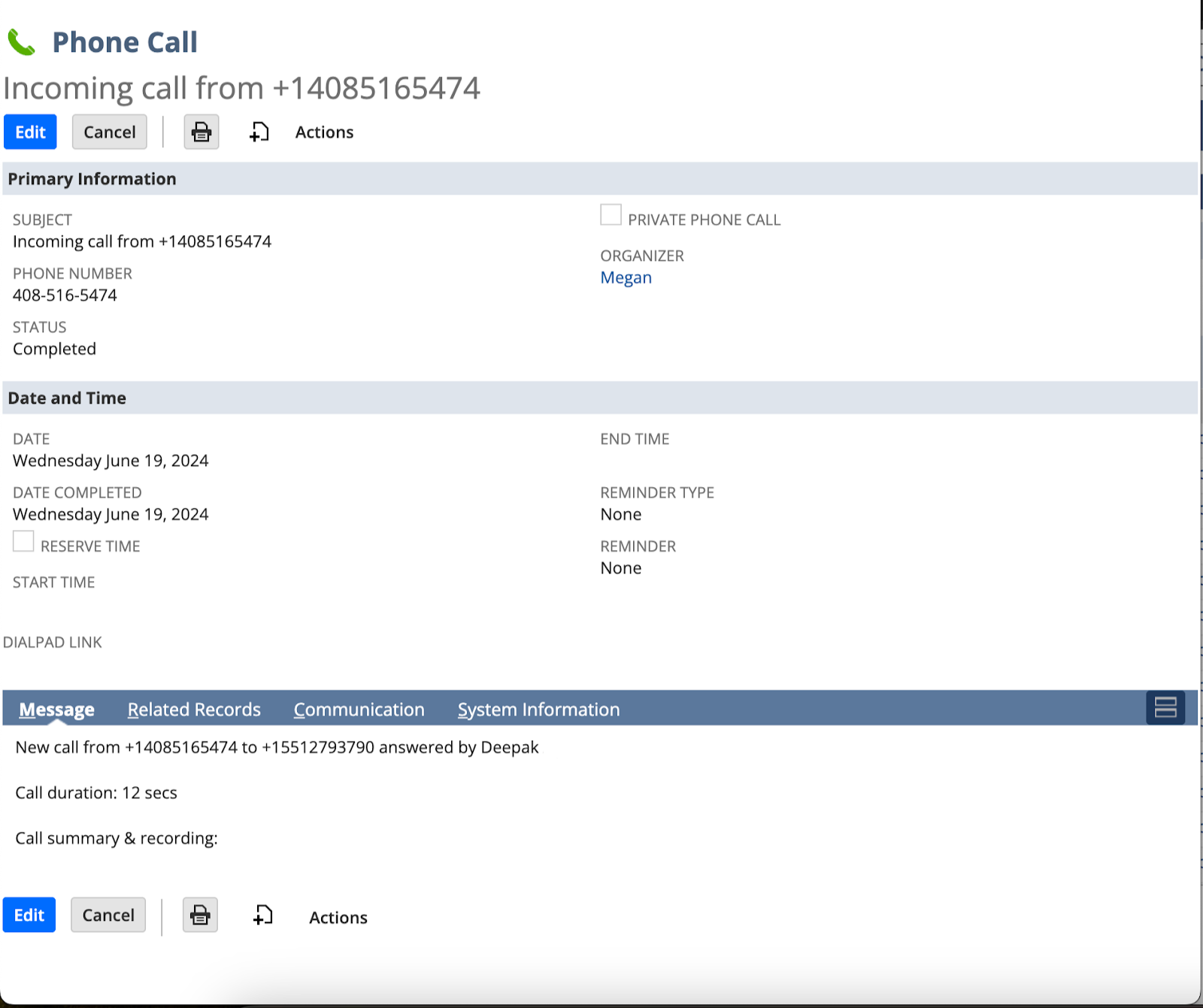
Dialpad logs this in the phone call:
Subject - Incoming/Outgoing call from <Customer Number>
Phone Number
Status as “Completed”
Date
Message - With details about the call and a call summary link pointing to Dialpad
(Optional) A call link in the custom field, if configured
Why is the call assigned to the wrong agent?
The integration matches agents by email address. Ensure each Dialpad user's email address matches their NetSuite employee record. If no match is found, the call is assigned to the configured default agent. If no default agent is configured, NetSuite assigns the call to the user who authorized the integration.
Why isn't the call review link clickable?
NetSuite doesn't support clickable links in the Message field. Create a custom hyperlink field on the Phone Call form and enter the field name as the Call Link Field in your call logging configuration.
How do AI Recaps appear in NetSuite?
AI-generated summaries are included in the Message field of the phone call activity after the call ends.
My certificate is expiring. What do I do?
Generate a new public/private key pair, upload the new public key to NetSuite, and update the Certificate ID and Signature in your Event Hub connection using the Reconnect option. NetSuite certificates are valid for up to 2 years.
Can I use this with multiple NetSuite instances?
Each Dialpad company connects to one NetSuite instance. For multi-instance needs, contact your account team.