Let’s talk Quality Assurance (QA). Continuous coaching and performance monitoring drive better customer service, client retention, and employee motivation.
AI Scorecards automate call grading with objective, actionable insights—no manual effort required. With ready-to-use templates, you can get started instantly, all within the Dialpad app!
These include LLM-powered scorecard questions that use a more intelligent, contextual grading model.
Let's dive into the details.
Who can use this
AI Scorecards can be used in Contact Centers and Coaching Teams for users with Dialpad Support and Dialpad Sell accounts.
Contact us today to enable AI Scorecards for your team (an additional fee applies).
Create a scorecard
Create a traditional scorecard or add AI Questions to your scorecard. Using AI Questions automates call grading, reducing the time managers spend manually reviewing calls or shadowing agents.
To create an AI Scorecard, go to your Dialpad Admin Settings.
Select AI Scorecards
Select Create Scorecard
Enter the name and description of your scorecard
Note
Every scorecard must have a unique name.
Select which Contact Center(s) or Coaching Team(s) can use the scorecard
Note
Unless specified, a scorecard is assigned to all Contact Centers and Coaching Teams.
Choose how you want the scorecard to be graded
Grade by AI
All calls are fully automated and graded by AI.
Suggestions by AI
AI will grade the call, but a supervisor will still need to review the grade and submit the final score.
AI off (Manual grade)
No AI assistance, the supervisor will need to manually review and grade each scorecard.
Select the AI Questions you want to use
Custom LLM questions
When you create a new AI question for an AI Automated or AI Suggested scorecard, that question is created as a custom LLM question. These questions use a more advanced large language model and do not require trigger words or phrases in order to work.
Note
Trigger words and phrases have not been removed from question creation. They are now optional and can still be added to support more targeted detection.
If you add trigger words to a custom LLM question, Dialpad uses both the LLM model and the trigger word model when evaluating the question. If you do not add trigger words, only the LLM model is used.
Rewrite suggestions and clearer question setup
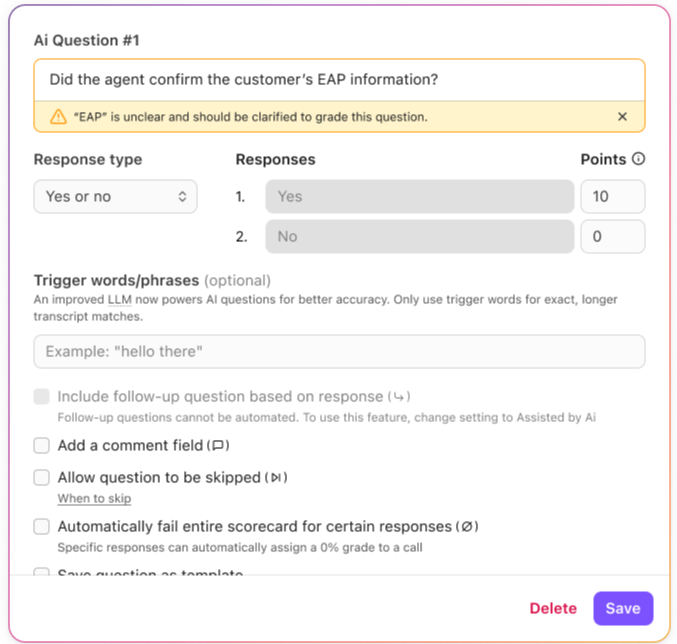
The Rewrite option can suggest improved wording for a custom LLM question to help improve grading accuracy. Rewrite suggestions can also appear automatically if the system detects that the question may be unclear or could be improved.
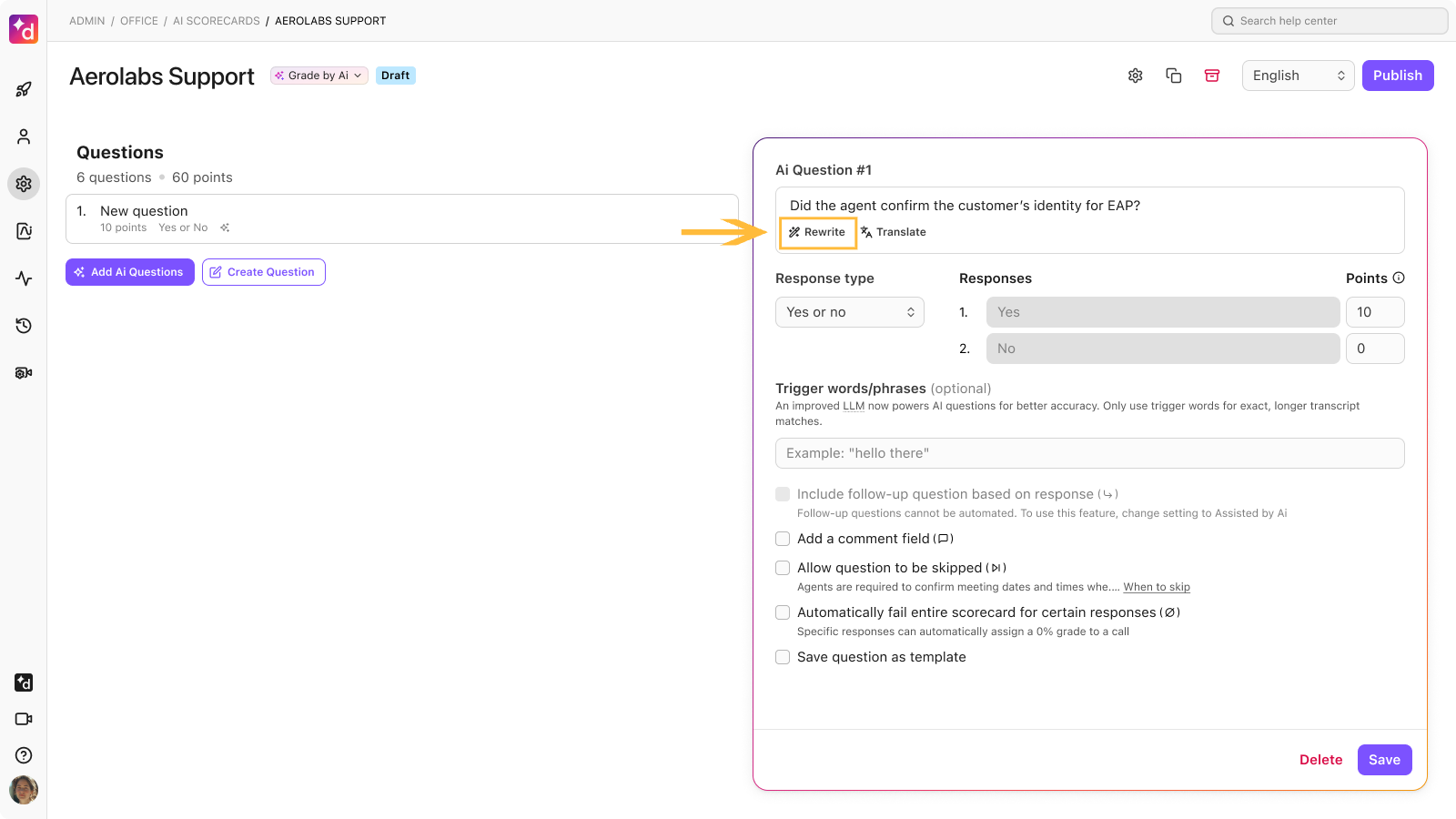
If a question is unintelligible or uses unclear internal jargon or acronyms, Dialpad warns the scorecard creator so they can revise the question before publishing. If the warning is ignored, the question can still be published, but grading quality may be reduced.
Note
If AI is off, you cannot add AI Questions.
AI questions have a 500 character limit.
Select Create scorecard
Review each question and edit as needed. You can:
Change the points allocated to each outcome.
Add a comment field and make it mandatory.
Allow a question to be skipped.
Note
If you allow a question to be skipped, you have a 1000 character limit to explain why the question can be skipped.
Automatically fail an entire scorecard for a certain response.
Add additional questions as needed
To add more AI templated questions, select Add AI Questions
To create your own custom LLM question, select Create new question
Mandatory question content
Every question must have the following components:
Question: Question or statement to be considered when grading the call
Response type: Yes/no, agreement (Likert), frequency (Likert), importance (Likert), likelihood (Likert), or quality (Likert)
AI questions can only be yes/no. If you choose a different response type, the question will revert to a traditional (non-AI) question and will not be scored by AI.
AI Automated Scorecards provide a 'Yes' or 'No' answer, while AI Suggested Scorecards only give a 'Yes.' If no answer is detected, the grader scores it manually.
Responses are auto-filled to match the response type chosen but are customizable.
Points: Point value given for each response
Optional question content
Get granular by adding any of the following optional question features:
Add a comment: Creates an open text box allowing graders to add comments.
A comment field can be added for each question — all grading comments appear on the detailed scorecard exports.
The comment field can be mandatory or optional.
Note
Mandatory comments are disabled for AI Automated scorecards and mandatory comments are only available for AI Suggested and Manual scorecards.
Allow question to be skipped: Marks the question as N/A without affecting the agent's overall score.
N/A responses now apply to all customer-created LLM questions, not just prebuilt or templated AI questions.
When you enable Allow question to be skipped, the When to skip option appears. Use this field to describe the specific situations where the question should be marked N/A so the model has enough context to make a better grading decision.
Automatically fail entire scorecard for certain responses: When selected, this feature automatically fails the entire scorecard, giving the agent a 0% grade.
A scorecard can have multiple questions marked to be automatically failed.
Save question as a template: Saves the AI question, allowing you to re-use it in different scorecards
Once you've finished adding and editing questions, select Publish
Select Yes, publish now to complete the scorecard creation
Graded scorecard answer with context
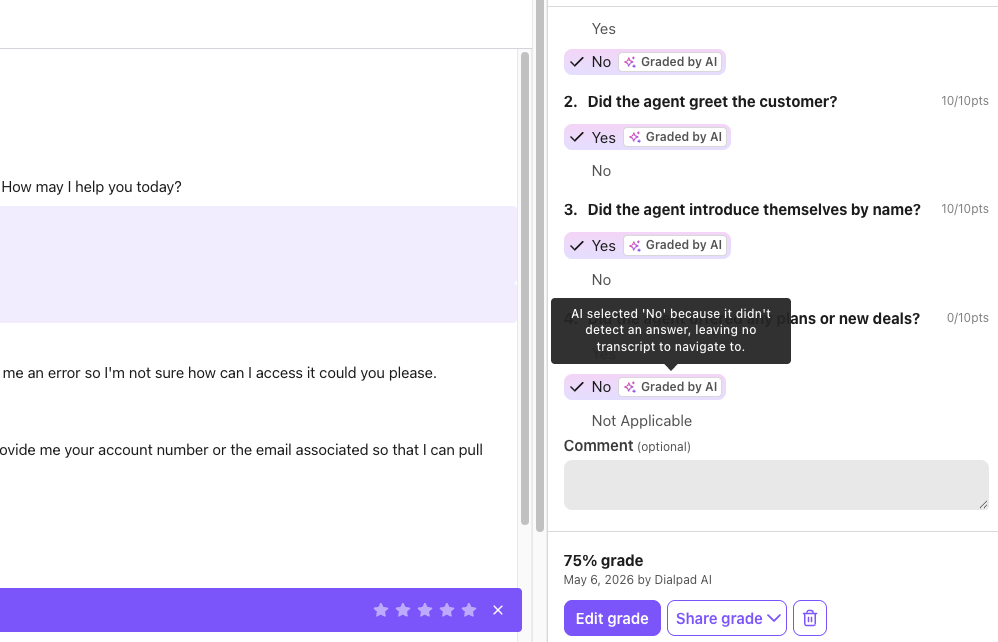
When Yes/No questions are graded by AI, you’ll see reasons provided for why these answers were graded as they were.
Note
Scorecard answers with context will only apply to new calls and will not be applied to calls already graded.
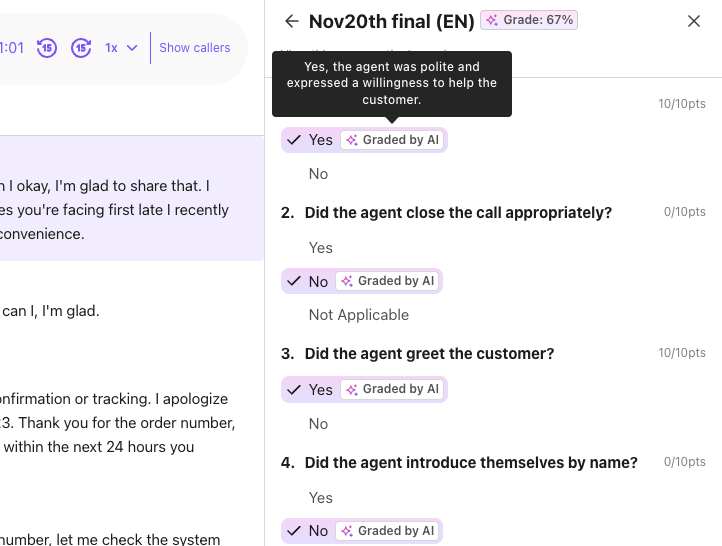
To view a reason for a answers grade, hover over the answer and a context bubble displays with the reason.
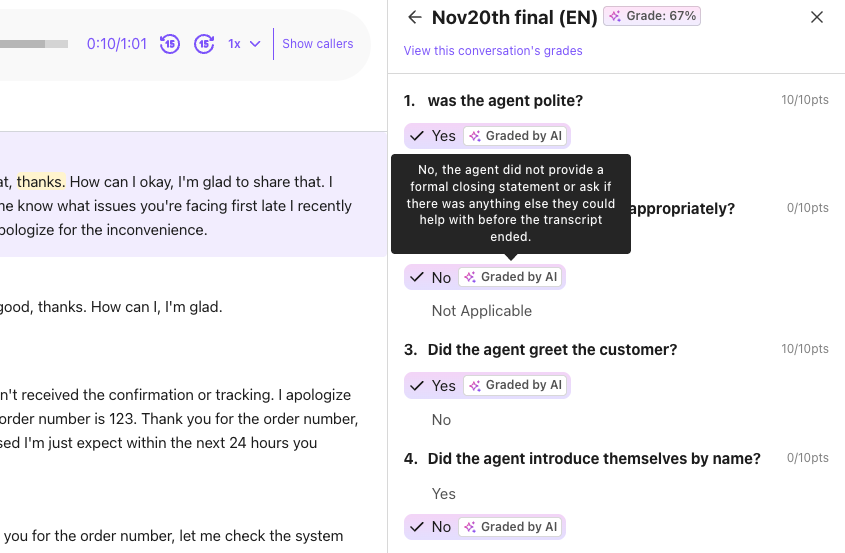
When the AI determines a question can’t be given a proper answer or didn’t detect an answer, it automatically answers No for that question.
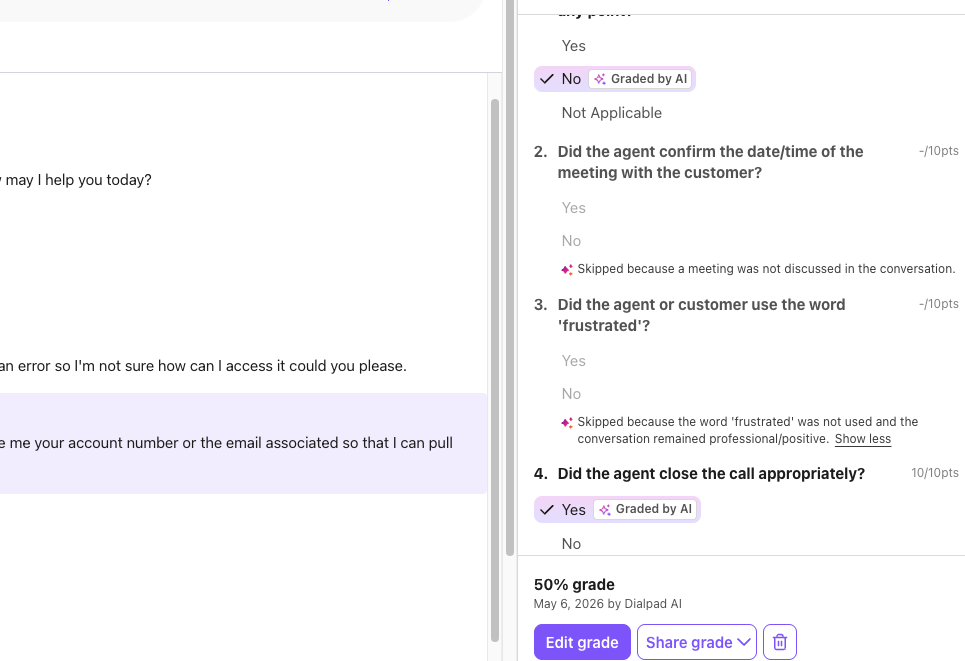
When a question is marked as a question the AI can skip, a message is shown in that question explaining why it was skipped.
Best practices for writing LLM questions
LLM questions are only as good as the context you provide. The clearer and more specific the evaluation criteria, the better the grading results tend to be.
To write stronger LLM questions:
Be explicit about what the question is checking and what should count as Yes, No, or N/A.
Use the When to skip field to explain when a question should be marked N/A.
Prefer observable behavior over vague or subjective wording.
Avoid internal shorthand and acronyms unless you also define them clearly.
Below are some examples of weak questions and strong questions:
Weak Questions | Strong Questions |
|---|---|
Did the agent verify the appointment? | Did the agent confirm the appointment date and time with the customer? Mark N/A if no appointment or meeting was discussed during the conversation. |
Did the agent resolve the issue? | Did the agent provide a clear resolution or confirmed next action for the customer’s stated issue? Mark N/A if the caller was a wrong number, the call ended before troubleshooting began, or no resolution was required for the interaction. |
Multiple choice questions
Multiple choice questions must be graded manually and cannot be added to an AI Automated scorecard.
Within the response dropdown, scorecard creators can select multiple choice as a new response type..png)
How multiple choice questions work:
Each multiple choice question can include up to 10 total response options.
If a "Skip" option is included, it counts as one of the 10, allowing up to 9 additional custom response choices.
You can assign a maximum score to the question, but the individual response values do not need to add up to that score.
Multiple choice questions are designed to support more than one correct answer, which allows for different combinations of responses to reach the full score.
The system calculates a proportional score, meaning the agent’s score for that question will reflect the percentage of correct answers chosen—up to 100%.
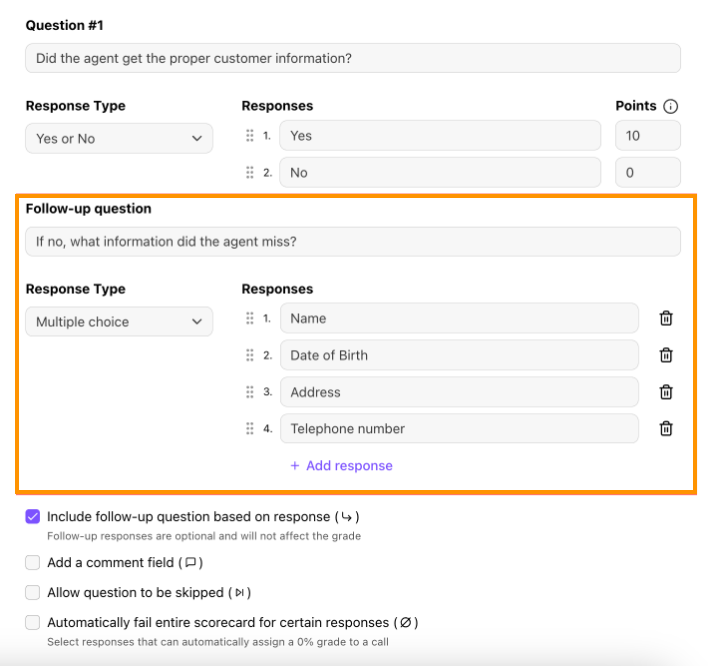
Non-score impacting follow up questions
Use follow up questions to provide more clarity and context within scorecards. These non-score impacting questions enable graders to capture more detailed feedback when a primary question warrants additional explanation.
Each follow-up question can include:
A title
A response type:
Single Selection
Multiple Choice
Open Response
Change scorecard grading method
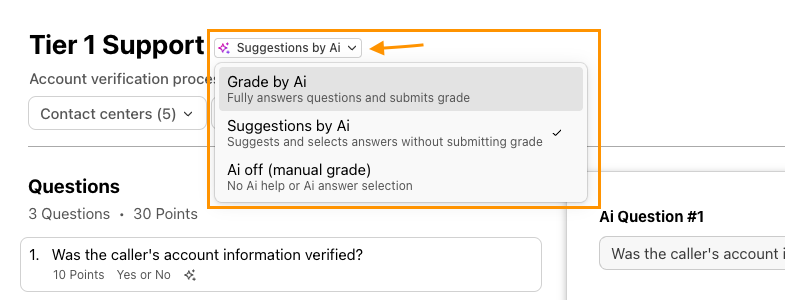
While the scorecard is in draft mode, you can change between the three different grading options.
To change a grading type:
Select the scorecard (remember, it must be in draft mode)
Select the current grading method
Choose the new grading method from the dropdown
Select Save
Notes
If you change the grade type from Grade by AI to Suggestions by AI, the scorecard will still use AI features, but it will only select a Yes response instead of Yes or No during the call. The graders will then need to submit the final grade manually.
If the scorecard grade type is changed from Grade by AI to AI off (manual grade), the scorecard will lose all AI functionality, and all questions must be answered manually by the supervisor or grader. If a scorecard with AI questions is switched to AI off (manual grade), you can change it back to Suggestions by AI again.
However, if you want to change the scorecard back to Grade by AI, you'll need to change all question response types to Yes or No and re-add any trigger words or phrases, as these are removed when you switch to AI off (manual grade).
LLM outage mitigation
If Dialpad detects an outage or missing grading events from the LLM provider, it avoids submitting an incorrect 0% grade. Instead, the call is left without a submitted grade so a supervisor or admin can review it manually.
Edit trigger words and phrases
The more a scorecard is used, you may realize you forgot a few trigger words and phrases. Don’t worry, these can be updated.
Note
Trigger words are still supported with the introduction of LLM questions and are not going away. Existing published scorecards can continue using them, and no action is required to keep them active.
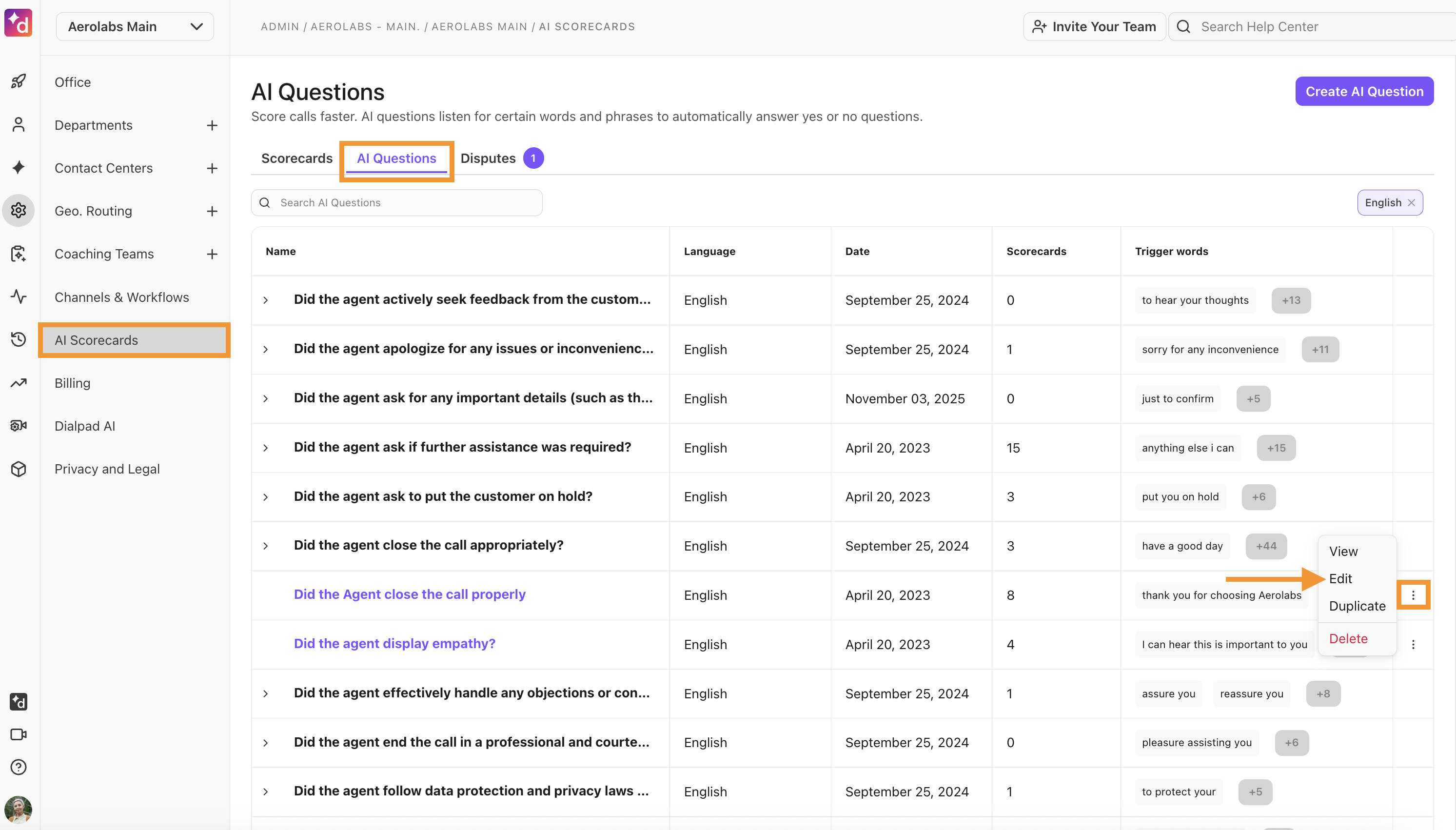
To edit trigger words and phrases, go to your Dialpad Admin Settings.
Select AI Scorecards
Select AI Questions
Beside the questions, select Options
Select Edit
Add new phrases or trigger words, or delete unwanted ones
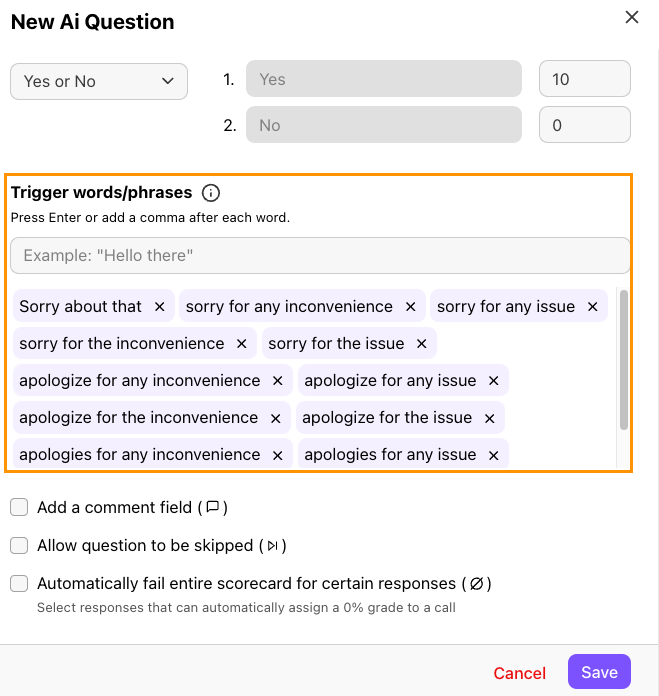
Select Save
Edit scorecard settings
You can edit scorecard settings for new or existing scorecards. Choose whether to grade calls based on call direction (inbound, outbound, or both) and call duration, providing you more control over which calls are graded.
Note
This applies only to AI Automated Scorecards, it does not apply to assisted or manual scorecards.
To edit the settings of a scorecard, go to your Dialpad Admin Settings.
Select AI Scorecards
Select an existing scorecard or create a scorecard
Select the Settings icon

In the Settings panel, configure these settings:
Minimum length to grade
The minimum length of a call that will be graded. The minimum length is 30 seconds.
Note
30 seconds is the default length. You can also add a maximum call length to be graded. The maximum call length is 99 minutes 59 seconds.
Calls to grade
The direction of the call that will be graded. You can grade calls for:
Inbound only
Outbound only
Inbound and outbound
Select Save
Select Publish
Archive a scorecard
Workflows adapt, and your scorecard needs will change as your company grows. AI Scorecards can be archived, which maintains the card's analytics data.
To archive a scorecard, go to your Dialpad Admin Settings.
Navigate to AI Scorecards
Beside the scorecard, select Options
Select Archive
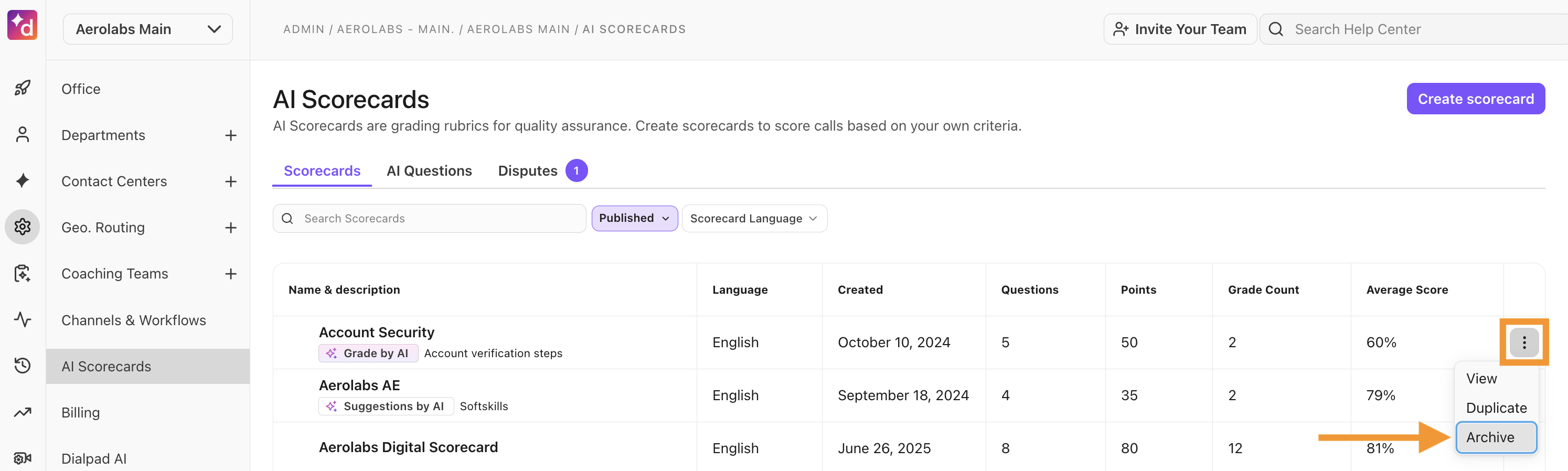
When prompted, select Yes, Archive — remember this action is not reversible
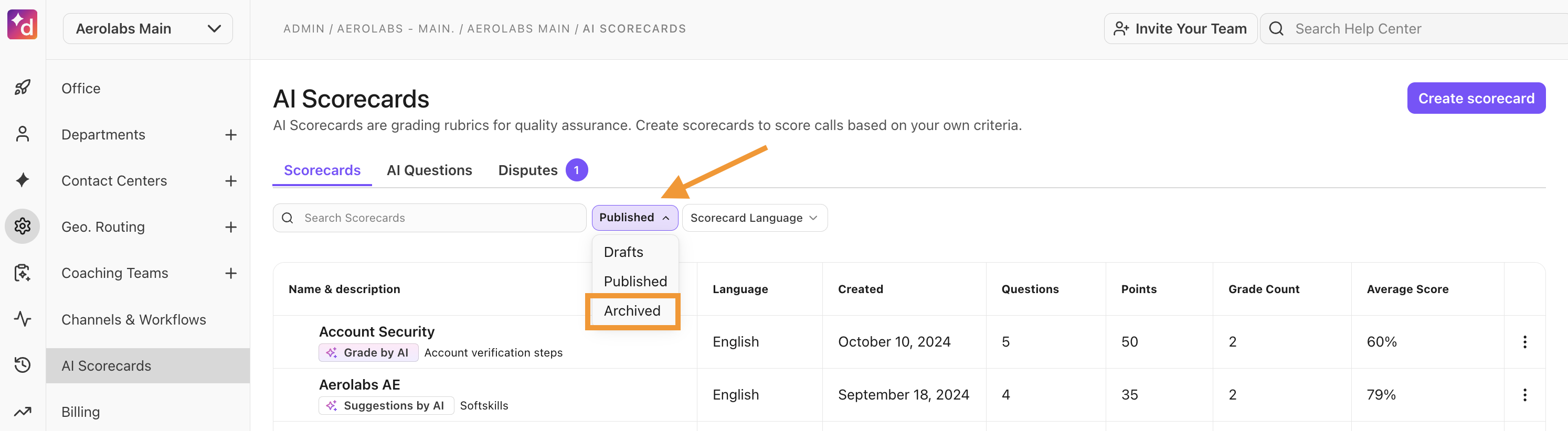
Finding archived scorecards
Archived scorecards can be viewed at any time using the Archived filter.
Duplicate a scorecard
Need to create a copy of a scorecard? No problem.
To duplicate an AI Scorecard, go to your Dialpad Admin Settings.
Select AI Scorecards
Beside the scorecard, select Options
Select Duplicate
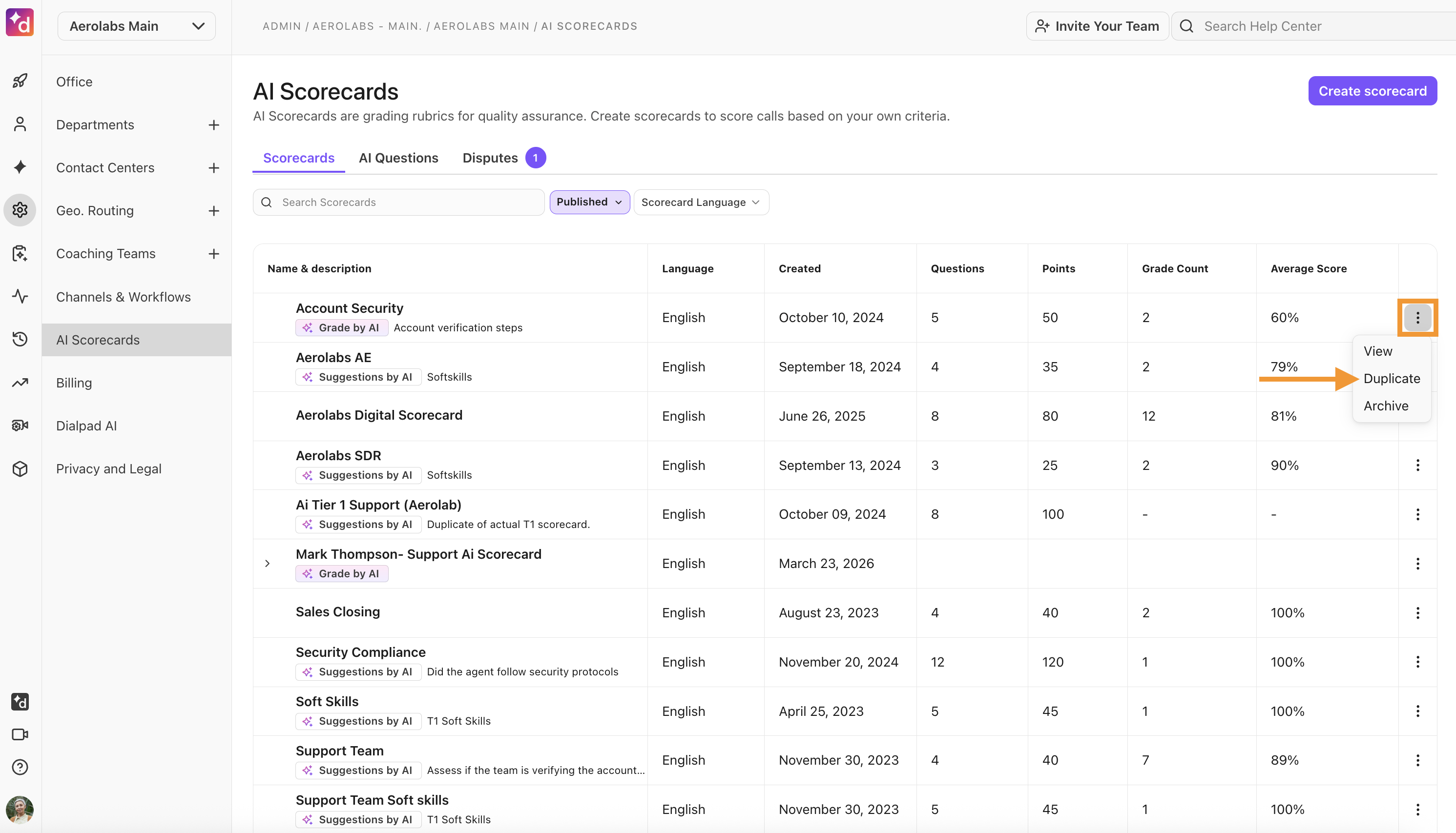
Review the copy of the scorecard, then select Publish
When prompted, select Yes, publish now
Digital Scorecards
Digital Scorecards let supervisors and admins manually evaluate digital interactions across any supported channel in Dialpad. While AI grading isn’t available yet, this feature helps teams assess agent performance and maintain quality standards.
Frequently asked questions
Are LLM questions available to all customers?
AI Scorecards are available for Dialpad Support and Dialpad Sell customers, but custom LLM scorecard questions are currently supported in English only. Other languages are supported but are currently only available in an EAP. Please reach out to Dialpad Customer Care or your Account Manager for more information.
Do I still need trigger words and phrases?
No. Trigger words and phrases are now optional for custom LLM questions. You can still use them if you want to detect very specific wording or phrases in a conversation.
What languages are supported for custom LLM questions?
English is currently supported for custom LLM questions. Additional languages are expected later.
What happens to my scorecards that don’t use LLM questions?
Your existing scorecards continue to work, and trigger words remain active. This is so customers can benefit from the improved LLM model without needing to rebuild their scorecards from scratch.
What if the model can’t determine whether a question should be graded?
If the question is unclear, it will mark the question as No.
Use clear question wording and include When to skip guidance when appropriate. If the model can’t grade because of poor wording, vague criteria, or unclear jargon, you may see warnings during setup so you can improve the question before publishing.
Is there a character limit on questions?
Yes. For AI questions, there is a 500 character limit. For any questions you select as Allow question to be skipped, you have a 1000 character limit to explain why the question can be skipped.
More information
For more information on using AI Scorecards and the granular data they provide, be sure to read these Help Center articles.
Learn more
Check out Dialpad University's free courses covering our products and services, as well as insightful tips and best practices.