Bulk Messaging streamlines business communication by enabling users to send SMS, MMS, and internal messages to multiple recipients simultaneously. You can send messages from your personal number or shared lines, such as Department or Contact Center lines. This is particularly helpful when you're sending reminders, engaging customers, or updating your team.
Who can use this
This feature is available to companies with a US-based office with the Dialpad Connect, Support, and Sell desktop and web apps on an Enterprise license. SMS, MMS, and internal (Dialpad-to-Dialpad) messages are supported. Delivery receipts are available for SMS but not MMS or internal messages.
Important restrictions and eligibility
Bulk Messaging is subject to strict eligibility criteria. Please note these requirements before trying to send a bulk message:
Availability
The Bulk Messaging feature is available to users/companies that fulfill all of these requirements:
Have a US-based enterprise office in the company.
Are on an active Enterprise plan.
Have Invoice as their payment type.
Are more than 1 year old, or:
Have more than 4 offices (with at least one based in the US) in your company, or
Have more than 50 licenses.
Intended Use
The Bulk Messaging feature is:
Strictly for transactional messaging only.
Examples include: appointment reminders, scheduling confirmations, or service updates.
Not intended for marketing or promotional campaigns.
Use of this feature for marketing may result in your messages being blocked by carriers.
Compliance Requirements
To be compliant with the Bulk Messaging feature:
You MUST be registered with an automated use case A2P 10DLC to use Bulk Messaging.
You can only send messages that match the campaign type that is registered under your A2P submission.
For example, if your campaign is registered as "customer care," you cannot use Bulk Messaging to send alerts or notifications unrelated to that use case.
Bulk SMS messages must contain the Brand name and opt-out language (such as “Reply STOP to cancel) for every message.
Admin control for Bulk Messaging
Office Admins can decide which main lines, contact centers, departments, or users are allowed to send bulk messages. This makes it easier to manage permissions and ensure the feature is available only where needed.
To enable Bulk Messaging for users, go to your Dialpad Admin Settings.
Go to Office Settings > Messaging Settings
Under Bulk Messaging, select the Enable bulk messaging option
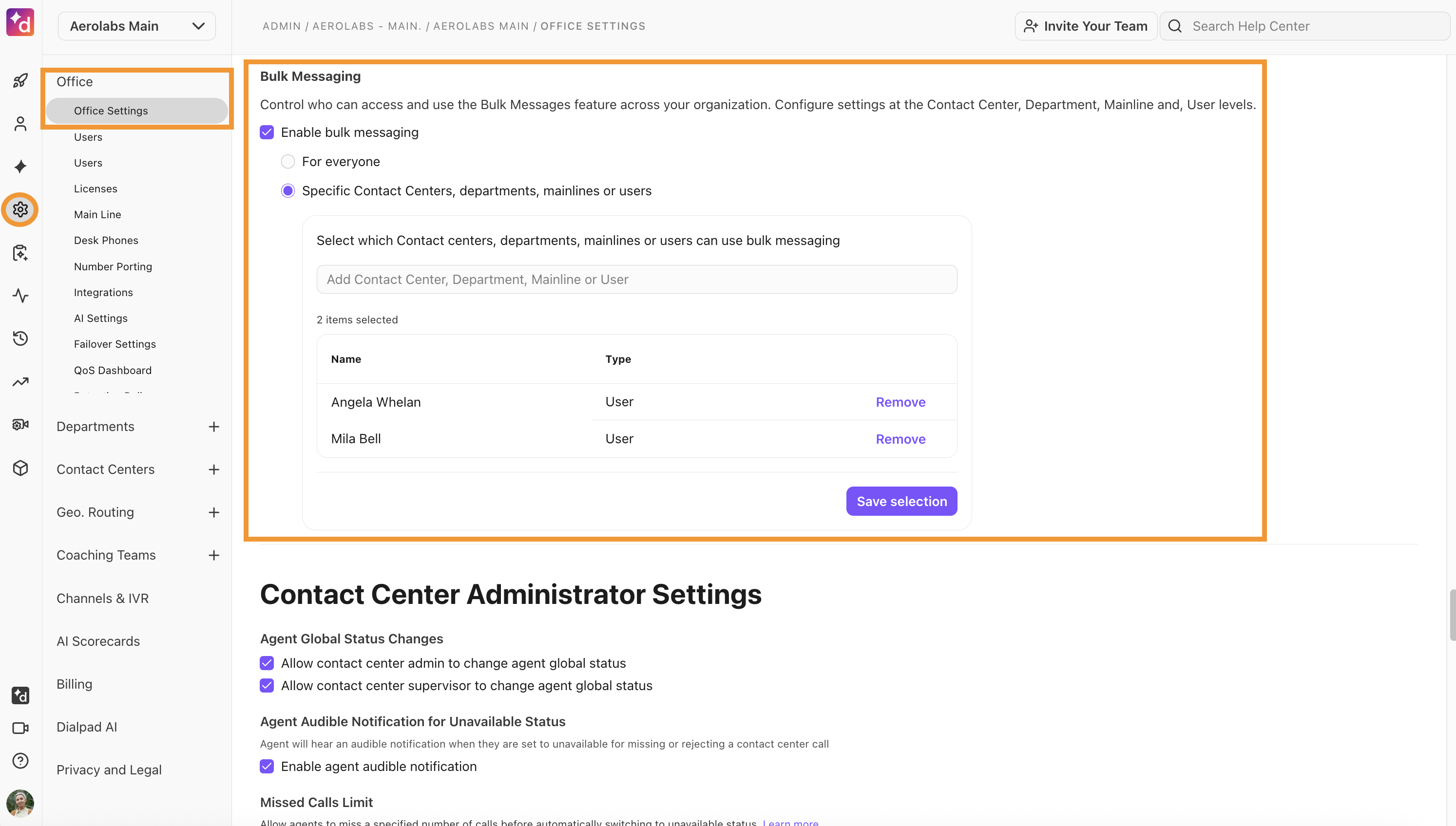
Choose one of these options:
For everyone
All users in your organization can send bulk messages.
Specific main lines, contact centers, departments or users
Select which users or groups can send bulk messages. Use the dropdown to add specific groups or users. You can include multiple selections.
If choosing specific targets:
Use the dropdown list to select who can use bulk messaging
Select Add or Remove to confirm who can use bulk messaging
Select Save changes
Tip
You can update access at any time as your team or communication needs change.
Creating a bulk message
To create a bulk message:
From your Dialpad app, select the Message icon
In the New Message window, turn on Bulk send
In the From field, choose the phone number you want to send a message from
Tip
It could be your personal line or a shared line, such as one with a department you’re part of or a contact center.
In the To field, add the recipients you want to send the message to
Note
You can add up to 50 recipients per message by manually entering phone numbers, selecting existing contacts, or uploading a CSV file.
In the Subject field, add a title or description (Optional)
Note
If this field is left blank, it defaults to the current timestamp
In the text field, enter your message. If you’re sending an MMS bulk message, attach images or a video
Review the message and select Send
Review the details and select Send Now
CSV uploads and error handling
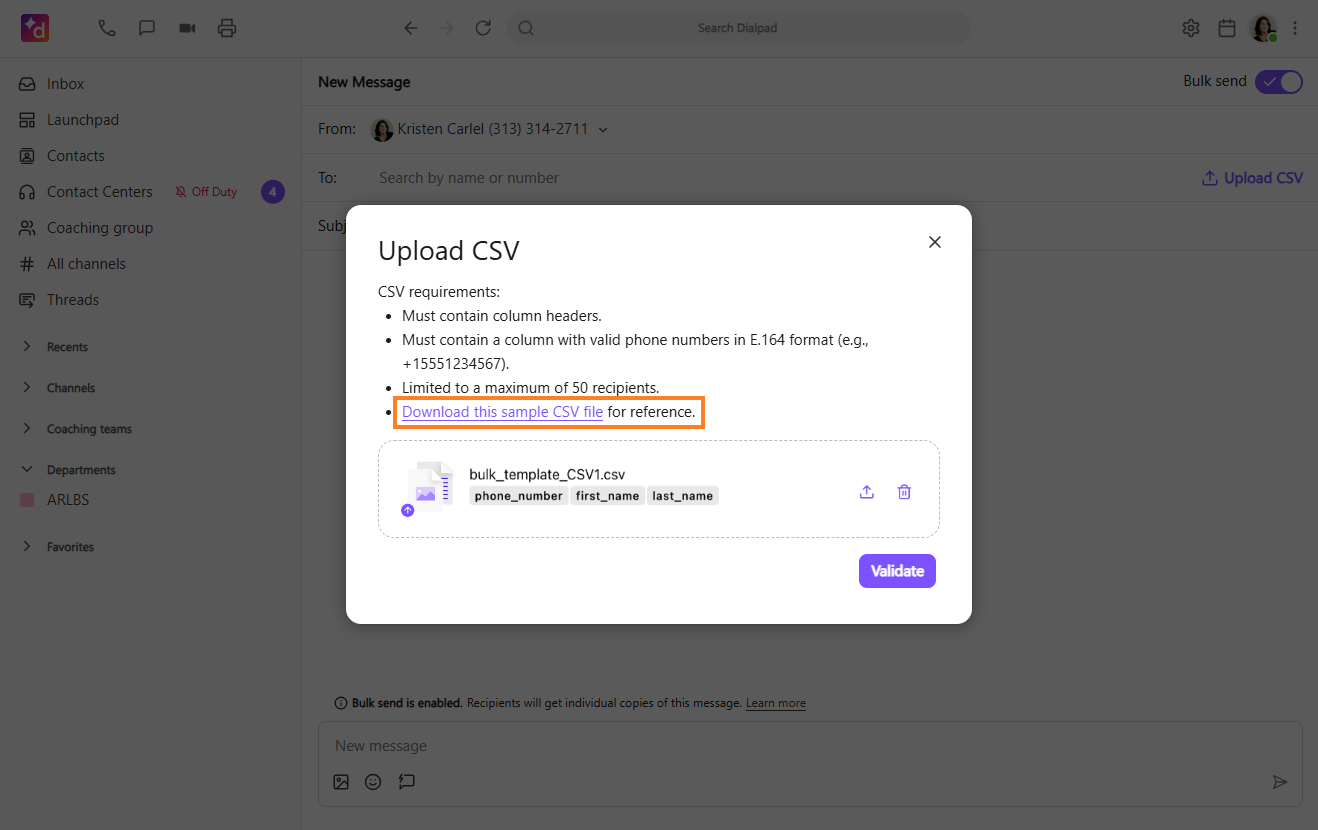
Recipients for bulk messages can be added by uploading a CSV file, rather than entering each name or number manually. This speeds up your ability to send a bulk message to a large number of people.
To upload a CSV:
Navigate to Messages and turn on Bulk send
In the To field, select Upload CSV
Upload the CSV file and match the different CSV columns to the contact information properties
Select Save
.png)
Tip
Download the CSV file template to save time and prevent errors.
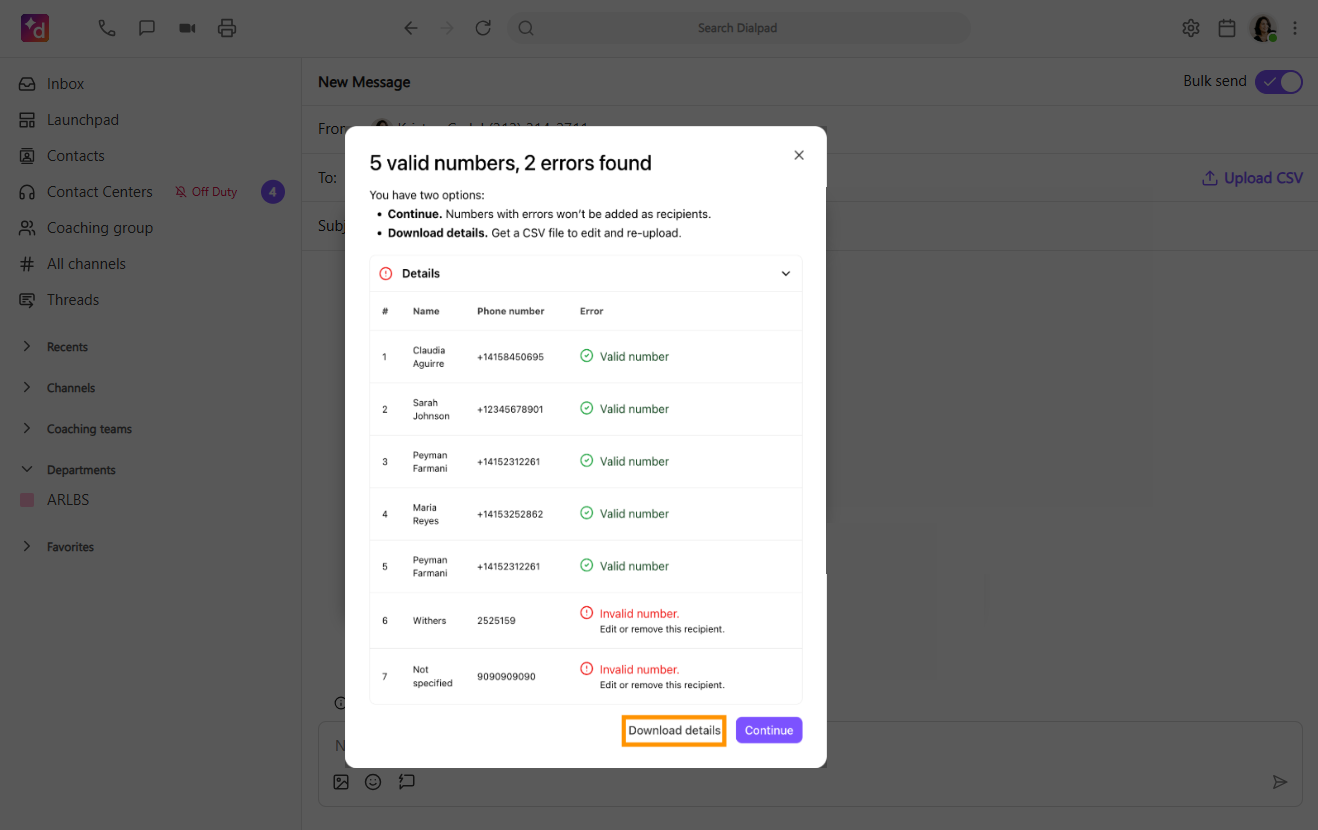
If the CSV file contains errors, such as an invalid phone number, an error window will display what errors were found. Errors must be corrected before a message can be sent.
If you want to look at the error details further, they can be downloaded as a CSV file.
Managing bulk messages
You can manage bulk messaging in a number of ways, let’s take a look!
Track sent messages
Once you’ve sent your bulk message, you can track the message to see who has received it.
To view sent bulk messages:
Navigate to your Inbox (or your Shared Line’s Inbox)
Select the Messages tab
Select Bulk-sent
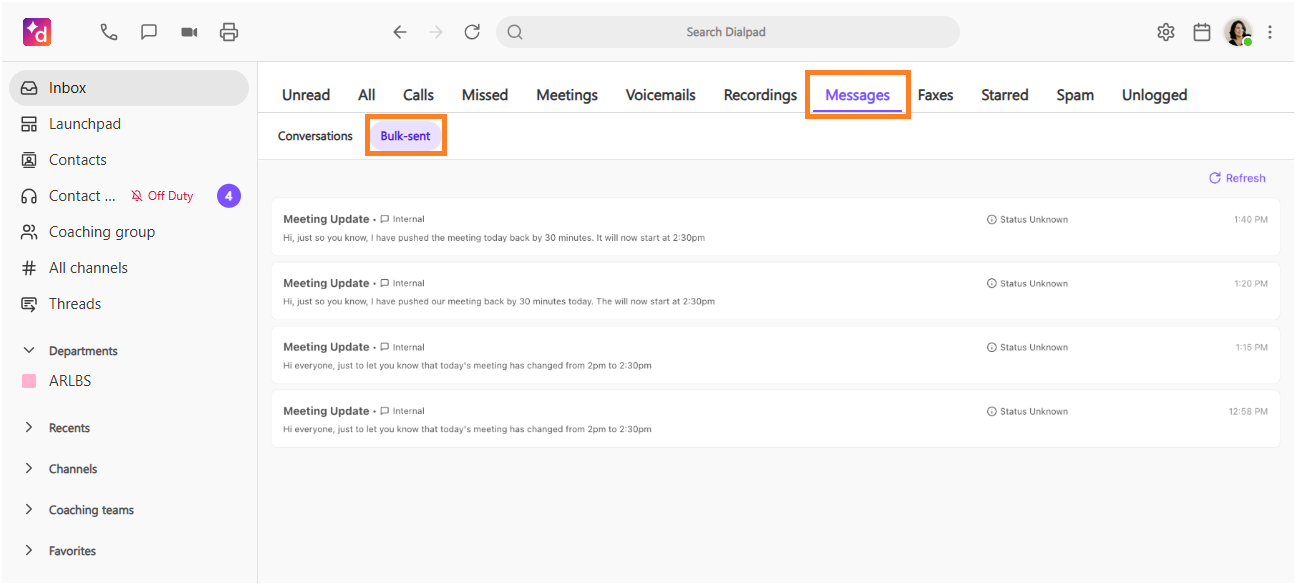
Select a message to view its details, including:
Recipients
Message Type (SMS, MMS, or internal)
Delivery Status (e.g., Delivered, Complete, etc.)
Tip
Selecting any number in the Details window takes you to the one-on-one conversation with that number.
.png)
Recipient replies
Replies to bulk messages go to different places depending on who it was sent from:
For personal messages, replies show up in the Recents section and the Unread tab in your Inbox
For shared lines, replies show up in the Messages tab
Compliance and Opt-In messaging
First-time recipients receive an automatic Opt-In message, ensuring compliance with A2P regulations. This message confirms their consent and provides instructions to opt out, if needed.
To request this functionality, please contact your Customer Success Manager or reach out to Customer Care.
Bulk Messaging Analytics
Check out this Help Center article about how you can view messaging activity metrics.
Bulk Messaging Limits
To ensure reliable message delivery and compliance with A2P 10DLC regulations, Dialpad enforces a sending limit for bulk messaging campaigns.
All phone numbers that belong to the same registered A2P campaign share a combined limit of 5,000 outbound messages per day.
Note
This limit applies to campaigns, not to individual phone numbers.
Limit notifications
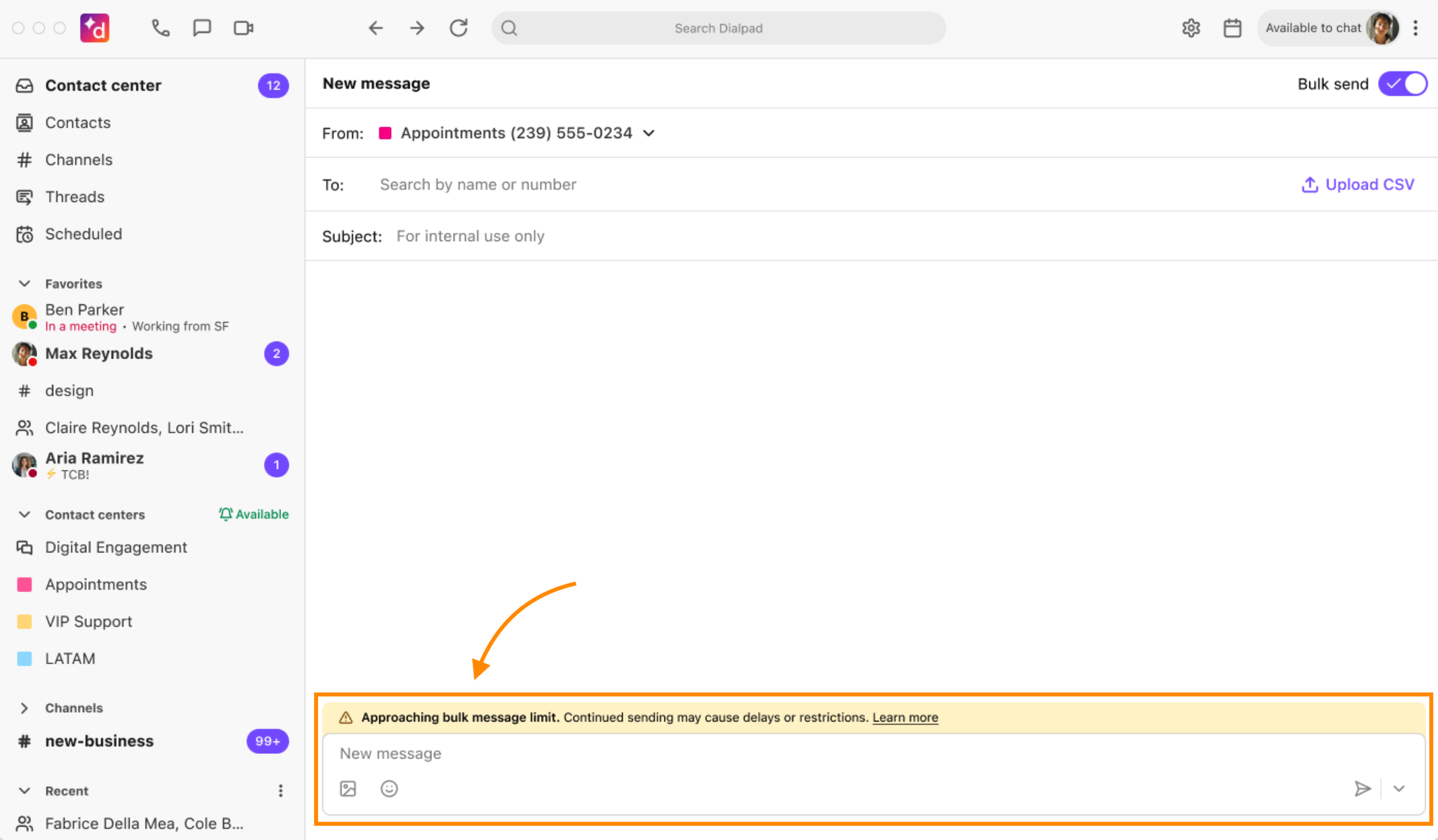
As you approach the daily limit, a warning banner displays in the Dialpad app letting you know you’re close to reaching your bulk messaging limit.
Once the campaign hits the daily limit, bulk messaging is temporarily disabled until the next day.
Note
This restriction only applies to bulk messages. One-to-one messages can still be sent from any line in your organization.
After the daily limit is reached, a banner displays across all lines in the campaign to discourage the sending of one-to-one messages as a workaround for bulk sending. If you don’t send bulk messages, you won’t see the banner and aren’t subject to the daily message limit.
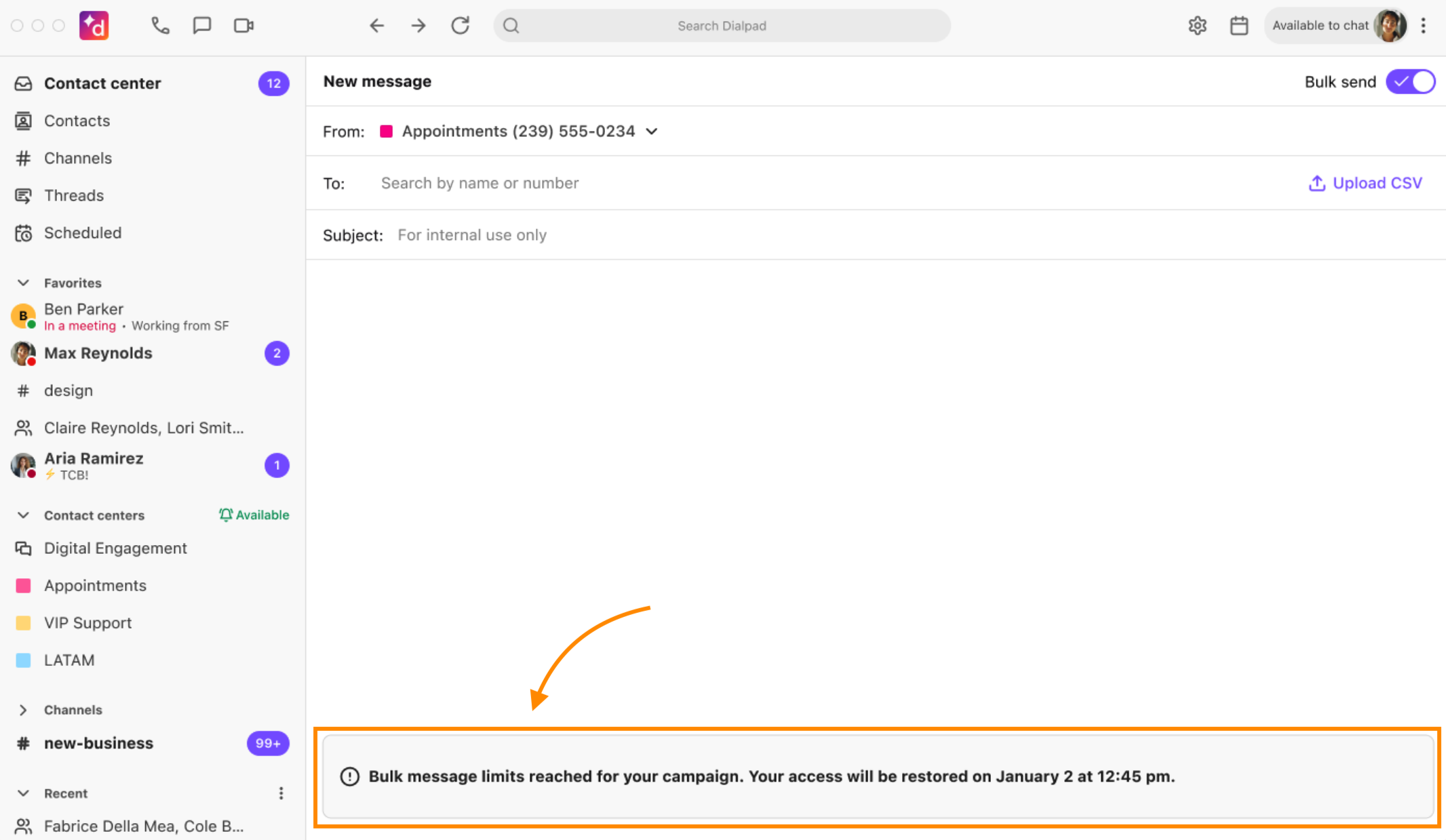
If you reach your bulk messaging limit, you’re blocked from sending bulk messages for 24 hours. Once the 24 hour period has passed, your limit is reset and you can send bulk messages again.
You can still send individual SMS/MMS messages, but the messaging may be delayed or restricted.
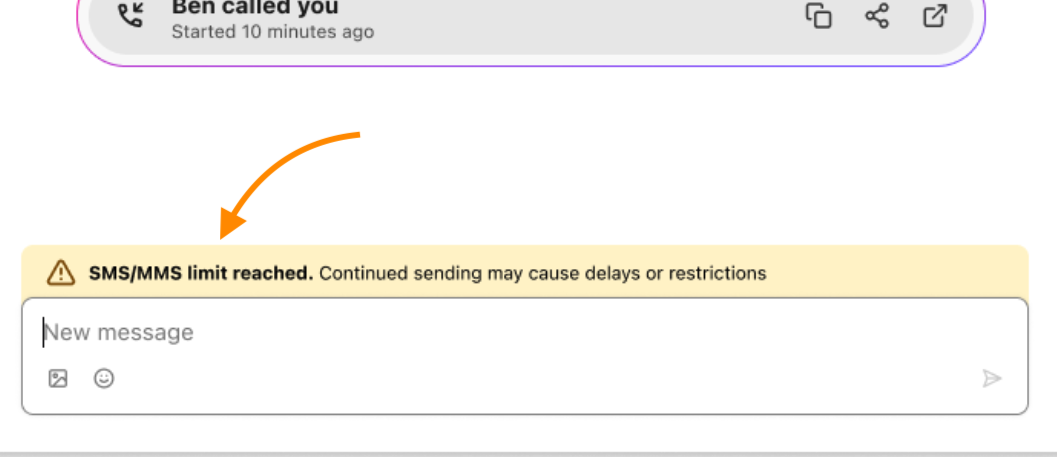
Caution
If you use individual messages to bypass the bulk messaging limits, you may be temporarily restricted or blocked.
SMS Content Compliance: Detection of Spam, Scam, Malware, and Phishing Messages
When sending an SMS message, whether it’s a single 1:1 message or a bulk message, Dialpad automatically evaluates the content using our Spam Detection Model. This ensures that messages comply with carrier and A2P regulations before they reach the carrier networks.
This prevents situations where:
A carrier flags or blocks the message as spam
The user is still charged for undeliverable traffic
The user’s number/campaign is marked as high-risk by carriers
By detecting issues proactively, both message deliverability and the user’s reputation are protected.
Detected issues
If the message appears to violate carrier or A2P content standards, the message isn’t automatically blocked. Instead, Dialpad:
Shows a warning to the user - The user sees an in-app notification explaining that the message may be considered non-compliant or spam by carriers.
Allows the user to edit the message - This allows them to correct content, adjust wording, or remove problematic elements before sending.
Re-evaluates the edited message - Once the user modifies the text and attempts to send again, the message is re-scanned by the same model. Once the message is scanned again:
If the content is now compliant, the message is released to the carrier.
If it still violates compliance rules, the user receives the warning again and must revise the content to proceed.
Note
This loop helps prevent unnecessary carrier fees, delivery failures, or account risk.
Message examination
The Spam Detection Model evaluates these message components:
Message content (keywords, claims, promotional patterns)
Sender transparency (clear brand identification)
Opt-out language where required
Potentially deceptive, misleading, or prohibited phrasing
Markers commonly associated with carrier spam filters

Note
This is a pre-carrier evaluation. Even if the message passes our check, carriers will still run their own spam and compliance filters.
Edit a flagged spam message
To edit a message flagged as spam:
Select Edit message

Review your message and adjust the text
Tip
Keep your content clear, relevant, and aligned with your audience.
Try resending after editing
About High-Risk Content
Although the goal of this article is not to describe full carrier restrictions, it’s important to know that some categories are universally considered high-risk by carriers. These include:
Fraudulent, misleading, or deceptive phrasing
Unverified or unapproved marketing promotions
Certain financial, regulated-substance, or affiliate-marketing content
Adult, hateful, or abusive language
Our model identifies patterns or keywords related to these categories, but the internal detection is primarily meant to warn users early, not to fully replace carrier enforcement.
For full details on restricted categories, read this Help Center article.
Compliant messages
If the message is compliant and the user chooses to send it:
Dialpad submits the message to the carrier
The carrier runs its own spam, compliance, and reputation checks.
Depending on those checks, the carrier may:
Deliver the message
Filter it as spam
Block it
Flag the sender’s number/campaign in their own systems
Note
Dialpad can’t override carrier-level filtering. Our model is a preventative layer to reduce risk before the message reaches carrier networks.
Importance of the Model
Using the Spam Detection Model helps:
Reduce carrier rejections and filtering.
Avoid unnecessary SMS charges.
Protect the user’s sending reputation.
Ensure consistent A2P compliance.
Improve delivery rates for all outbound SMS.
By allowing users to revise messages before they are sent, we minimize downstream issues and maintain a healthy sending environment.
Frequently asked questions
Do Bulk SMS messages log into CRMs?
Yes. Dialpad supports Bulk SMS logging for Salesforce, HubSpot, and Microsoft Dynamics. This means that when users send Bulk Messages through Dialpad, those interactions will automatically be logged in the respective CRM, providing better tracking and visibility for customer communications.
When does the daily limit reset?
The message counter resets automatically every 24 hours. Once the limit refreshes, you can send bulk messages again the next day.
Does this limit apply to scheduled or automated messages?
Yes. Scheduled or automated bulk messages count toward your daily campaign total once they’re sent.
Can I request a higher daily limit?
No. The 5,000-message limit is applied to all A2P-registered campaigns to ensure fair usage and maintain compliance with carrier regulations.
Does this affect 1:1 messaging?
No. You can still send individual (one-to-one) messages even after the bulk limit is reached. However, the warning banner remains visible across all lines to discourage manually sending large volumes.
What happens if I approach or exceed the daily limit?
You’ll see a banner warning as you approach the daily limit. Once the limit is exceeded, composing bulk messages will be blocked.
When can I send bulk messages again after exceeding the daily limit?
Bulk messaging limits apply daily. You can send bulk messages again 24 hours after exceeding the daily limit.
What happens if my message is blocked by the SPAM detector?
If a message is flagged as SPAM, you’ll get a warning saying your content may be considered SPAM. You can edit and resend the message once updated.
How do I enable Bulk Messaging in my app?
Bulk Messaging must be enabled by an Office Admin. Once enabled, users within your organization can send bulk messages in the app.