Efficiently manage your outreach targets from the Audience overview page. Here, you can organize lead data, segment your lists, and track past file imports.
Who can use this
To use the Dialpad Dialer, you must be on a Dialpad Sell Premium plan, or Dialpad Support with the Dialer Add-on.
Company, Office and Contact Center Admins can manage campaign audiences.
Audience overview
To access the Dialer Audience overview, go to dialer.dialpad.com and select Audience.
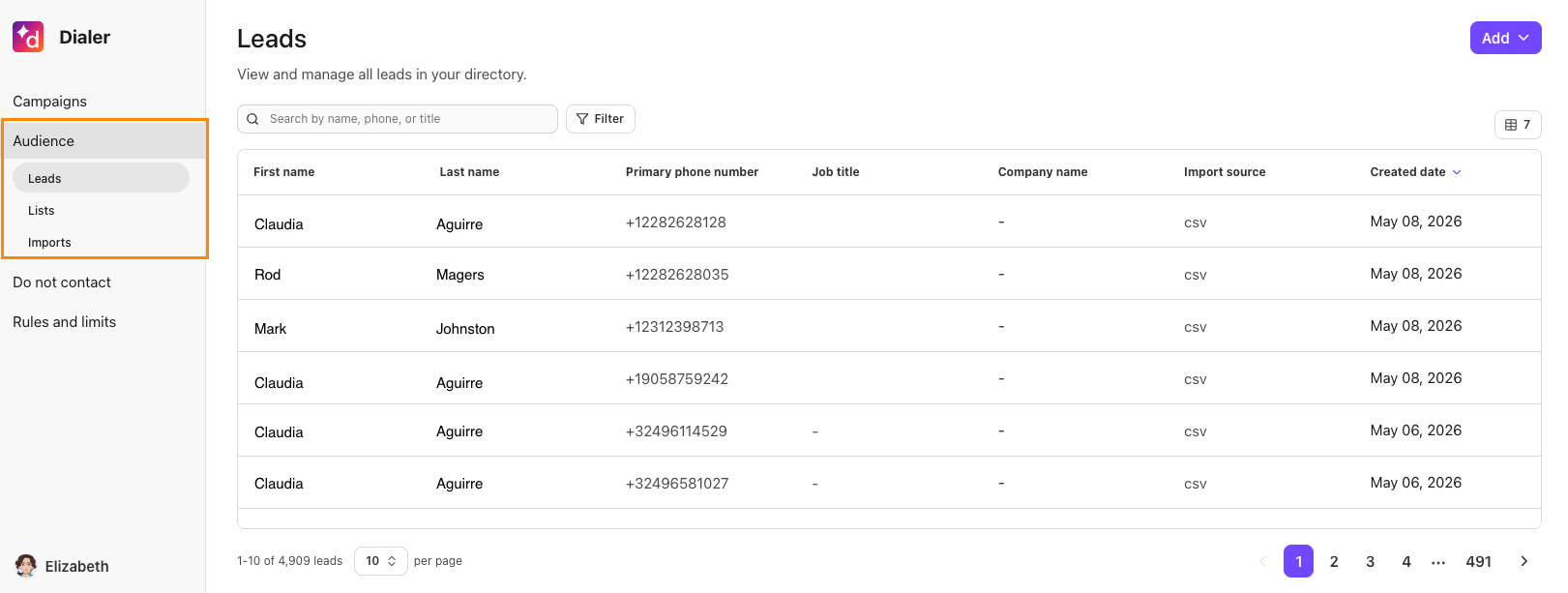
Here, you can see different overviews for Leads, Lists, or Imports.
Leads overview
The Leads overview lets you easily view and search leads within the Dialer directory.
The Leads table displays the contacts:
First name
Last name
Primary phone number
Job title
Company name
Import source
Created date
Import leads from a CSV file
To import a CSV file of leads, go to dialer.dialpad.com
Select Audience
Select Imports
Select Import
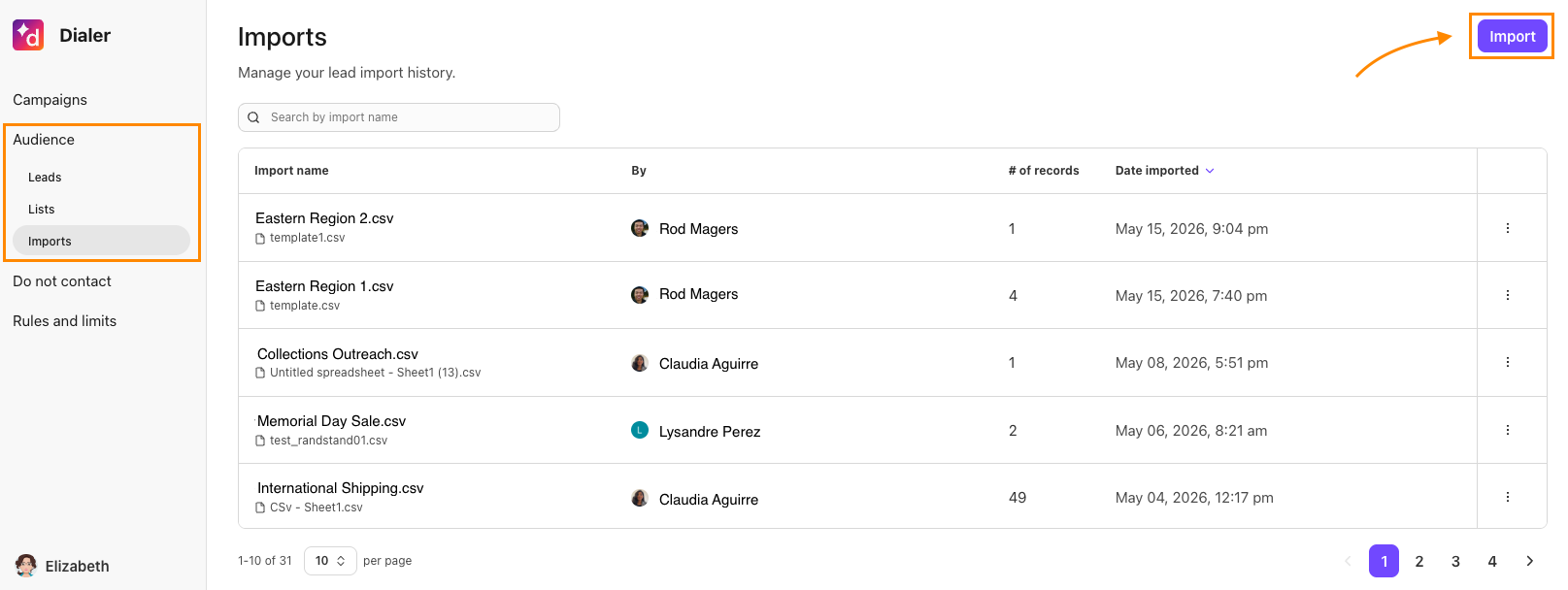
Drag and drop your CSV file
Select continue
Notes
CSV files must:
Contain column headers.
Contain columns for first and last name.
Contain a column with valid phone numbers in E.164 format (e.g.+15551234567).
Contain email addresses less than 50 characters.
Use the template for the fastest file creation.
Create and manage Lists
Lists are reusable audiences for campaigns. You can build lists from CSV imports, dynamic rules, or filter snapshots. Manual list building is not yet available.
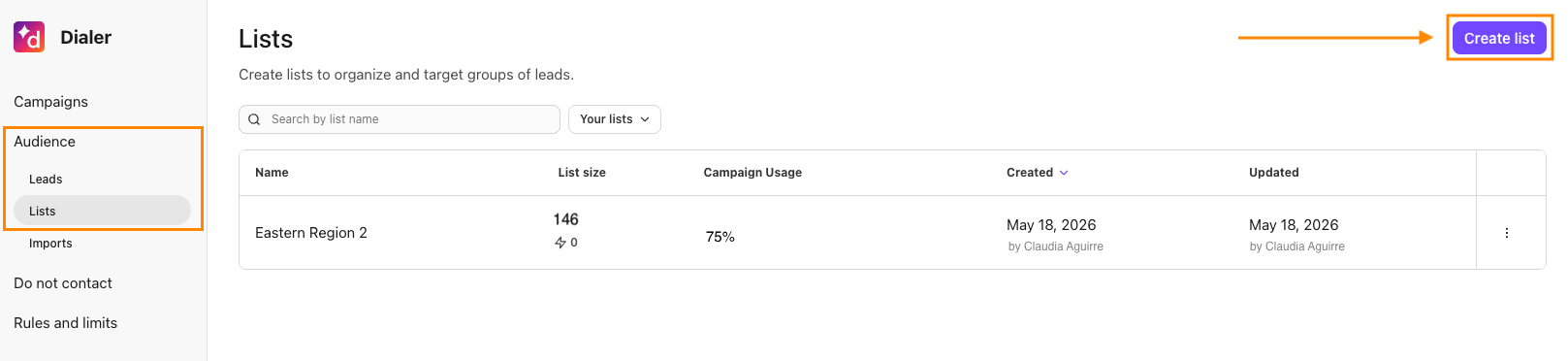
To view lists, go to dialer.dialpad.com and select Audience, then Lists.
.png)
The Lists Overview displays the following list details:
Name: Name of the list.
List size: Number of leads in the list.
Campaign usage: Percentage dialed.
Created: Date the list was created.
Updated: The last time the list was updated.
To create a list, go to dialer.dialpad.com
Select Audience
Select Lists
Select Create list
Name the list
Add Dynamic rules that automatically include leads matching selected filters
Filter snapshots to create a one-time list of leads that match selected criteria
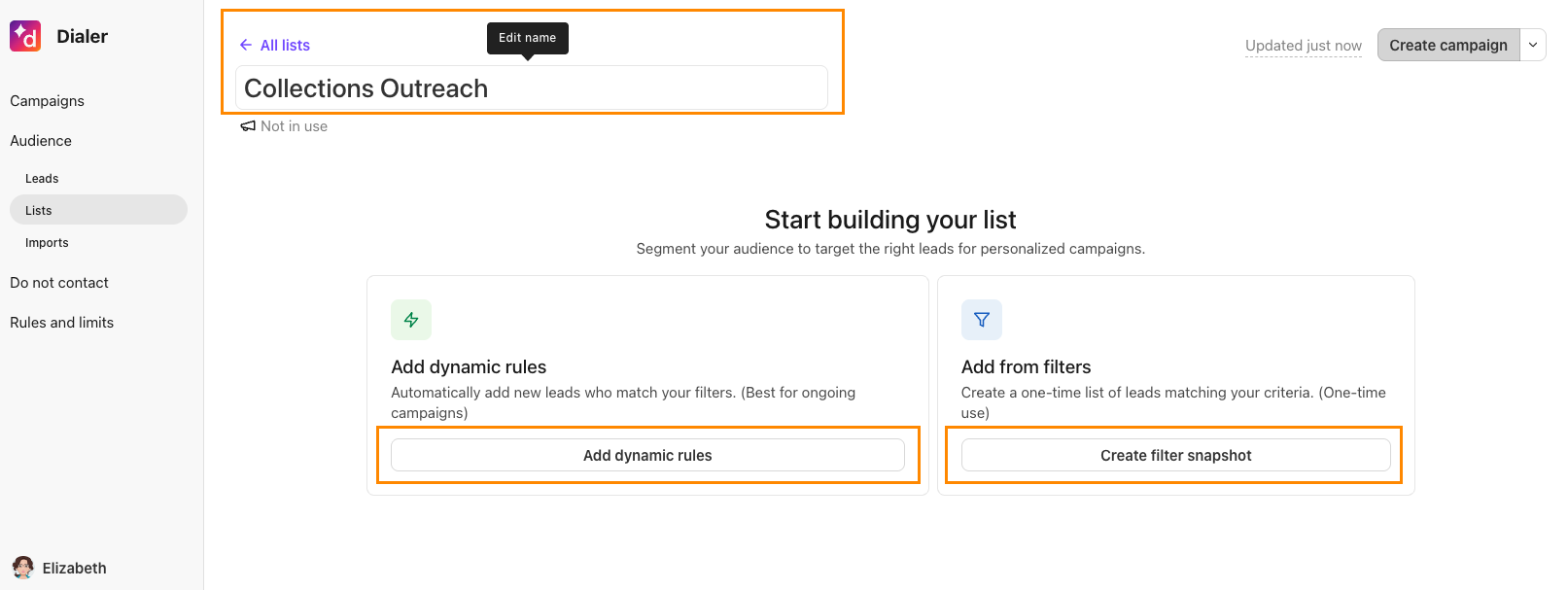
Select Create campaign
Duplicate or delete a List
To delete or duplicate a list, go to the Lists Overview, select the options menu, then select Duplicate or Delete.
Deleting a list permanently removes the list. Deleting a list does not affect active, scheduled, or paused campaigns that already use that list.