From setting up Coaching Teams to customizing settings and tracking performance, let's address common Coaching Team questions to help you streamline your coaching process and maximize team effectiveness.
How many trainees can be in a Coaching Team?
A Coaching Team can have a maximum of 500 members.
Since you’ll need at least one coach per team, the maximum number of trainees is 499.
How many coaches can be in a Coaching Team?
A Coaching Team can have a maximum of 50 Coaches.
Can a coach be assigned to multiple Coaching Teams?
Yes, each user can serve as a coach for multiple Coaching Teams; however, a Trainee can only be assigned to one Coaching Team.
Can a coach be assigned as a trainee on a different Coaching Team?
Yes, an agent can be assigned as a coach in one team and a trainee in another.
Will the coach always see their trainees in the live calls tab?
No, you’ll only see trainees in the Live Calls tab if they are on a live call. You can, however, go to the Members tab to see a list of all Coaches and Trainees assigned to a Coaching Team.
Why don't I see all my trainee's calls?
Only a trainee’s calls from their direct line will appear — Department or Contact Center calls will not appear in a Coaching Team.
Are internal Coaching Team calls recorded?
No, internal Coaching Team calls are not recorded or coachable. This means that, if you are a trainee and call another Dialpad user within the same Company, the call will not be recorded.
If you'd like internal Coaching Team calls to be recorded or coachable, please reach out to our Customer Care Team.
Will I be presented with the option to leave a disposition on internal Coaching Team calls?
No, internal Coaching Team calls will not show the option to leave a disposition. If you are a trainee and call another Dialpad user within the same Company, the option to leave a disposition will not appear.
If you'd like the option to leave a disposition on internal Coaching Team calls, please contact our Support Team.
Does the trainee see anything different in their app?
Trainees see a section in the left sidebar labelled ‘Coaching Team’, but it only offers the ‘Members’ tab. Otherwise, everything is identical to using Dialpad as normal.
Will the trainee know their calls can be monitored?
Yes, the trainee sees a banner at the top of their screen indicating the call is being recorded.
Is there a limit to the number of Coaching Teams I can have?
Nope! Create as many as needed to ensure your agents provide the best possible experience.
Can I use the Chrome 'Click to Call' extension and the Salesforce CTI simultaneously?
The best practice in this instance is to have your team add a Website Exception to your Dialpad Extension for the domain of your Salesforce instance:
Salesforce Classic: salesforce.com (Learn more about Dialpad for Salesforce Classic CTI.)
Salesforce Lightning: force.com
Does the ‘Listen In’ permission for trainees include both live meetings and calls?
No. Trainees only have 'Listen In' permission for Live Calls.
Will meetings display in the call summary view?
Not at this time.
Why can’t I see everyone’s screen that is in a meeting?
Only the organizer of a meeting will be displayed in the Live Call view, allowing the coach to join their meeting or view the transcript.
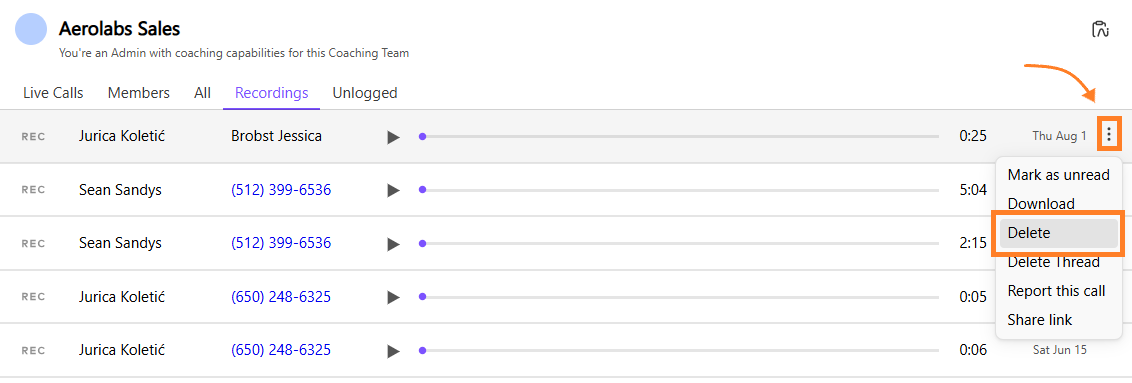
Can coaches delete their trainee's call recordings?
Yes. Coaches can delete recordings from the Recording Tab for the Coaching Teams they are managing.
Can I download the video recording?
Absolutely! When a Coaching Team has a Dialpad Meeting, you can download both the video and the audio!
.png)
Can I do screen captures of a trainee’s call?
Yes, you can! Check out this Help Center article for more details.
Can a user be part of both a Coaching Team and an Executive Pairing?
No, a user cannot be a member of both a Coaching Team and an Executive Pairing simultaneously.
These two features are not designed to work in tandem. Using both simultaneously can cause conflicts with call routing, access to voicemails and recordings.
We recommend assigning a user to only one of these roles at a time to ensure smooth performance and accurate access controls.
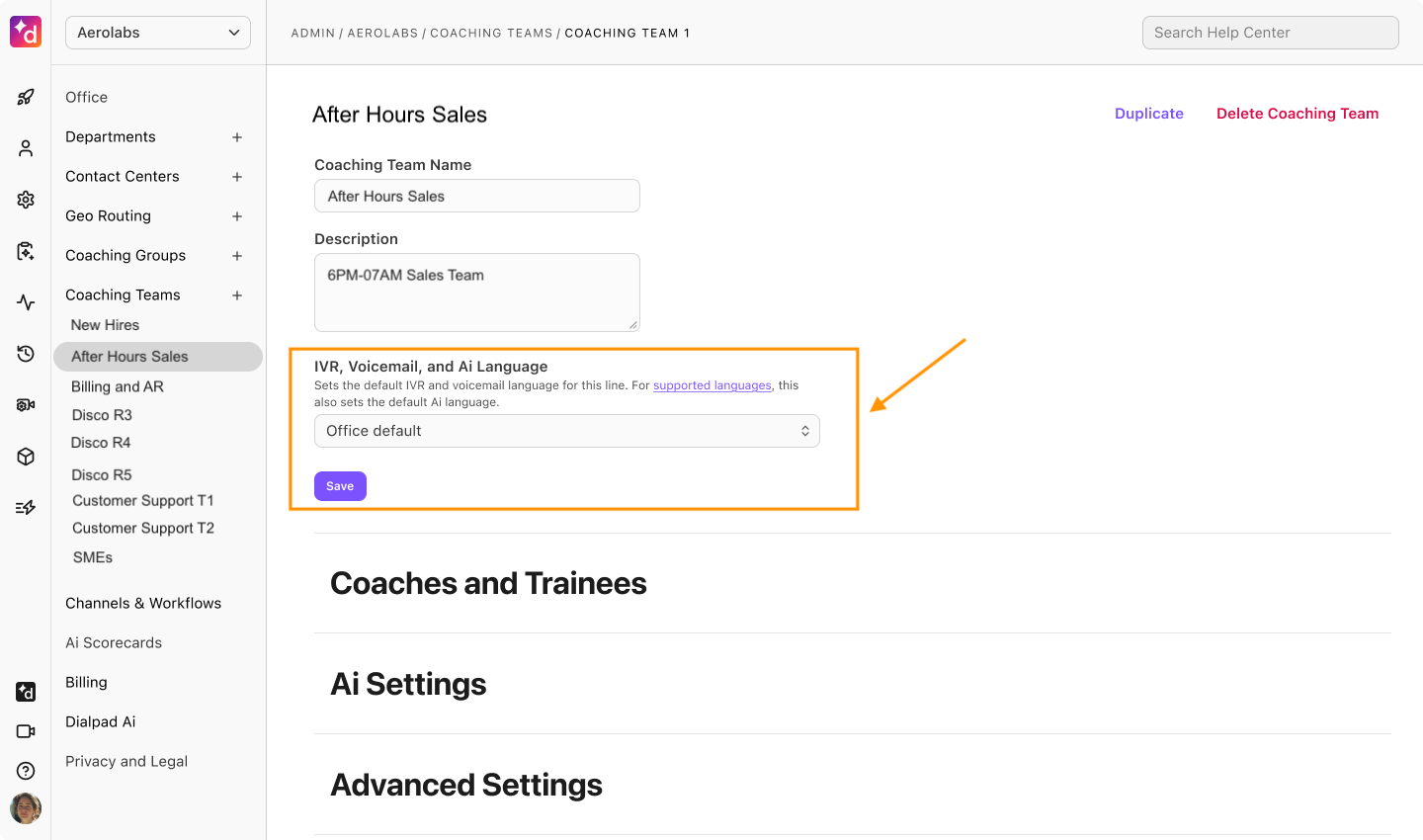
Can I change the IVR, Voicemail, and AI Language for my Coaching Team?
Yes. To change the IVR, voicemail and AI language of your Coaching Team, go to its settings and select the desired language from the drop-down menu. By default, your Coaching Team will inherit the Office’s IVR, voicemail and AI language