Dialpad WFM's Front integration seamlessly pulls historical data from Front to provide valuable insights within your Dialpad WFM dashboard.
Once connected, you can:
View Actual Ticket Count: Accurately track the number of tickets handled through Front within Dialpad WFM.
Generate Accurate Forecasts: Leverage Front data to create more precise forecasts for staffing and resource allocation.
Who can use this
Dialpad WFM is available to all Dialpad users.
Contact your Customer Success Manager to discuss adding Dialpad WFM to your plan.
Integrate Front for forecasting
To connect Front to Dialpad WFM, go to the Dialpad WFM Settings.
Navigate to Integrations
Select Customer Service
Select Connect to Front
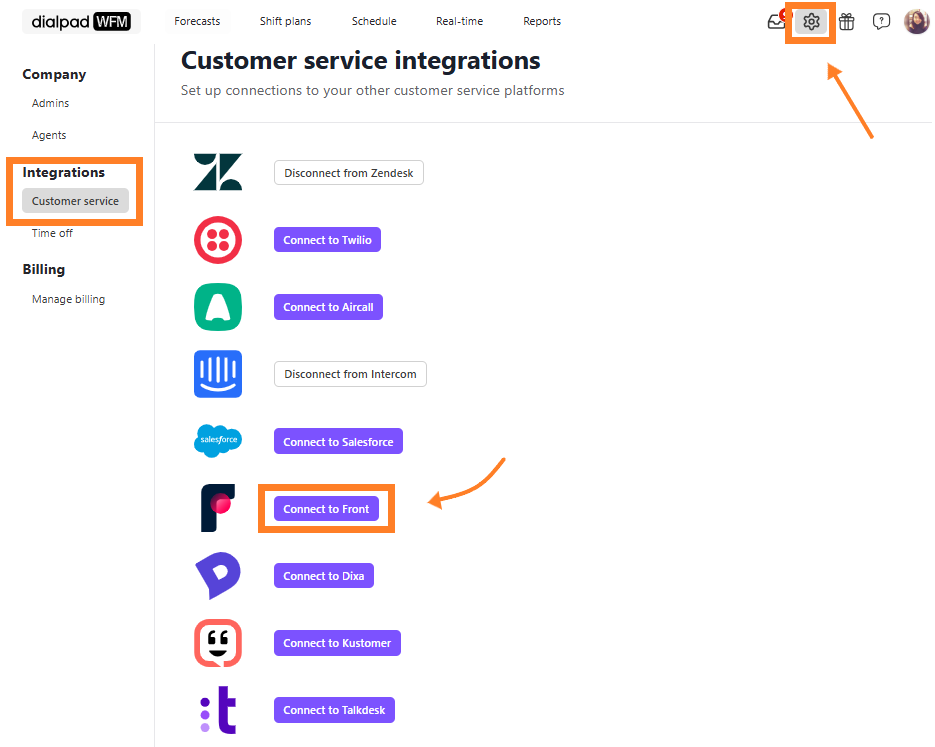
You’ll be redirected to a new screen to authorize your connection. Once authorized, your platform will be connected and ready for forecasting.
Note
Contact volume affects how quickly Dialpad WFM gathers data, but it typically takes around 72 hours to generate forecasts.
Set up Front queues
Now that your Front account is connected, you need to create queues that represent the inboxes, queues, or channels your team staffs and serves in Front.
By organizing your conversations into queues, you can accurately forecast the expected contact volume and required staffing for each queue. This allows you to optimize staffing levels and ensures your team is equipped to handle the expected workload.
To create a queue:
Select Forecasts
Select Queues
Select New queue
Name the queue
We recommend using the same name you use in Front
Select the conversation type
Select real-time if conversations are handled while the customer is present and waiting, i.e. 'true' live chat.
Select non real-time if the conversations can happen asynchronously, e.g. the messages can be sent at any time, and the customer isn't always present.
From the connections dropdown, select Front
Now, use the Filter Queues section to choose which tickets you want to include in this queue.
On the right, you’ll see a preview of the number of tickets you received in the last 7 days that match your filters. We recommend checking this against the data in your Front account to ensure the filters are set up correctly.
Next, enter the staffing parameters for this queue.
These inputs convert ticket volumes into staffing requirements.
Average conversation/interaction time | The average handle time for the entire conversation. |
Concurrency | The number of interactions an agent can handle at once.
|
Shrinkage | The percentage of scheduled time that's lost while agents work in this queue.
|
Finally, enter the service level (SLA) you're aiming for.
This is the target percentage of all tickets that should meet your first response time target.
That’s it! Your ticket group is now set up and ready to forecast and track coverage.
Frequently asked questions
What ticket data does Dialpad retrieve?
Dialpad can only see your ticket volumes, not ticket content. Content is redacted when we collect your data.