Use certified Neat devices with Dialpad Meeting Rooms to join meetings, share content, and collaborate from your conference room.
Let’s dive into the details
Who can use this
Users with a Dialpad Meeting license and a meeting room add-on license.
Before you begin
Make sure your meeting room has the following:
Uses supported Neat hardware
Is configured as a Dialpad Meeting Room.
Has an internet connection.
Is running the latest Dialpad Meetings room app.
Note
Dual-screen sharing is available only on supported Neat room configurations using the newer Dialpad app experience.
Join a meeting
You can join a meeting in two ways:
Join from the room | Move an existing meeting to the room |
|---|---|
|
Your meeting moves to the room display automatically. |
Manage participants
Use the Neat Pad to manage meeting participants.
Select Participants
View everyone in the meeting.
Mute participants when needed.
Share your screen
Local sharing lets you present content on the room TV without starting a meeting. A Dialpad Meetings license is not required for local sharing.
.png)
Note the sharing code displayed on the room TV.
On your laptop, open:
meetings.dialpad.com/share, or
Enter the room code
Choose what to share:
Entire screen
Window
Browser tab
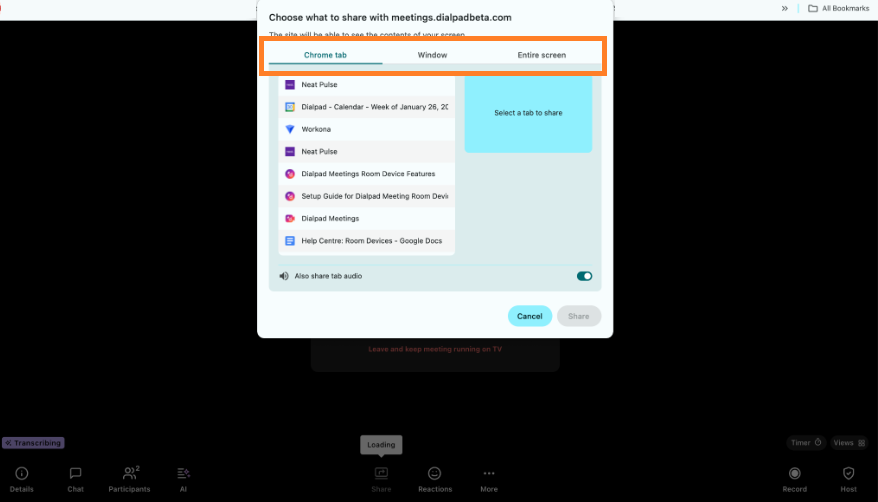
Your content appears on the TV immediately.
Supported browsers for local sharing are Chrome, Safari, and Edge.
Tip
When you are done sharing, you can select Leave and keep the meeting running on TV, or select Stop sharing if you were sharing a browser tab.
Use dual-screen sharing
If your room has two supported displays, Dialpad automatically uses both screens for a better meeting experience.
When someone shares content, both displays show meeting participants,
Participants stay on the primary display.
Shared content appears on the secondary display.
You cannot move the shared content to the primary display or swap the two screen roles during the meeting.
When sharing ends, both displays automatically return to showing meeting participants.
Tip
If both displays show the same thing, confirm the following
The room is using the newer Dialpad app instead of the legacy Dialpad Web App.
Check the Neat display mirroring setting.
If needed, restart the device after changing the setting.
If dual-screen is still not available after setup, contact our Customer Care and share the room device serial number, device name, and a description of the issue.
Restart a room device
If your room isn't working correctly, there are 2 ways you can restart the device.
Restart from the Dialpad Meetings portal | Restart from Neat Pulse |
|---|---|
|
|
Frequently asked questions
My Neat Bar and Neat Pad won't pair. What should I check?
Make sure both devices are connected to the same network and that your firewall allows access to the required Dialpad and Neat domains.
Why doesn't my room calendar show any meetings?
Reauthorize your room calendar and confirm the correct calendar account is connected.
Why does my Neat Pad keep disconnecting?
Make sure the Neat Bar and Neat Pad are connected to the same VLAN or subnet.
Do I need to enable dual-screen sharing?
No. If your room has supported Neat hardware with two connected displays, dual-screen sharing is enabled automatically.
Why do both displays show the same content?
Display mirroring may be enabled. Turn it off in the Neat settings, then restart the room if the changes don't take effect.
Can I choose which display shared content shows?
No. Shared content always appears on the secondary display, while meeting participants remain on the primary display.
Can I swap the participant and content displays during a meeting?
No. The display layout is fixed during the meeting.
What information should I have ready before contacting Customer Care?
Have the following information ready:
Device serial number
Device name
A description of the issue, including what you expected to happen and what you're seeing instead
You can find your device details in the Dialpad Meetings Portal at https://meetings.dialpad.com/conferencetvs.