Dialpad's Microsoft Teams integration allows users to make and receive calls using their Dialpad numbers via the MS Teams interface. This integration brings high-quality, reliable voice to the MS Teams communications suite, and provides users with Dialpad's amazing AI capabilities.
There are no changes to the user flows and calling behaviors in MS Teams, inbound and outbound calls are handled by the Dialpad system.
Want to integrate MS Teams with Dialpad?
Check out this Help Center article.
What is direct routing?
With Dialpad’s MS Teams direct routing solution, you can make and receive external calls to +70 countries, as well as send SMS and MMS messages from your business phone number.
The best part? No additional install or browser tab is needed - it's all accessible from within MS Teams. Just pin the Dialpad App for MS Teams, and you’re ready to go!
License requirements
The direct routing solution requires Microsoft Teams Licenses with Phone System add-on to Microsoft 365 Enterprise Licenses such as E1 or E3, or a Microsoft 365 Business Plan with Business Voice. Alternatively, you can use Microsoft/365 Licenses that already include business voice features (such as E5).
Whatever license you choose, make sure that it includes Phone System capabilities.
In addition, users must not have a Calling Plan.
Note
This article goes over setting up our direct routing configuration. For information on using the Dialpad App for MS Teams, be sure to read this Help Center article.
Requirements for Dialpad authorization
To configure your Microsoft Teams direct routing account, make sure the Dialpad account used to authorize the service meets these requirements:
You must be a Dialpad Company Admin
Your Microsoft account must have these roles:
Skype for Business Administrator
Teams Administrator
Do not lower or remove the administrative access used for setup in either Microsoft Teams or Dialpad. If access is reduced or revoked, the integration may lose access to required resources and fail
Note
Currently, not all Dialpad features are supported by this integration.
Install Microsoft Teams Direct Routing
To install Microsoft Teams Direct Routing, use the Microsoft wizard to complete the setup:
Note
Follow the instructions when using the Microsoft wizard. The steps below outline what is being completed using the wizard during your setup.
Ensure the Microsoft Teams Direct Routing integration is enabled before configuring direct routing.
Make sure your Microsoft environment has the required Microsoft Teams Phone licensing
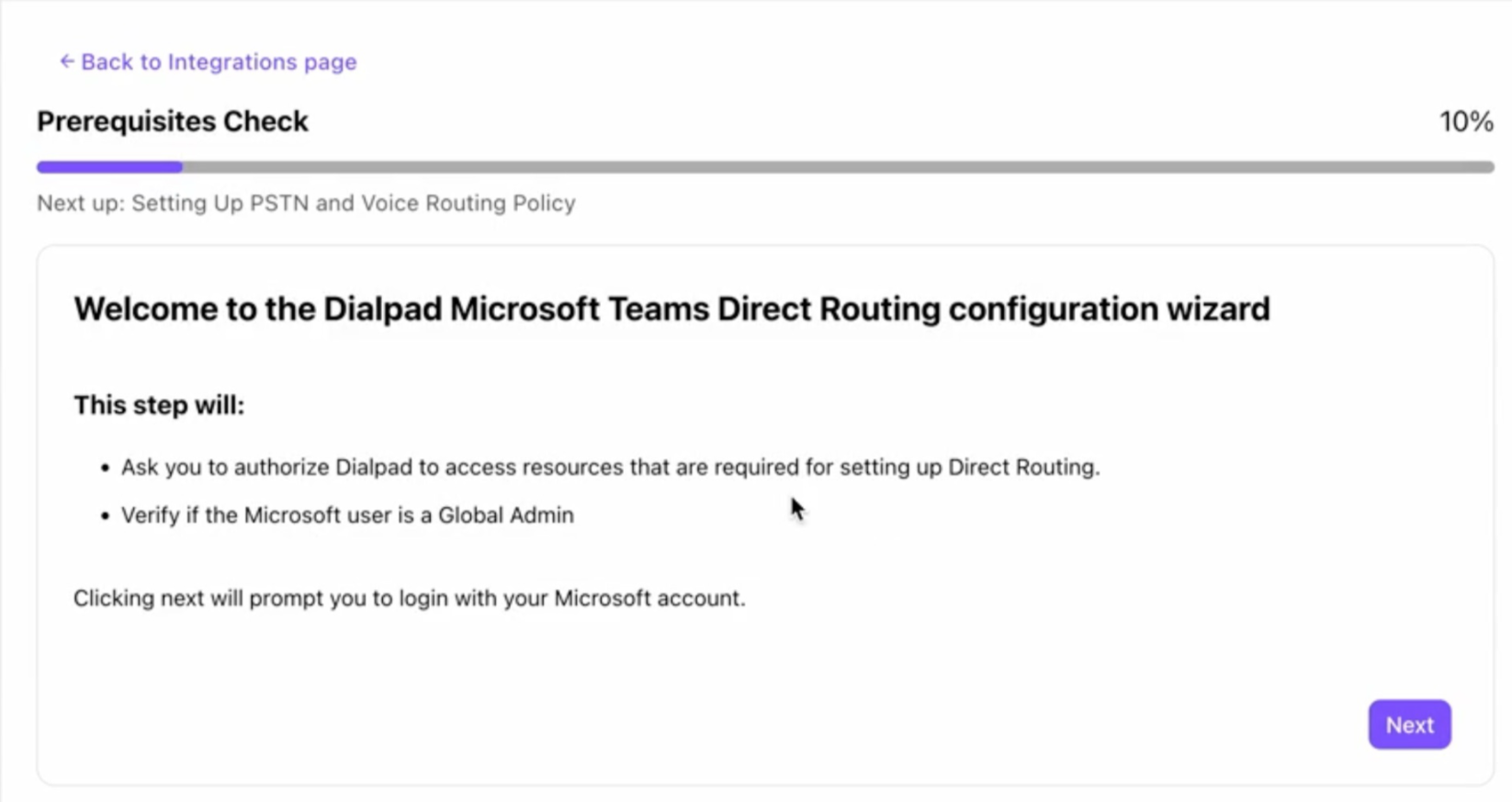
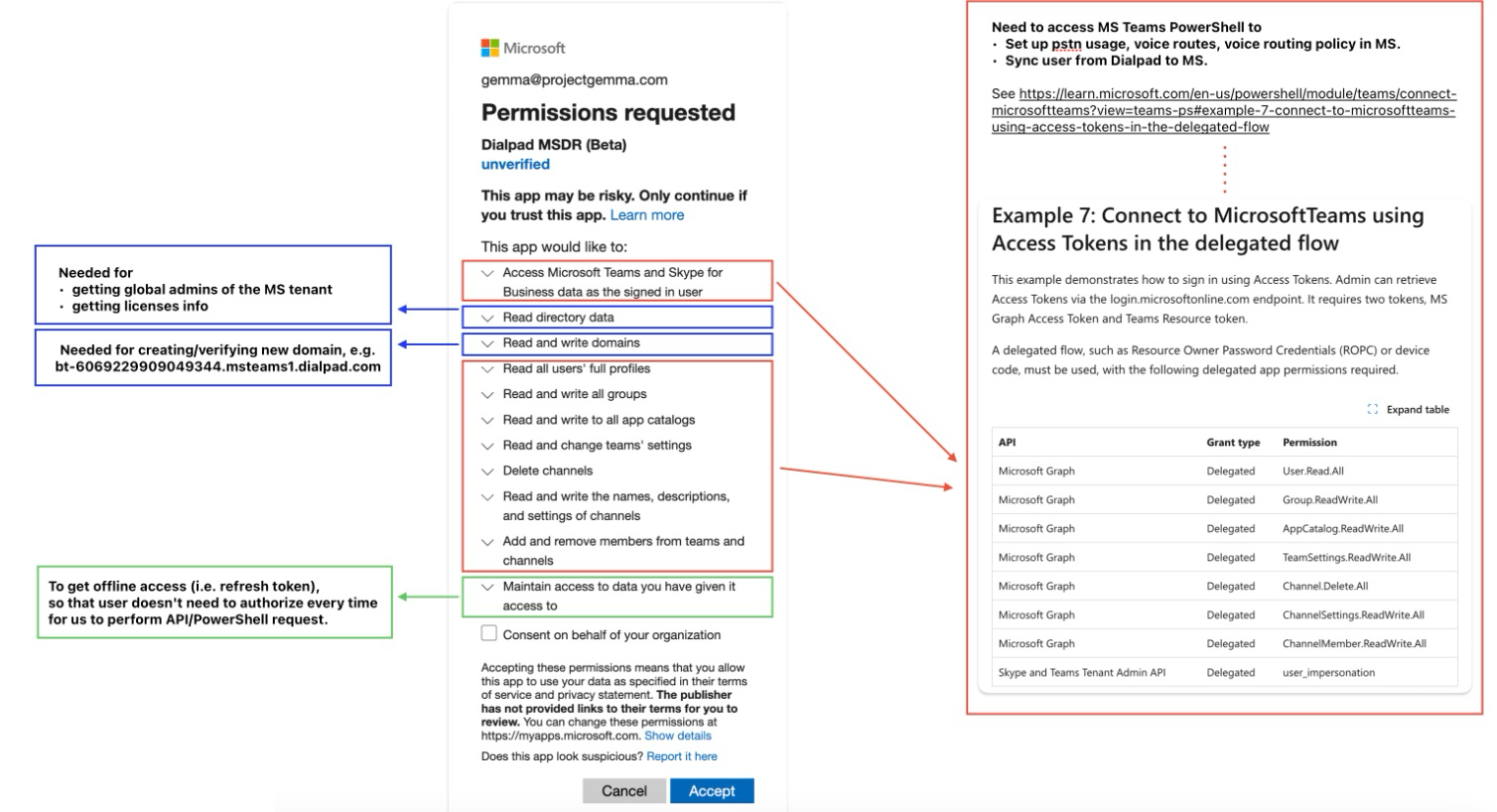
Authorize the Dialpad application using a Microsoft Teams admin account
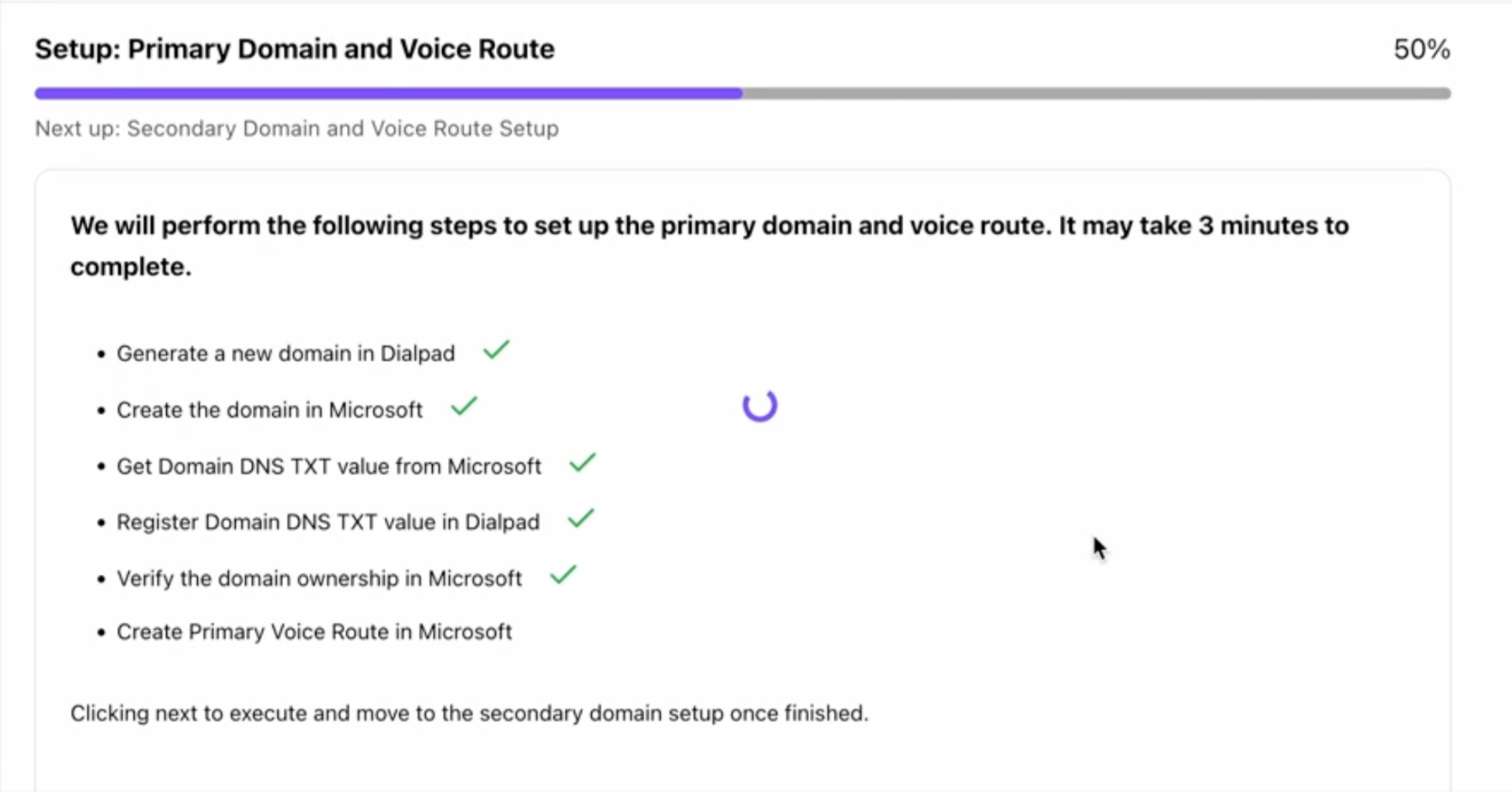
Configure the primary and secondary domains:
Two session border controller entries for the verified subdomains
Two voice routes and assign one session border controller to each route
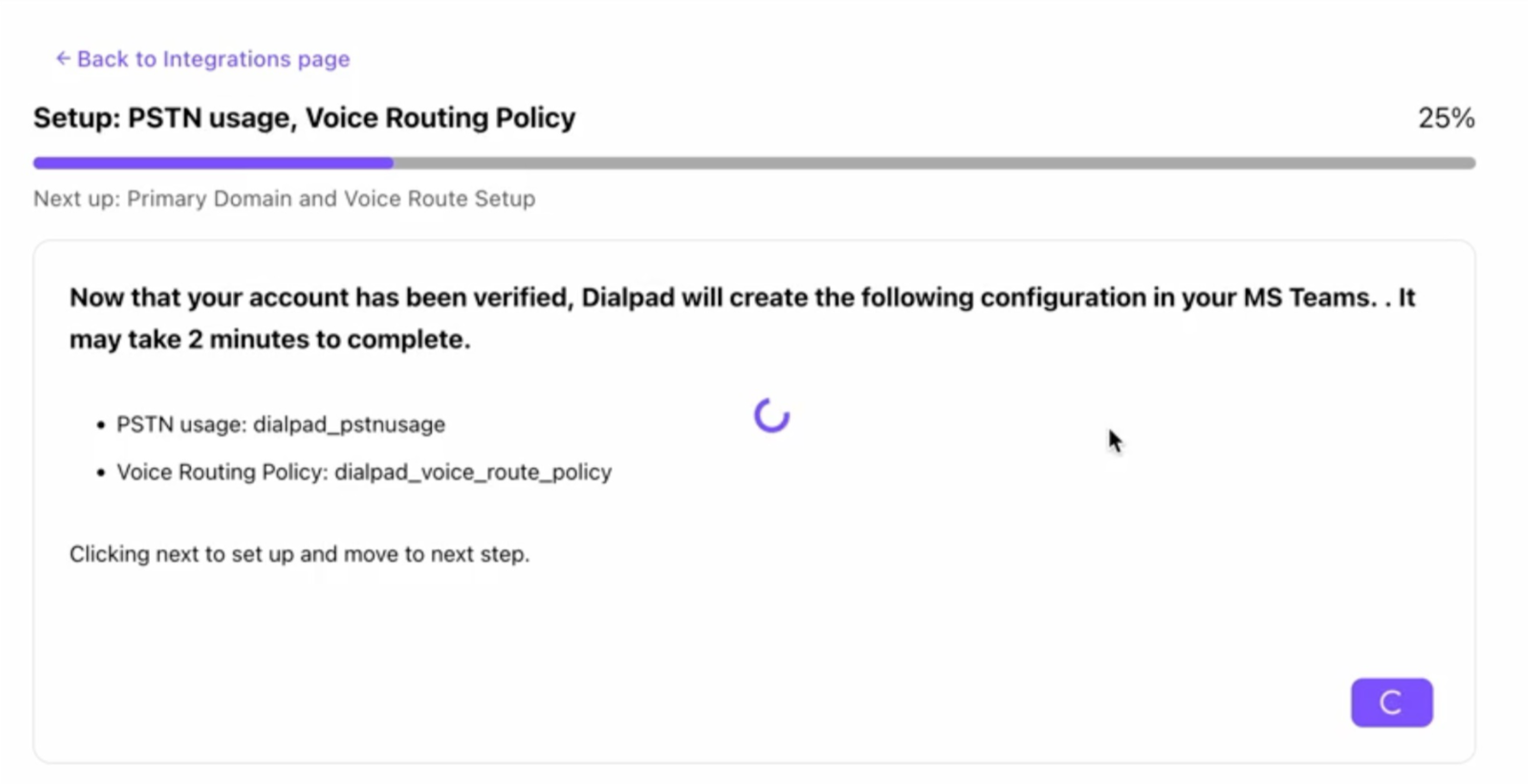
Add the PSTN usage record used by the two voice routes
Note
After setup is complete, Dialpad can automatically begin syncing eligible users, depending on the sync configuration used for the integration.
Users sync
Once the MS Direct Routing has been installed, users can be synced.
To add users, go to the Dialpad Admin Portal.
Select My Company
Select Integrations
Navigate to Microsoft Teams Direct Routing and select Options > Manage Settings
Check the box to enable Automatic sync
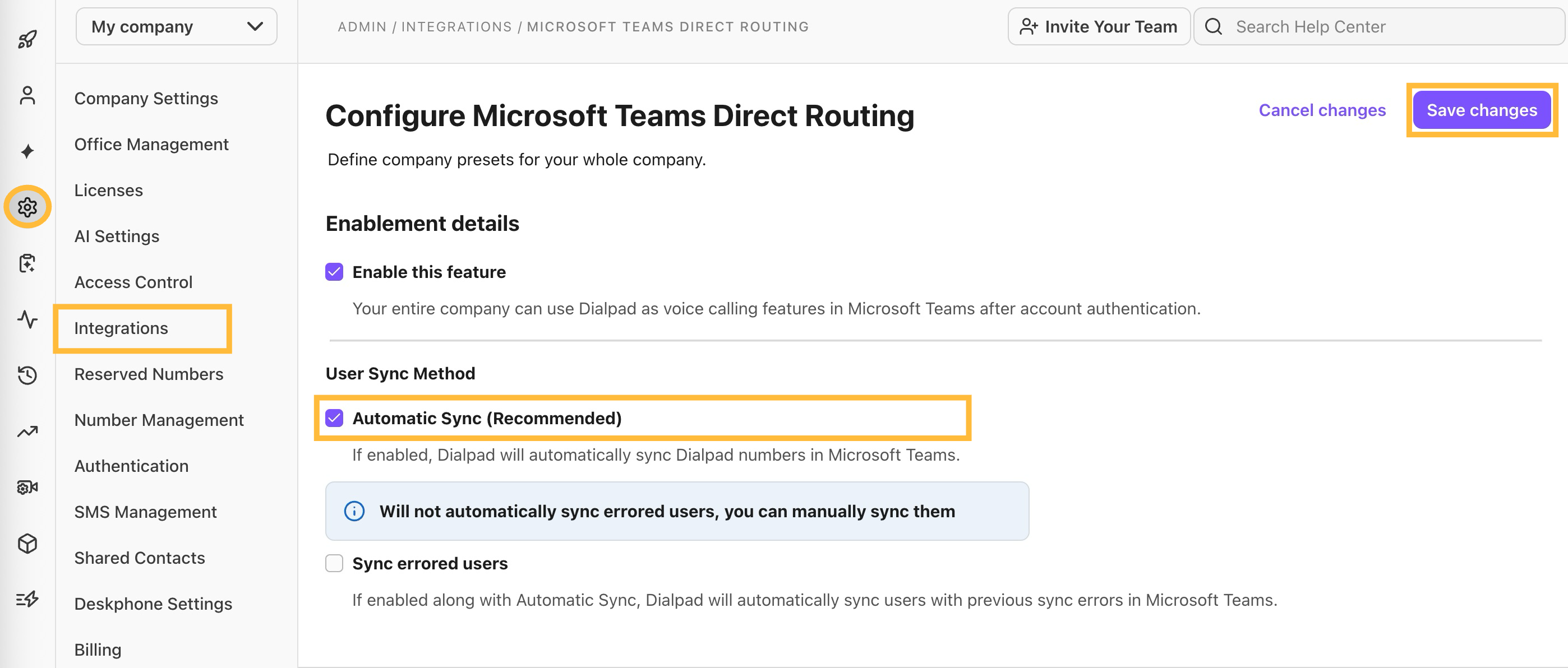
Select Save changes
Note
Once sync is enabled, the process can take up to one hour to take effect.
Contact syncing troubleshooting
Contact syncing can be tricky — let's go over some common issues and how to resolve them.
User does not have an email set in Dialpad
We use the user email as the identifier to sync with your Microsoft Teams. If the user does not have any associated email, please add one for them first in Dialpad.
User does not have a number set in Dialpad
Please assign a number for the user first in Dialpad before we can sync it to your Microsoft Teams.
User does not exist in Microsoft Teams
This means that we tried to sync the user (with the user email as the identifier) to your Microsoft Teams, but that user email doesn’t exist in your Microsoft Teams.
Please check the user email and make sure it matches.
User is missing a required Microsoft license or assigned the wrong Microsoft license
The phone number field of the user is restricted from editing due to either missing licenses (e.g. Phone System) or wrong licenses assigned (e.g. any Calling Plan).
Please refer to the license requirements section for details.
We cannot connect to your Microsoft Teams because the Admin account does not exist
We rely on the admin account (i.e. dialpad-msteams-admin@
Admin account does not have the "Skype for Business Administrator" and "Teams Administrator" roles
These roles are required in order to perform a user sync. Please add the above-mentioned roles to the admin account so that it has the right permissions to update users in your Microsoft Teams.
User sync failed due to a temporary connection issue
There could be many technical reasons that our server cannot connect to your Microsoft Teams account.
Most of the temporary connection issues will go away in a retry unless the servers on Microsoft Teams are completely down.
User sync failed due to unknown reasons
This indicates new types of errors or internal errors. If another retry doesn’t work, please contact support for further help.