HubSpot contact syncing automatically keeps HubSpot and Dialpad contacts up to date, helping teams access the latest customer information while working in Dialpad.
When enabled:
Updates made to HubSpot contacts are automatically reflected in Dialpad.
Deleting a contact in HubSpot also deletes the contact in Dialpad.
Syncing works for future contact updates after the setting is enabled.
This helps ensure agents always see the latest contact details during calls and conversations.
Enable HubSpot contact sync
To turn on contact syncing, go to Dialpad Admin portal
Select My Company > Integrations
Navigate to HubSpot > Options
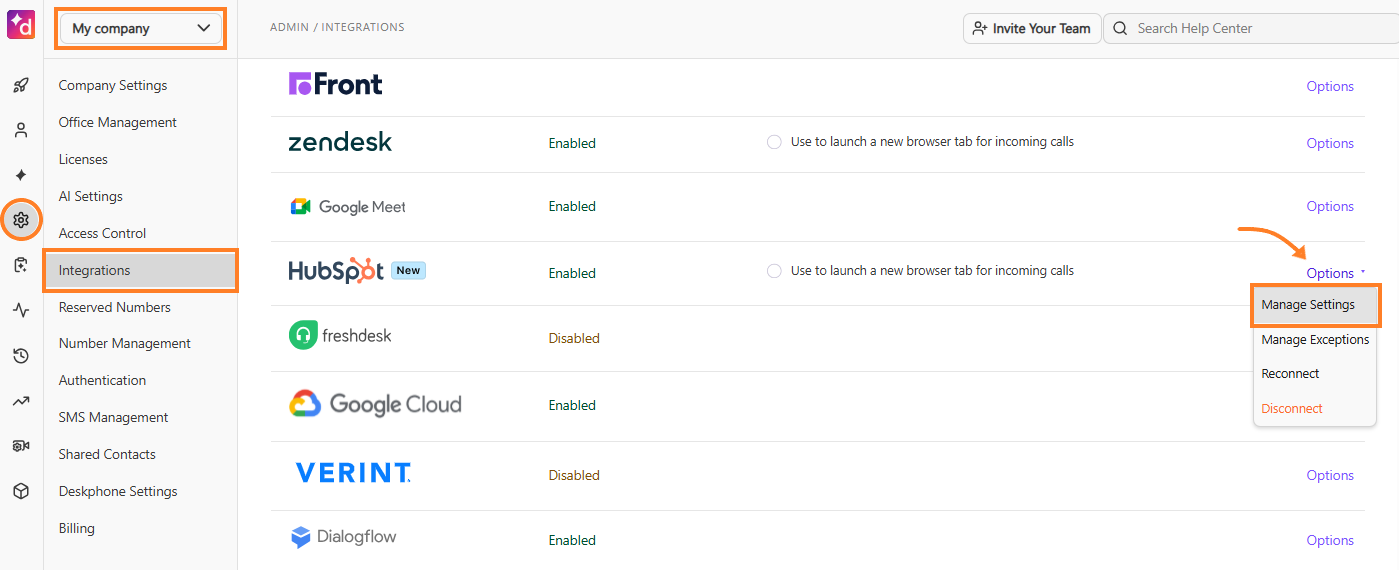
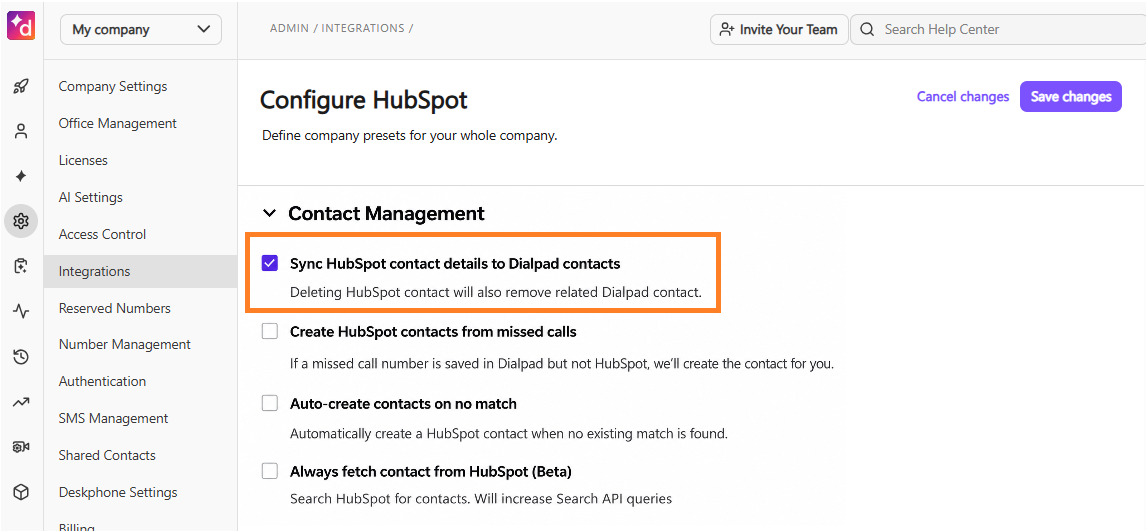
Select Manage Settings > go to Contact Management
Enable Sync HubSpot contact details to Dialpad contacts
Notes
Only contact updates made after enabling sync are automatically reflected in Dialpad.
HubSpot contacts sync to Dialpad when users interact with them, so they may not appear immediately in Dialpad search. Currently, contact sync only supports updates from HubSpot to Dialpad.
HubSpot contact management settings
After enabling HubSpot contact syncing, you can manage contact sync settings from your office settings.
Go to Dialpad Admin portal > Office Settings
Select Integrations > HubSpot
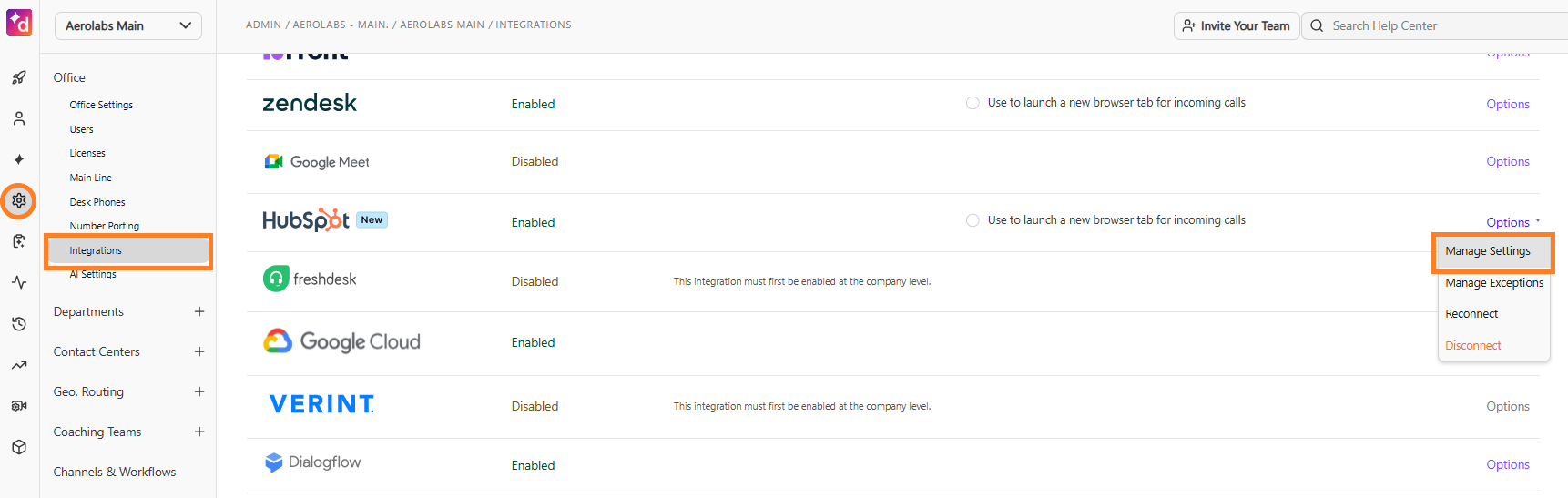
Select Options > Manage Settings
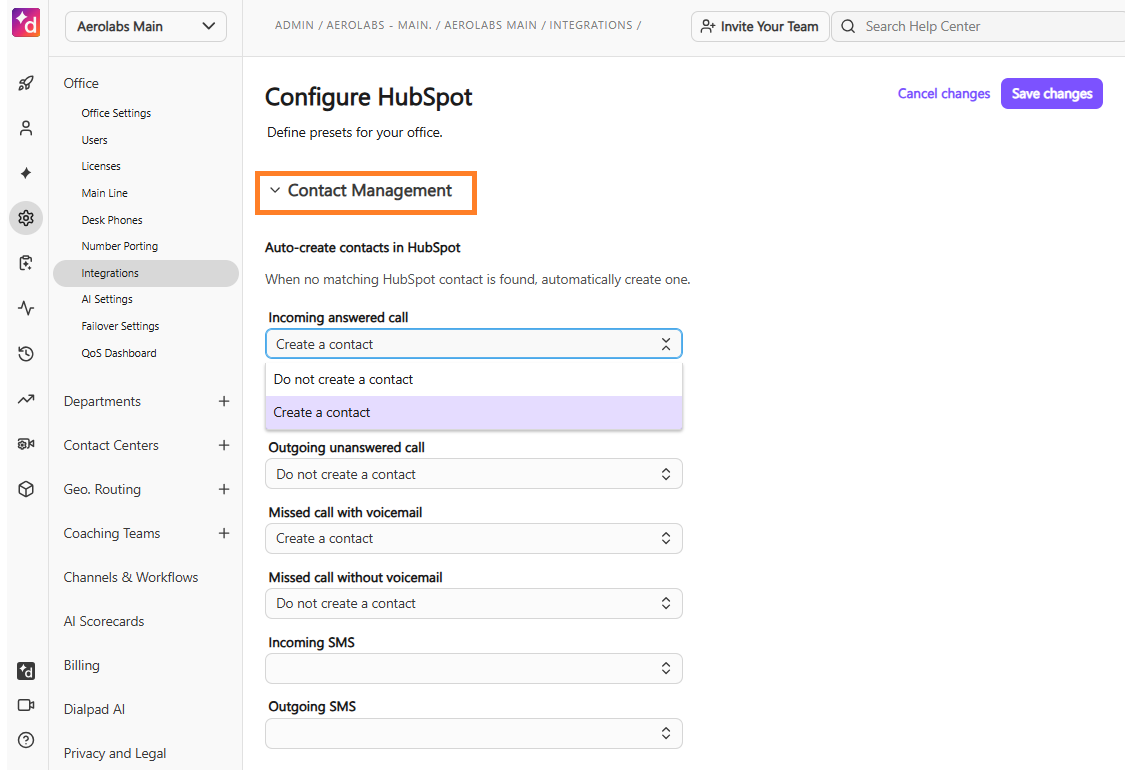
Navigate to Contact Management
Select preferred settings when creating contacts in HubSpot
Frequently asked questions
Why aren't my contacts updating automatically?
Only updates made after enabling contact sync are automatically reflected in Dialpad. Earlier contact updates are intentionally skipped to avoid hitting API limits.
Why does a deleted HubSpot contact still appear in Dialpad?
Sync updates usually happen within seconds. However, if the contact was open in Dialpad when it was deleted in HubSpot, the update may not appear immediately.
Why can't I search for all HubSpot contacts in Dialpad?
Contact sync does not download all HubSpot contacts into Dialpad. Contacts are synced only after interacting with them, such as starting a conversation or manually loading a phone number.
Why isn't my Dialpad contact updating in HubSpot?
Currently, contact sync only supports updates from HubSpot to Dialpad. Changes made in Dialpad are not synced back to HubSpot.
Why doesn't a HubSpot contact appear in the Dialpad sidebar?
This can happen if the contact was recently created or updated, or if the phone number formatting is incorrect. Allow some time for syncing and ensure phone numbers are formatted properly.
Why is a newly created contact missing in Dialpad?
New contacts created in HubSpot can take up to 30 minutes to appear in Dialpad.
Why are automations related to unknown contacts no longer working?
Instead of automatically creating new contacts, it is recommended to create support tickets when unknown users reach out.