Use compliance settings to manage your calling boundaries—controlling who the Dialpad Dialer contacts, when they can be reached, and how frequently.
What is Do Not Contact?
Do Not Contact (DNC) tools help you avoid calling people who have opted out, or whom your company does not want to contact.
Dialpad Dialer supports:
Internal / company‑level DNC lists: Numbers your company should not call, regardless of campaign.
Per‑number flags (such as Do Not Call or Do Not Text).
Agent‑driven updates from call wrap‑up.
Manage DNC lists as an admin
To manage DNC lists, go to dialer.dialpad.com and select Do not contact. 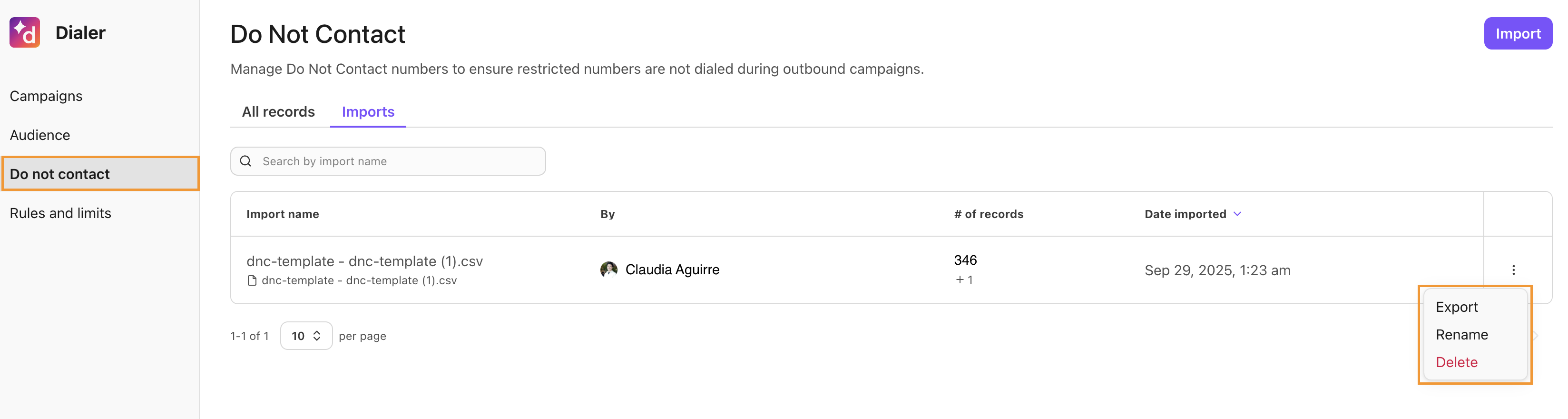
Here, you can:
Import a CSV of numbers to block.
Add or edit individual entries.
See when and by whom a number was added to DNC.
Update existing DNC lists.
The All records tab displays all numbers that are on any DNC lists within your company. The Imports tab shows each list that has been imported.
Note
Imported or manually added DNC entries affect all future Dialer campaigns that use DNC scrubbing.
Agent‑side DNC updates
Agents can often update DNC as part of call wrap‑up.
After the calls ends, they can:
Mark a number as Do Not Call.
Mark a number as Do Not Text.
Mark a number as invalid.
When an agent applies DNC flags, Dialer will skip that number in future campaigns (subject to your configuration).
Calling windows and time zones
Dialer uses time zone‑aware calling windows to help you stay within appropriate hours.
Common configuration includes:
A way to determine time zone, such as:
Phone number region
A dedicated time zone field on the lead
ZIP or region metadata
Daily calling windows by local time (for example, 9:00 AM–7:00 PM Monday–Friday).
When a lead is outside of the allowed calling window:
Dialer delays or skips calls until the lead is within the window.
Campaign dashboards typically show that calls were skipped because of calling hours.
These settings are configured from the Campaign’s settings page.
Rules & limits for call attempts
Use rules and limits to control how often Dialer can call a given number.
Common controls include:
Per‑campaign attempts:
Maximum number of attempts per lead for one campaign
Delay between attempts (for example, 1 day)
Global or per‑number limits:
Maximum number of calls to a number across all campaigns within a time window
Account or company‑level penetration (if available):
Limits on how many times you call people at the same company over a period of time
These settings help you:
Reduce over‑contacting
Stay aligned with internal policies and local regulations
If in doubt, consult your legal team for specific rules that apply to your region and use case.
These settings are configured from the Campaign’s settings page.