In a contact center, agent schedules are carefully planned to balance supply and demand, helping businesses deliver high-quality customer service. By forecasting expected contact volumes and translating this into specific staffing needs, you can ensure the right agents, with the right skills, are available at the right time, maximizing efficiency and customer satisfaction.
Dialpad WFM gives you 3 ways to schedule agents, depending on how much control you want and how many agents you need to schedule at once:
Team | Individual agent | |
|---|---|---|
Full schedule (shifts + activities) | Generate Schedule | - |
Shifts only | Shift Plans | Auto-schedule |
Generate — builds a demand-based schedule for a team (recommended)
Shift Plans — let you create and apply shifts via fixed or rotating patterns manually, for a team or agent
Auto-schedule shifts — helps you schedule shifts for one agent at a time from within the schedule
Most teams should start with the Generate Schedule flow. It creates shifts and places activities in a single step, using your forecast, activity plan, time off, and each agent's settings.
Choose the right scheduling method
Generate a Schedule
Create team schedules based on staffing demand, agent availability, and scheduling rules. Recommended for most teams.
Use it when you want to:
Create a schedule for a full team
Match staffing to forecast demand
Place activities using an activity plan
Respect agent working days, working hours, and shift options
Account for approved time off
Generate is best when your team has a forecast, and you want Dialpad WFM to handle shifts and activities together.
See Generate a Schedule for the full guide.
Shift Plans
Use Shift Plans to build schedules with predefined shift patterns and greater control over shift assignments.
Shift Plans are the better fit when you need:
fixed or rotating shift patterns
multi-week rotations (e.g., 2-week or 3-week cycles)
overnight shifts
complete manual control over which agent works which shift on which day
round robins for fair shift distribution
Shift Plans remain the place where shifts are created and managed. You can reuse those shifts elsewhere, including in agent Schedule settings. After applying a Shift Plan, apply an activity plan separately to place activities and breaks.
See Create a Shift Plan for the full guide.
Auto-schedule
Use Auto-schedule to add or adjust shifts for one agent at a time.
Auto-schedule is best for:
Filling gaps for a specific agent
Making a targeted change without regenerating the whole team
Respecting that agent's current Schedule settings
Auto-schedule uses the same agent Schedule settings as Generate.
See Auto-schedule shifts for the full guide.
Tip
Choose the scheduling method that best fits your needs:
What you want to do
Scheduling method
Build a schedule for a team based on demand
Generate a Schedule
Define and apply shift patterns manually
Shift Plans
Fill or adjust shifts for 1 agent
Auto-schedule shift
Scheduling basics
When creating a schedule, first, you’ll need to create a shift plan.
This is where you will:
Define work hours: Establish the core working hours for your agents, including shift times, breaks, and time off.
Balance the workload: Distribute shifts evenly among agents, considering factors like workload, skillsets, and preferences.
Anticipate future demand: Use forecasting tools to predict future workload and adjust shift schedules accordingly.
After creating the shift plan, the next step is to add activities that define what tasks agents will complete during their shifts. This ensures staffing aligns with forecasted demand across channels and time intervals (e.g., every 30 minutes). To balance demand and agent flexibility, teams often create varied schedules with sufficient breaks. Activity schedules are typically finalized 2-7 days in advance to reflect the most up-to-date forecast data, helping to optimize coverage and accuracy.
Note
All schedule edits are made in draft mode. Any adjustments, like modifying shifts or adding activities, remain visible only to admins until the schedule is published.
You can republish as often as needed, ensuring agents always see the most recent updates, whether shifts include activities or not.
Scheduling checklist
Before building a schedule, make sure you've completed the following setup steps:
You've connected your customer service or CRM platforms.
You've set-up your forecast using queues.
You've connected your time off calendars.
You've added all of your agents and set-up their profiles.
Once those steps are done, you're ready to start scheduling!
How to build a schedule
Let’s walk through each step involved in building a schedule.
Option 1: Generate a schedule (recommended)
Generating a schedule is the quickest way to build a schedule for your team.
Go to Schedule tab in Dialpad WFM.
Select Generate > Choose a team
Choose a date range (1 day to 12 weeks).
Select an activity plan
Select Generate draft
.png)
Option 2: Build a Shift plan
Use this scheduling method when you want more manual control over the shift structure.
To build your own Shift plan, Select Shifts
Select Shift plans
Select + New plan
.png)
Name the shift plan, then select Next
Select the agents and/or teams you want to schedule with this Shift Plan
(2).png)
Select Save
You'll now be taken to the homepage for your newly created shift plan. Select shift patterns to enter the shift pattern builder.
.png)
Note
All schedule edits are made in draft mode. Any adjustments remain visible only to admins until you publish.
You can republish as often as needed. Agents always see the most recent published version.
Tip
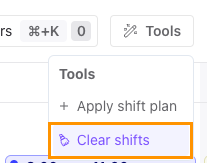
To remove a Shift Plan from the schedule, select Clear Shifts under Tools.
Migrate from Working Days
If you previously used Working days to define which days agents can work, you will need to update those settings in each agent's Schedule tab.
Existing Working Days settings are migrated automatically into the Schedule. The newer Schedule setup gives you additional control.
For example, instead of only marking Monday as a working day, you can now set specific working hours, allowed shift templates, or weekly shift options.
See Configure Agent Working Hours for a full walkthrough.
Common use cases
Use case | Recommendation |
|---|---|
Create a schedule for an entire team based on forecasted demand | Generate a Schedule |
Create a predefined shift pattern, such as fixed or rotating schedules | Shift Plans |
Add or adjust shifts for a single agent | Auto-schedule shift |
Allow an agent to work multiple shift options (for example, Early or Late) | Schedule settings with Generate a Schedule or Auto-fill |
Create a balanced mix of shifts throughout the week | Schedule Settings with weekly Shift schedule |
Frequently asked questions
When should I use Auto-schedule shift?
Use Auto-schedule to add or adjust shifts for a single agent.
Do Schedule settings affect scheduling?
Yes. Both Generate a Schedule and Auto-fill use an agent's Schedule settings.
What happened to Working Days?
Working Days settings are automatically migrated to the Schedule tab, which provides additional scheduling options and flexibility.
Can I assign multiple shifts on the same day?
Yes. Multiple shifts are treated as alternatives, and Dialpad WFM selects the best option for that day.