Dialpad WFM Admins can generate draft schedules using demand forecasts, agent availability, time off, skills, contracted hours, and activity plans. Review and edit drafts, regenerate after changes, then publish schedules for agents and reporting.
Use Generate to automatically create a schedule for your team based on forecasted demand, agent availability, time off, and activity plans. Review the draft schedule, make any needed changes, and publish it when ready.
Let’s dive into the details.
Who can use this
Dialpad WFM is available to all Dialpad users and as a standalone product.
You must be a WFM Admin to Generate a Schedule.
Things to note
Make sure the following are set up:
Agent working hours |
Verify each agent has:
|
Queues and activities |
Ensure that queues and activities:
|
Forecast |
Confirm a forecast exists for the scheduling period. |
Time off |
Sync approved time off before generating schedules. |
Activity plan |
Assign an activity plan to the team. |
Access your schedule
Go to Schedule in Dialpad WFM to view and manage team schedules.
Views
Shifts view
Review and edit agent schedules
Check coverage
Use Auto-fill for individual agents
Activities view
See how activities and breaks are scheduled within shifts
Modes
Draft |
Admin-only workspace for creating and editing schedules. |
Published |
Schedule visible to agents and used for reporting. |
Filters and time zones
Use filters to view schedules by date, team, agent, or skill.
You can also change the schedule time zone using the time zone picker in the top-right corner.
Generate a Schedule
To generate a schedule, go to Schedule tab in Dialpad WFM.
Select Generate > Choose a team
Choose a date range (1 day to 12 weeks).
Select an activity plan
-
Select Generate draft
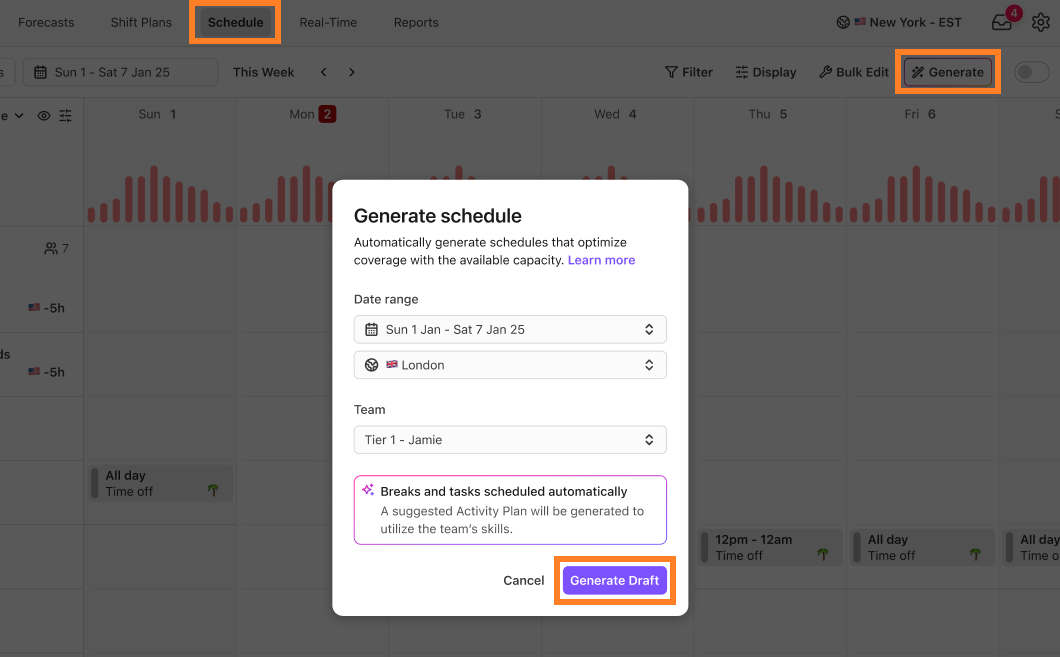
Dialpad WFM creates a draft schedule based on:
Forecast demand
Agent skills
Contracted hours
Schedule settings
Approved time off
Activity plans
Draft schedules are only visible to admins until published.
Tip
Enable Publish new schedule during generation to publish the schedule when it's created automatically.
Review the draft schedule
Before publishing, review the schedule to ensure coverage and agent assignments are correct.
Check that:
Coverage meets forecasted demand
Agents are scheduled correctly
Activities and breaks are placed as expected
Time off is respected
Contracted hours are met
Make any necessary changes to shifts, activities, or breaks before publishing.
Auto-schedule individual agents
Use auto-schedule to update a single agent's schedule without regenerating the entire team schedule. Auto-schedule can add shifts, fill missing contracted hours, and create shifts based on the agent's schedule settings.
(1).png)
Use Auto-schedule to create or adjust the schedule for a single agent without regenerating the entire team schedule.
Regenerate a schedule
If you update any scheduling settings after generating a draft schedule, you'll need to generate the schedule again.
Common reasons to regenerate include:
Forecast changes
Agent updates (team, skills, contracted hours, or working hours)
New or updated time off
Activity plan changes
Note
Generate does not automatically update existing draft schedules when changes are made.
When you regenerate a schedule for the same team and date range:
Previously generated shifts are replaced with new ones.
Manually added or edited shifts may create conflicts, allowing you to choose whether to keep your changes or use the newly generated shifts.
Schedules are not automatically generated for future dates. Generate and publish new schedules as needed.
Publish the schedule
Once you've reviewed the draft:
Select Publish
-
Publish all schedules or select a specific date range
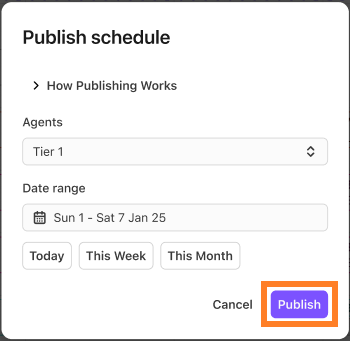
After publishing:
Agents can view their schedules
Adherence reporting uses the published schedule
Future edits require republishing
Note
Use Shift Plans instead of Generate if you need fixed or rotating schedules, multi-week rotations, overnight shifts, or complete control over shift assignments. Activities and breaks must be added separately when using Shift Plans.
Frequently asked questions
Do I need working days configured?
No. Generate can use contracted hours alone, but working days provide more accurate scheduling.
See Configure agent working hours article for more details.
Can I edit generated schedules?
Yes. You can make manual changes before publishing.
What happens when I regenerate a schedule?
Previously generated shifts are replaced. If you've manually edited a shift, you'll be prompted to choose whether to keep your changes or use the new generated shift.
Why can't I generate for a team?
You may not have the required View and Edit permissions for that team.