Use Dialer analytics to understand how campaigns are performing and to guide improvements.
Who can use this
Company, Office and Contact Center Admins can view Dialpad Dialer Analytics.
Contact Center Supervisors with analytics access can also view these reports.
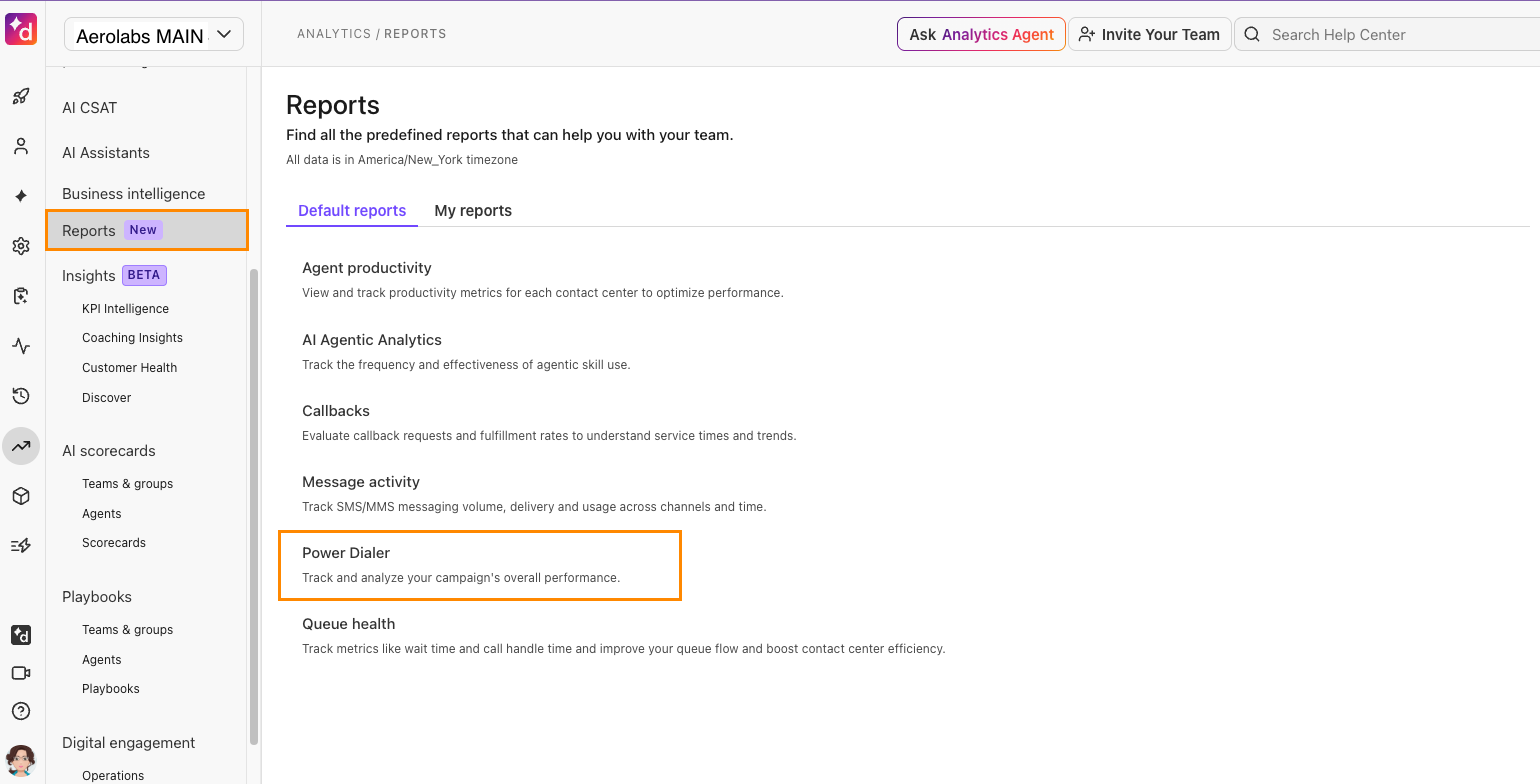
To access your Dialpad Dialer analytics, go to the Dialpad Admin Portal.
Select Analytics
Select Reports
Select Powerdialer
Filters
Use filters to analyze individual campaign performance instantly. Select any filter to update your report in real time.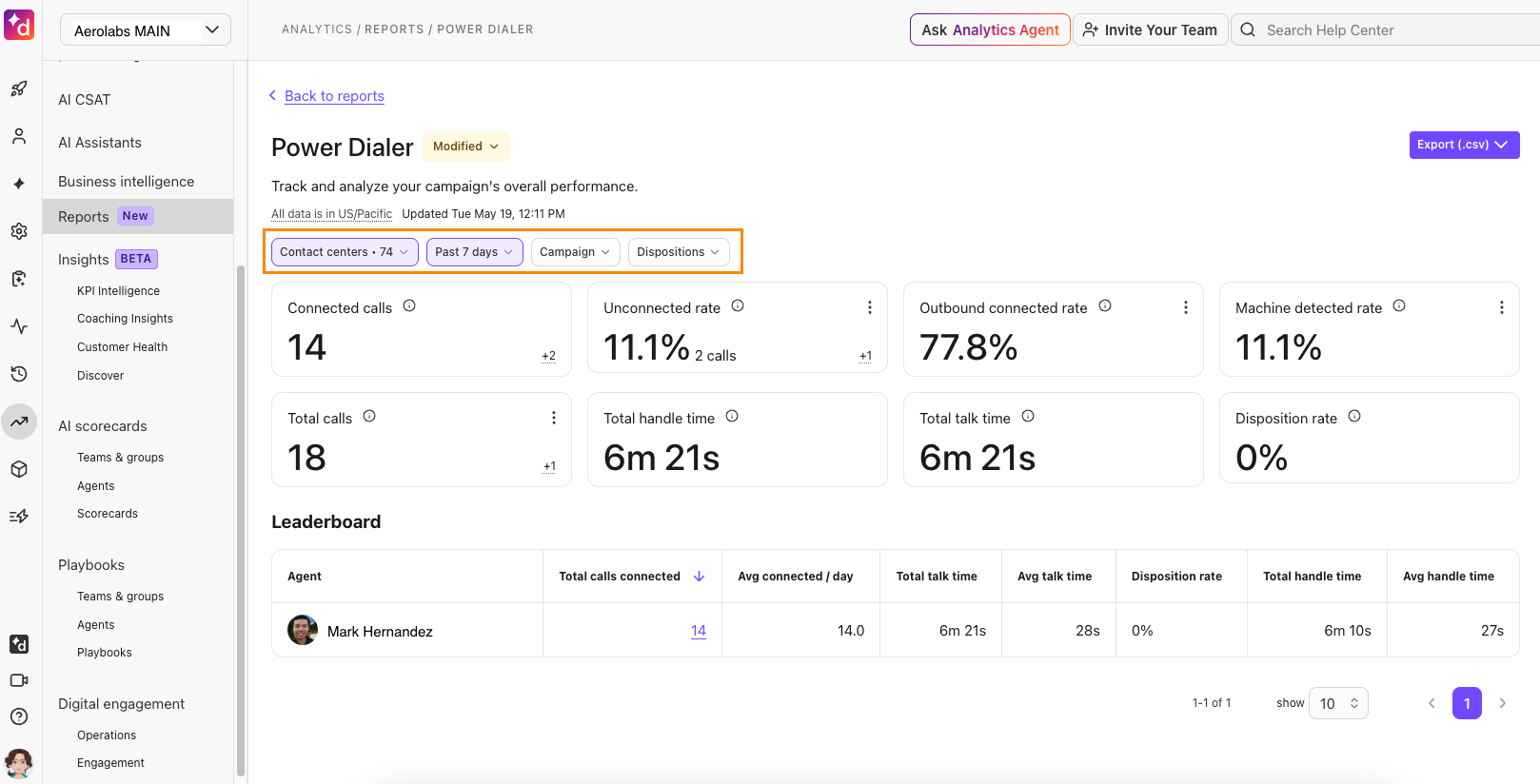
The Power Dialer report currently offers the following filters:
Date range
Contact Center or group
Campaign name
Agent or user
Disposition or outcome
Key metrics
Track your team's efficiency and outreach success at a glance. Key metrics in the Dialer report include:
Total calls placed by Dialer
Connected calls
Answer rate
Voicemail rate
Unconnected calls (such as no answer, busy, failed)
Dispositions by type
Talk time and handle time
Use these metrics to answer questions like:
Are our campaigns reaching the right people at the right time?
Which lists or campaigns have the highest answer and conversion rates?
Which dispositions are most common (for example: not interested vs. wrong number)?
Note
If your deployment supports deep links, you may be able to jump directly from a metric into Workspace Conversation History with filters pre‑applied.
Export Dialer data
Easily export data for offline analysis or team sharing directly from the Dialer Report (which aggregates metrics by campaign, agent, and more)
To export the report:
Filter the Dialer report as desired
Select Export
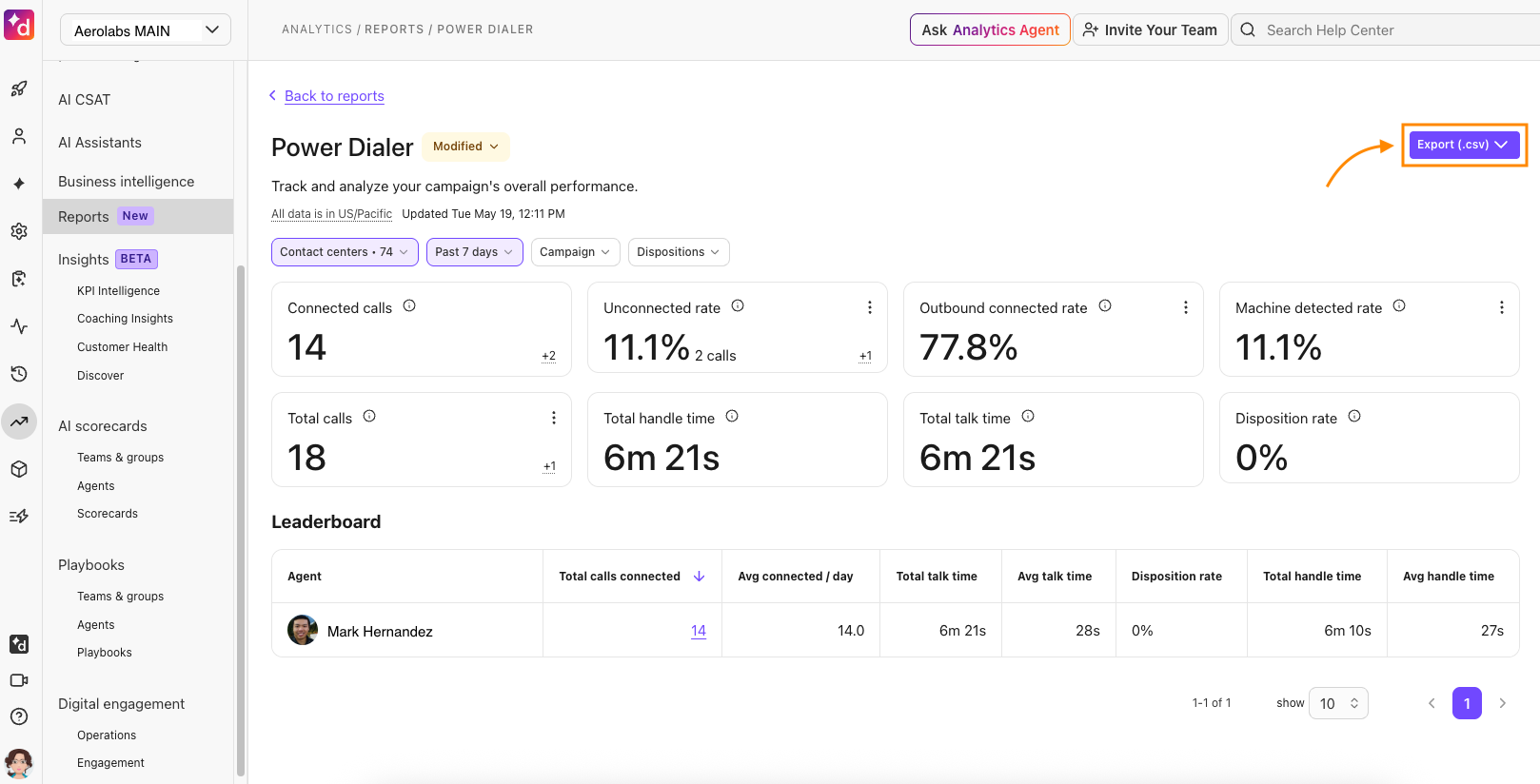
Exports include the following details:
Campaign and Contact Center identifiers
Lead identifiers and phone numbers
Call results, dispositions, and timestamps
Agent who handled the call
Basic handle and talk time metrics