Dialpad presence icons show user availability across the app. Green means available, red means unavailable (on a call, in a meeting, or DND), and yellow means busy. Icons appear beside avatars and names; grey indicates an invitee who has not logged in.
Presence icons provide a simple visual reference of a user's current availability and status. This makes it easy to tell if someone is in a meeting, on a call, in Do Not Disturb, or available.
Let's dive into the details.
Who can use this
Presence Icons are available to all Dialpad Users on all plans.
Presence icon
Dialpad's presence icons are displayed next to your avatar in three different locations:
Beside your settings in the Dialpad App
Beside the user's name on the left-hand sidebar in the Favorites and Recents sections.
Beside the user's avatar in your inbox.
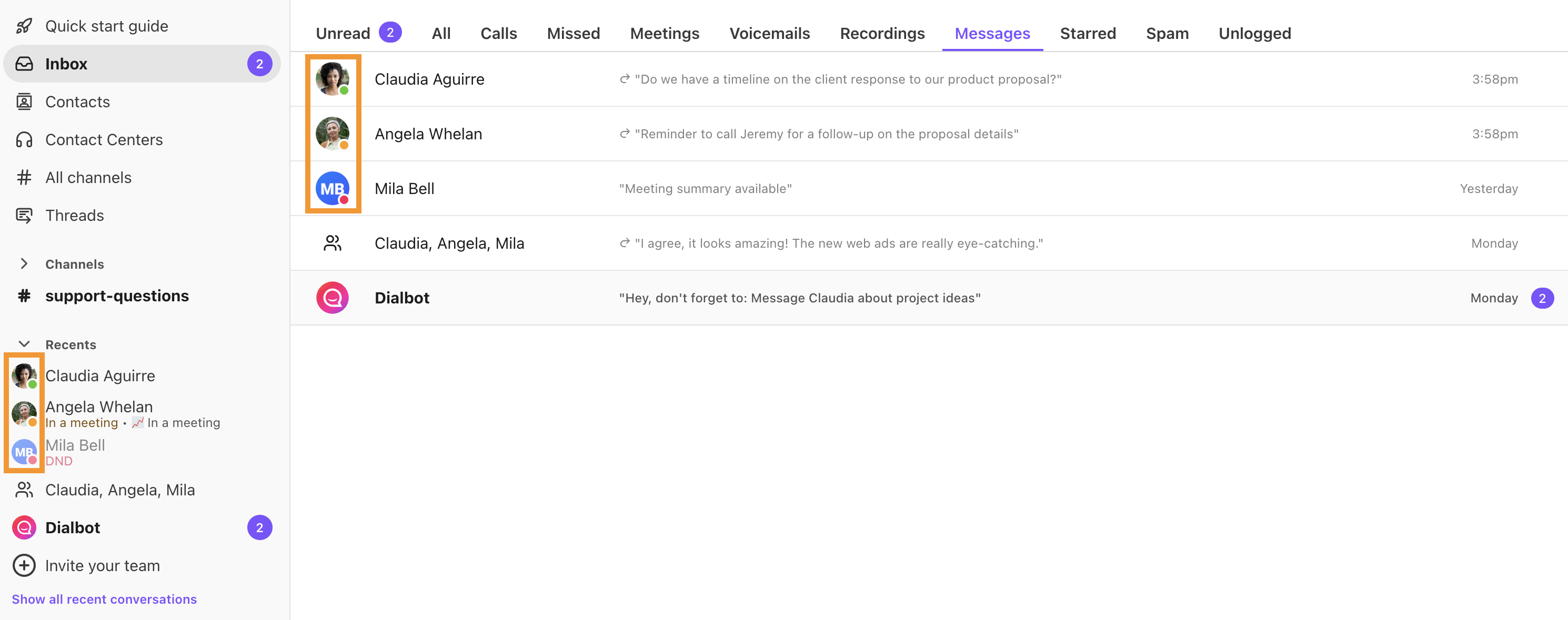
Presence icon colors
Presence icons use a simple color code, so it only takes a quick glance to see if your colleague is available.
Green: Available
-
Red: Unavailable
On a call
In a meeting
Set to Do Not Disturb
-
Yellow: Busy
In a meeting (this only appears if you have synced Dialpad with your productivity suite (Google G Suite or Microsoft Office 365, or if you have manually set your status to 'In a Meeting')
When referencing your favorite and recent conversations in the Dialpad app, you'll also see a written description of the User's status.
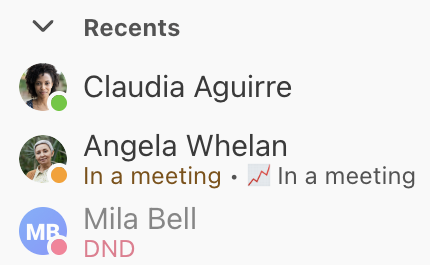
Red presence icon
While some presence icon colors, such as green, have only one meaning, others, such as red, can have multiple meanings.
Let's look at the different options for the red presence icon.
|
|
When DND is enabled, you'll see 'DND' written beside the user's red presence icon. |
|
|
When the user is on a Dialpad call, you'll see 'On a call' written beside the user's red presence icon. |
|
|
When the user is in a Dialpad Meeting, you'll see 'In a meeting' written beside their red presence icon. |



Frequently asked questions
Why don't all people have a presence icon?
If the contact is not a Dialpad user from your company, you won't see a presence icon beside their name.
Why does my presence icon say I'm in a meeting but I'm not?
If you've synced Dialpad with your calendar (Google or O365), Dialpad will automatically update your presence icon to 'In a meeting' anytime there is a meeting or activity noted on your calendar.
How come in my Contact Center my presence icon is never yellow?
When you're on a call in a Contact Center, your presence icon will always display red instead of yellow.
Why do some users have a grey presence icon?
If a Dialpad user has not yet accepted their Dialpad invite and logged in, their presence icon will appear grey. Once they have logged in for the first time, their presence icon will update normally.