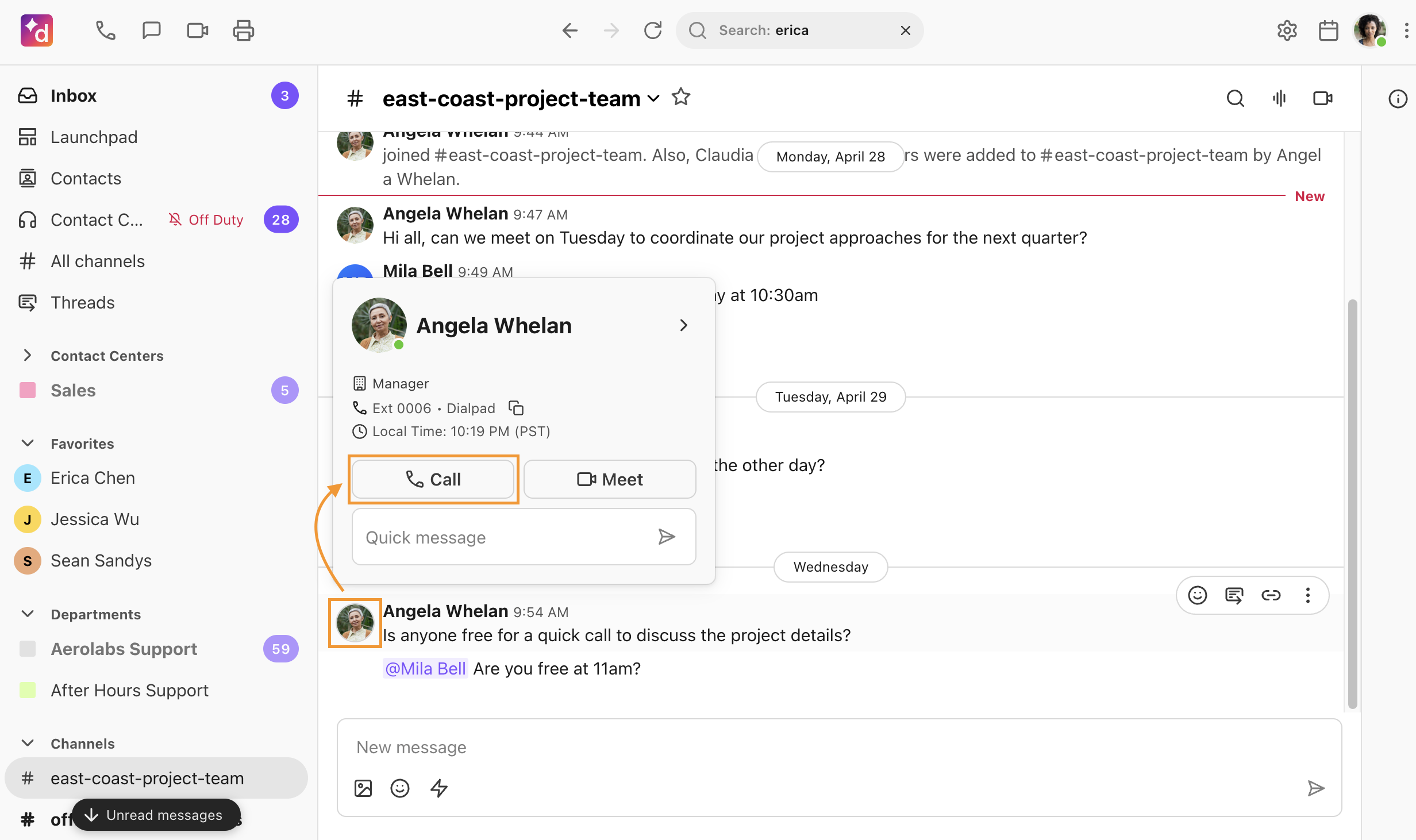
Dialpad desktop users can call from the main dialer by entering a contact or number, from a conversation using the Phone icon, or from a group chat/channel by hovering over a name and selecting Call. Caller ID can be changed before dialing.
Dialpad offers several ways to make a call — from the main dialer, from a contact name in a group message or thread, or from the conversation view.
If you're looking to make a call from another type of device, visit our Help Center articles on iOS, Android, and desk phones.
Let's take a look at all the ways you can make a call in Dialpad's desktop app.
Call from the main dialer
Select the Phone icon
Enter a contact's name or a phone number
Select the contact name, or press Enter to start dialing
Tip
To change your caller ID, select Change before dialing the number.
Note
Contact Center users without a direct line can only place outbound calls via the contact center's shared line.
Call from conversation view
To place a call from the conversation view, go to the conversation and select the Phone icon.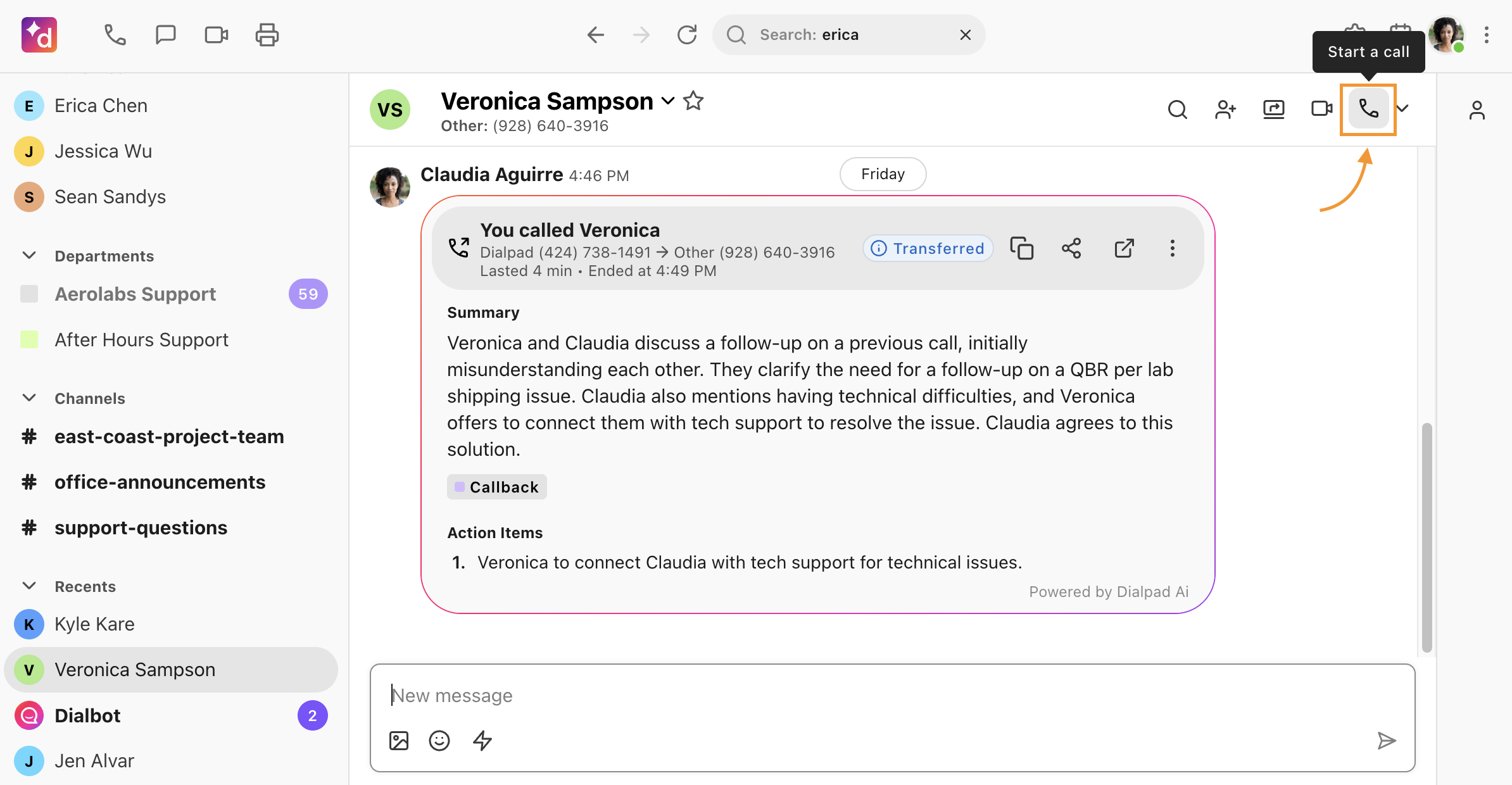
Dialpad will immediately dial the contact.
Call from a hover action card
Hover action cards let you quickly connect with someone from a group chat or channel.
Simply hover over their name and select Call.