Scheduling conflicts occur when time off fully overlaps a shift or shifts overlap. Select the conflicted shift, choose Ignore or Revert change, then select Save. Partial time-off overlaps adjust shifts automatically.
Scheduling conflicts occur when time off (including time in lieu) fully overlaps an entire shift, or when another scheduled shift creates a conflict.
Conflicts can happen when you:
Apply a new shift plan over an existing schedule.
Schedule shifts during a time-off period that fully overlaps the shift.
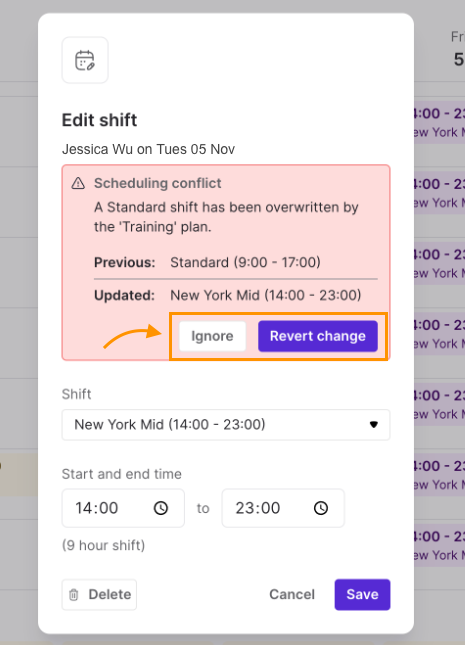
Once you see a scheduling conflict, you can ignore it or resolve it by reverting the schedule to a previous shift.
Let’s dive into the details.
Resolve a scheduling conflict
When there’s a scheduling conflict, you’ll see a red exclamation mark beside the shift.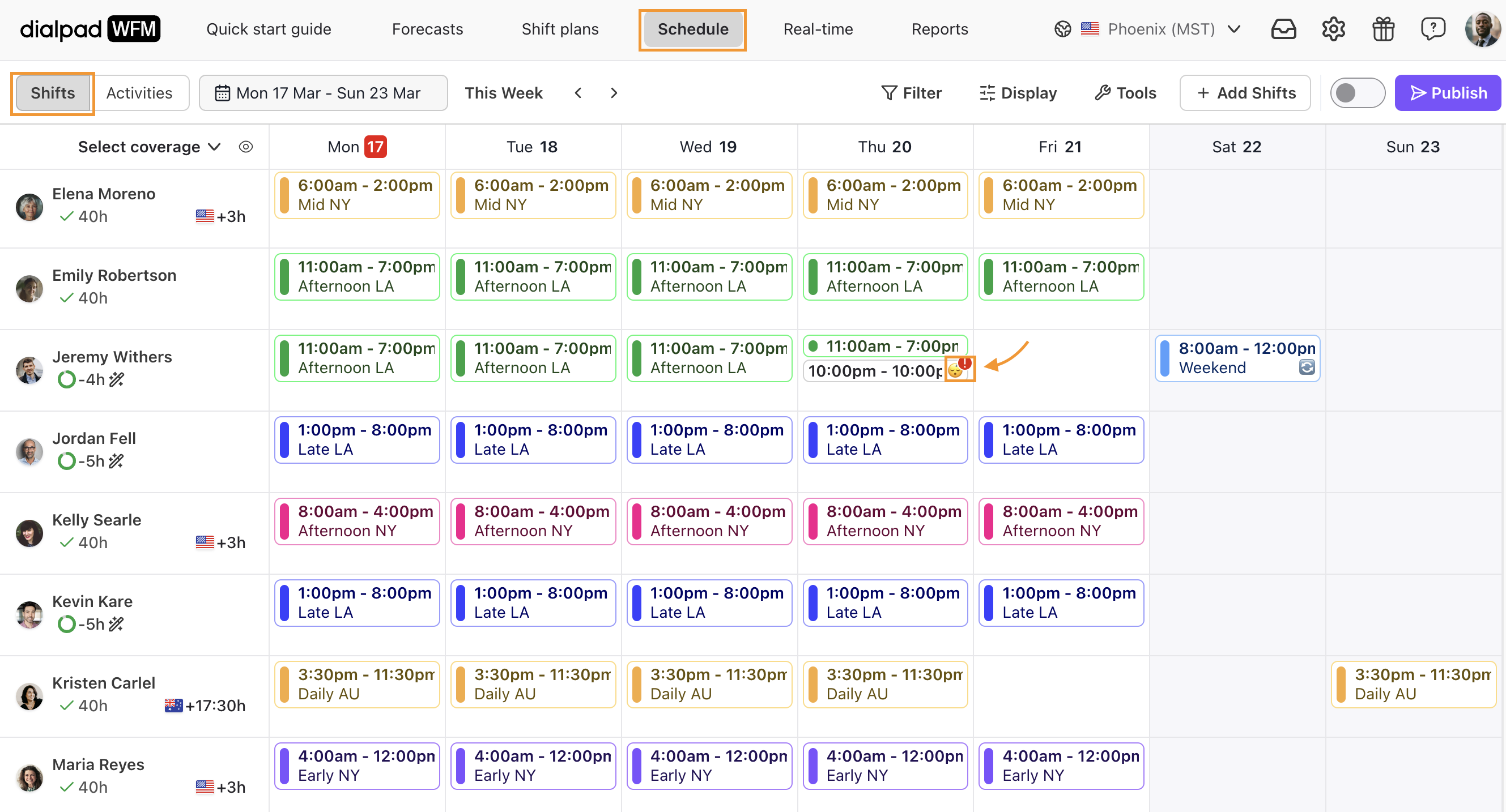
To resolve a scheduling conflict:
Select the shift
Select Ignore or Revert change
-
Select Save
Note
When time off overlaps with part of a shift, the shift is automatically adjusted.