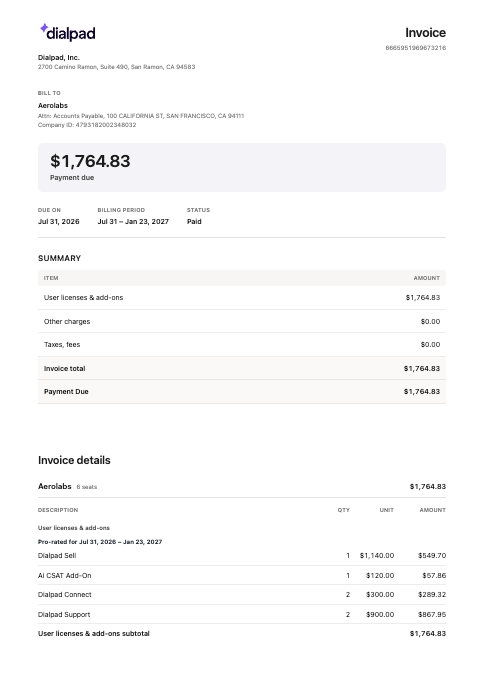
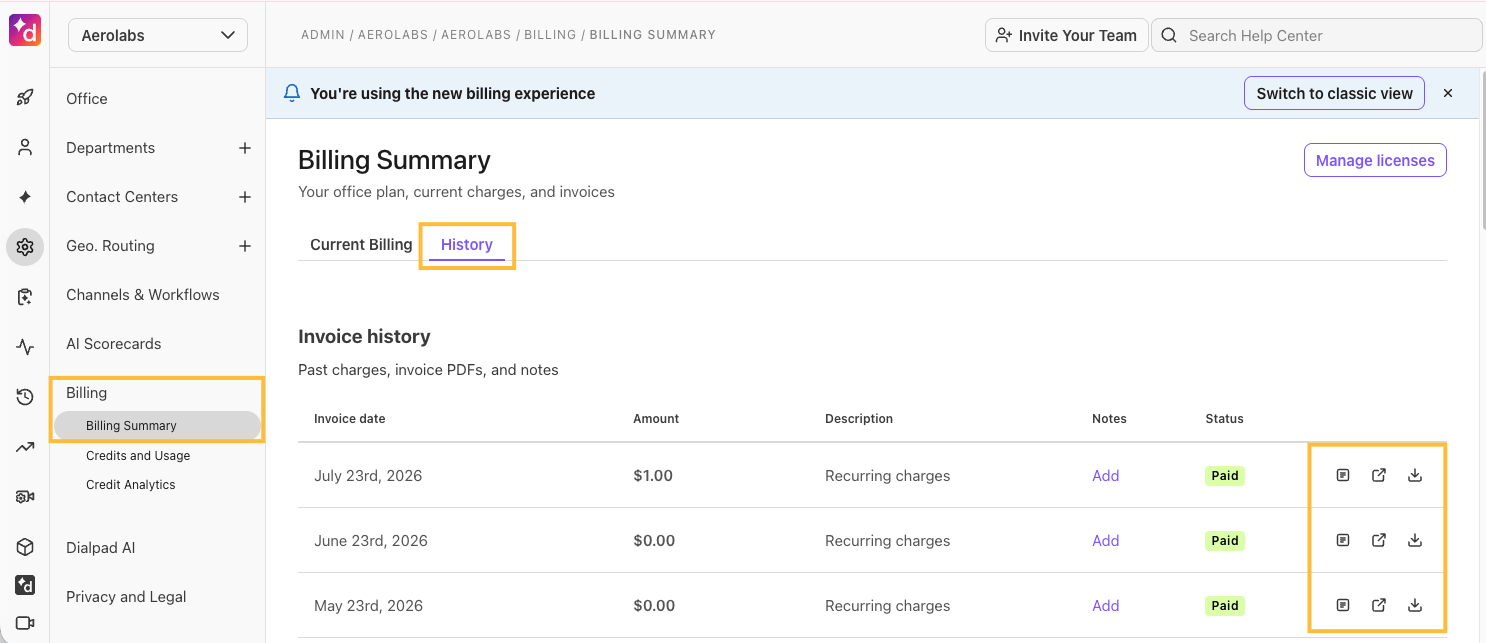
Dialpad’s updated credit card invoices organize charges into user licenses, nested add-ons, and other services or credits. The billing summary shows balance, due date, credits, and tax. Find invoices in Admin Settings > Billing > Billing Summary > History; the layout changes display only, not pricing.
Dialpad credit card invoices have a layout that makes charges easy to review. You’ll see a billing summary at the top of the invoice and clear line-item groupings throughout the document.
Who can use this
Billing Admins and finance teams for companies on credit card billing plans.
How to read the invoice
The updated invoice is organized into three main sections:
User licenses
This section lists your company’s user licenses. Review this section to confirm the number and type of licenses on the invoice.
Nested add-ons
Add-ons now appear under the parent license they belong to. This layout makes it easier to understand which extra services are tied to each license.
Other services and credits
This section includes other billed services, adjustments, and credits. Review it to see charges that don’t belong to a specific user license, along with any credits applied to the invoice.
Use the billing summary
The billing summary appears at the top of the invoice and gives you a quick overview of the total amount due. It includes:
Total Balance Due: The full amount currently due.
Due Date: The date payment is due.
Credits Applied: Any credits applied to the invoice total.
Total Tax: The total tax charged on the invoice.
Find your invoices
To view an invoice, go to Dialpad Admin Settings.
Navigate to Billing > Billing Summary
Open the History tab
Select the invoice you want to review
Open the invoice to view or download it
Frequently asked questions
Do older invoices use the new layout?
No. Only newly generated invoices use the updated layout. Older invoices keep the previous format.
Does the new layout change my charges?
No. The update changes how invoice details are displayed, but it doesn’t change your billed services or pricing.
Why are add-ons listed under licenses?
Add-ons are nested under their parent licenses, so you can easily understand which charges belong together.