Screen pop automatically opens the relevant Salesforce record when an incoming call starts ringing, helping agents quickly access caller information without manually searching Salesforce.
Who can use this
Dialpad Sell and Dialpad Support users can use this feature. It's also available to Dialpad Connect users on Pro and Enterprise plans.
Users must have the latest managed package from the Salesforce Appexchange installed in their Salesforce instance.
How screen pop works?
When an incoming call is received on a configured shared line, Dialpad follows these steps:
Search for a matching record in Salesforce using the caller's phone number.
Checks for any related records associated with the matching primary record.
Applies any filters you've configured to determine which records are eligible for Screen Pop.
Sorts the matching records based on your configured sort order.
Displays the results by either:
Showing a list of matching records for the agent to choose from, or
Automatically opens the highest-priority matching record.
Opens the record either within Salesforce or in a new browser tab, depending on your Screen Pop settings.
Screen pop is supported in:
Salesforce CTI
Dialpad desktop and web apps with Salesforce open in a browser tab
Enable screen pop for primary records
Primary records are Salesforce records that are directly matched to the caller's phone number.
With screen pop, Dialpad will automatically display the matching Salesforce record when a call is received.
To enable screen pop, go to your Dialpad Admin Settings.
Go to My Company
Select Integrations > Navigate to Salesforce
Select the Enable Use to launch a new browser tab for incoming call.
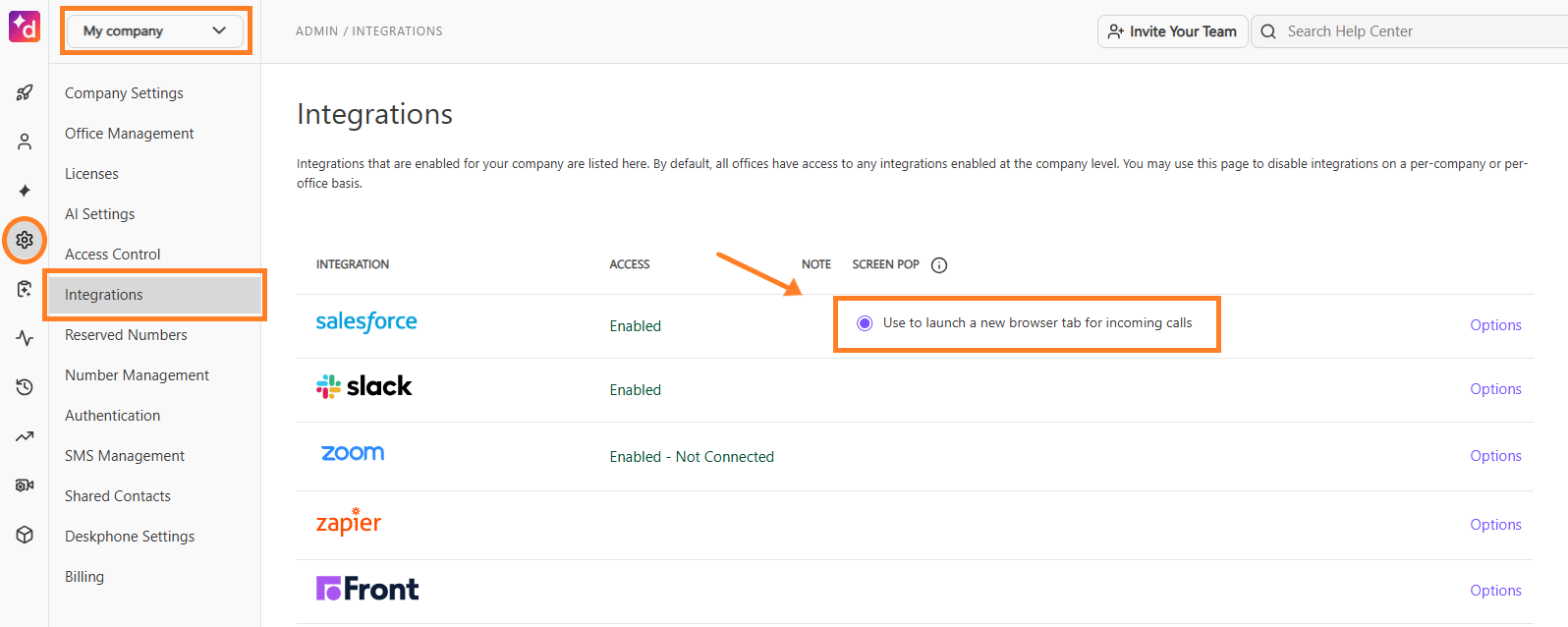
When enabled:
In the Dialpad app, the matching record opens in a new browser tab.
In Salesforce CTI, the matching record opens in the background.
Enable screen pop for a Salesforce object
Navigate to Log calls to settings
Select the Salesforce object you want to Screen Pop
Cases
Opportunities
Custom objects
Other supported Salesforce objects
.png)
Select the Enable screen pop for incoming calls checkbox
Note
For details on how records are matched, visit this Help Center article.
Screen pop for related records
Related records are Salesforce records associated with a matched primary record. A primary record must first be matched before Dialpad can display any related records.
Related records take priority over primary records when both are matched.
A primary record must be matched to the caller's phone number.
Related records can't be displayed without a matching primary record.
Choose where records open
Decide whether records should:
Open within Salesforce, or
Open in a new browser tab
If the browser tab option is disabled, records open within the existing Salesforce window.
Note
To open records within the Salesforce tab:
Salesforce CTI must be active.
Without CTI, Dialpad cannot communicate the Screen Pop request to Salesforce.
This option is unavailable when Log calls to is set to Any related objects.
Configure record filtering
Open Dialpad Lightning
Navigate to Setup Manager > Settings
Configure the filter criteria list for the selected object
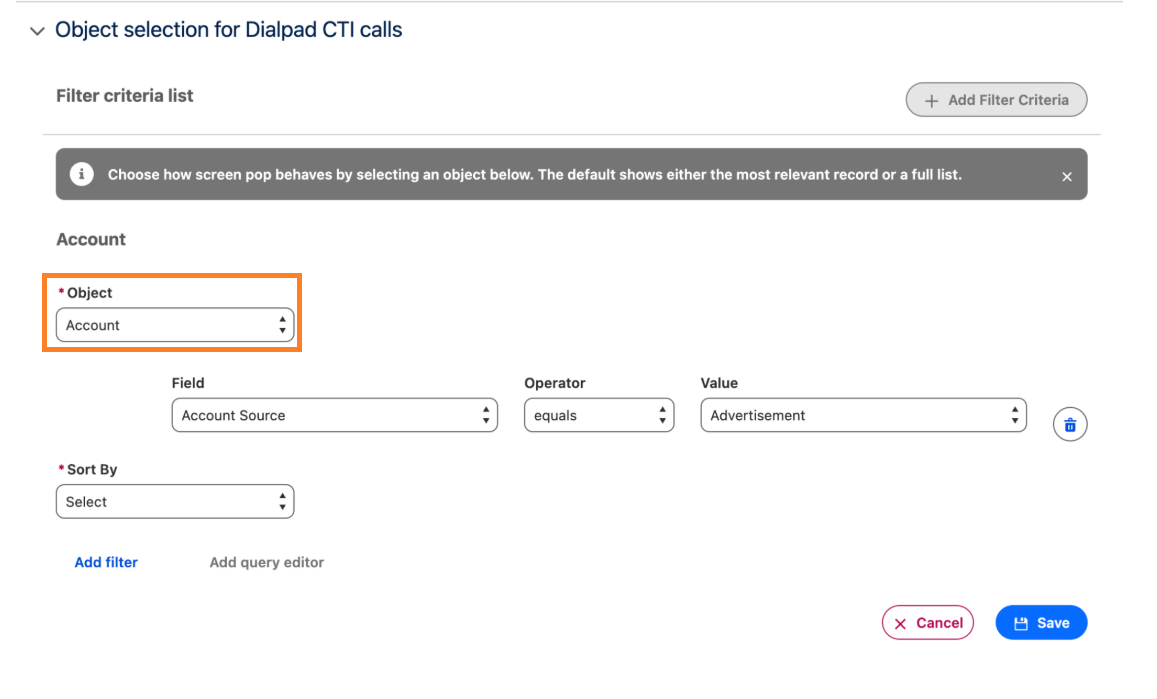
Filters help determine which record to display when multiple related records are available.
Example: Configure Opportunities
Status = Open
Only Opportunities with a Status of Open will be eligible for Screen Pop.
Tip
If you don't need to apply any filters, simply add the object, leave the filter criteria blank, and save the configuration.
All records for that object will then be eligible for Screen Pop.
Screen pop record lists
The Screen pop list of records sets controls how Dialpad handles multiple matching records.
Enabled | Disabled |
|---|---|
A list of matching records is displayed, allowing agents to choose which record to open. | Dialpad automatically opens the first matching record based on the configured sort order. |
Frequently asked questions
Why are multiple browser tabs opening for a single incoming call?
Multiple tabs can open when more than one Screen Pop action is triggered for the same call.
To troubleshoot:
Verify that browser extensions are not performing their own Screen Pop actions.
Review Salesforce workflows and custom automations that may be opening records.
Ensure only one Screen Pop source is configured for the shared line.
Can browser extensions or custom automations cause duplicate tabs to open?
Yes. Browser extensions, Salesforce workflows, custom automations, or third-party integrations that automatically open records can trigger additional Screen Pop actions, leading to multiple tabs opening for the same call.
How do I check if multiple Screen Pop sources are configured?
Review the integrations configured for the shared line and ensure only one Screen Pop source is enabled. For example, configuring both Salesforce Screen Pop and another CRM integration for the same shared line may cause duplicate tabs to open.