Use the Redeployment Panel during live shifts to reassign skilled agents, extend activities, or move future schedule blocks. Review coverage, adherence, and skills first, then redeploy individually; changes apply immediately after publishing and notify agents via Dialbot or Slack.
Use the Redeployment Panel to quickly reassign agents between activities during a live shift.
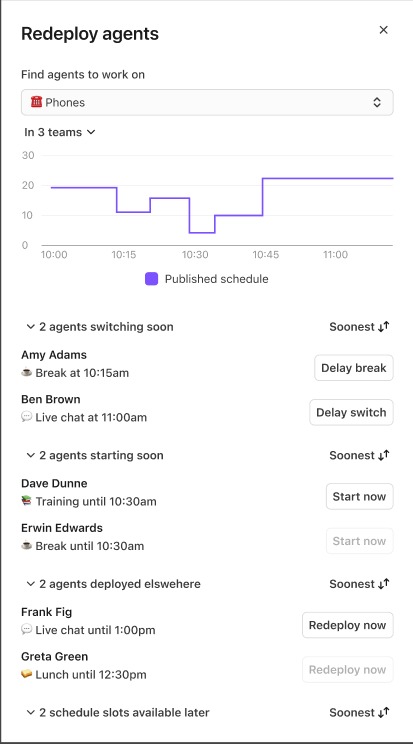
Instead of manually reviewing schedules, skills, and agent status across multiple pages, the Redeployment Panel displays eligible agents, available actions, and projected coverage changes in a single place.
Let’s dive into the details.
Who can use this
Dialpad WFM is available to all Dialpad users and as a standalone product.
You must be a WFM Admin to Generate a Schedule.
Use agent redeployment
Redeployment helps you quickly move skilled agents where they are needed most.
Use agent redeployment when staffing needs change during the day, such as:
Unexpected increases in contact volume
Unplanned absences
Overstaffed activities
Changes in service levels
Redeployment helps you quickly move skilled agents where they are needed most.
Redeployment options
|
Agents starting soon
|
Agents whose next scheduled activity is the selected activity. Available action: Move the agent to the activity immediately. |
|
Agents switching soon
|
Agents currently working on the selected activity who are scheduled to leave it within the next hour. Available action: Extend their time on the activity by:
|
Agents deployed elsewhere |
Agents who are skilled for the selected activity but are currently working on a different activity. Available action: Redeploy the agent immediately. |
Agents available later |
Future schedule blocks that can be reassigned to the selected activity. Available action: Redeploy the future block. |
Coverage chart
Use these metrics to determine the best way to improve coverage..png)
In Adherence
Shows agents who are currently following their schedules.
If coverage is low, check for adherence issues before redeploying agents.
Scheduled
Shows the planned staffing level for the activity.
The difference between Scheduled and In Adherence indicates how much coverage may be recovered by improving adherence.
Skilled
Shows the total number of agents who are qualified to work the activity.
The difference between Skilled and Scheduled represents agents who could potentially be redeployed from other activities.
Tip
Check In Adherence first. If more coverage is needed, review Scheduled and Skilled before redeploying agents.
Redeploy agents
To redeploy agents, go to your WFM real-time dashboard or your Dialpad live dashboard.
Select the activity that needs additional coverage
Review available agents
-
Select a redeploy option
Agents starting soon
Agents switching soon
Agents redeployed elsewhere
Agents available later
Select Redeploy now
Once published, the schedule change takes effect immediately. Coverage and adherence are updated, and the agent is notified through Dialbot or Slack.
Tip
A coverage chart at the top of the panel shows staffing levels for the selected activity. The chart displays the previous 15 minutes and the next hour, updates in real time as you make changes, and shows the projected impact before you publish.
Notes
Agents in meetings or on breaks can't be redeployed. To adjust scheduled breaks for better coverage, use Break Optimizations.
Redeployment does not affect Generate Schedule, Activity Plans, Shift Plans, or existing publishing workflows. WFM permissions continue to control which agents can be redeployed.
Frequently asked questions
Why can't I redeploy agents from a break?
Breaks are shown for visibility only. Agents cannot be moved or have their break adjusted once it has started.
What happens if another admin changes an agent's schedule?
If an agent's schedule changes before you publish, that redeployment action fails. Any successful changes are still applied.
Why can't I make changes in bulk?
Redeployments are published individually to prevent conflicts and ensure schedule changes are applied accurately.
To move multiple agents at once, use Move agents across activities in Schedule Coverage Optimization. It lets you move multiple agents in one run and can automatically publish the updated schedule.
Will agents know their schedule changed?
Yes. Agents receive a Dialbot or Slack notification with their updated schedule.