Auto DND automatically sets Dialpad presence to DND during calendar meetings or outside personal working hours. Admins must enable it; users can opt into either or both modes, which affect calls and notifications. Users can manually override DND, and settings sync across devices.
Auto Do Not Disturb (Auto DND) automatically manages your Do Not Disturb (DND) status based on your calendar events and personal working hours, so you can stay focused in meetings and unplug outside work without constantly toggling DND yourself.
When Auto DND is on, your presence is set to DND in Dialpad and calls/notifications are handled just like manual DND, following your existing DND call-handling rules.
Who can use this
Auto DND is available to all users on all Dialpad Connect licenses when enabled by their admin in their office.
Let’s dive in!
What is Auto DND?
When Auto DND is active:
Your presence shows as DND in Dialpad.
When Auto DND is triggered by working hours, your presence may appear as DND (Outside working hours).
Your teammates see the DND icon next to your presence and may see messaging banners indicating your notifications are off.
This helps coworkers understand when you’re truly unavailable due to meetings or being outside your working hours.
Auto DND includes two different modes you can turn on or off in your settings.
Off (default) |
Auto DND options are hidden in User Settings for all users in this office. Any existing Auto DND behavior stops running for these users. |
On, turned off by default |
Auto DND toggles (Calendar and Working Hours) appear in User Settings for users in this office. Both toggles are off by default; users must opt in. |
Note
Both modes are optional and user-controlled, and both require your office admin to enable Auto DND for your office first.
Auto DND via Calendar
When Auto DND via Calendar is on, and your calendar is connected, Dialpad checks your Google Calendar or Microsoft Outlook events.
At the start of a meeting, your presence automatically switches to DND. When the meeting ends or is cancelled, your presence returns to its previous state (for example, Available).
Your status updates in real time as your meeting schedule changes.
Auto DND via Working Hours
You’re automatically set to DND when you are outside your configured personal working hours. Your status switches to available at the start of your next working period.
If you use split schedules (for example, a break mid-day), DND can automatically apply during gaps between work blocks.
To learn more about setting working hours, check out this Help Center article.
Set up Auto DND
Before users can see or use Auto DND, an admin must enable it at the office level. To enable Auto DND, go to your Dialpad Admin Settings.
Note
Office-level settings take precedence over company-level defaults. If no office-level configuration is set, Auto DND is disabled by default.
Select the office you want to configure
Select Office Settings
-
Navigate to Auto DND
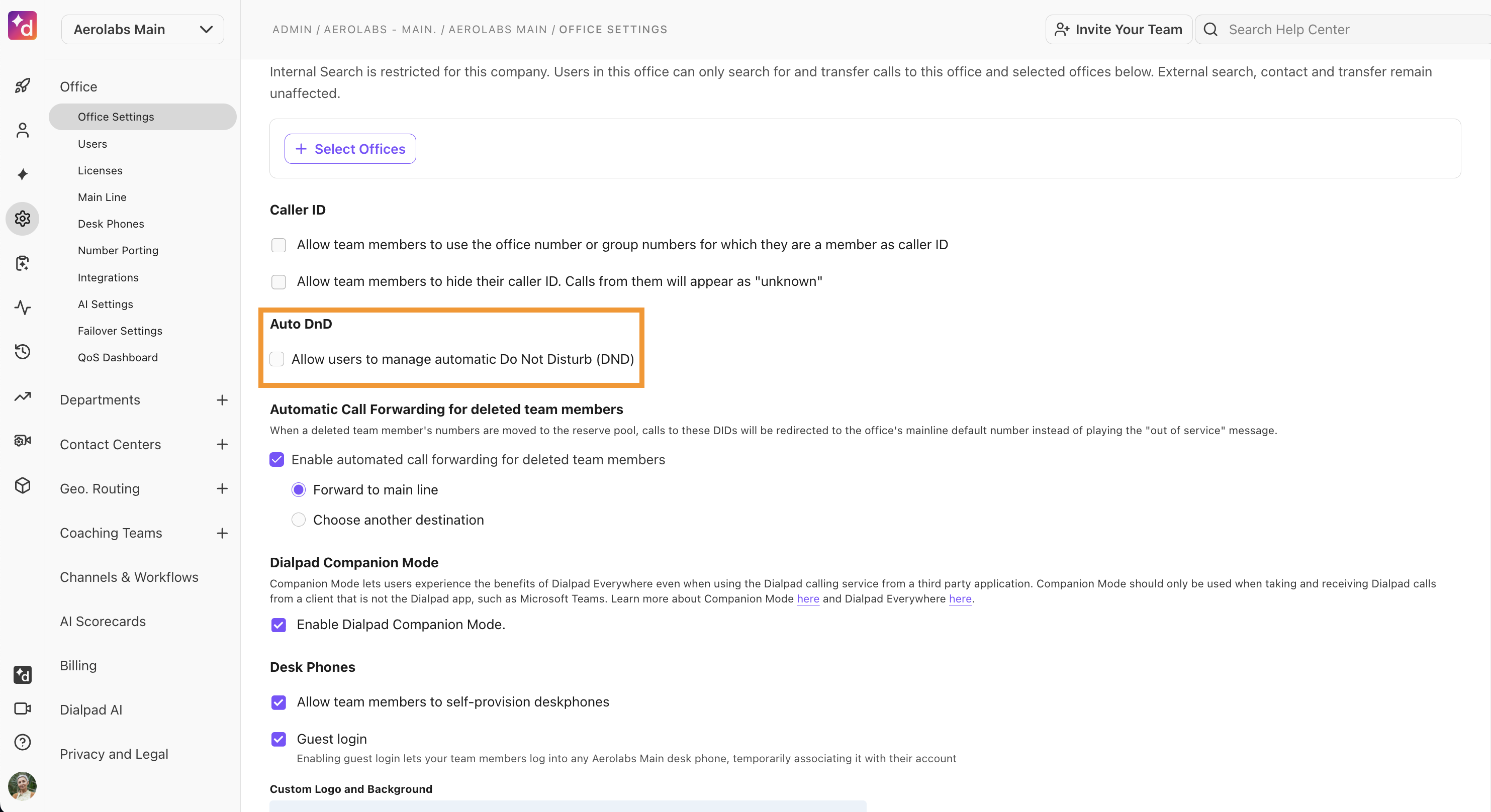
Select Allow users to manage automatic Do Not Disturb (DND)
-
Choose one of the following options:
-
Off (default)
- Auto DND options are hidden in User Settings for all users in this office.
- Any existing Auto DND behavior stops running for these users.
-
On, turned off by default
- Auto DND toggles (Calendar and Working Hours) appear in User Settings for users in this office.
- Both toggles are off by default; users must opt in.
-
Off (default)
User Auto DND setup
Once your office admin has enabled Auto DND for your office, you can turn on one or both modes in Your Settings.
Enable Auto DND via Calendar
To turn on Auto DND via your calendar, go to your Dialpad app (desktop or web).
Go to Your Settings
-
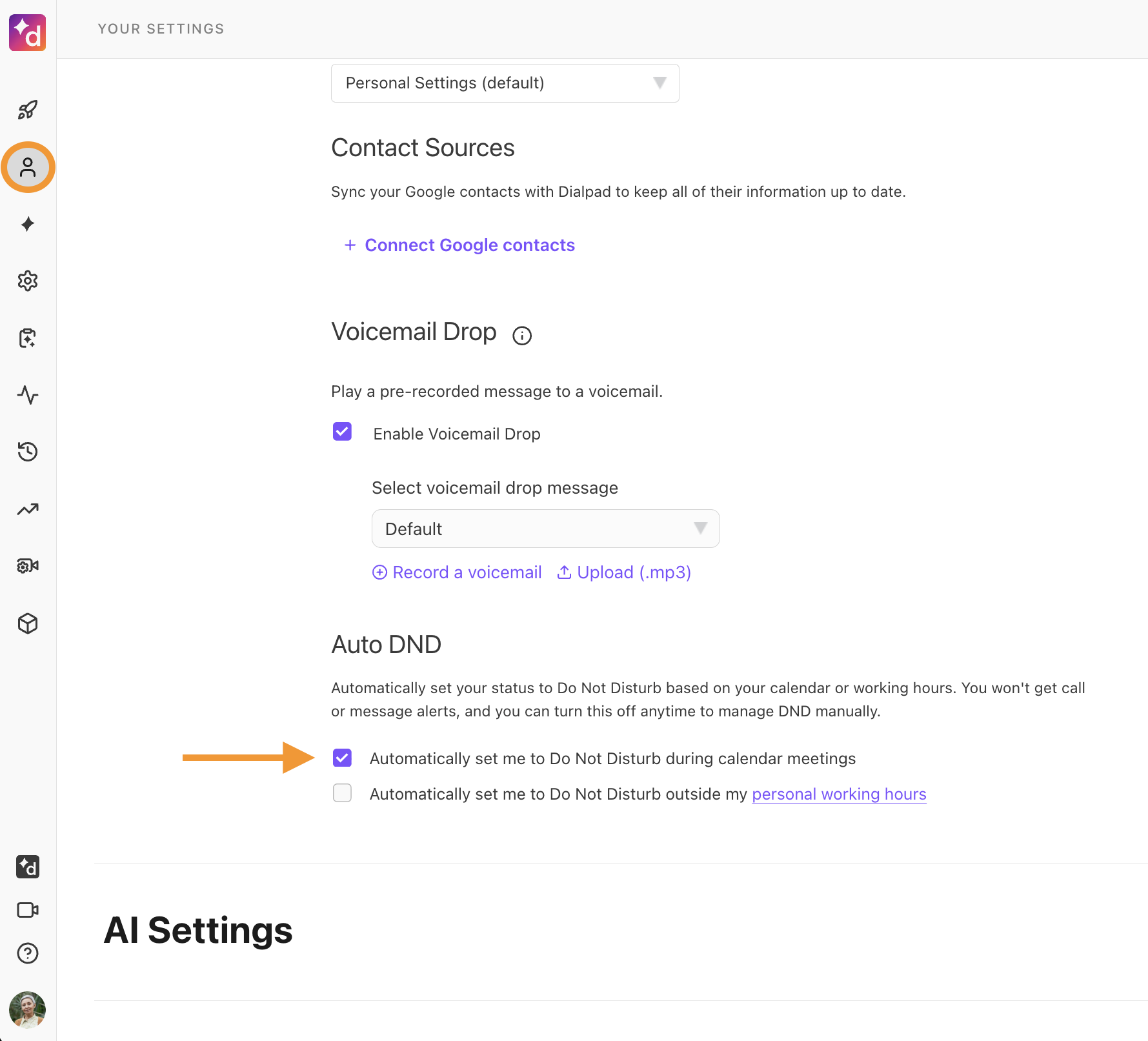
Navigate to Auto DND
Note
Make sure your Google or Outlook calendar is connected to Dialpad.
-
Select the Automatically set me to Do Not Disturb during calendar meetings checkbox
Join a calendar event and confirm your presence changes to DND during the meeting and returns afterward.
Note
If you manually turn DND off during a meeting, Auto DND won’t re‑enable it again for that meeting, but will apply again for your next meeting.
Enable Auto DND via Working Hours
To turn on Auto DND via your working hours, go to your Dialpad app (desktop or web).
Select Your Settings
-
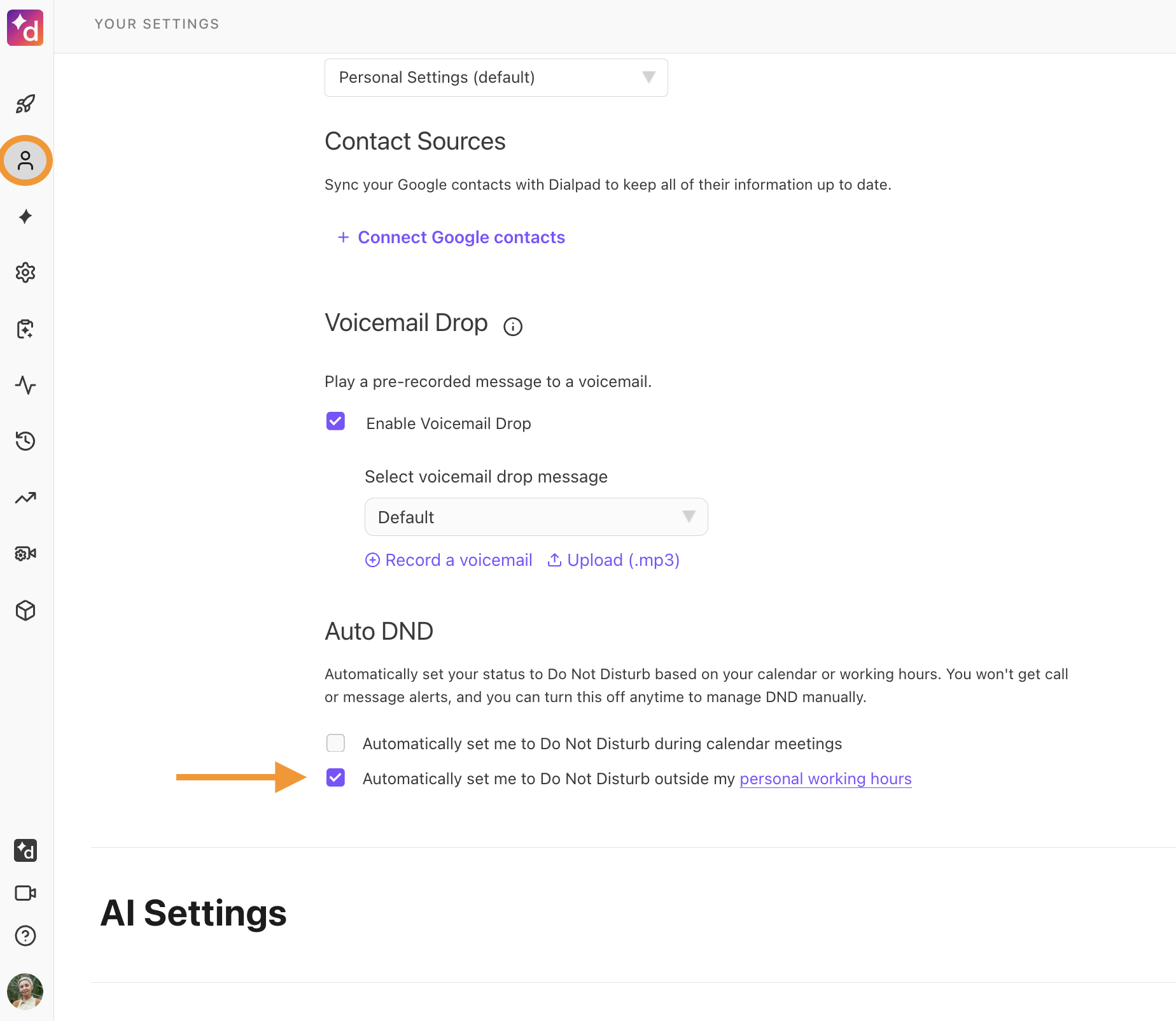
Navigate to Auto DND
-
Select the Automatically set me to Do Not Disturb outside my Personal Working Hours checkbox
Once you go outside your defined working hours, confirm your presence changes to DND (Outside working hours) and returns at the next work period.
To configure you personal working hours, check out this Help Center article.
Manual override
Even when Auto DND is turned on, you can still manually control DND. You can manually turn DND on or off from your profile menu at any time.
Manual override works like this:
If you turn DND off during a calendar meeting, Auto DND respects that choice for the rest of that meeting. It will not re-enable DND until the next meeting starts.
If you turn DND off while outside working hours, Auto DND respects that choice until your next working-hours period (start or end of your next work block).
For back‑to‑back meetings, your override applies only to the current meeting; Auto DND re-applies when the next meeting begins.
For details on standard DND behavior (including timers and Contact Center behavior), check out this Help Center article.
Frequently asked questions
What happens if the office admin turns Auto DND off after users have already configured it?
If an admin sets Auto DND off:
The Auto DND controls disappear from User Settings.
All automatic DND behavior (calendar + working hours) stops immediately for users in that office.
If the admin later turns it back on, each user’s previous preferences (on/off state and working-hours schedule) are restored and resume working—no need to set them up again.
Does Auto DND affect incoming calls?
Yes. When your presence is set to DND, whether manually or via Auto DND, incoming calls follow your existing DND call-handling behavior, and calls are not routed to you while you are in DND.
This applies across personal lines and groups that respect your personal DND state.
Can I use both Calendar and Working Hours Auto DND at the same time?
Yes. You can turn on both modes, and they work independently:
If you’re outside working hours and in a meeting, DND is active due to both conditions.
The system handles each mode separately; your presence will still show as DND.
What calendars are supported?
Auto DND via Calendar works with:
Google Calendar
Microsoft Outlook
You must have your calendar connected to Dialpad for Auto DND via Calendar to work.
Does Auto DND work on mobile?
Yes. Auto DND is supported on the Desktop, Web, and Mobile apps. Presence changes are synced across your devices in real time.
If Auto DND sets you to DND, that DND state will be reflected on your mobile apps as well.
What if I don’t have Personal Working Hours configured?
If you haven’t configured Personal Working Hours or haven’t turned them on, Auto DND via Working Hours won’t turn on, even if you enable it.
How does Auto DND interact with Contact Center or group DND / on-duty status?
Auto DND sets your personal DND status, which affects your availability across groups that respect personal DND:
When Auto DND sets you to DND, you appear as Unavailable in relevant queues (for example, Contact Center or Department) that rely on your personal presence.
Group-level states like Off Duty or Active in Contact Centers are still configured in their respective settings.
For more information on standard DND, check out this Help Center article.
For more information on your Contact Center status, check out this Help Center article.