Dialpad Meetings integrates with Microsoft Teams to launch or join audio, video, and screen-sharing meetings, share recordings, and provide post-call transcripts for Business users. Install it through AppSource with existing Dialpad Meetings and Teams accounts. Supported commands include starting, joining, and requesting help. Microsoft Teams functionality is being phased out and delisted.
With the Dialpad Meetings integration for Microsoft Teams, you can create a new meeting link to join an audio call, video call, or screen share in 1:1 chats or group channels.
With the integration, you can:
Launch a Dialpad Meetings
Join a Dialpad Meetings
Share a link to audio recording
Share a post-call transcript (requires Dialpad Meetings Business)
Let's take a look at this integration.
Install the Integration
Visit the AppSource App store and search for Dialpad Meetings.
Prerequisite
You must have an existing Dialpad Meetings account and an existing Teams account.
Supported Team Commands
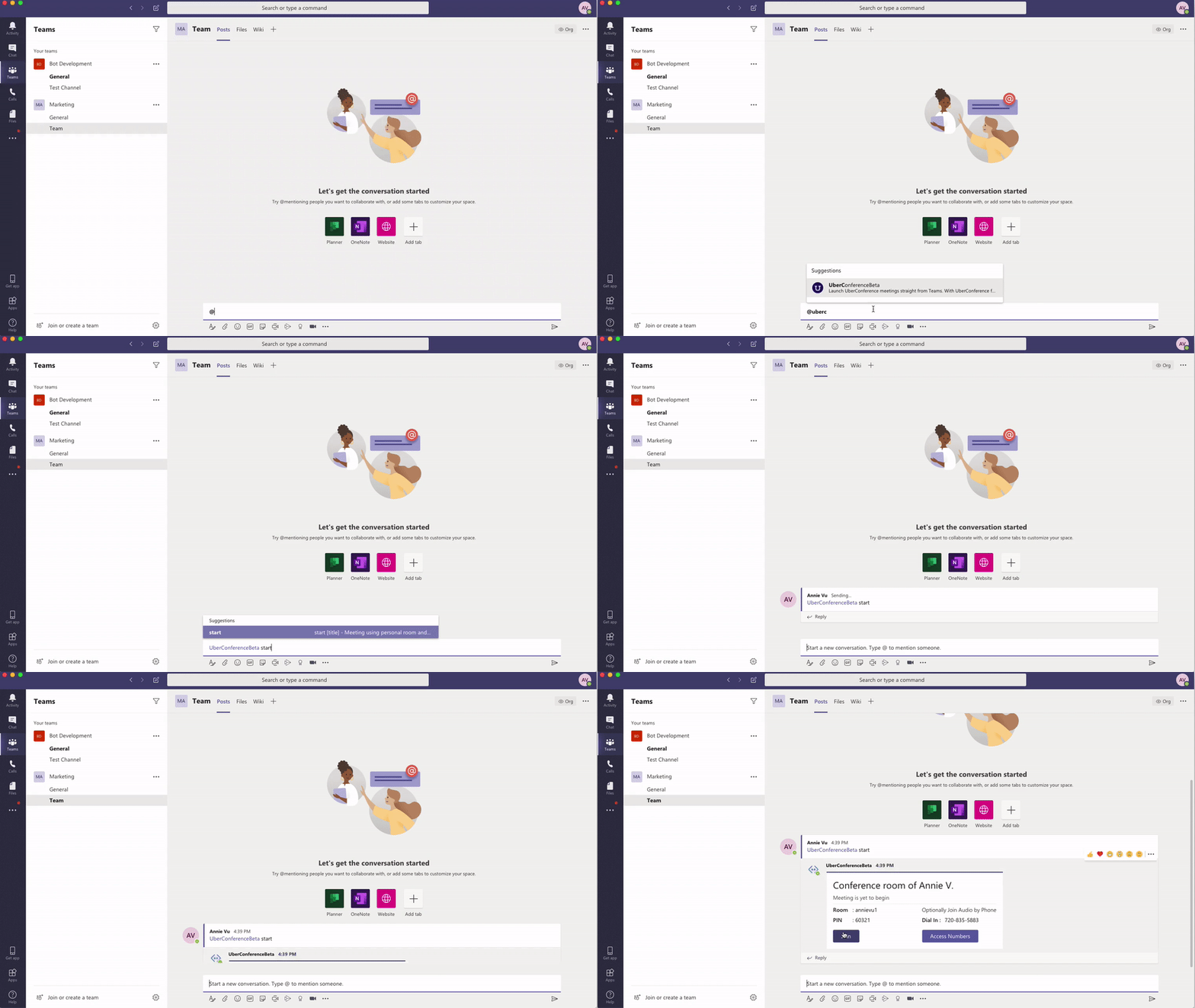
The Dialpad Meetings + Microsoft Teams Integration supports a variety of commands:
@uberconference start [title]
Starts a meeting using your personal room with the title provided.
@uberconference join [username]
Starts a meeting using the specified user's room.
@uberconference help
Provides a list of supported commands.
Share Recordings & Post Call Transcripts
Recording
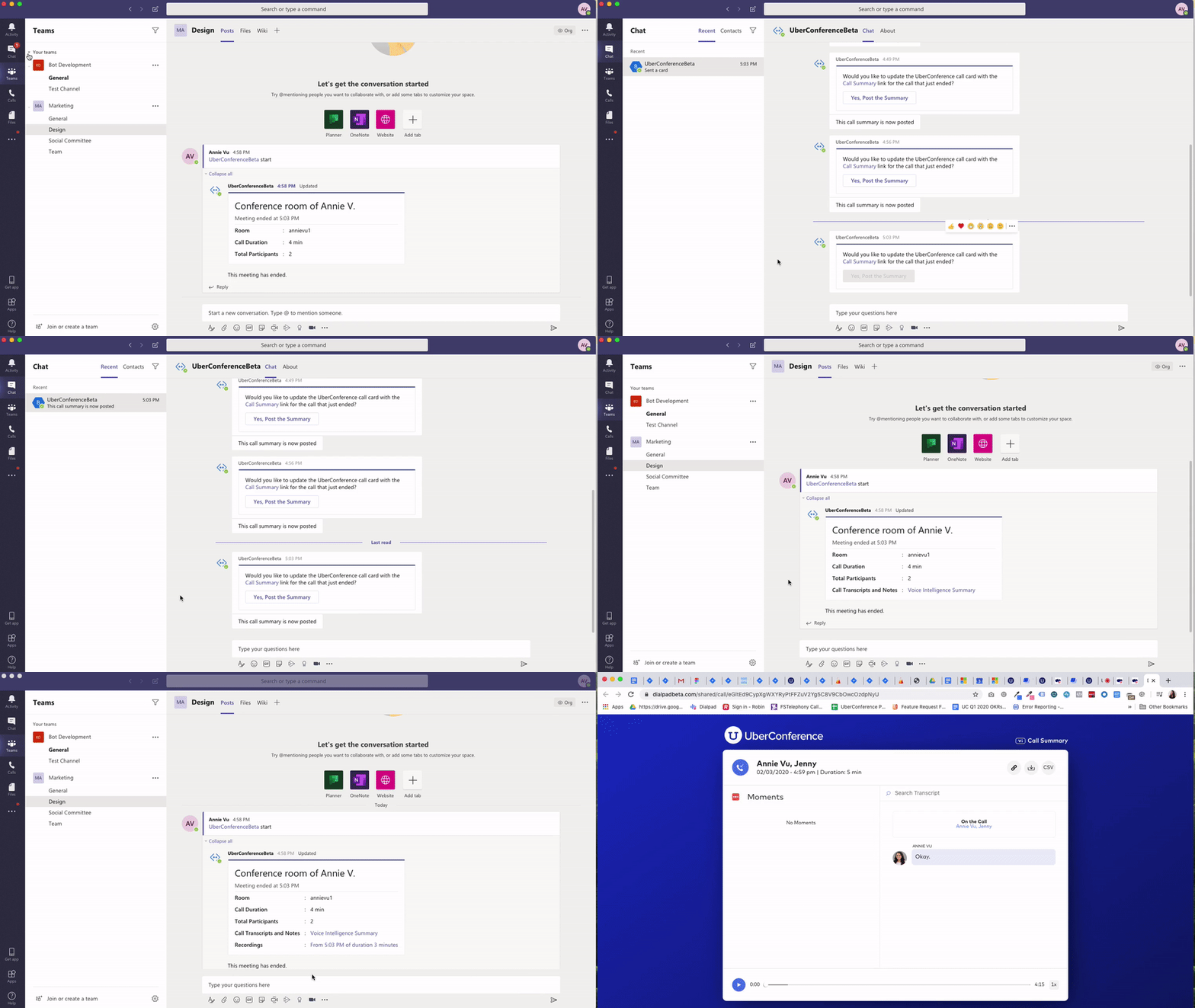
If your recording settings are set to “anyone with the link can access”, a link to the recording will automatically be provided post-meeting in the Teams message or channel Dialpad Meetings was initiated from.
Recording access can be managed here.
Post-Call Transcript
As part of our Dialpad AI feature, Dialpad Meetings Business users can share a link to the post-call summary, which includes a transcript and meeting highlights.
After the Dialpad Meetings call ends and AI was turned on during the meeting, the organizer will receive a prompt in Teams asking whether they would like to share the summary. If the meeting organizer selects to share the summary, a link to access it will be shared in the Team message, or the channel Dialpad Meetings was initiated from.
Note
Please note that we’re phasing out Microsoft Teams functionality and are in the process of delisting it from the store.