Dialpad’s Zapier integration lets admins automate workflows using Call State Changed or SMS Created triggers, with selectable call states and scopes. It supports OAuth setup, filters, actions, and publishing Zaps; availability requires eligible Dialpad plans or licenses.
With the Zapier integration, Admins can:
- Choose which Call States to trigger the Zap on, or trigger the Zap when an SMS is created
- Select the scope (Company, Contact Center, Department) to get events for
- Set up one or more actions to be taken based on the triggers provided by Dialpad
Who can use this
Zapier's integration with Dialpad is available to customers on a Pro or Enterprise Dialpad Connect plan, as well as to users with a Dialpad Sell or Dialpad Support license.
Connect Zapier
To configure Dialpad's Zapier integration, first you'll need to connect Zapier.
From inside the Zapier platform:
- Select Make a Zap!
- Search for Dialpad and choose it as your TriggerApp
- Select "Call State Changed" or "SMS Created"
- Authorize via OAuth Authentication
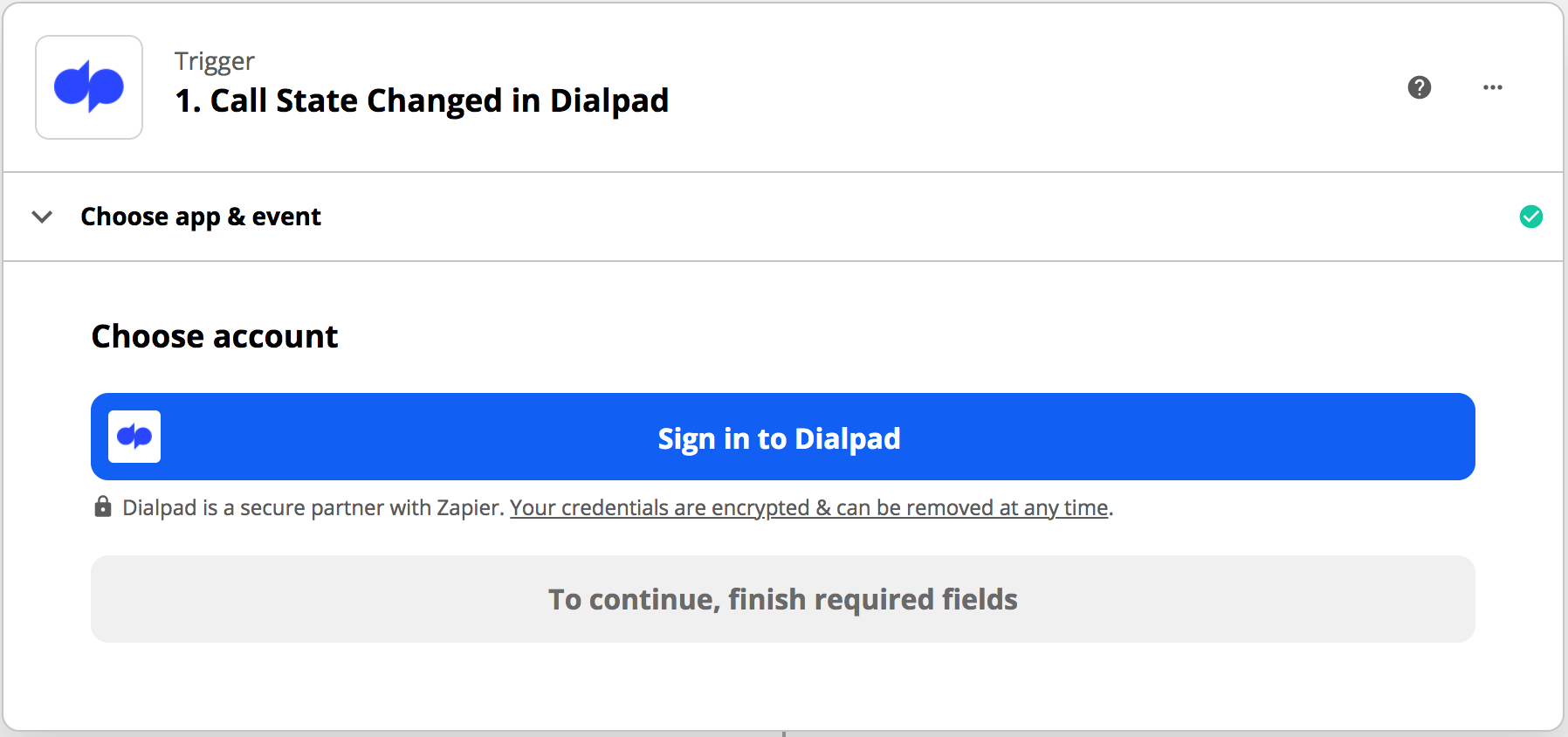
- Click Sign in to Dialpad
- Select whether or not you want to use the sandbox account option, then hit Yes, Continue.
- Click Allow to grant Zapier OAuth2 Prod access to your Dialpad account
- Click Sign in to Dialpad
Create a Zap
Once Dialpad has been configured, you can create a Zap.
- Select your desired trigger > Continue
- Select the Call States and the Scope
- Choose a specific Department, Main Line, or Contact Center for events
- Select Continue
Once the Zap has been created, you need to publish the Zap in order for it to function.
Frequently asked questions
Do I need to have a paid Zapier account to use this integration?
No, this integration is available for all Zapier account types.
Are ‘Call State Changed’ and 'SMS Created' the only triggers currently available?
Yes, we currently offer only two triggers. As we receive feedback and requests, we will add more triggers.
Can we set up triggers for individual lines?
Yes, though the only way to do this is by subscribing to all calls in a company.
Can I set up multiple trigger applications for a Zap?
No, Zapier allows only one trigger application for a Zap. However, you can set up your Zap to have multiple call actions as the trigger.
Can I apply filters to triggers?
Absolutely! You can select ‘Filters’ on the triggers that you create to look for specific triggers.
Where can I get my recording events in Zapier?
Users can get recording events by using 'Customize Call Event' and typing in 'recording' or 'transcription'.
Which call state change triggers does Dialpad support?
- Inbound Call
- Outbound Call
- Missed Call (Users will need to use the "call_ended" call state and filter where "date_connected" is null.)
- Voicemail Received
- Voicemail Transcription
- Call Screening
- Call Connected
- Call on Hold
- Call Queued
- Call Merged
- Call Parked
- Call Barged In
- Call Ended
Why are multiple Zaps created for a Department or Contact Center? Is there any way to prevent this and only have one?
This is currently not possible; we send out per-state events. There isn't one single state that includes the Department or Contact Center call and the fanout call to the Operators/Agents.
When a call state change is logged, two records will be created for each change. One will list the call to the Department or Contact Center, and the other is listed for the fanout call to the Operator/Agent.
You can use Zapier filters to remove the Department or Contact Center event and log just the fanout call event, and vice versa.
Can we log call dispositions for Zapier?
Yes! Use the ‘call dispositions' as a call state trigger in Zapier.