Dialpad’s Zoho CRM V2 integration syncs contacts, leads, and accounts; matches or creates records; logs calls, recordings, notes, custom-module data, and Dialpad AI insights. It requires eligible plans, specified Zoho modules and fields, API permissions, and network access. Admins enable and configure V2, while agents connect Zoho through the Dialpad app.
Make things easier for your team by syncing Dialpad with Zoho. It matches your contacts, leads, and accounts, then automatically logs calls to the right record and more.
Let’s dive into the details.
Who can use this
Dialpad's Zoho CRM integration is available to Zoho Standard, Professional, Enterprise, and Ultimate customers.
This integration is available to eligible Dialpad Sell, Dialpad Support, and Dialpad Connect users.
Refer to our Pricing Page to see if you have access to this feature. If you have questions about your plan, reach out to your Customer Success Manager or Dialpad Customer Care.
Required network & access permissions
The following modules and fields are required for the integration to successfully search contacts, perform contact matching, and enable additional functionality.
Required Zoho modules
All Zoho accounts using this integration must have access to the following modules within Zoho CRM:
Leads
Contacts
Accounts
Calls
Deals
Vendors (only if used by your setup, if it’s not used, please make sure it’s disabled for all users)
Required fields
All Zoho accounts using the integration must have access to the following fields within each module in Zoho CRM:
Module |
Fields |
|---|---|
Contacts |
First Name, Last Name, Phone, Email |
Leads |
First Name, Last Name, Phone, Email |
Accounts |
Account Name, Phone |
Vendors (if enabled) |
Vendor Name, Phone, Email |
Access permissions
Without API access enabled for each individual user of the Dialpad + Zoho CRM integration, the user will only be able to log in. No other operations will function due to missing permissions.
Network access
Your network must allow access to appspot.com and all its subdomains, which the integration uses to perform the supported operations.
What’s new with Zoho V2
Here are the new features included on Zoho V2:
Contact Searching
Call logging to custom modules support
Additional account geographical location creation options
Dialpad Ai in Zoho
And all your favorite features from the previous Zoho CRM are still here, like call summaries, call logging, and contact matching.
Enable Zoho V2 integration
First things first, the Zoho V2 integration must be enabled at the company level.
To enable Zoho V2, head to your Dialpad Admin Portal.
Select My Company > Integrations
Navigate to Zoho V2 > Select Options
Select Manage Settings > Select Enable this feature
Select Save changes
Next, configure your Zoho preferences.
Select Call Logging
-
Select desired preferences
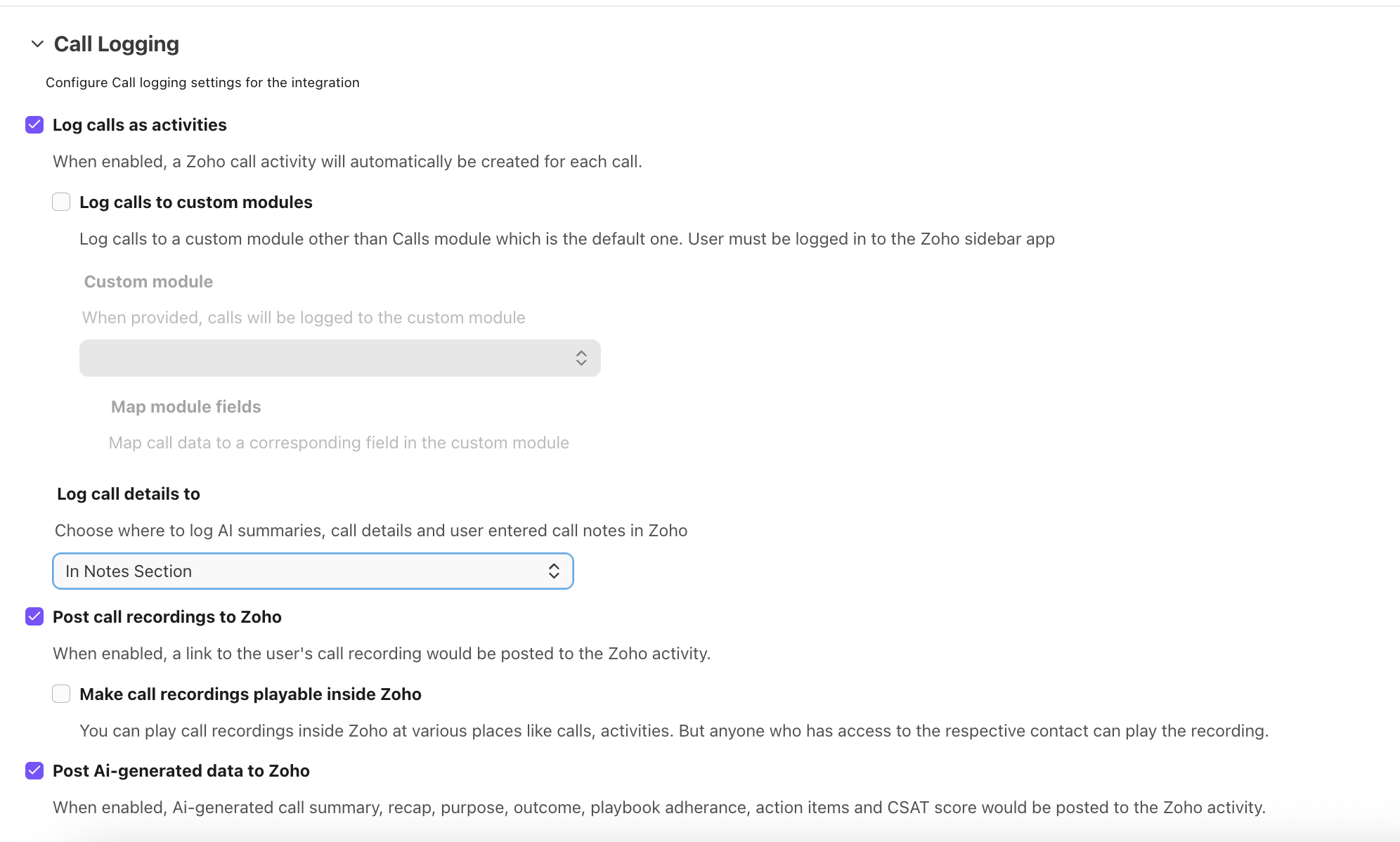
Log calls as activities: Creates a Zoho call activity for each call.
Log calls to custom modules: Add calls to custom modules.
-
Log Call details to: Choose where to log the call details.
By default, the call details will be added as a note to the call activity.Note
To use the previous logging method, select In Call Description to add the details to the call activity's description field.
Post call recordings to Zoho: Adds the Dialpad call recording into the Zoho activity.
Make call recordings playable inside Zoho: Lets you play Dialpad call recordings directly from Zoho.
Post AI-generated data to Zoho: Adds Dialpad AI-generated transcripts to the corresponding Zoho activity.
-
Navigate to Settings
- Create Leads/contacts: Set new contacts as leads or contacts in Zoho, with the option to change later.
- Region: Choose the region for new Zoho accounts.
Note
You can create accounts specific to certain regions, such as:
Australia
Canada
China
Europe
India
Japan
US
Migrate to Zoho V2
Existing Zoho users can migrate to Zoho V2 from their Dialpad Integration settings.
To migrate to Zoho V2:
Go to Company Settings > Integrations
Navigate to Zoho
Select Options > Update
Once the update is complete, you’ll receive an email and a Dialbot message confirming it. Then ask your users to reconnect Zoho V2 in the Dialpad app.
Note
All existing matched contacts and settings from the previous Zoho version will be automatically migrated to Zoho V2.
If an update fails, don’t worry! You can always try again. If it still doesn’t work after a few tries, reach out to your Customer Success Manager for help.
Connect to Zoho
Agents must connect their Zoho V2 in the Dialpad app.
To connect a Dialpad account to Zoho:
Navigate to any contact
Select their name to open the profile menu, or select the Skinny Bar icon
-
Select the Zoho V2 widget > Connect Zoho V2
Contact matching
Once Zoho V2 is connected, any matching contact will display their Zoho info in the Dialpad app sidebar.
You’ll be able to view all the contact’s details, including:
General info: name, email, phone, owner name, and account (empty fields stay hidden).
Deals: linked to this contact.
Activities: such as tasks and calls.
Activities are listed with the newest at the top, so you’ll see the most recent updates first.
Tip
The Zoho widget icons let you easily view contact details, refresh the widget, or disconnect Zoho.
Match a contact
Contacts that match the phone number, email, or name of the Dialpad contact.
To connect a Dialpad contact to Zoho:
Navigate to Zoho V2 widget
Select Match
Search for a contact
Search for contacts in Zoho by clicking the Search icon (the magnifying glass) and typing in a name or number.
Tip
You can search with part of a phone number, an email domain, or even just part of a name.
Multiple contact match
If multiple contacts are found, you’ll see potential matches listed in the Zoho widget.
Create a new record
If no match is found in Zoho during a call, select Create Record to add the contact.
Call logging to custom modules
Log calls to any custom module in Zoho V2, not just the default Calls module.
To turn on custom modules, go to Dialpad Admin Settings and select Integrations.
Navigate to Zoho V2 > Options
Select Manage Settings > Call logging
Select Log call to custom modules
Select your preferred custom module from the drop-down
Select Save changes
Tip
Can’t find your module? Check your Zoho CRM settings to be sure it’s configured.
Custom module field mapping
Admins can match each custom field to a value in the module field drop-down, but each value can only be used once.
Map all current call log fields so they appear in Zoho, and avoid unrelated mandatory fields that don’t apply to calls to avoid errors.
Fields with (*) are mandatory and must be mapped to a value, or your call log will not be saved.
If the field you’re selecting is greyed out, it means that it can’t be matched to that call log field.
Available custom module fields
Dialpad offers the following fields that can be mapped in Zoho V2.
Find our available fields and their definitions listed below.
Fields |
Values |
|---|---|
Call type |
Outbound, Inbound (Text) |
Call duration |
Time (mm:ss) |
Call start time |
Date & Time (MM-DD-YYY & HH:MM) |
Description |
From: Name of the caller, phone number To: Name of the callee, phone number Coaching Team Name: Name of the coaching team Contact Center: Contact center’s name Department: Department name Call Disposition: Call disposition set by the agent |
Call recording |
Link to call recording |
Related contact |
Lead/Contact ID in Zoho |
Related record |
Lead/Contact ID in Zoho |
Subject |
“Dialpad Inbound call” / “Dialpad Outbound call” |
Call status |
“Current call” / “Completed call” |
Call summary details
When a call is logged in Zoho, the call summary appears in the description, and the following details are added as a note:
From: The caller’s name and number.
To: The person who received the call and number.
Contact Center (If available): Shows the name of the Contact Center.
Coaching Team (If available): Shows the name of the Coaching team.
Department: The department that the user belongs to.
Call Disposition (if available): Shows the outcome of the call from Dialpad dispositions.
Call Summary Link (if available): Link to the Dialpad call summary.
Recording URL (if available): One or more links to the call recording(s).
Notes
Notes taken during a call are saved to the call activity.
You can only log notes once the contact is matched, either during or after the call.
Log Dialpad AI in Zoho
When the Post AI-generated data to Zoho setting is on, every call gets an AI Assets & Call Info note with the summary and assets.
Here are the Dialpad Ai features logged to and supported in HubSpot.
AI Summary: AI Recap of a call with a 255-character limit.
AI Action Items: The action items detected in a call.
AI Outcome: The outcome of the call, generated along with the Ai Recap.
AI Call Purpose: AI developed a call purpose, accessible in the AI Recap object.
AI Playbook: Numeric value that explains how much a person adheres to the Ai Playbook.
AI CSAT: AI generated CSAT score
Notes
AI Summaries, Action Items, and Outcomes need Dialpad AI enabled on the call.
AI Playbook and CSAT require an Add-on.
Frequently asked questions
Where can I give feedback?
We want to hear all about your experiences, the good and the bad! Please send feedback to zoho-integration@dialpad.com.
Please note we may use your responses in marketing promotions for the product launch (don’t worry, we will ask for approval before doing so).