Dialpad’s Copper CRM integration enables eligible users to create and match leads or people, log calls, recordings, transcripts, and AI data, review call history, and use click-to-call. Admins configure company or office settings, then connect Copper and authorize access to log calls.
Never miss an opportunity with Dialpad's seamless integration with Copper CRM, providing high-level visibility into your pipelines.
The Dialpad Copper Integration allows you to connect with your Copper CRM to:
Create leads/people
Match contacts
Log calls, recordings, and transcripts
Easily review calls with quick access to Dialpad's Custom Moments, RTAs, and transcripts
Use Dialpad’s click-to-call browser extensions to call numbers from within Copper
Let's take a look at how this integration works.
Who can use this
Dialpad’s Copper integration is available to eligible Dialpad Sell, Dialpad Support, and Dialpad Connect users. Refer to our Pricing Page to see if you have access to this feature. If you have questions about your plan, reach out to your Customer Success Manager or Dialpad Customer Care.
Enable Copper CRM for the company
Copper must be enabled for the entire company before it can be used by offices, departments, or contact centers.
To do this, head to your Dialpad Admin Portal.
Select Company Settings
Navigate to Integrations
Navigate to Copper
Select Options
Select Manage Settings
Select Enable this feature
Navigate to Settings
Enter your Your Company URL
Select your Leads/People preference
Select Save
Configure Copper call logging for the company
Company admins can configure company-wide settings for this integration.
Head to your Dialpad Admin Portal:
Select Company Settings
Navigate to Integrations
Navigate to Copper
Select Options
Select Manage Settings
Navigate to Call Logging
Check the desired call logging preferences
Select Save
Configure Copper for an individual office
Office admins can configure Copper CRM to inherit the company-wide settings or to use their own unique settings.
To customize the individual office level, settings apply to departments, contact centers, and groups, go to your Dialpad Admin Settings.
Navigate to Office Settings
Select Integrations
Select Options
Select Manage Settings
Select Customize for this Office
Select your call logging and lead preferences
Select Save
Call logging preferences
Select what to call activities to log into Copper:
Calls - When enabled, a call activity is automatically created for each call.
Recordings - When enabled, a link to the user's call recording is posted to the Copper activity.
Transcripts - When enabled, a link to the call's AI transcript is posted to the Copper activity.
Leads and people creation settings
Decide which object to create in case no match is found:
Leads
People
You can then log the call to the newly created object.
Set up Copper as an agent
Once Copper has been enabled for your company, it's time to configure Copper as an agent.
This configuration is a one-time setup and can be done during an active call, or when viewing a contact.
On the sidebar of your call, or when viewing your contact, scroll through the integration list until you see Copper.
-
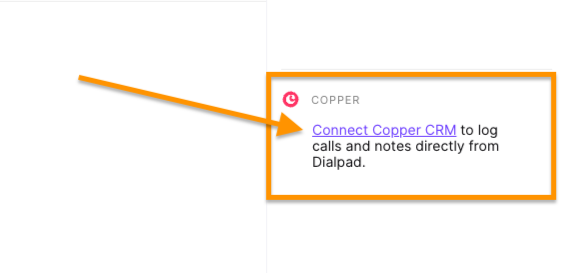
Click Connect Copper CRM
Select Proceed in the pop-up window
Enter your Copper email address and password
Select Authorize
-
Select OK to exit the pop-up window
Logging a call
Calls can be logged to Copper leads or Copper people and can be logged as a new object, or logged to an existing object.
Creating a new object
When you receive an incoming call that has no contact match, it's time to create a new object (either a person or lead).
Select Create Lead
Enter the contact name, subject, and call description
Select Save
That's it, it's that easy! The lead is now created within Copper and the call is logged.
Logging a call to an existing object
When you receive a call from a known contact (via a contact search in Dialpad and Copper), all you need to do is add a subject and description – the contact details will auto-populate based on your records.
Enter the subject and description
Select Log Call
Your call will now appear in your Copper call logs (and will be listed in Dialpad, too), with links to the call summary and recordings.
Multiple contact matches
In the event that you receive a call and find that you have multiple contact matches, our Copper integration allows you to select the correct one.
-
Select the correct contact
Select Connect
Your call will now be logged with the correct contact.
Notes
Copper does not support 'Shared User' environments — a 'Named Copper User' is required to match each Dialpad User for any integration between platforms. Copper doesn't support a "Shared User" environment.
When matching contacts, you can choose between setting someone as a Lead or People.
Call review and history
Call details are stored not only inside Copper but also in Dialpad, giving you access to our amazing AI features.
The following records are noted within Copper:
Call ID
Type
Number from
Duration
Link to transcript
Subject of the agent notes
Agent notes
Select the call link to instantly access the following Dialpad features:
Call recording
Dialpad comments
Dialpad transcript
QA scorecards
Supported AI fields
Dialpad Ai tracks recaps, action items, call tags, and outcomes, so follow-ups aren’t missed. If you use Ai CSAT or Ai Playbooks, you’ll also see agent’s performance and CSAT scores.
Let's look at at which AI features are logged to, and supported in Copper CRM.
Field label |
Data type |
Description |
|---|---|---|
Rich Text |
Ai Recap of a call with 255 character limit. |
|
Rich Text |
The Action Items that were detected in the call, as generated in the Ai Recap. |
|
Ai Outcome |
Text |
The AI-detected outcome of the call. Accessible in the Ai Recap object. |
Text |
The AI-detected Call Purpose category assigned to the call. Accessible in the Ai Recap object. |
|
Percentage |
Numeric value that explains how much a person adheres to the Ai Playbook. |
|
Number |
AI-generated CSAT score. |
Frequently asked questions
What does 'wrong match' do?
If there are multiple contacts with the same name or number, we list all records so that you can associate the correct lead/contact.
Will they be able to search people or lead from the search bar?
Currently, we are not supporting search functionality.
Can I create an object when the call is not active?
No, the call has to be active in order to create an object.
I received app_call_event not found error!
Sometimes, even if there is a lead created, Copper will display 0 matches found and throw an "App_call_event not found" or "unknown error" occurred. If that happens, please contact Customer Care.
Are SMS or screenpop supported?
Not at this time, but stay tuned!
What are the accepted number formats?
Dialpad stores numbers in +E164 format and may fail to discover a match if Copper leads or people are created in a different format.
Can I log missed calls as people or leads?
Missed call logging is not supported.
Why does Copper keep showing me log notes?
Notes taken during your call will be concatenated and saved as one log note.
If you do not wish to log the call, simply Cancel it.
What should I do if I find duplicates in the CRM system?
There are several scenarios where the system will create a duplicate person, company, or lead record. Easily consolidate duplicate records by merging them within Copper.
Note
Merging multiple records is final and cannot be undone.
What happens if I didn't create a Dialpad contact, but want to create an object?
There is no requirement to create a Dialpad contact to match the contact in Copper. We use the phone number to search Copper.
What should I do if the sidebar widget is stuck in a loading state?
If the sidebar is stuck in a loading state, try disabling the following flag in Chrome: chrome://flags/#third-party-storage-partitioning. Enter this in your browser address bar, then reconnect.
If the issue continues, or if you aren't using Chrome, please contact Customer Care.