Dialpad’s Help menu provides troubleshooting tools, including error reports, cache clearing, diagnostics, developer tools, and startup settings. Instructions cover accessing Help on Mac and Windows and viewing console errors in the native or browser app.
Our team works around the clock to deliver you the best possible product, and we're always pushing out new features to improve your Dialpad experience.
While we hope it won't happen, there is a tiny chance you could encounter a bug. If you do, our Customer Care Team will walk you through any steps needed to get things back and running as soon as possible. They might ask for things like an error report or for you to clear your caches, both of which you can do right from the Dialpad app.
Let's dive into the details.
Who can use this
App troubleshooting is available to all Dialpad users.
Help menu
Our built-in Help menu gives users quick access to common troubleshooting tips and support options.
From the Help menu, you can:
Send Error Report |
Sends a detailed error report to our developers. |
Disable Run at Startup |
Prevents Dialpad from opening at startup. |
Disable Hardware Acceleration |
Turns off hardware acceleration — this is not recommended. |
Access WebRTC Diagnostics |
Verifies that your network connection is properly set up for WebRTC and also verifies that audio is functional. |
Clear Cache |
Removes files stored by your browser. |
Enable Inspect Element |
Lets you view the element's source code. |
Toggle Developer Tools |
Opens the developer toolkit. |
Clear Cache and Restart the App |
>Clears caches and restarts Dialpad. |
The Dialpad Help menu is available for both Windows and Mac OS users.
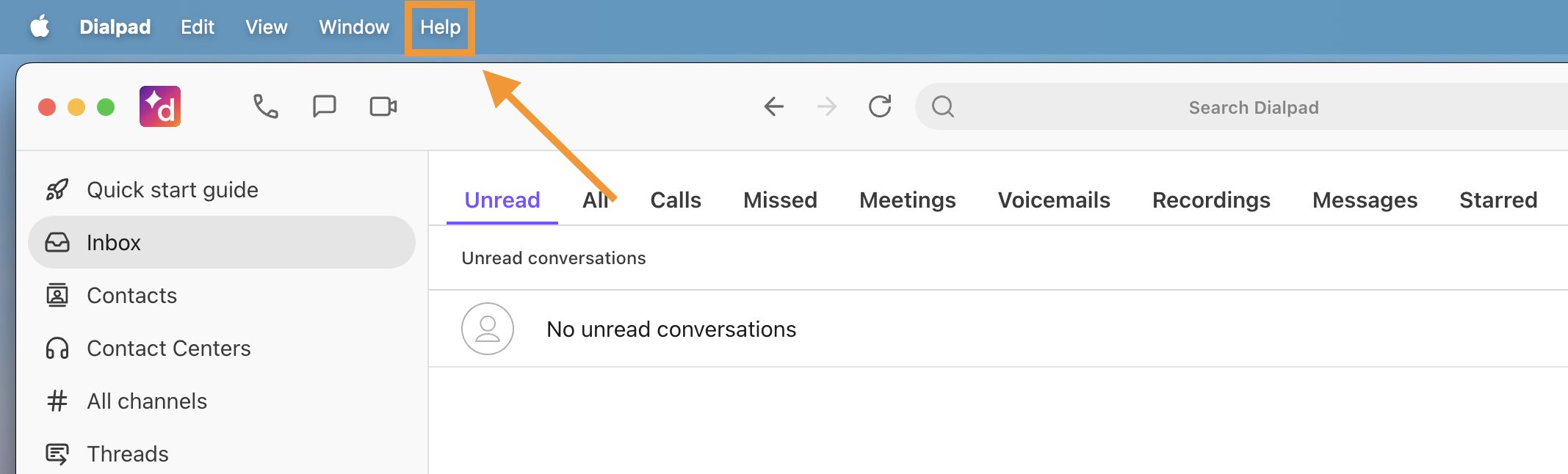
Access the menu using MacOS
To access the Help menu from your Mac device:
Click anywhere on the Dialpad App
-
Select Help from the menu bar at the top of your screen
Access the menu using Windows OS
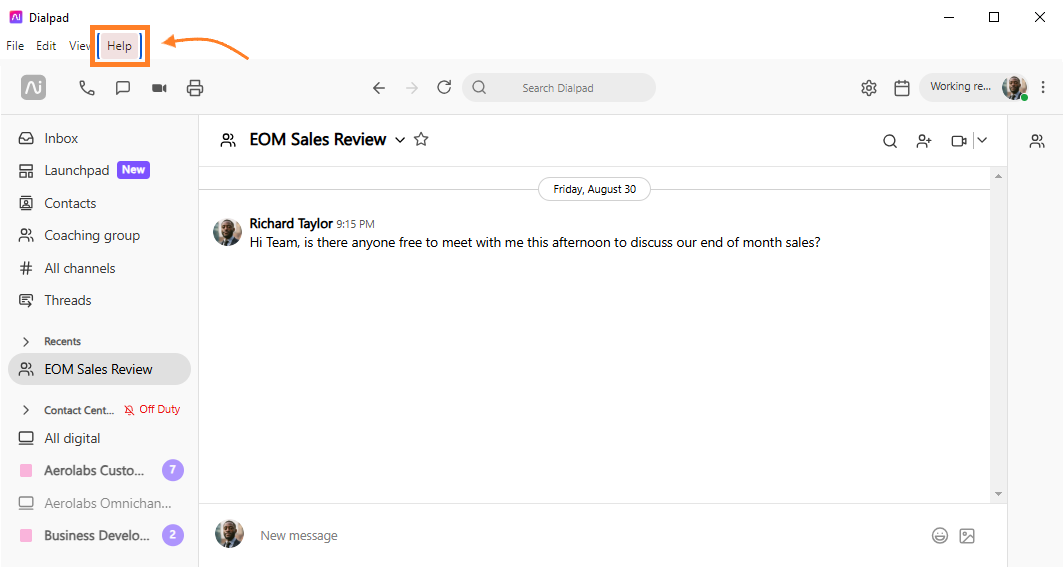
To access the Help menu from your Windows device:
Click anywhere on the Dialpad App
Press the ALT key on your keyboard
Select Help from the toolbar at the top of your screen
Clear cache
To clear your cache, navigate to the Help menu as noted above. Then, select Clear Cache.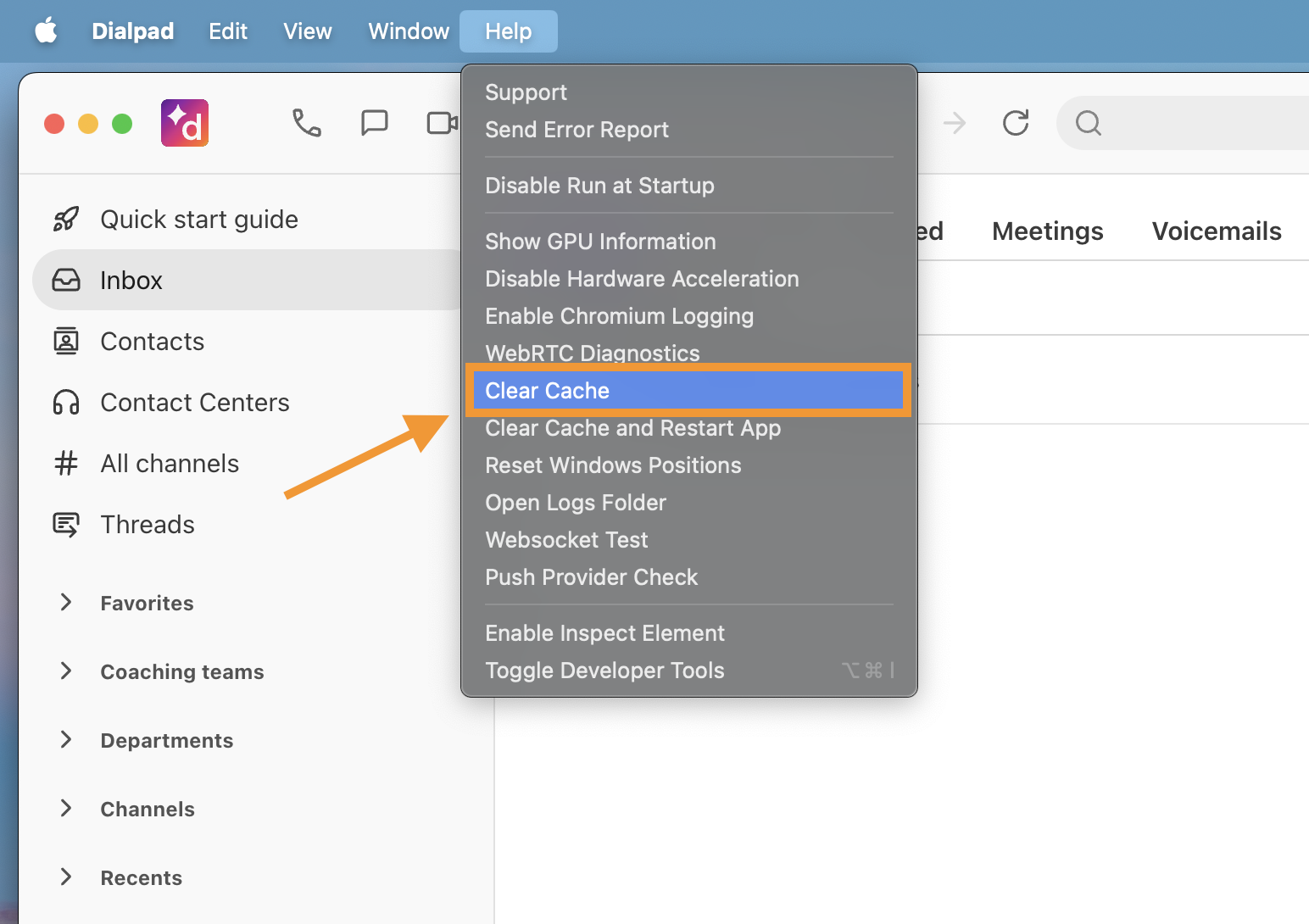
Access error console logs
If you're having issues, one of the first things our Customer Care Team is going to ask you is for your error logs. These can be accessed from the native Dialpad app, or from our browser app.
Access error console logs from the native app
To access your error console logs from the native Dialpad app:
Click anywhere on the Dialpad app
Press the ALT key on your keyboard
Select Help from the menu bar at the top of your screen
Select Toggle Developer Tools
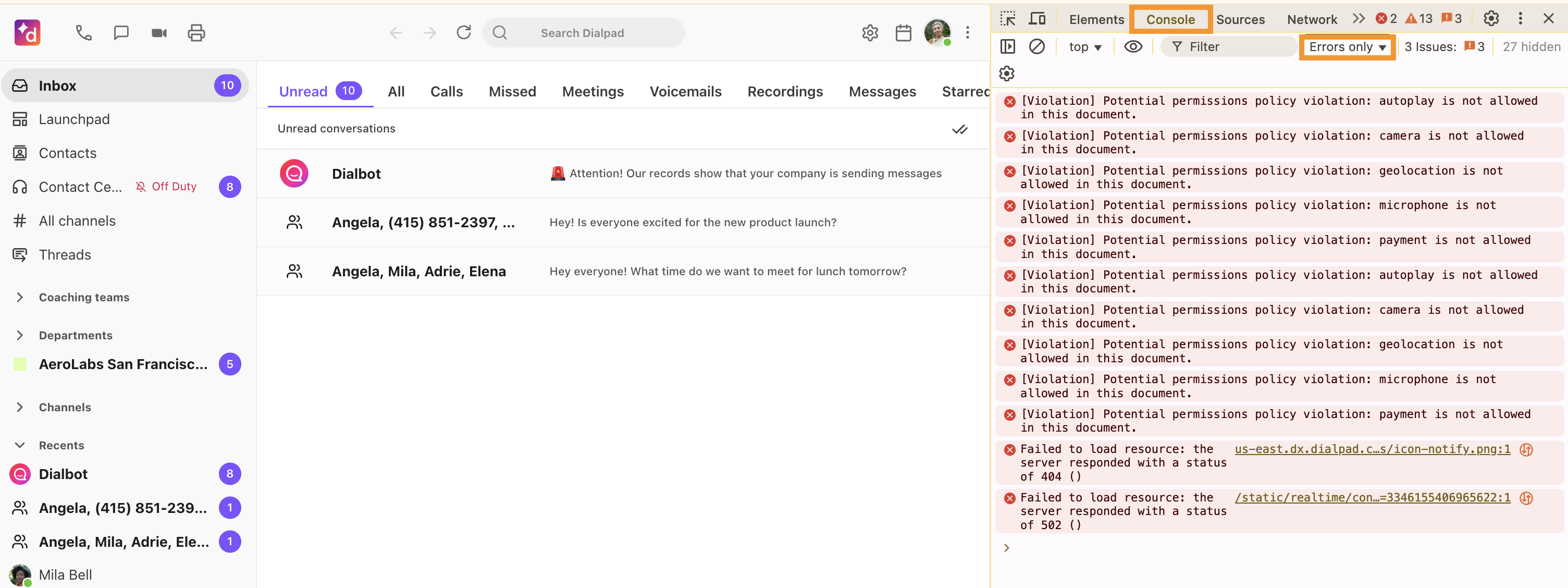
Select Console
Select Errors only
.png)
Access error console logs from the browser app
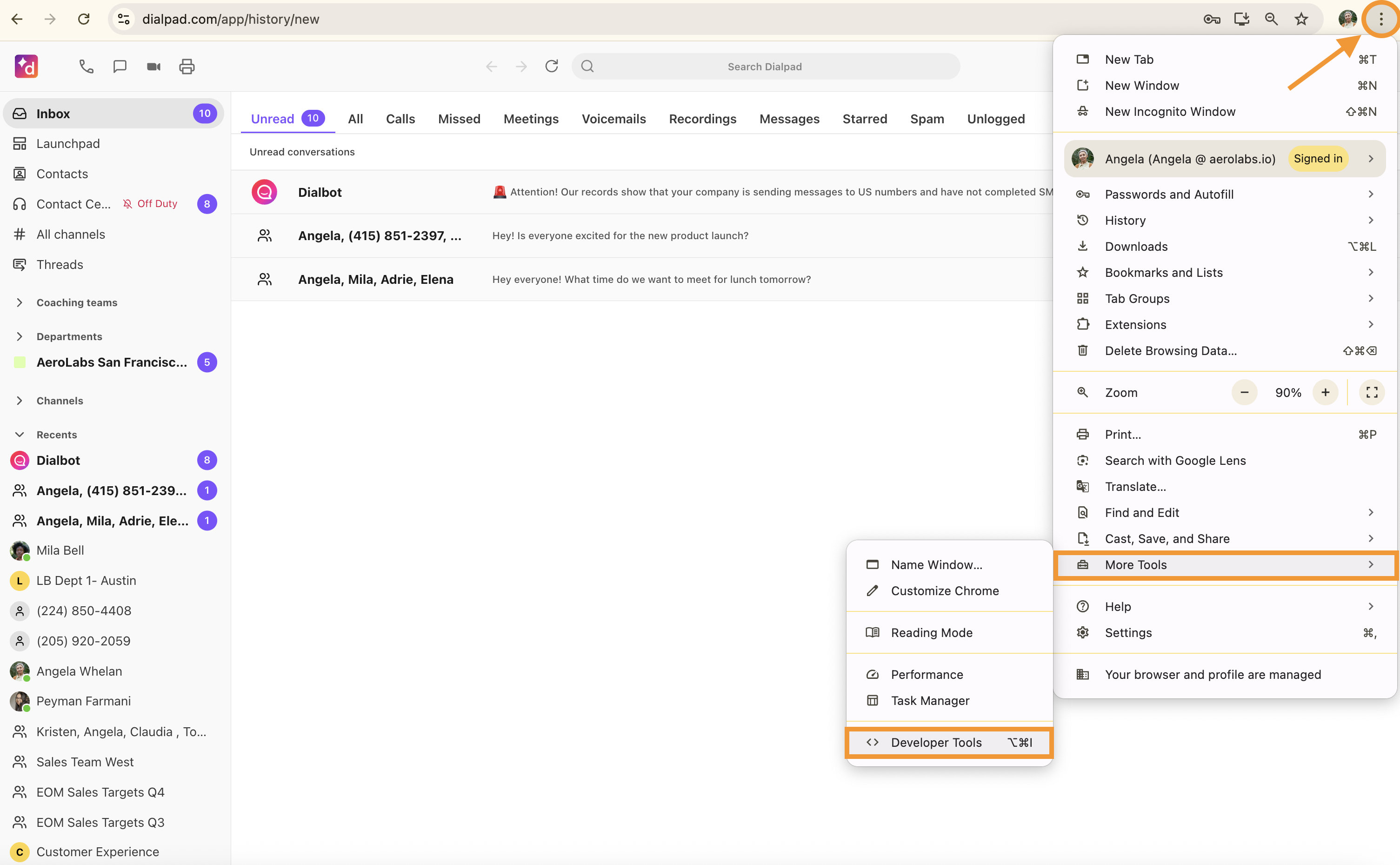
To access your error console logs from the browser app (or the Dialpad CTI):
Select the Settings menu from your Chrome browser (that's the three vertical dots)
Select More Tools
-
Select Developer Tools
Select Console
Select Errors only
Tip
You can also access the Developer Tools from the Chrome menu at the top of your screen. Then, select View > Developer > Developer Tools.