Dialpad’s global search finds contacts, messages, AI Recaps, calls, and meeting transcripts. Expanded results offer dedicated tabs and From/With filters. Entering a phone number can immediately start a call, while mobile search excludes Messages.
Easily find all your conversations, transcripts, and contacts within Dialpad whenever you need them.
Let’s get into the details.
Who can use this
All Dialpad users can search within the Dialpad app.
Search in Dialpad
The search bar in the Dialpad app helps users quickly find contacts, messages, and call or meeting transcripts by entering keywords or phrases.
To search using the global search bar, head to your Dialpad app
-
Navigate to the search field
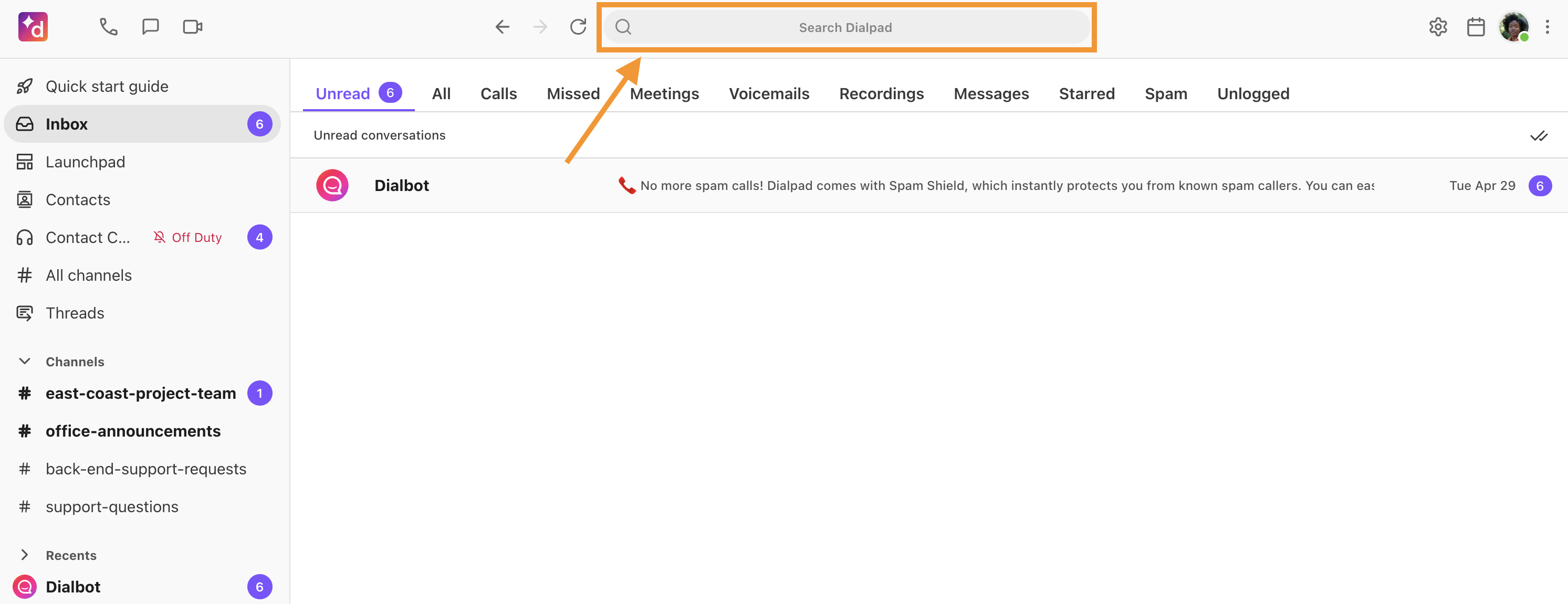
Type in your query
-
Select Enter
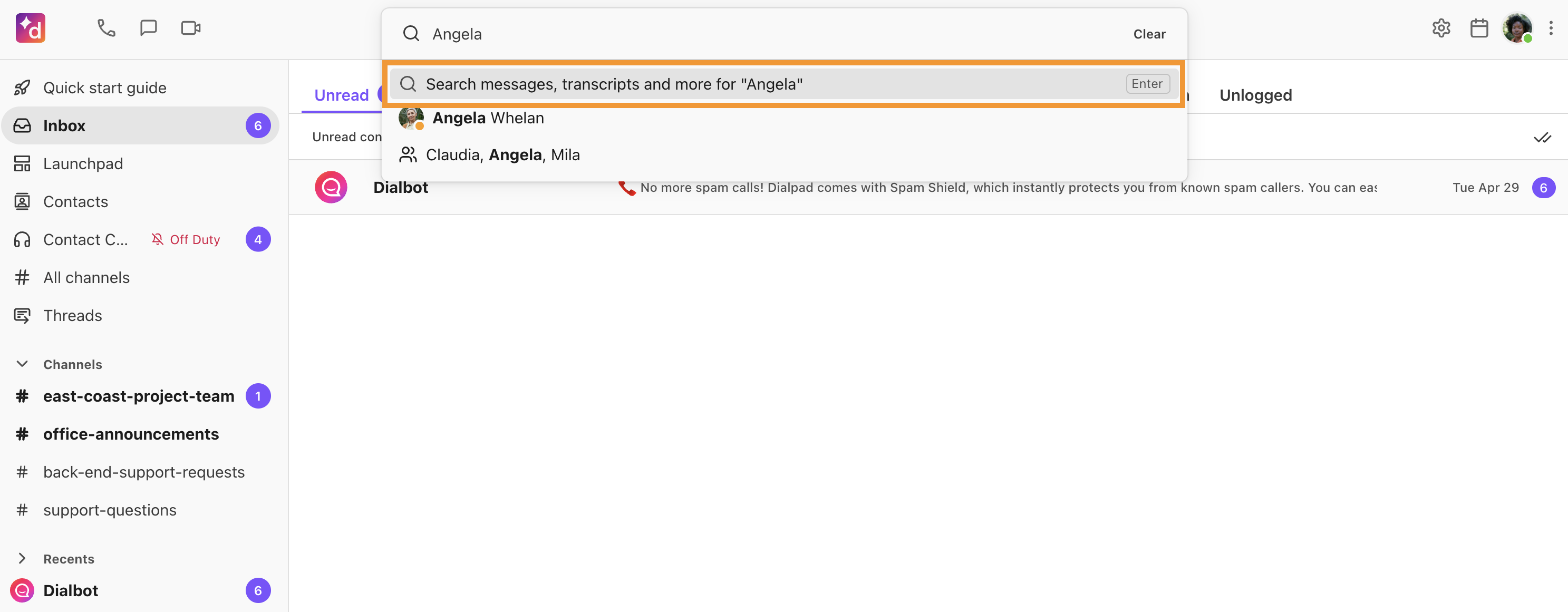
The quick search will display a list of contacts.
For name or keyword searches, select Enter to see more detailed search results.
Note
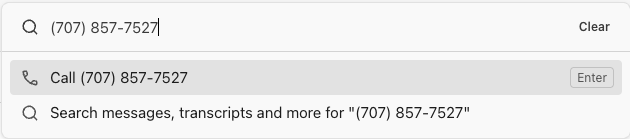
When you enter a phone number in the search field, Call [phone number] appears as the first result and is auto-selected, so pressing Enter immediately starts a call rather than opening the expanded search results. To choose a different result, use the arrow keys before pressing Enter. On the desktop app, you can also use Cmd+N or Ctrl+N to open the dialer separately.
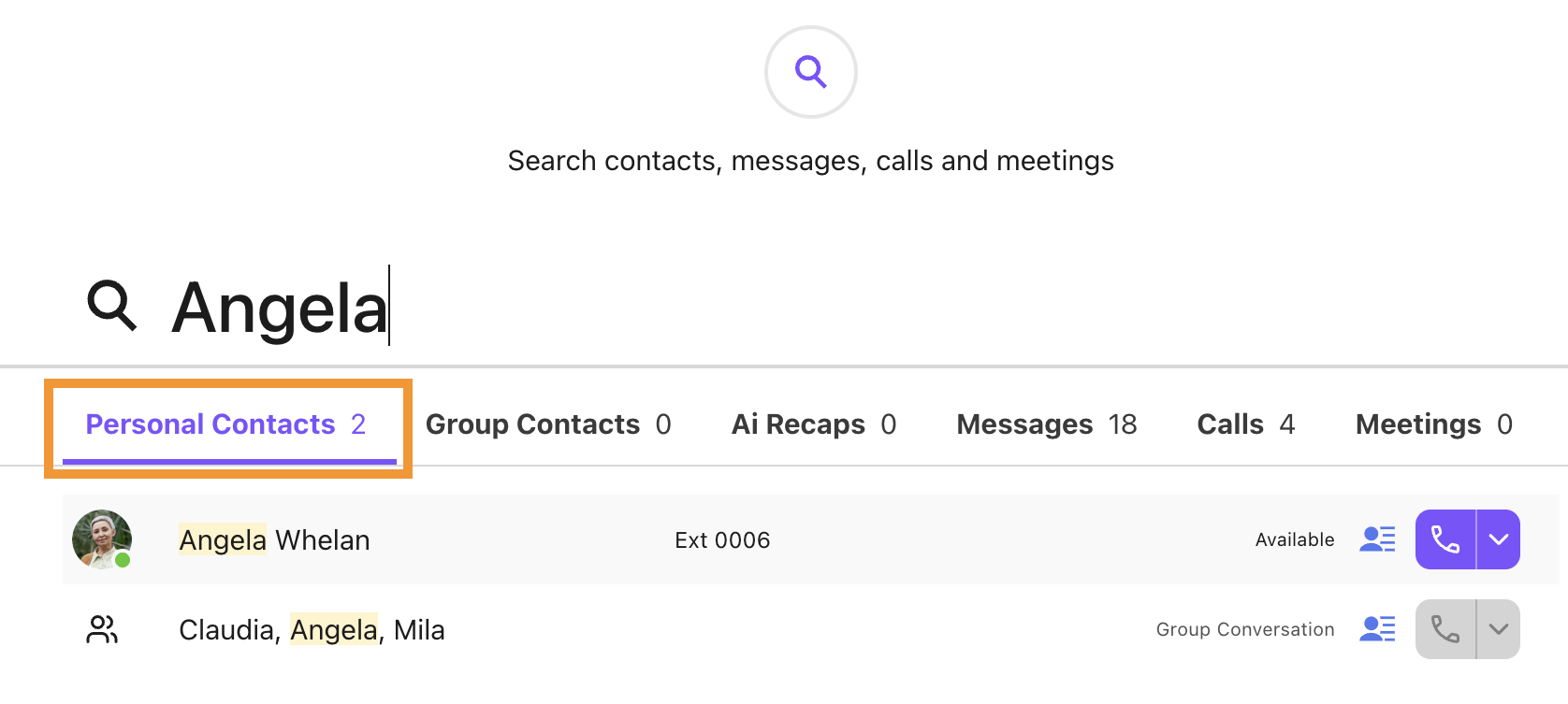
On the expanded search results page, you’ll see 6 different tabs — let’s go over each tab of the results page.
Personal contacts
The Personal Contacts section displays results that match contacts from your personal Dialpad contact list.
Group contacts
The Group Contacts section displays results that match contacts from your groups (i.e., Departments or Contact Centers).
Use the labels underneath the contact name to easily tell which group the contact belongs to.
AI Recaps
This section will display results from within the AI Recaps from your calls and meetings.

Note
Users can only access recaps for personal and group calls they are part of.
Admins and supervisors can view recaps for calls and meetings of the agents they're managing.
Messages
The Messages section displays results based on your messaging conversations.
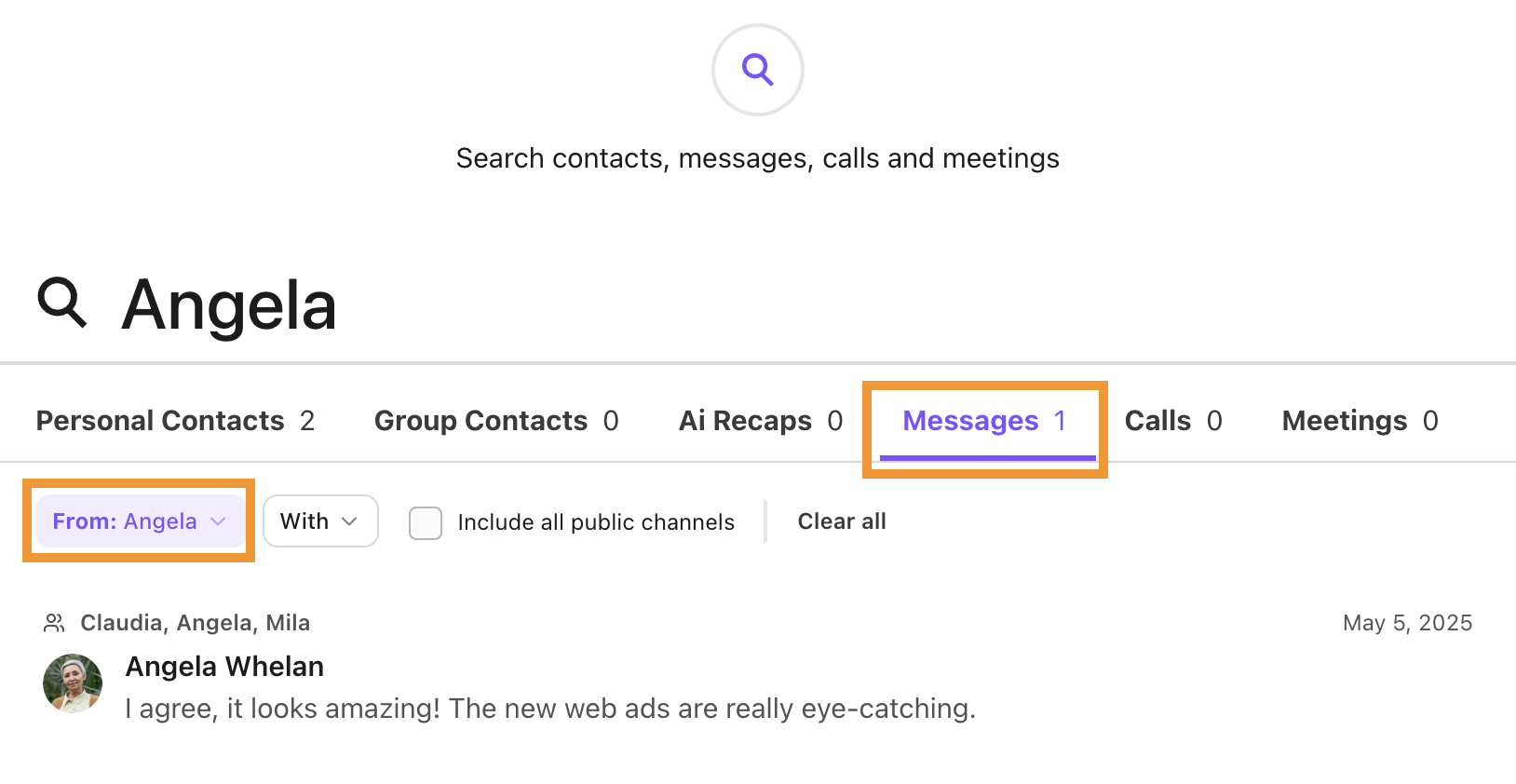
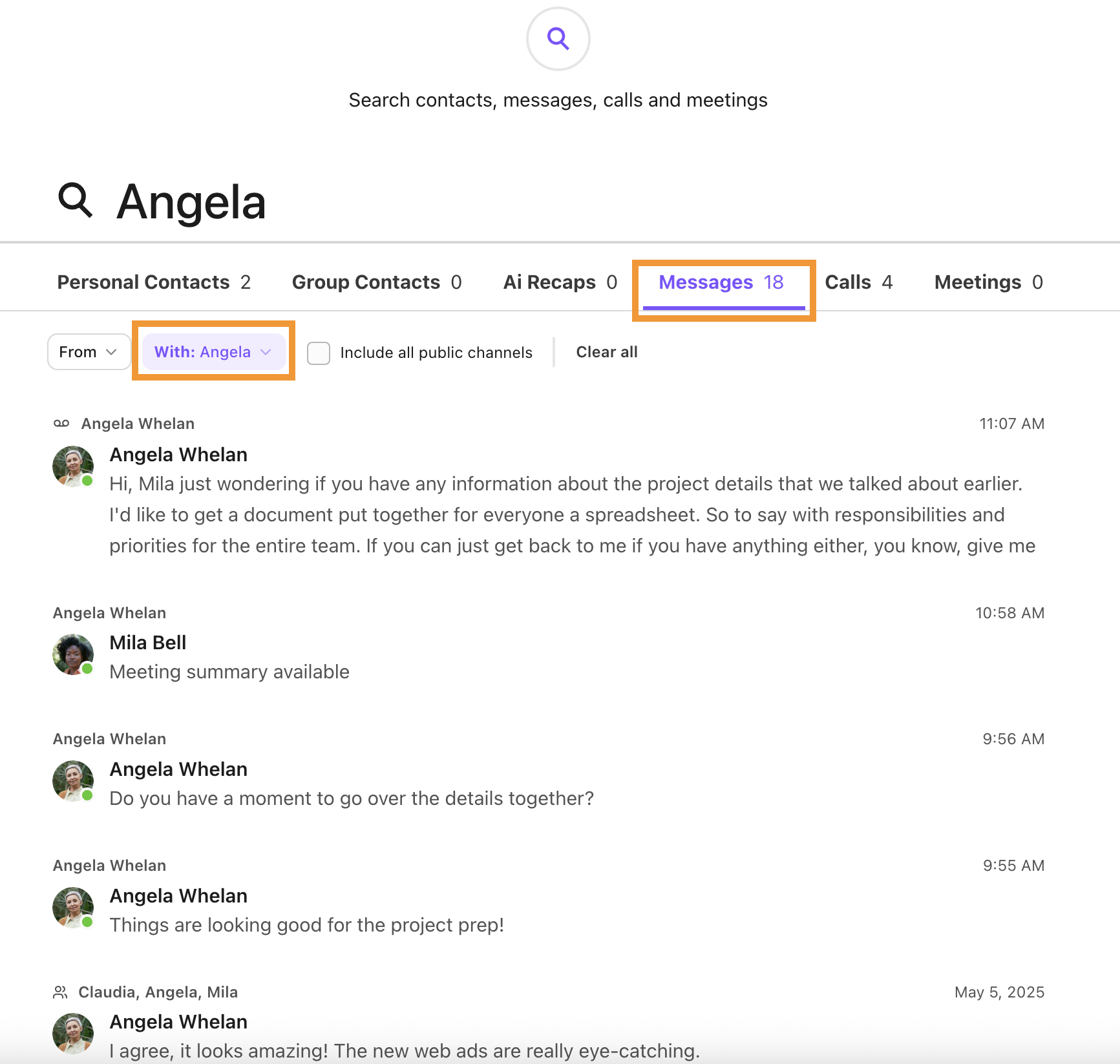
Narrow down your results by using the From: and With: filters.
-
From: Filters your results for messages from a specific contact.
-
With: Filters results for messages where the contact was a part of the conversation, such as a group chat or channel.
Note
The search bar in the mobile app doesn't have a Messages tab.
Calls
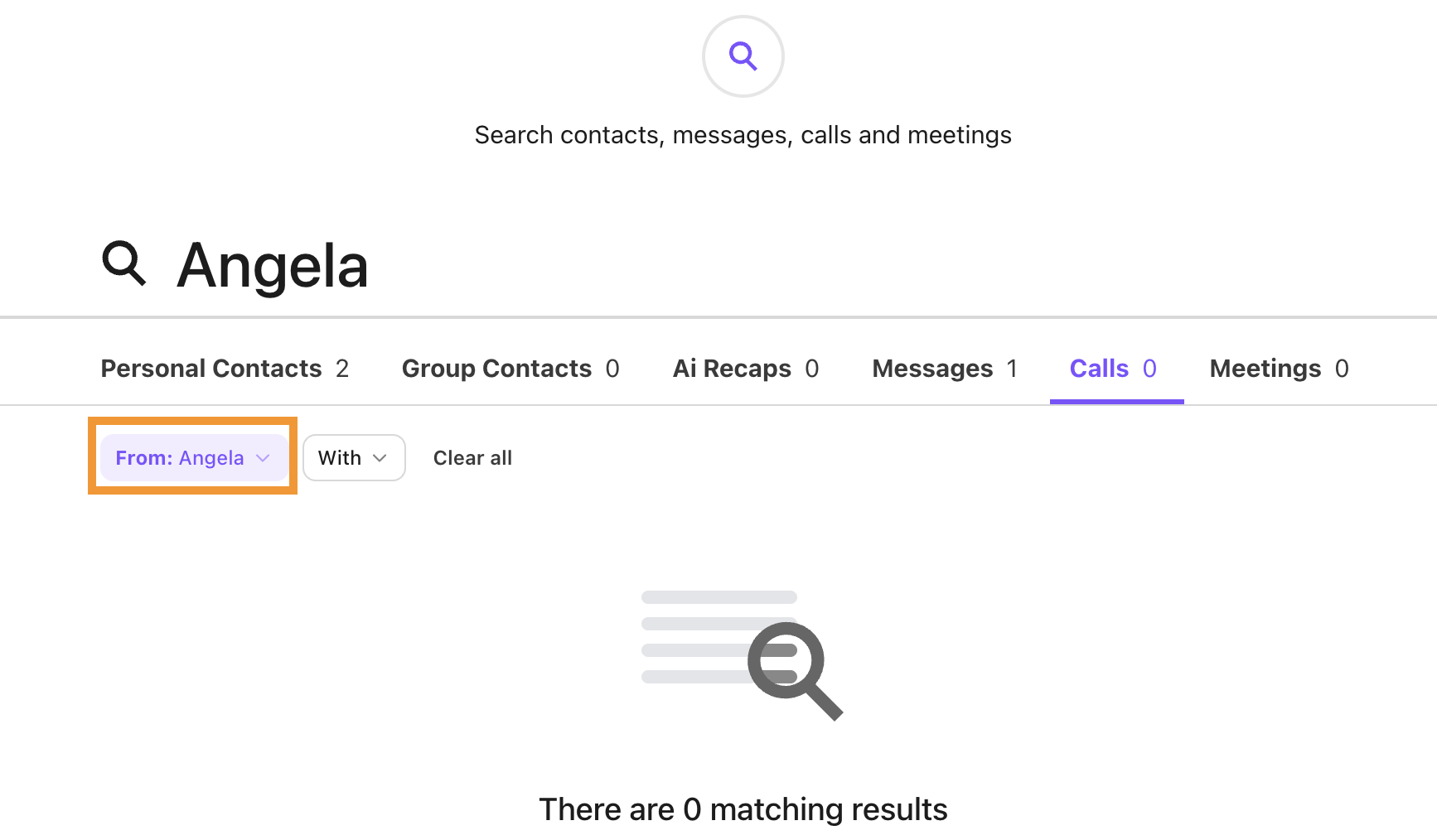
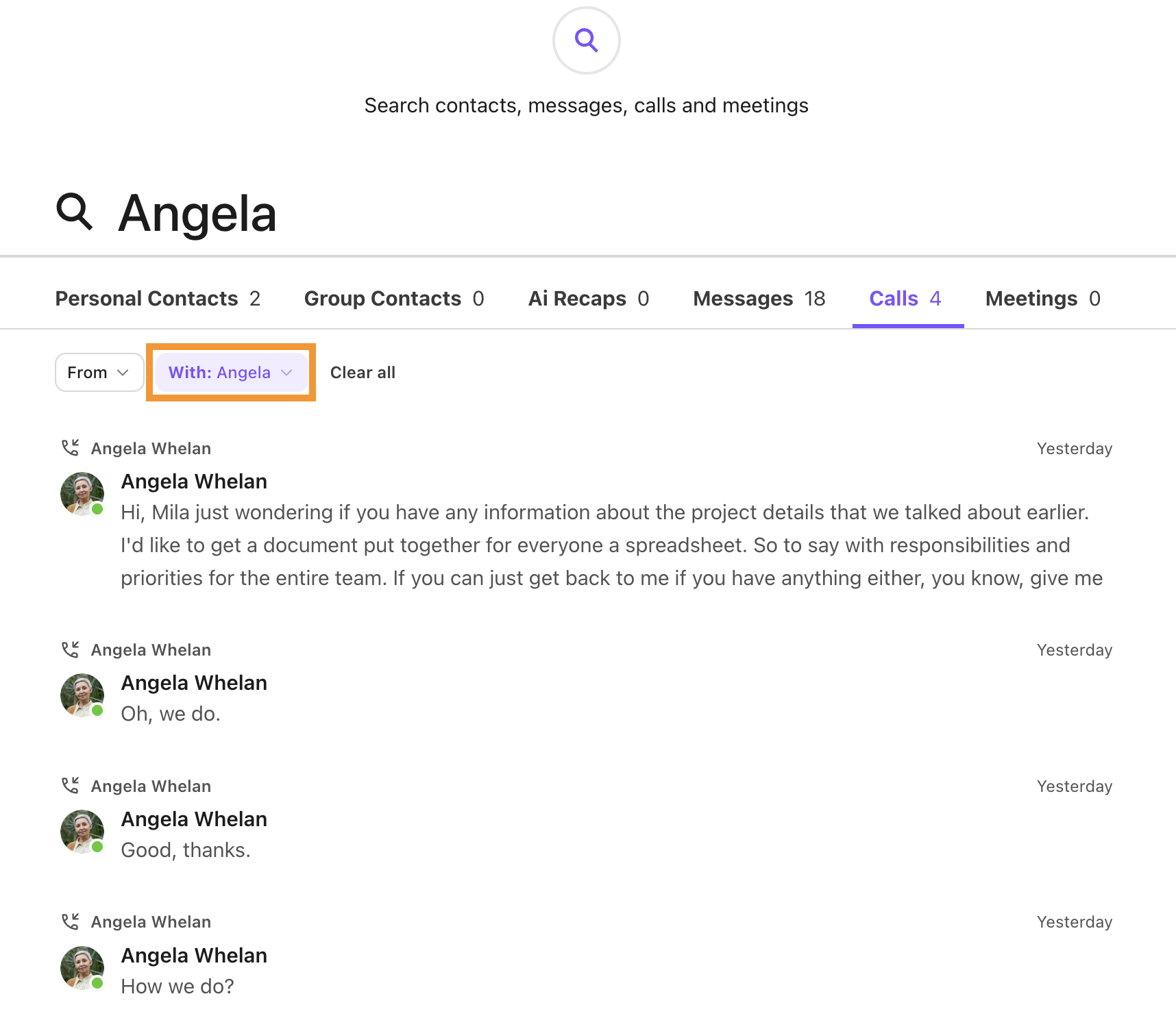
The Calls section displays calls based on the contact name or results found in the call transcript. You can also use the From: and With: filters to narrow down your results.
-
From: Filters the results to display calls where the contact said the word you searched for, or is from the specific contact name.
-
With: Filters the results to display calls in which both you and the mentioned contact were present, or where the searched word was said.
Meetings
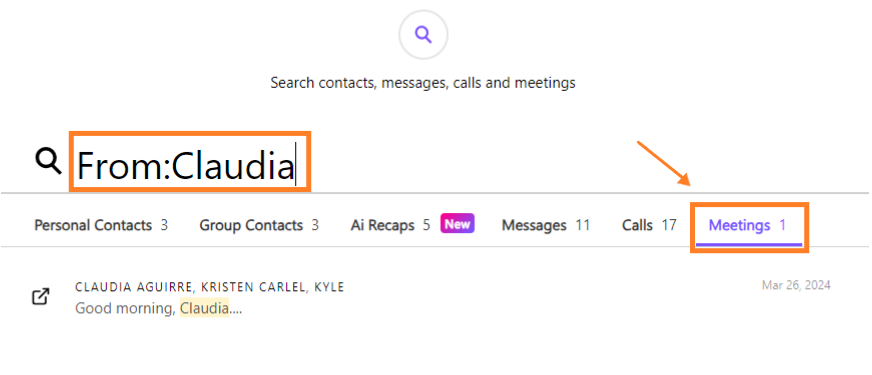
The Meetings tab displays results from your meeting transcripts.
You can also use the From: and With: filters to narrow down your results.
-
From: Filters the results to display meetings where a contact mentioned what you searched for.
-
With: Filters the results to display meetings in which both you and the mentioned contact were present or where the searched word was mentioned.
