Dialpad admins can connect an entire company or individual offices to Salesforce Sandbox through Integration settings. After switching environments, Salesforce admins and agents must reconnect. Production and Sandbox can coexist across offices, but each user can connect to only one environment at a time.
Connect to Salesforce Sandbox instance
You can connect the entire company to a Salesforce Sandbox, or just specific offices.
Let's look at each method.
Connect company to the Salesforce Sandbox
To connect your entire company to the Salesforce Sandbox, go to your Admin Settings on Dialpad.com
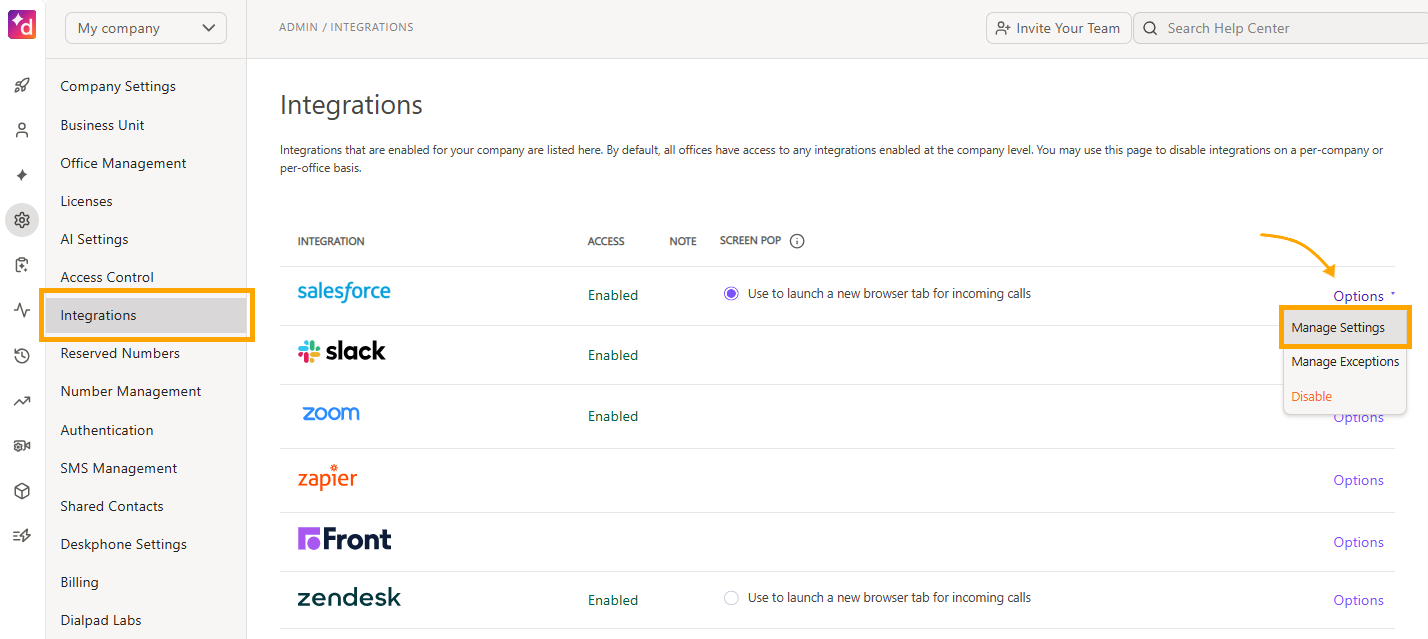
- Select My Company > Integrations
- Beside Salesforce, select Options > Manage Settings
-
If the admin is not connected, Dialpad prompts them to connect before they can continue
-
- Navigate to Salesforce Instance
-
Select Change Salesforce Instance
-
Select Sandbox under Environment
-
Select one of the previously connected Salesforce instances, or select Connect new instance
- Select Change instance
After switching to the Sandbox, you'll be taken back to the Company's Integration page automatically.
Next, the Salesforce Admin must reconnect the Salesforce instance.
- Beside Salesforce, select Options
- Select Manage Settings
- Navigate to Custom and Standard Objects
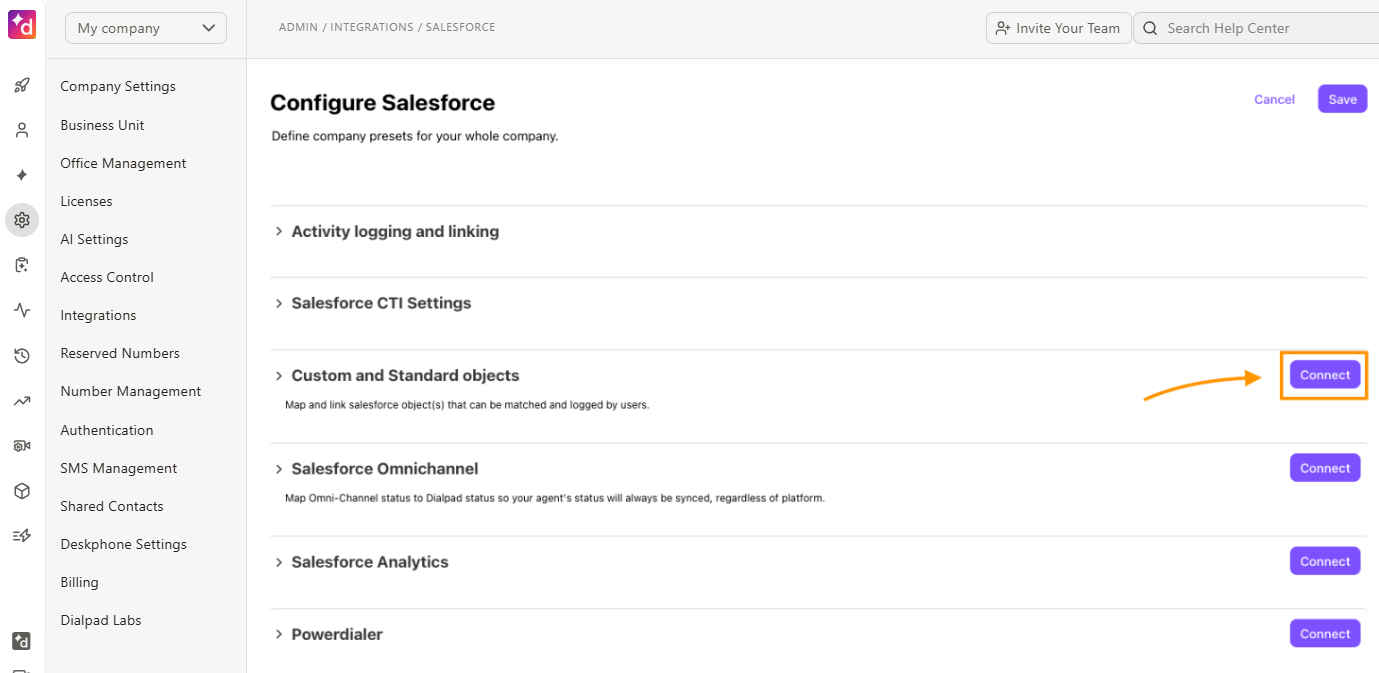
- Select Connect
- If your company uses Powerdialer, Salesforce Analytics, or Salesforce Omnichannel, you'll need to reinstate the connection for each one.
- Enter your Salesforce login credentials, then follow the prompts to confirm the connection
Note
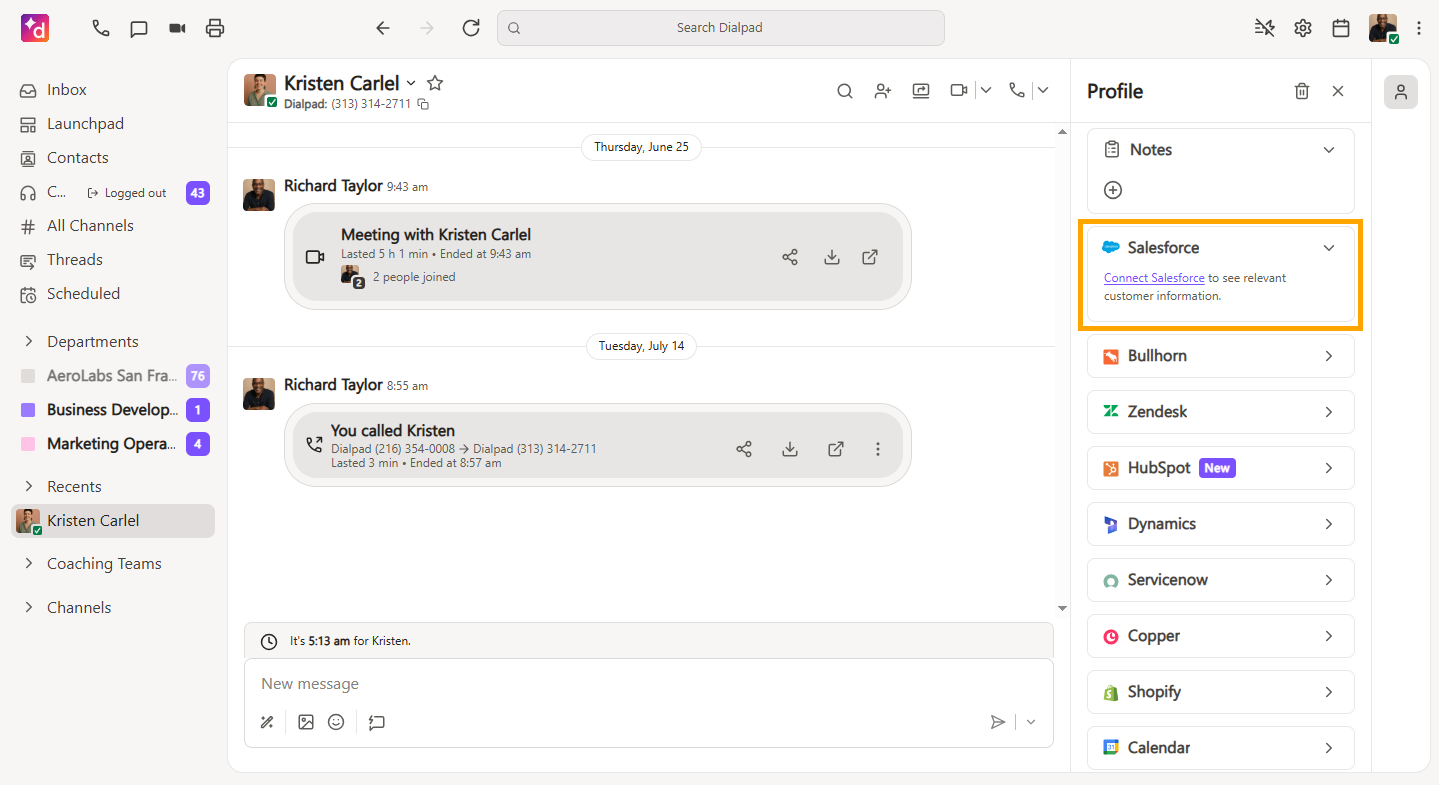
Changing the deployment environment will require your agents to reconnect to Salesforce again.
Connect an individual office to the Salesforce Sandbox
If your Company Admin has enabled office-specific customization, you can also connect individual offices to a Salesforce Sandbox.
To connect an individual office to your Salesforce Sandbox, go to your Dialpad Admin Settings.
- Choose the desired office
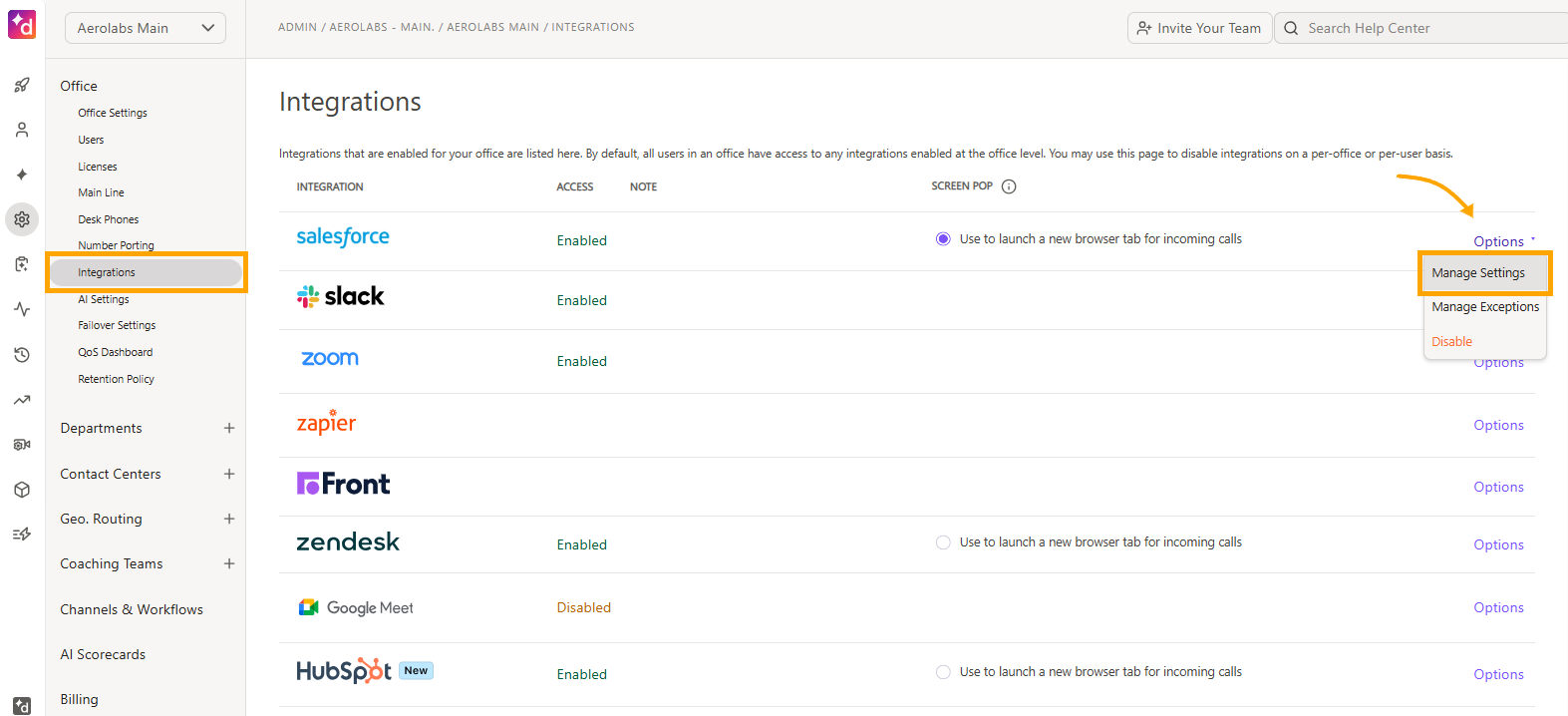
- Navigate to Office Settings > Integrations
- Beside Salesforce, select Options > Manage Settings
- Select Customize for this office
- Navigate to Salesforce Instance
- Select Change Salesforce Instance
- Select Sandbox under Environment
- Select one of the previously connected Salesforce instances, or select Connect new instance
- Select Change instance
After switching to the Sandbox, you'll be taken back to the Office's Integration page automatically.
Next, the Salesforce Admin must reconnect the Salesforce instance.
- Beside Salesforce, select Options > Manage Settings
- Navigate to Custom and Standard Objects
- Select Connect
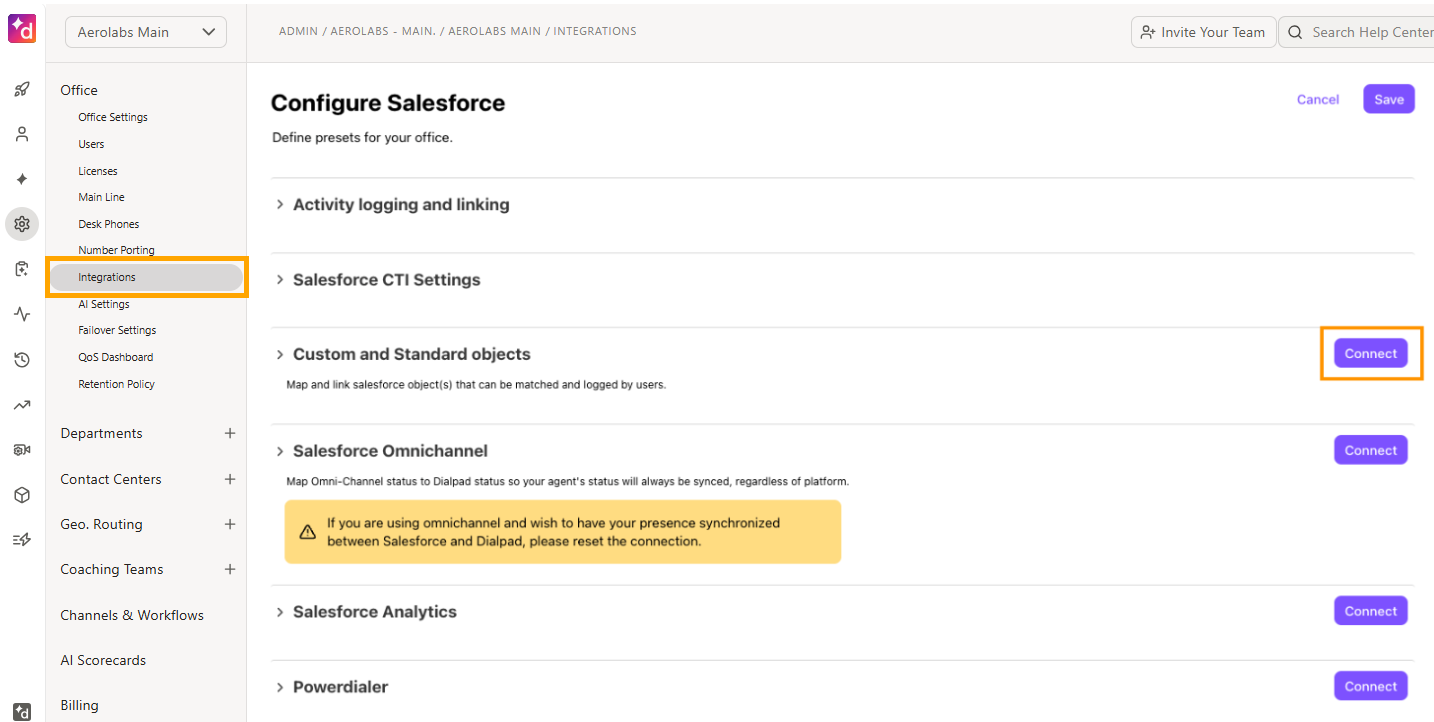
- If your company uses Powerdialer, Salesforce Analytics, or Salesforce Omnichannel, you'll need to reinstate the connection for each one.
- Enter your Salesforce login credentials, then follow the prompts to confirm the connection
Note
Changing the deployment environment will require your agents to reconnect to Salesforce.
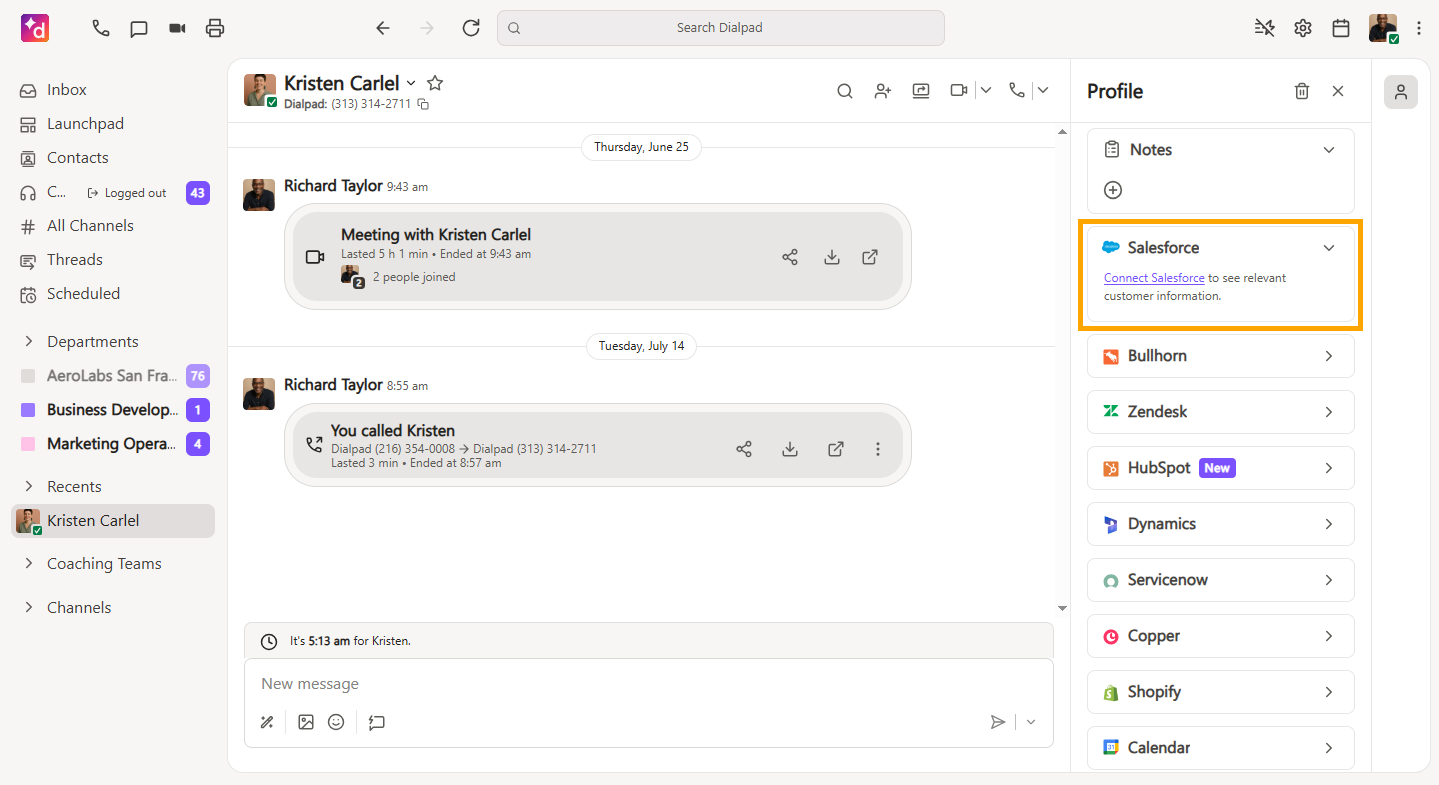
Switching from Salesforce Sandbox to Production
Once you're happy with how everything is working in your Salesforce Sandbox, it's time to switch back to your Salesforce Production instance.
From your Company Settings:
- Select Integrations
- Beside Salesforce, select Options > Manage Settings
- Navigate to Salesforce Instance
- Select Change Salesforce Instance
-
Select Production under Environment
- Select one of the previously connected Salesforce instances, or select Connect new instance
- Select Change Instance
After switching to Production, you'll be automatically taken back to the Company's Integration page. Next, the Salesforce Admin must reconnect the Salesforce instance.
- Beside Salesforce, select Options > Manage Settings
- Navigate to Custom and Standard Objects
- Select Connect
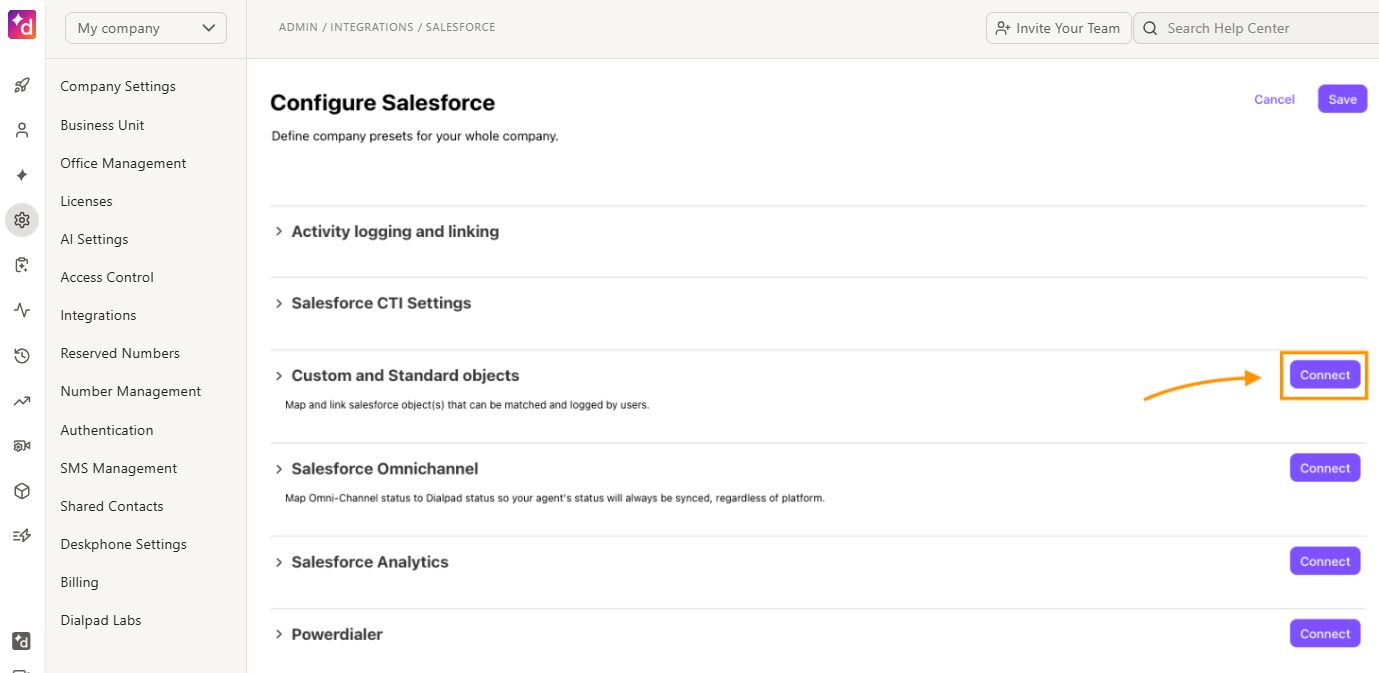
- If your company uses Powerdialer, Salesforce Analytics, or Salesforce Omnichannel, you'll need to reinstate the connection for each one.
- Enter your Salesforce login credentials, then follow the prompts to confirm the connection
Note
To move an individual office from a Salesforce Sandbox to its Production instance, follow the same steps as above, but from your Office Settings.
Frequently asked questions
Can the same user connect to a production instance and a sandbox instance at the same time?
No, a user in Dialpad can only be connected to either a Salesforce production instance or a Salesforce sandbox instance at a time.
Is it possible to use Salesforce Production and Salesforce Sandbox at the same time?
Yes, but you'll need to create a new office under the same company. The original office can remain connected to the Salesforce production instance while the new office can be connected to the Salesforce Sandbox.
My company has multiple Salesforce instances; can I switch between them?
Yes. Admins can switch between Production and Sandbox Salesforce environments directly from Dialpad Admin Settings.
To change the connected instance, go to your Dialpad Admin Settings.
- Open the Salesforce integration settings at the company level or office level.
- Select Change Salesforce instance
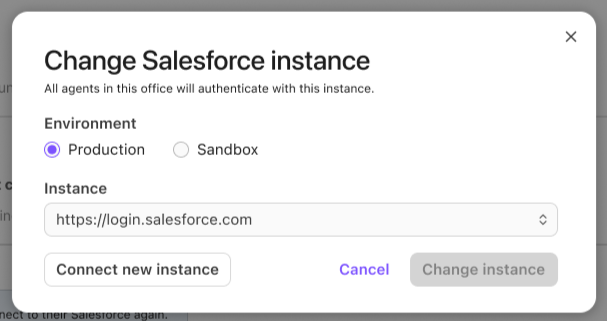
- Choose the environment
- Production
-
Sandbox
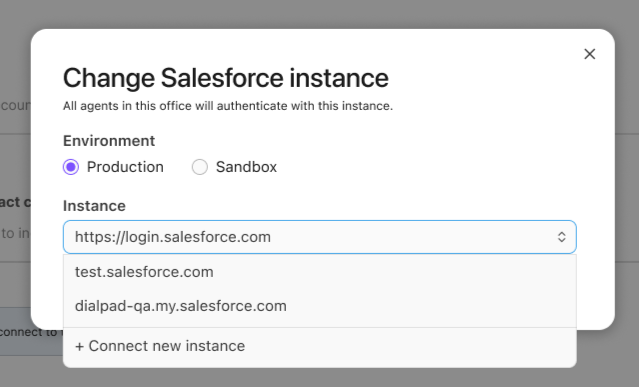
- Select one of the previously connected Salesforce instances, or select Connect new instance
After you sign in, the new instance is automatically added and selected.
Notes
If you choose Connect new instance, Dialpad redirects you to the appropriate Salesforce login page based on the environment you selected.
Dialpad does not automatically fetch a complete list of Salesforce instances. If the instance you want isn't listed, select Connect new instance, then sign in to add it.
Can I connect a selective set of users in an Office?
No, once the configuration is set for an Office, all users in that Office must be connected to the Salesforce Sandbox instance.
Can other Offices remain connected to a Salesforce production instance?
Yes, you can connect an Office to a Salesforce Sandbox instance while other Offices remain connected to a Salesforce production instance.
Do all users in Dialpad need to disconnect when setting this up?
Yes, once you change the configuration to 'Connect to' a Salesforce sandbox instance, all users in an Office must first disconnect before attempting to reconnect, as they will then be prompted to connect to the Salesforce sandbox instance.