Dialpad for Salesforce integrates sales and service calls into Salesforce Lightning. Users can enable Open CTI, assign profiles, activate Dialpad Lightning for individual users, uninstall the package, or switch between connected production and sandbox instances.
Dialpad for Salesforce enables companies to break down silos and seamlessly connect—with sales and service calls that live natively inside Salesforce to deliver more engaging experiences and improve agent productivity using Dialpad's robust features.
Let's take a look at the integration process for Salesforce Users on the Lightning platform.
Who can use this
Dialpad integration with Salesforce Lightning is available to Dialpad Sell, Dialpad Support and Dialpad Connect users.
Enable open CTI for your app
Before you can enable the integration, you'll need to select the Lightning app you want to enable with Dialpad.
Here's how:
Navigate to the App Manager
Select each Lighting app you want to enable with Dialpad
-
Select Edit
Select Utility Items (Desktop Only)
-
Select Add Utility Item
-
Search for Open CTI Softphone
Rename the Open CTI Softphone as Dialpad
-
Select Save and Done to complete
Make sure that the app is assigned to the user profiles of the users you want to enable, then select Save.
Enable Lightning
Once the package has been installed, you can enable the Lightning integration for individual users.
From the Set Up menu:
Select Set Up Home
Navigate to Administration
Select Users
Check the individual users you need to enable, then select Edit
Navigate to Call Center, then select the magnifying glass
Select Dialpad Lightning
Select Save to save your changes and finalize enablement
Uninstall Lightning
To uninstall the Salesforce Lightning integration:
Navigate to Apps
Select Installed Packages
Next to Dialpad for Salesforce, select Uninstall
On the uninstall screen, select Do Not Save a Copy...
Select Uninstall
Switch Salesforce instances
Easily switch between your company's multiple Salesforce instances.
To change the connected instance, go to your Dialpad Admin Settings.
Open the Salesforce integration settings at the company level or office level.
-
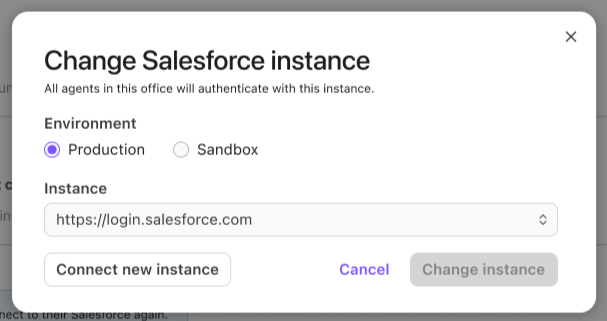
Select Change Salesforce instance
-
Choose the environment
Production
Sandbox
(1).png)
- Select one of the previously connected Salesforce instances, or select Connect new instance
After you sign in, the new instance is automatically added and selected.
Notes
If you choose Connect new instance, Dialpad redirects you to the appropriate Salesforce login page based on the environment you selected.
Dialpad does not automatically fetch a complete list of Salesforce instances. If the instance you want isn't listed, select Connect new instance, then sign in to add it.