Eligible Company Admins can create offices in Dialpad through Office Management by entering office, billing contact, and required emergency address details. The feature is being rolled out in phases and is currently limited to select countries.
Self-service office creation lets eligible Company Admins create a new office directly in Dialpad from the Office Management page. The setup flow walks you through office details, billing contact details, and emergency address information where required.
Who can use this
Self-service office creation is available for Company Admins using Office Management.
Refer to our Pricing Page to see if you have access to this feature. If you have any questions about your plan, reach out to your Customer Success Manager or Dialpad Customer Care.
Note
This feature is being released in phases. If you don’t see the Create Office option, your company may not yet be included in the current rollout.
Current rollout is limited to these countries:
Australia
Italy
Canada
Netherlands
France
New Zealand
Germany
United Kingdom
Ireland
United States
Before you begin
Before you create a new office, make sure you have this information ready:
Your new office name
Billing contact details
Emergency address details, where required for your country
Create a new office
To create a new office, go to your Dialpad Admin Settings.
Select My Company
Select Office Management
Select Create Office
-
Enter your office details:
- Office name
- Country
- (Optional) Clone settings from an existing office
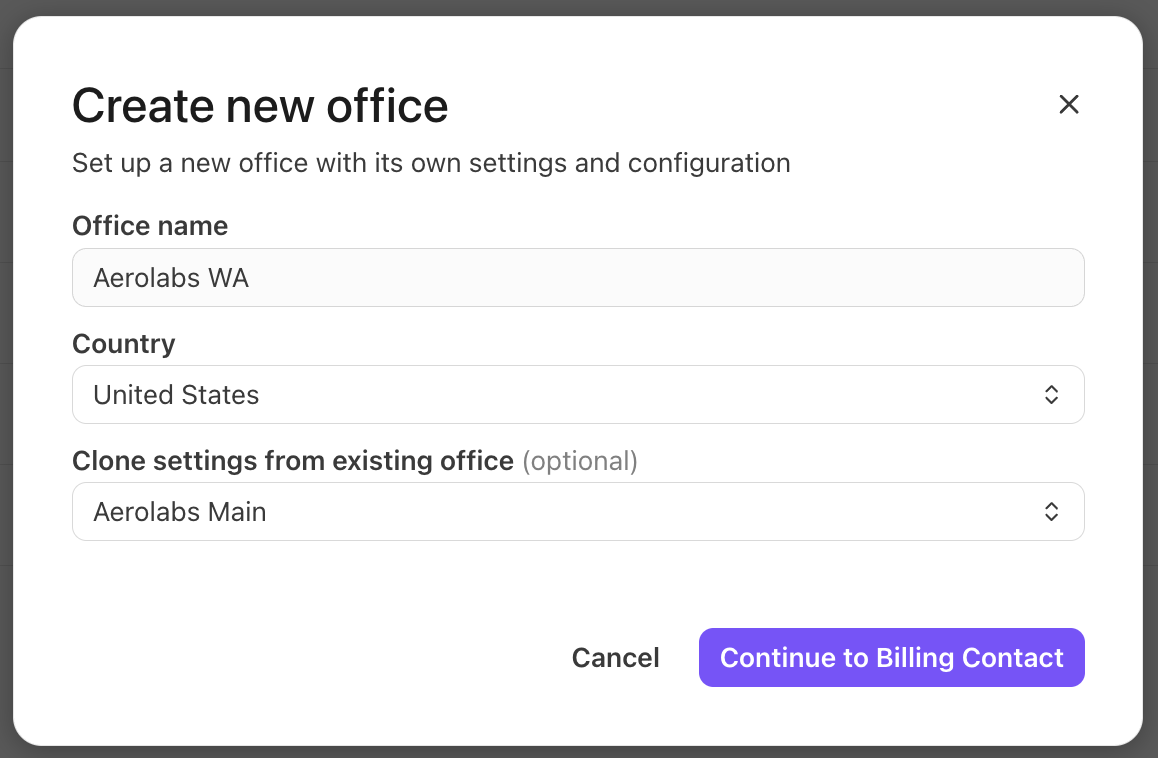
Select Continue to Billing Contact
-
Enter your billing contact details:
- Billing contact name
- Contact email
- Phone number
- Address (including state/province and ZIP/postal code)
- Country
- Use this address as your E911 location (optional)
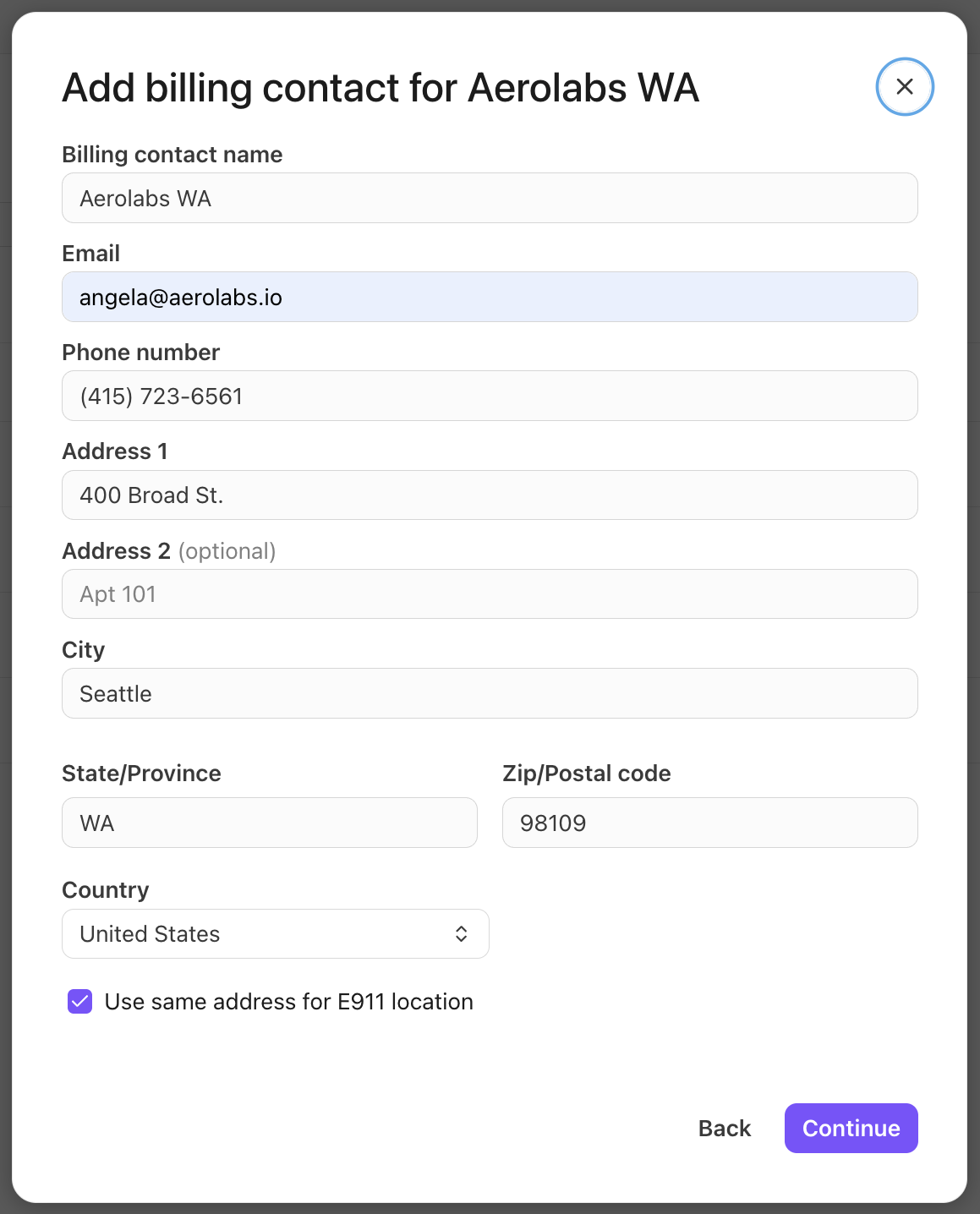
Select Continue
Enter your emergency address information, if it’s not the same as your billing contact
Review your information and select Verify and Save
Once the setup is complete, your new office appears in Office Management, where you can continue managing office settings from one place.
Frequently asked questions
Why don’t I see the Create Office option?
If you don’t see Create Office, your company may not be included in the phased rollout yet.
What information do I need before I start?
You should have your office details, billing contact details, and any required emergency address information ready before you begin.
Why is emergency address information required?
Some office setups require emergency address information so emergency services data can be associated with that office when needed.
What should I do if address validation fails?
Double-check the address for missing or incorrect details, then try again. If the issue persists, contact Dialpad Customer Care for assistance with completing setup.